
Resigned users – find and restore
How a person gets resigned, where to find resigned people, and what comes back when you restore them.
When a person is resigned, they aren't deleted. The profile and their signup answers are kept, so you can always see the history and restore the person if the resignation was a mistake or they change their mind.
How a person gets resigned
- An admin resigns them. Open the profile, click Resign, then click Resign again in the window. You can also select several people in Members and choose Batch actions > Resign member.
- The person resigns themselves. They can do this if Members can resign is switched on under General settings. It is by default. They click Resign on their own profile.
- The person is blacklisted. That resigns them too, but they don't get the resign email and aren't unsubscribed from Mailchimp. See Resign, blacklist or delete a user.
Team leaders can't resign other people.
What happens when someone resigns
- The person is removed from all teams and shifts in the event, including teams they led. Their spots on the teams become free again.
- If the person leads a team group, they lose that role too.
- Their ticket stops working, and their login to the Crewstack app stops working.
- They get an email saying they've been resigned. A super admin can change the text under Customize > Mail templates.
- They're unsubscribed from your Mailchimp list, if you use Mailchimp.
- The profile and their signup answers are kept. The profile says This member has resigned!, and you can still see the teams and shifts the person had.
- The person can't log in to the event and can't sign up again themselves. If they try, they get the message You have resigned from … Please contact … to be reasigned.
Resigning only applies to this event. If the person is in your other events, they're still in those.
Find resigned people
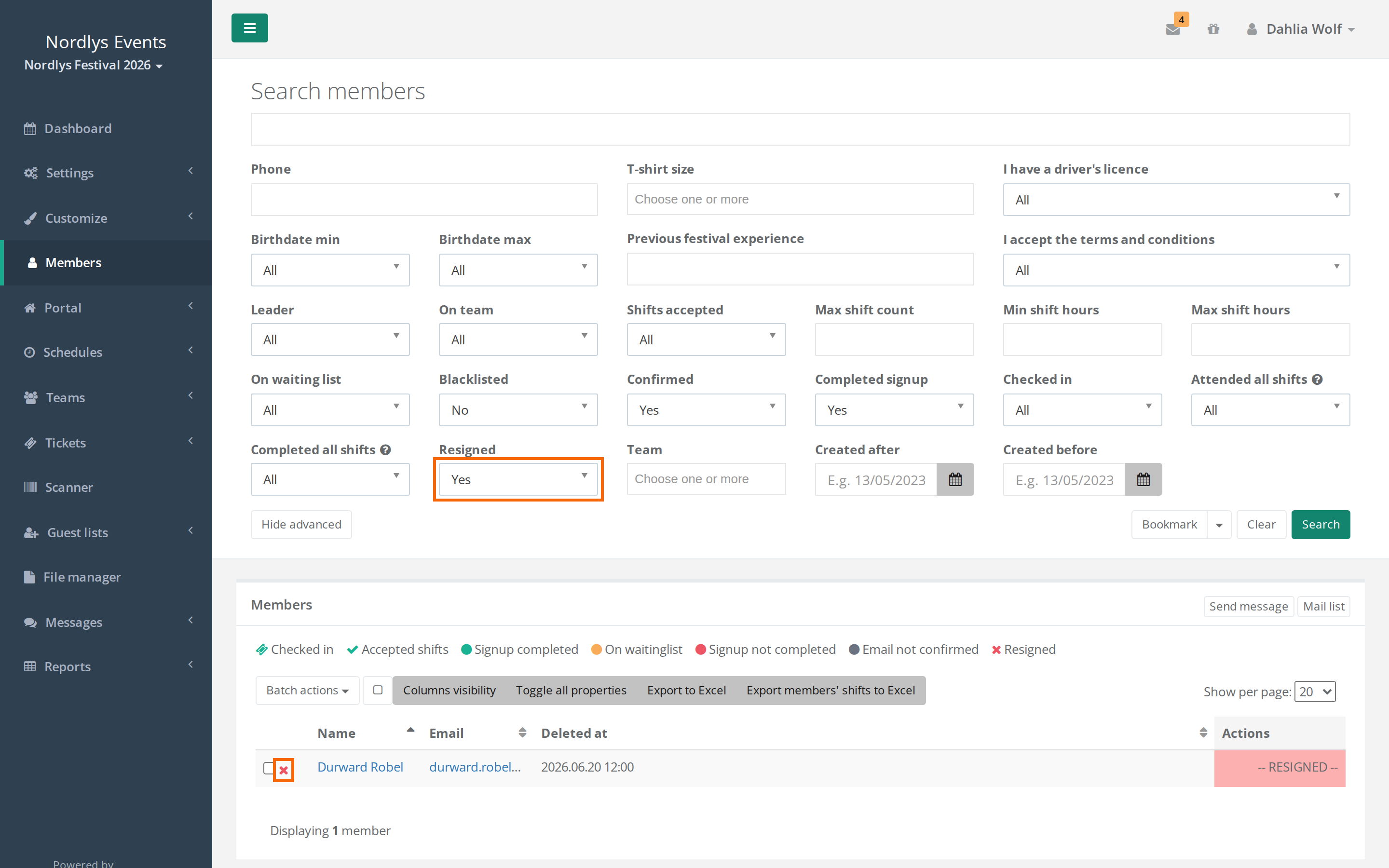
- Go to Members.
- Click Show advanced.
- Set Resigned to Yes to see only resigned people, or to All to see everyone.
- Optionally search for the person's email in the search field at the top, and click Search.
Resigned people have a red cross next to their name. Hover over the cross to see when they resigned.
Restore a person
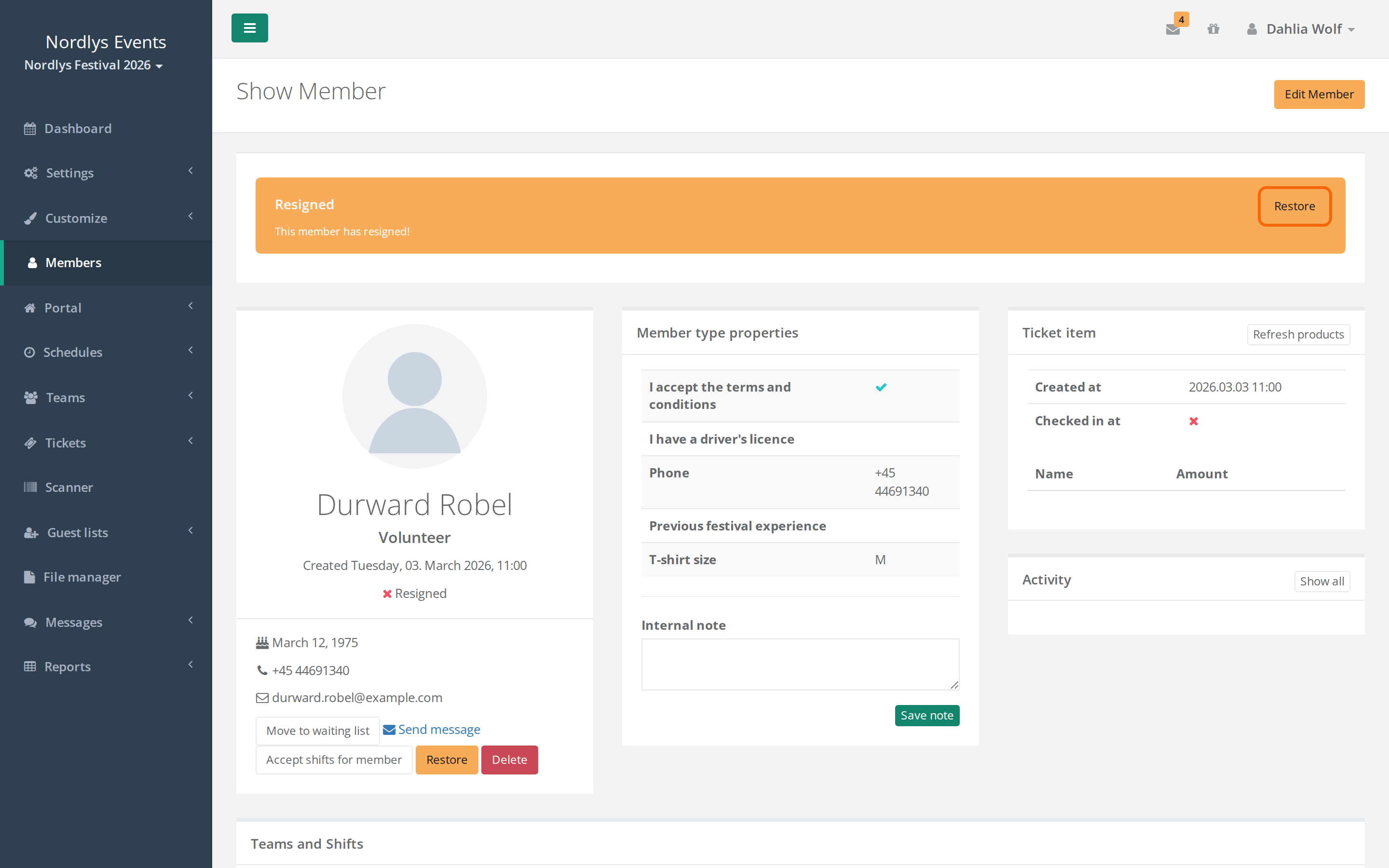
- Open the person's profile.
- Write down the teams and shifts shown on the profile. They disappear from the profile when you restore.
- Click Restore in the yellow box at the top, or under Actions.
- Click Restore in the window.
What comes back:
- The profile and all their signup answers.
- The ticket.
- The password is the same as before, so the person can log in straight away.
- The status, for example Signup completed.
What doesn't come back:
- Teams and shifts. Add them again yourself.
- Team leader and team group leader roles.
- The Accepted shifts status. The shifts have to be accepted again once you've added them.
The person doesn't get an email when you restore them. Let them know yourself.
Restore through New Member
You can create people with New Member on a team or, if Passive users enabled is switched on, in Members. If you create a person with an email that belongs to a resigned person, Crewstack asks: A person with this email has previously resigned. Do you want to recreate them as …? Their previous shifts and team memberships will be cleared. Click Yes, recreate member to restore them.
This is different from Restore on the profile:
- The person gets the member type you chose in New Member.
- Their old signup answers are replaced by what you entered in the form.
- The person gets the email saying their signup is complete.
If you want to keep the old answers, use Restore on the profile instead.
Pitfalls
- Crew members can't restore themselves. A resigned person can't sign up for the same event again. Only an admin can restore them.
- Blacklisted people: Use Un-blacklist in the red box, not Restore. Restore alone doesn't remove the blacklisting, so the person still can't log in. New Member can't restore a blacklisted person either.
- Full teams: When you add the person to a team again, the team's limit applies. If the team has filled up in the meantime, it may not be possible.
- New year: If the person resigned from last year's event, don't restore them there. They simply sign up for the new year's event as usual.
- Should the person be removed completely? Then it's Delete, not resigning. See Resign, blacklist or delete a user.
Didn't find the answer? Write to support@crewstack.io.