
Resign, blacklist or delete a user
The difference between resigning, blacklisting and deleting a person, who can do what, and how to handle a GDPR erasure request.
There are three ways to remove a person from Crewstack: Resign, Blacklist and Delete. They do very different things, and only the first two can be undone.
In short
| Resign | Blacklist | Delete | |
|---|---|---|---|
| Applies to | This event | All your events | All your events |
| Who can do it | Admins, and the person themselves if you allow it | Admins | Super admins |
| The person gets an email | Yes | Only if you choose so | No |
| Can be undone | Yes, with Restore | Yes, with Un-blacklist | No |
| Can the person sign up again? | Not for this event until you restore them | No, not for any of your events | Yes, as a brand-new person, unless the email stays on the blacklist |
| Profile and answers | Kept | Kept | Deleted |
You'll find all three actions on the person's profile. Resign and Blacklist aren't shown on a profile that is already resigned. To blacklist a resigned person, restore them first. If there are many actions, they're under Actions.
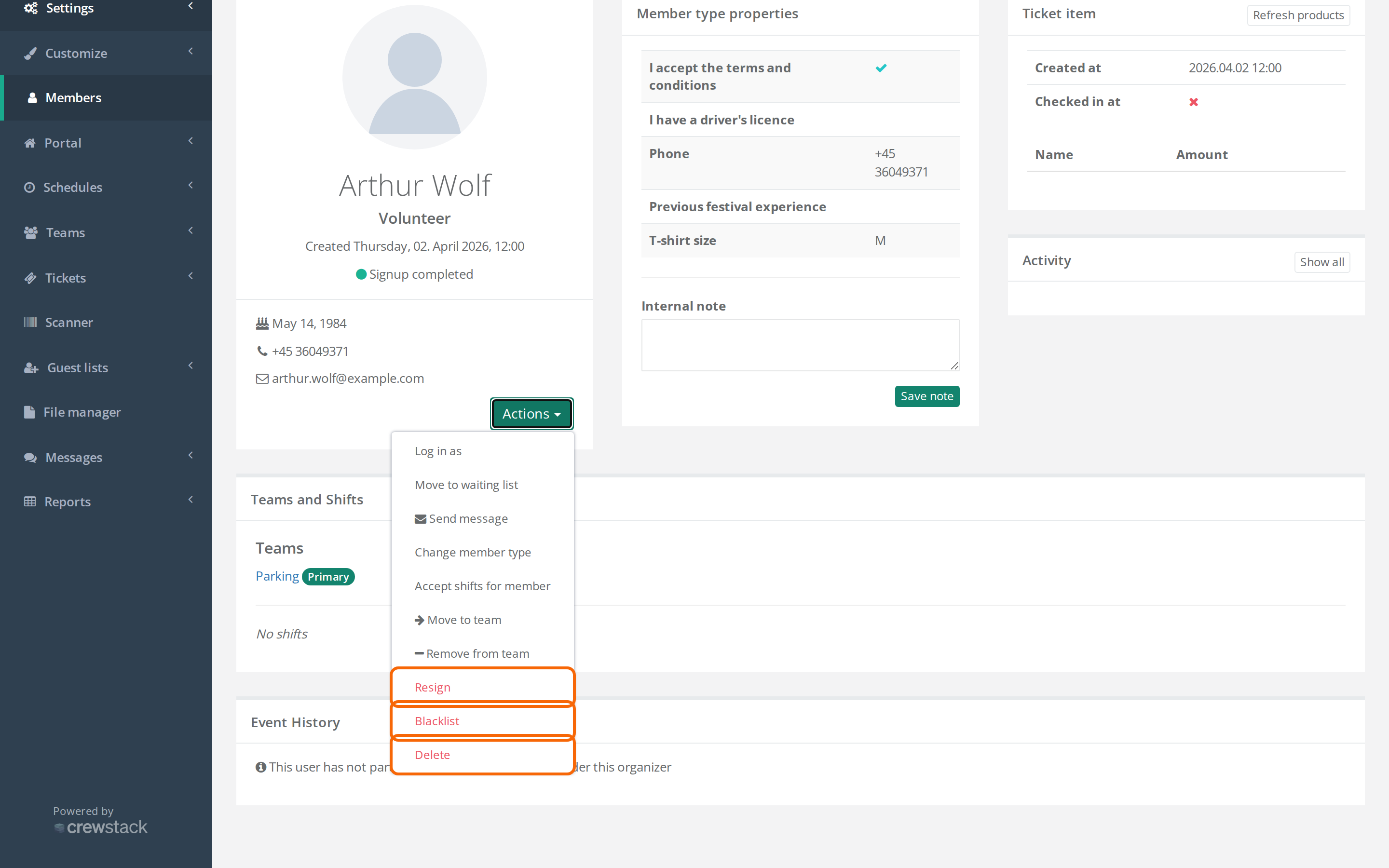
Resign
Use Resign when a person should no longer take part in this event, for example because they've cancelled.
- Open the person's profile and click Resign.
- Click Resign. If Ask for reason when taking actions is switched on under General settings, enter a reason first (it can be optional or required). See Ask for reason when taking actions.
What happens:
- The person gets the status Resigned, is removed from all teams and shifts in the event and can no longer log in to it.
- The person gets an email about being resigned.
- The person is unsubscribed from your Mailchimp list, if you use Mailchimp.
- The profile, their signup answers and their history are kept, so you can restore the person later.
- The person is still part of your other events.
You can also resign several people at once: select them in Members and choose Batch actions > Resign member.
If Members can resign is switched on under General settings, crew members can also resign themselves from their profile.
See Resigned users – find and restore for how to find and restore resigned people.
Blacklist
Use Blacklist when a person must not take part with you again.
- Open the person's profile and click Blacklist.
- Choose whether the person should be told. Send notification email to user is switched on by default. If you switch it off, the person will still see that they're blacklisted if they try to sign up again.
- Click Blacklist. If Ask for reason when taking actions is switched on, enter a reason first.
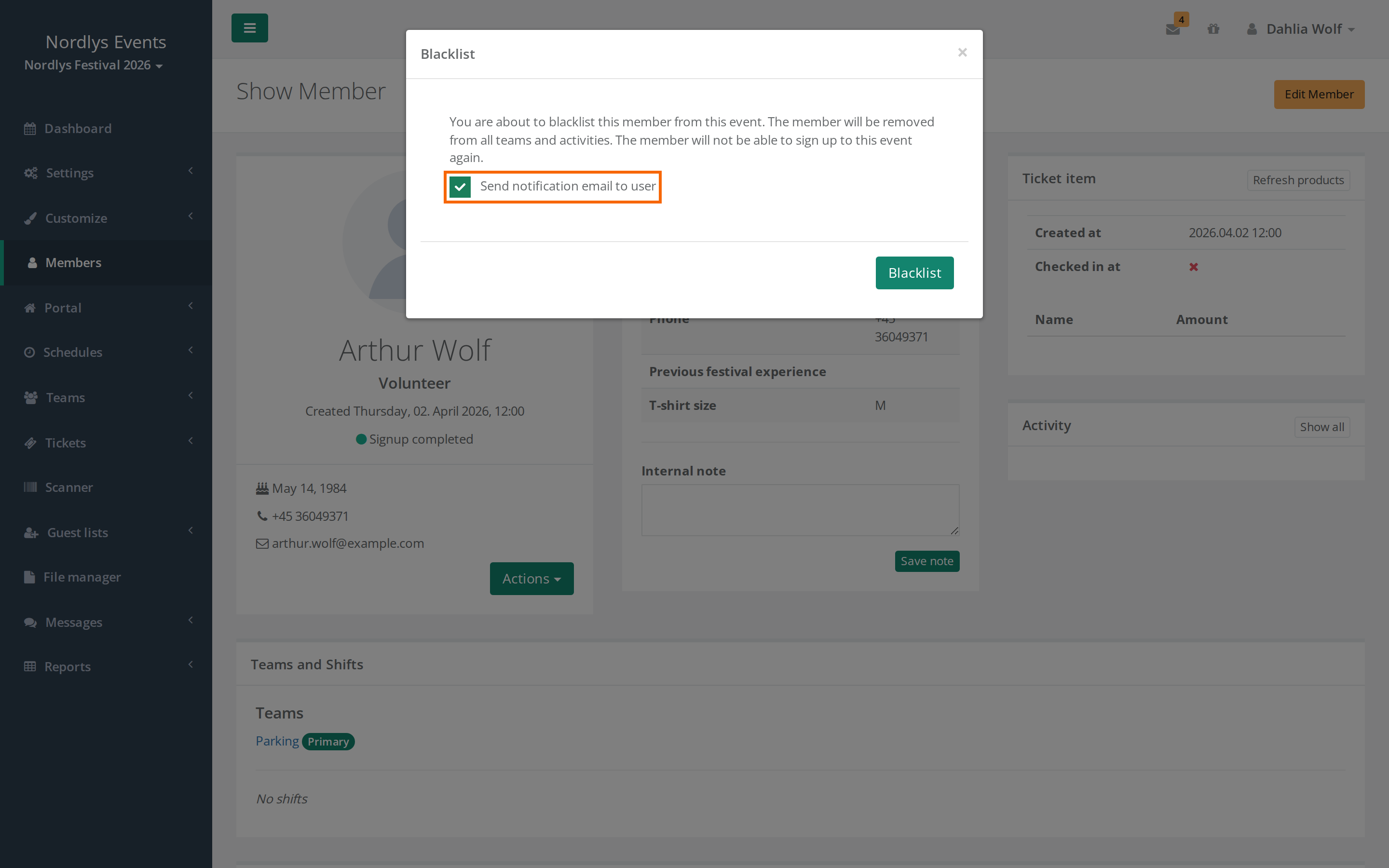
What happens:
- The person is removed from teams and shifts in this event and can't log in, as with Resign. But they don't get the resign email and aren't unsubscribed from Mailchimp.
- The blacklisting applies to the person's login and so to all your events. The person can't log in, sign up or use the Crewstack app with you. If they're signed up for your other events, they stay signed up there, but they can't log in.
- The profile and the answers are kept.
How to undo it: open the profile and click Un-blacklist in the red Blacklisted box. That both takes the person off the blacklist and restores them in this event. Teams and shifts have to be added again.
Delete
Only use Delete when the person must be removed completely, typically because they've asked to be deleted under GDPR.
- Open the person's profile and click Delete.
- Read the window. It says how many events the person will be deleted from, for example This deletes the person from all 3 events in [organizer], not only this one.
- Type DELETE in capitals in the field, and click Delete.
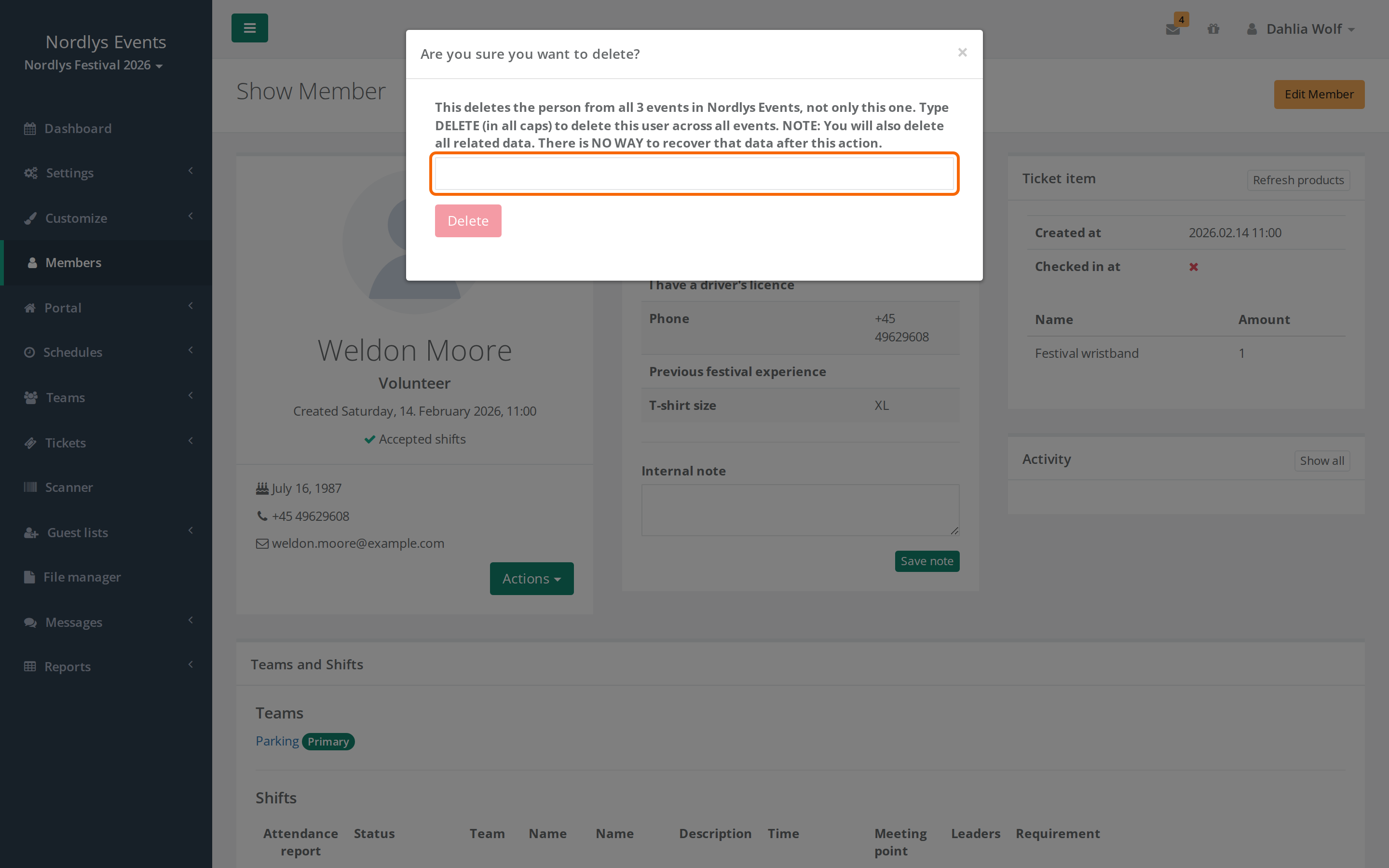
What happens:
- The person's login and all their signups in all your events are deleted, with answers, teams, shifts and tickets.
- Messages the person has sent in Crewstack are deleted too.
- Payments are kept for bookkeeping, and the activity log (for example logins and resignations) is kept for security.
- The person doesn't get an email.
- Emails sent to the person still show under Reports > E-mail messages for up to 30 days. The report reads them straight from the email provider, so deleting the person doesn't remove them there.
- The email can be used for a completely new signup afterwards, unless you keep it on the blacklist (see below).
If the person is blacklisted, the window first asks what should happen to the blacklisting:
- Keep the email on the blacklist (selected by default): Everything else is deleted, but the email address stays on the blacklist together with the reason. The person can't sign up again with that email.
- Remove from the blacklist as well: The person is deleted completely and can sign up again.
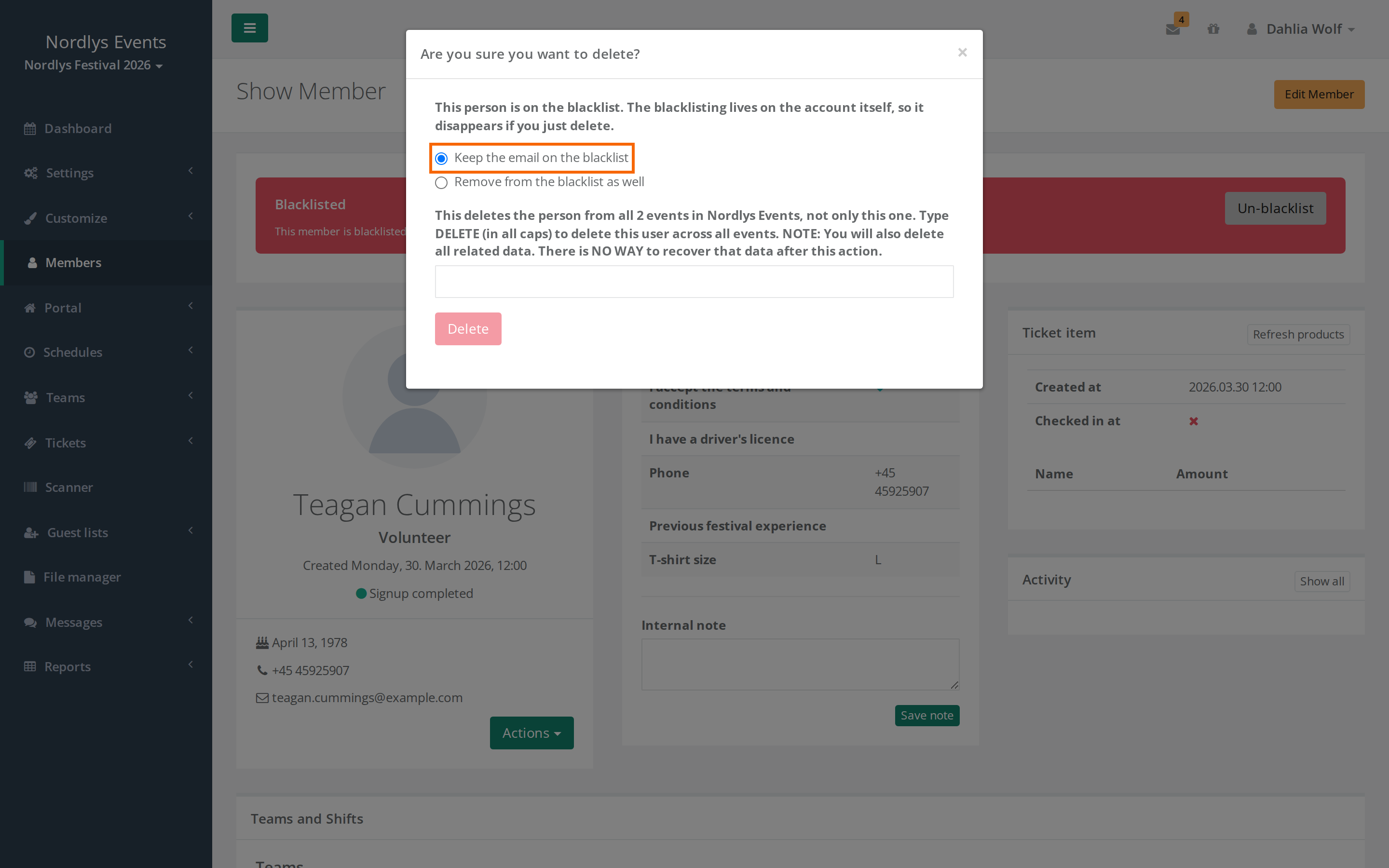
If the deletion fails with the message Cannot delete member because dependent Guest lists exist on …, the person owns a guest list. Give the guest list another owner or delete it, then try again.
When should I use which?
- The person has cancelled this year: Resign. They can come back next year, and you can restore them if they change their mind.
- The person was resigned by mistake: Restore them.
- The person must not take part again: Blacklist.
- The person asks to be deleted: Delete. See the recipe below.
- Cleaning up after an event: Do nothing. A new year is a new event, and crew members sign up again themselves. Don't use Delete to clean up, because it also deletes the person's signups from previous years.
Recipe: an erasure request (GDPR)
- Make sure the request comes from the person themselves, for example from the email shown on their profile.
- If the person has also asked for a copy of their data, export it first. See Export people to Excel.
- Find the person in Members. Under Show advanced, set Resigned and Blacklisted to All so you also find the person if they've resigned.
- If the person owns a guest list, give it another owner.
- If the person is blacklisted, decide whether the email should stay on the blacklist. As data controller, it's your decision whether you have a legitimate reason to keep it.
- Ask a super admin to click Delete and type DELETE.
- Delete the person wherever you hold their data outside Crewstack, for example Excel exports and Mailchimp. Deleting them in Crewstack doesn't delete them there.
- Let the person know they've been deleted.
After the deletion, the person can still be found in Crewstack's backups for up to 7 days and in the email provider's delivery logs for 30 days. After that they are gone.
See also GDPR and personal data in Crewstack.
Didn't find the answer? Write to support@crewstack.io.