
AI-powered data analysis and exports
Ask questions about your members in plain language and get the answer as a number or a table you can export as CSV.
With AI Member Analysis you can ask questions about your members in plain language, such as "How many crew members have a food ticket?", and get the answer straight away. No need to build searches and exports when all you need is a number or a list.
Who can use it?
- The feature has to be turned on for each event by Crewstack. Contact us to have it turned on.
- Once it's on, everyone with the Admin or Super admin role can use it. Team leaders and guest list admins can't.
You'll find it under Reports > AI Member Analysis.
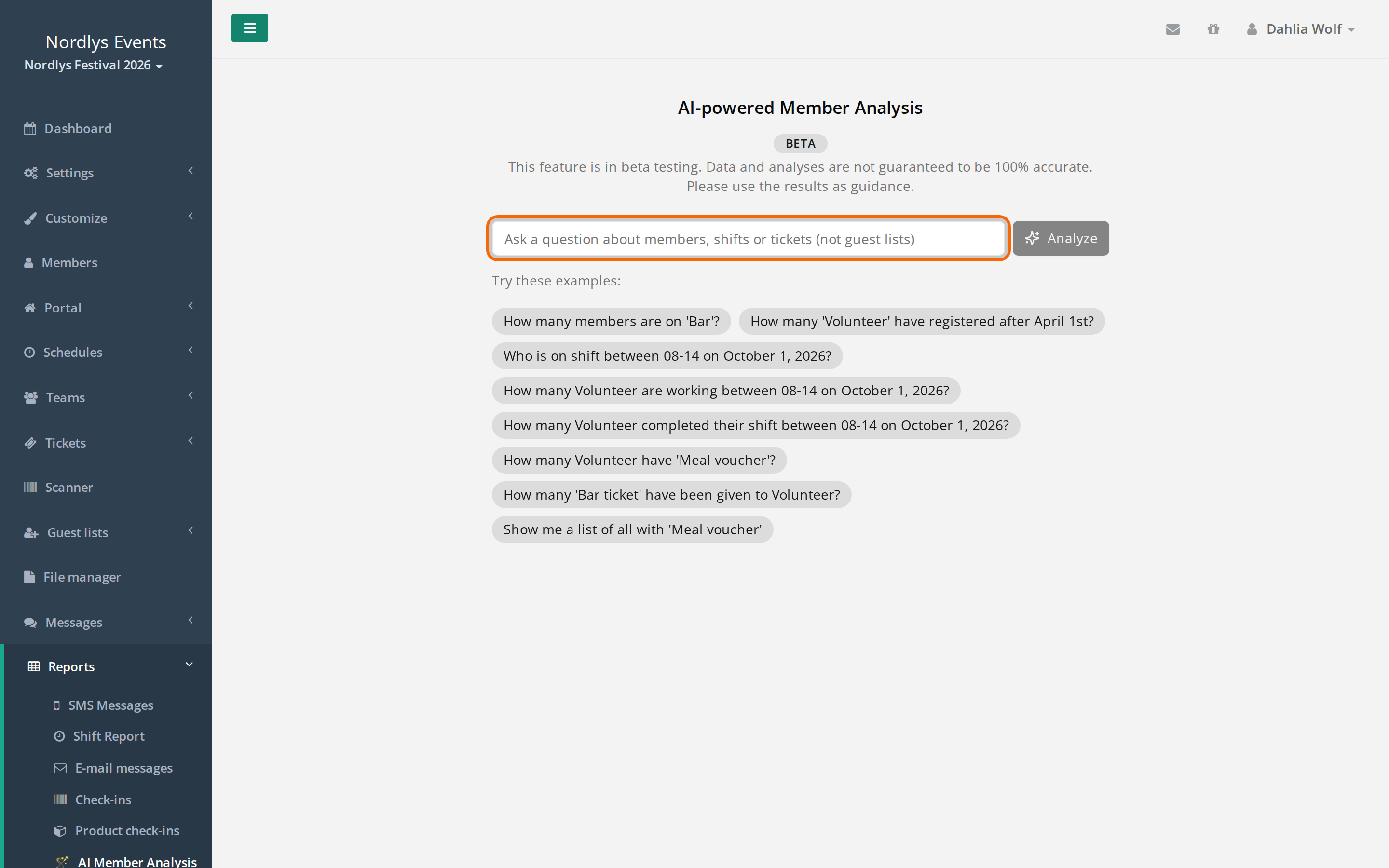
How to ask a question
- Type your question in the field. You can also click one of the examples under Try these examples:. They are built from your own teams, member types and tickets.
- Click Analyze. It usually takes a few seconds.
- Read the answer. You get a short text and either a single number or a table.
Below the answer you'll find:
- How this was calculated: click to expand a plain-language explanation of what was searched for. Check it if the answer looks wrong.
- Ask next: up to three suggested follow-up questions. Click one to ask it.
- Earlier questions: up to four of your previous questions, so you can ask them again. It appears once you've asked at least two different questions. The list disappears when you leave the page.
If the table lists people (one row per person), you can click a name to open their profile. Tables with counts per team or member type have no links.
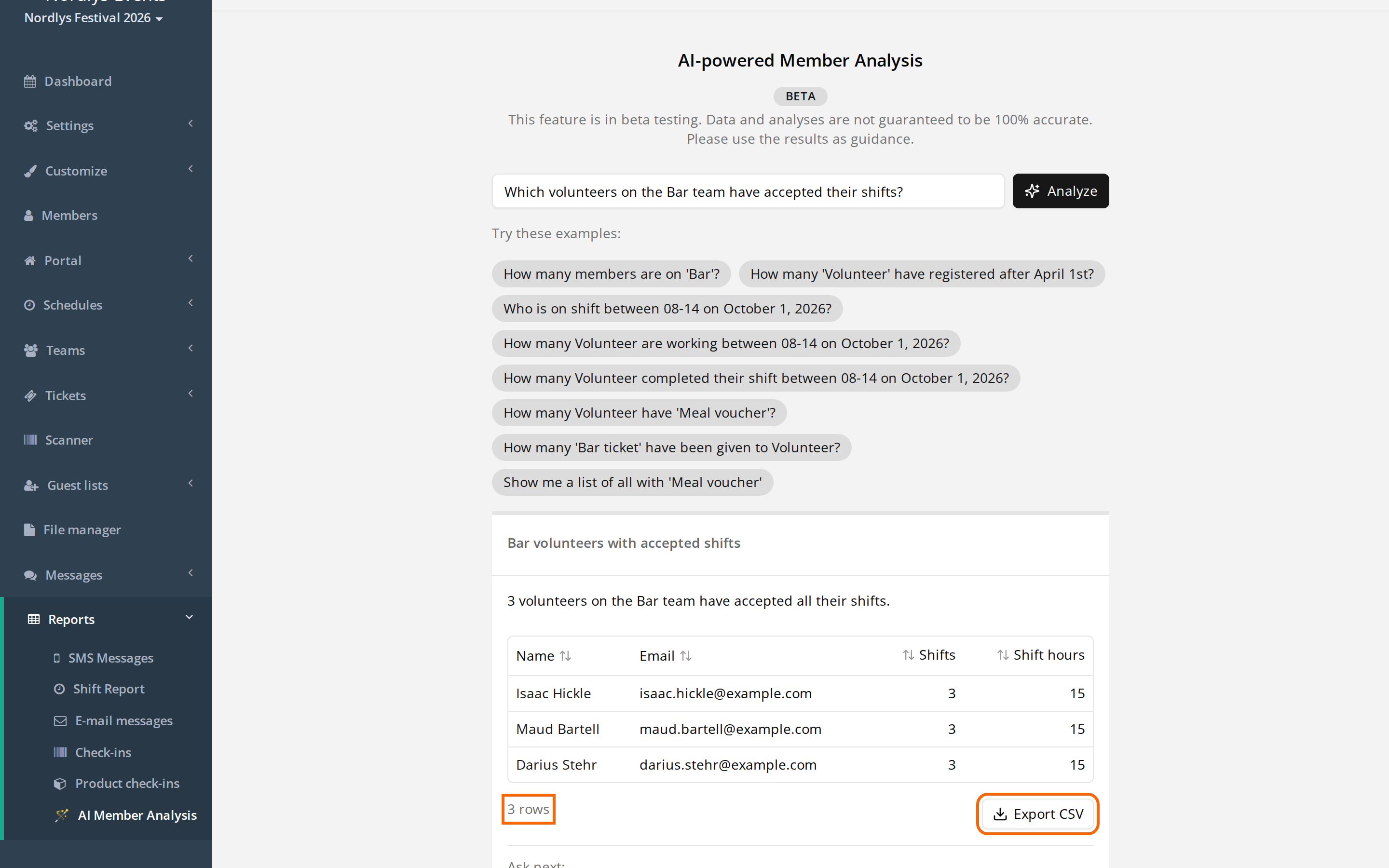
Export as CSV
If the answer is a table, you can click Export CSV and open the file in Excel or Google Sheets.
- The page shows the first 500 rows. The CSV file contains up to 50,000 rows.
- An answer that is a single number can't be exported.
- The export fetches the data again at the moment you click. If more than an hour has passed, you'll see Export failed. Please run the analysis again. Ask the question again and export right away.
What can you ask about?
The analysis knows about your members in the event you're in:
- name, e-mail, phone, member type and role
- teams, and who is a team leader or team group leader
- registration date, waiting list and payment
- shifts: times, number of shifts and hours, attendance and whether the shift was completed
- tickets and products, and how many they hold
- your own data fields that you're allowed to see
- ticket check-in
Good questions are specific and name teams, member types and tickets as they are called in your setup:
- "How many crew members are on each team?"
- "Show everyone on 'Bar crew' who hasn't accepted their shift plan"
- "Who is on shift between 10 and 14 on 3 July?"
- "How many crew members didn't show up for a shift yesterday?"
- "Show team leaders without a phone number"
- "How many have 'Food ticket', split by member type?"
- "How many have registered per week since 1 March?"
- "Who is on the waiting list, and when did they register?"
What it can't do
- It can only read data. It can't change, move or delete anything.
- It only knows the event you're in, not your previous years.
- It can't answer questions about guest lists, messages, files or news.
- Schedules aren't known by name. Ask by date and time or by team instead.
- If you use a name it can't find, such as a team that doesn't exist, it tells you with the message I could not find … and leaves it out of the answer.
- It's in beta. Answers aren't guaranteed to be correct, so treat them as guidance and check How this was calculated before using a number for anything important.
What is sent to OpenAI?
No personal data about your members is sent to OpenAI, only your question and the names of your fields, teams, member types and products. The analysis uses a language model from OpenAI to understand the question and build a query, which runs in Crewstack.
Sent to OpenAI:
- your question, exactly as you typed it
- the names of the event's member types, teams, tickets and products and custom data fields, in all of the event's languages, with Crewstack's internal ids
- a description of what kinds of information exist about a member (e.g. "name", "number of shifts"), without the values
- today's date, the event's time zone and languages
- if the first attempt is rejected: a new attempt with the rejected query and the error text (string values removed from database errors)
Stays in Crewstack:
- all information about individual members: names, e-mails, phone numbers, answers in data fields, shifts, tickets and payments
- the result. The query runs in Crewstack, and the number or table is only sent to your browser. OpenAI never sees the answer.
Access to sensitive data fields
The analysis respects Visible to. You can only see the data fields you can also see on the person's profile. If, for example, you have created a data field for health information and limited it to Member + super admins, an admin can't see the answers in that field in the analysis.
Check this if the answer is wrong
- "No members matched": write the team, member type or ticket exactly as in your settings, and check the date.
- Error: click Try again. Phrase the question more simply or split it in two.
- The number looks too high or too low: open How this was calculated and see whether, for example, people on the waiting list or without a completed registration were counted. Say so in the question, e.g. "only those with a completed registration".
- Times: include the year and time of day. Times are read in the event's time zone.
Didn't find the answer? Write to support@crewstack.io.