
Tags on teams and member types
How to switch tags on, create them and put them on teams and member types, so you can find people and teams across team groups.
Tags let you give teams and member types coloured labels, for example External partners or Driving licence required. You can then find all teams and people with the same label, even when the teams are in different team groups.
Switching tags on and creating them needs a super admin.
Switch tags on
- Go to Settings > General settings.
- Find the Teams section, and tick Enable tags.
- Click Save.
Now Tags appears under Settings in the menu, and teams and member types get a Tags field.
Create tags
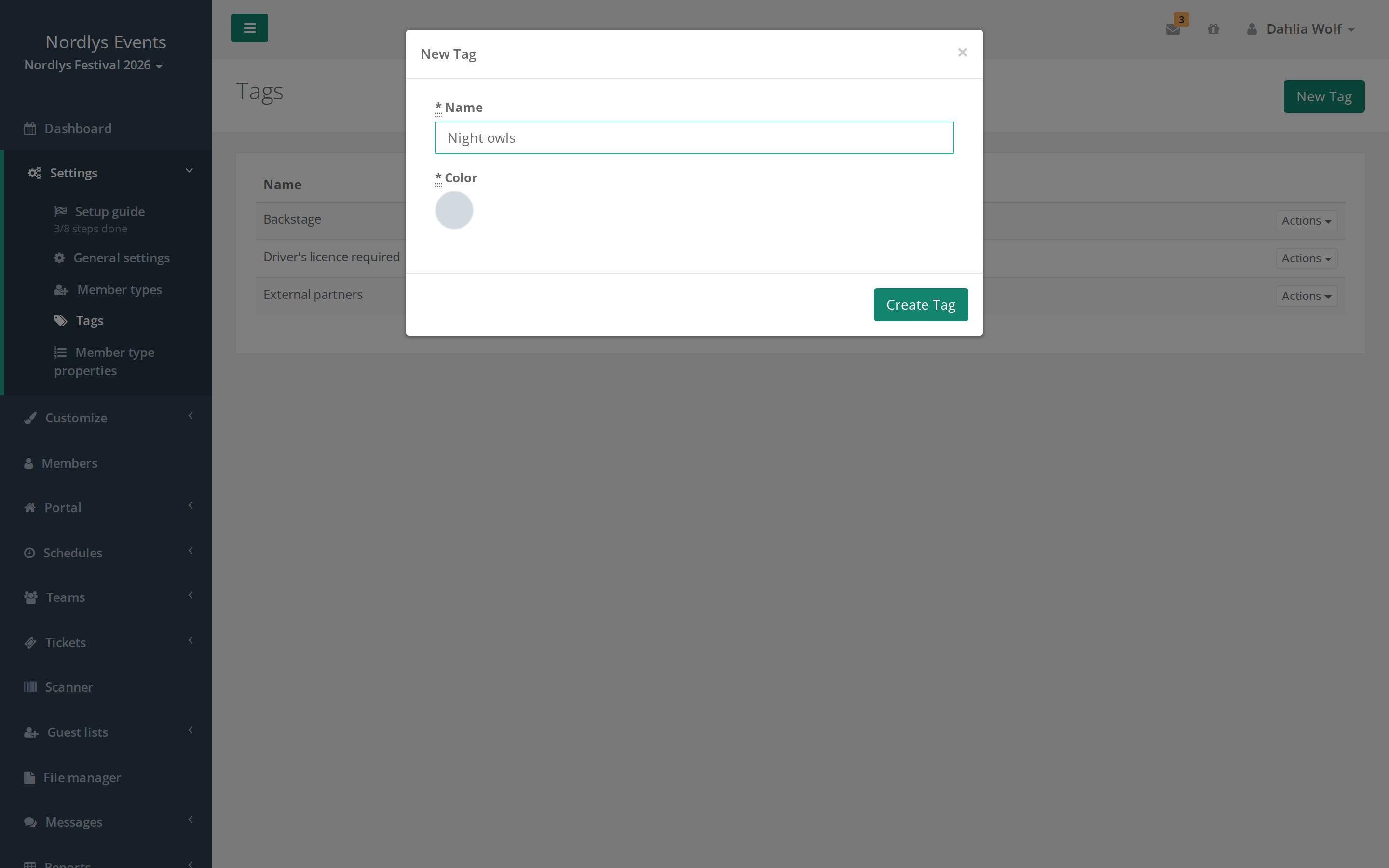
- Go to Settings > Tags.
- Click New Tag.
- Enter the name in Name, and choose a colour under Color.
- Save.
Two tags can't have the same name. You edit or delete a tag under Actions next to it. If you delete a tag, it disappears from all teams and member types.
Put tags on teams and member types
- Teams: Open the team under Teams > Teams, click Edit Team, and choose one or more tags in Tags. Admins and team group leaders can do this.
- Member types: Open the member type under Settings > Member types, and choose tags in Tags. This needs a super admin.
The team's tags are shown under the team's name on the team's page.
Find teams and people with a tag
- Teams: Under Teams > Teams the list has a Tags column. Choose one or more tags in the field at the top of the column to see only those teams.
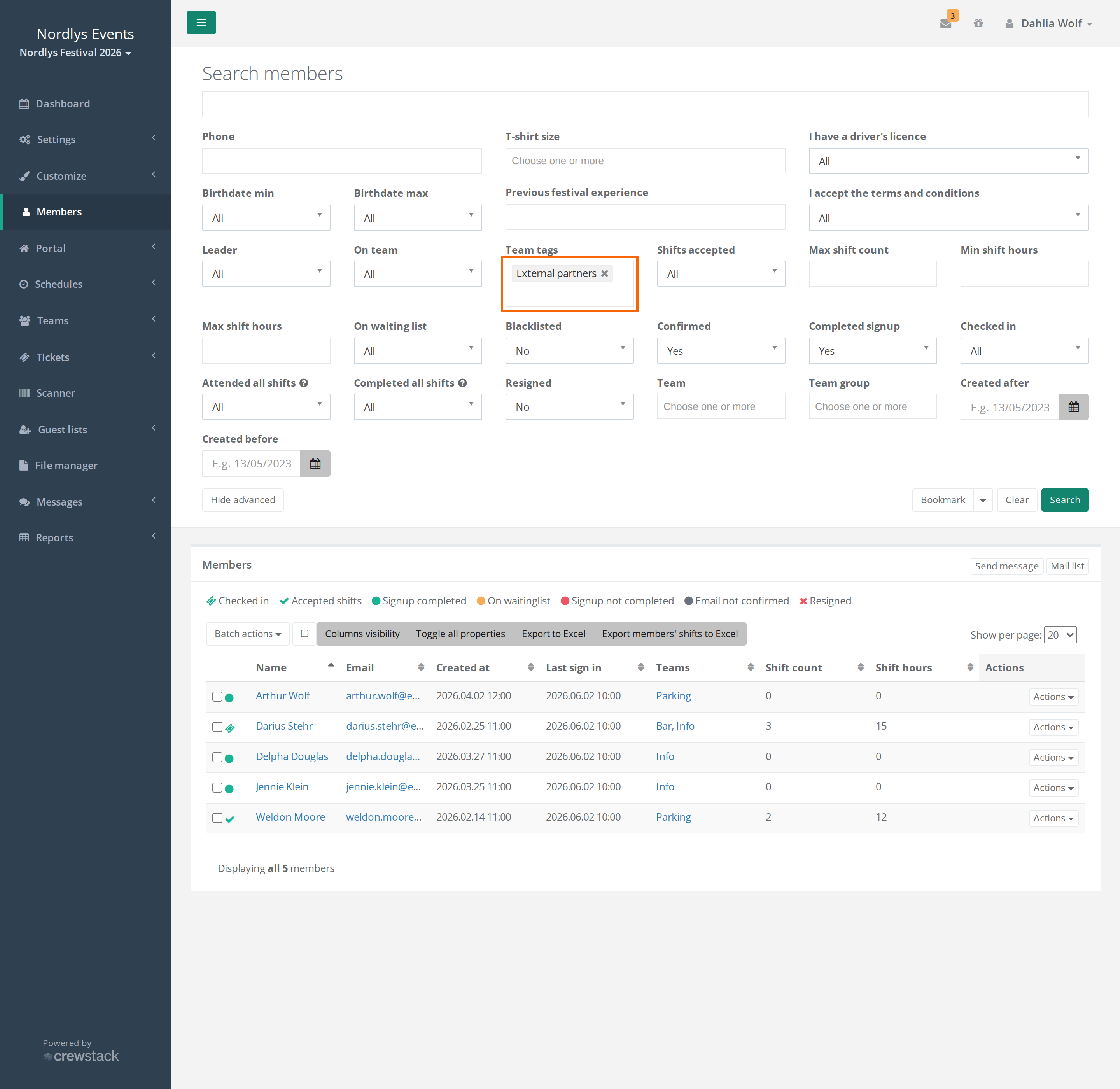
- People: Under Members > Show advanced you can search by Member type tags (people whose member type has the tag) and Team tags (people on a team with the tag). Click Search.
If you choose several tags, you find everything that has at least one of them.
Team leaders can use the filters too, but they can't create tags or put them on anything.
Pitfalls
- Tags are only for finding things: A tag doesn't change who can sign up or what team leaders may do.
- If you switch tags off again, the menu item, the fields and the filters disappear.
- Tags only apply to one event. If you have several events, create the tags in each event.
Didn't find the answer? Write to support@crewstack.io.