
Documents for approval
Let crew members upload a document such as a criminal record certificate or an ID, choose who may approve it, and review the documents. The file is deleted once it has been reviewed.
With the Document for approval data field, crew members can upload a document that someone needs to see, for example a criminal record certificate, an ID or a course certificate. An approver opens the document and approves or rejects it. Then the file is deleted, and only the outcome is kept.
How it works
- The crew member uploads the document during signup or on their profile. The field now shows Awaiting approval.
- An approver opens the document under Reports > Documents for approval.
- The approver clicks Approve or Reject.
- The file is deleted straight away, whichever the approver chose.
After Approve, the field shows Approved with the date. Approvers can also see who approved it. After Reject, the field is empty again, and the crew member has to upload a new document.
The document can be a PDF or an image (JPG, PNG or HEIC) of up to 10 MB.
Create the field
Only super admins and organizer admins can create data fields.
- Go to Settings > Member type properties, and click New Member type property.
- Tick the member types that should upload the document, and choose Document for approval under Type. Click Next.
- Give the field a name, for example "Criminal record certificate". If you like, use the description to say what the document must show.
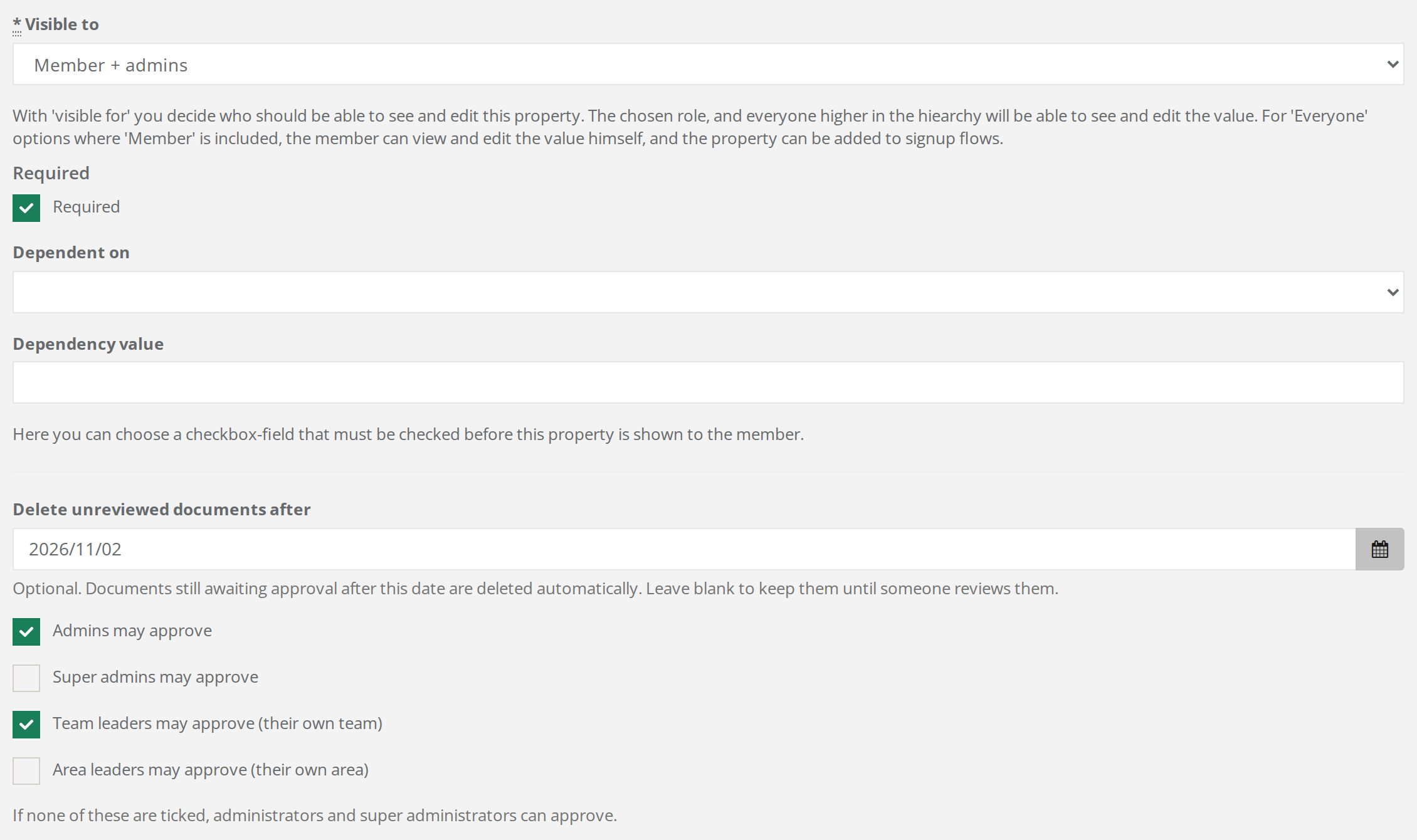
- Under Visible to, choose an option that includes the person themselves, for example Member + admins. Otherwise they can't upload the document.
- Tick Required if everyone has to upload the document.
- Choose who may approve (see the next section).
- If you like, choose a date under Delete unreviewed documents after (see When nobody gets to it).
- Save.
See Data fields and who can see them for the rest of the form.
Who may approve
You choose the approvers with four checkboxes on the field:
- Admins may approve: all admins, super admins and organizer admins.
- Super admins may approve: super admins and organizer admins.
- Team leaders may approve (their own team): the leaders of the teams the person is on.
- Area leaders may approve (their own area): the leaders of the team groups the person's teams are in, including team groups further up.
A new field starts with the first two ticked. If you untick all four, admins, super admins and organizer admins can approve.
Only the person themselves and the approvers can open the document. That holds whatever you chose under Visible to. Visible to only controls who can see the field's status, for example Awaiting approval or Approved, on the profile, in the list under Members and in the export. The export never includes the document itself.
Review the documents
Documents for approval is under Reports in the menu. You see it when the event has at least one field of the type Document for approval, and you are an admin or lead a team or a team group.
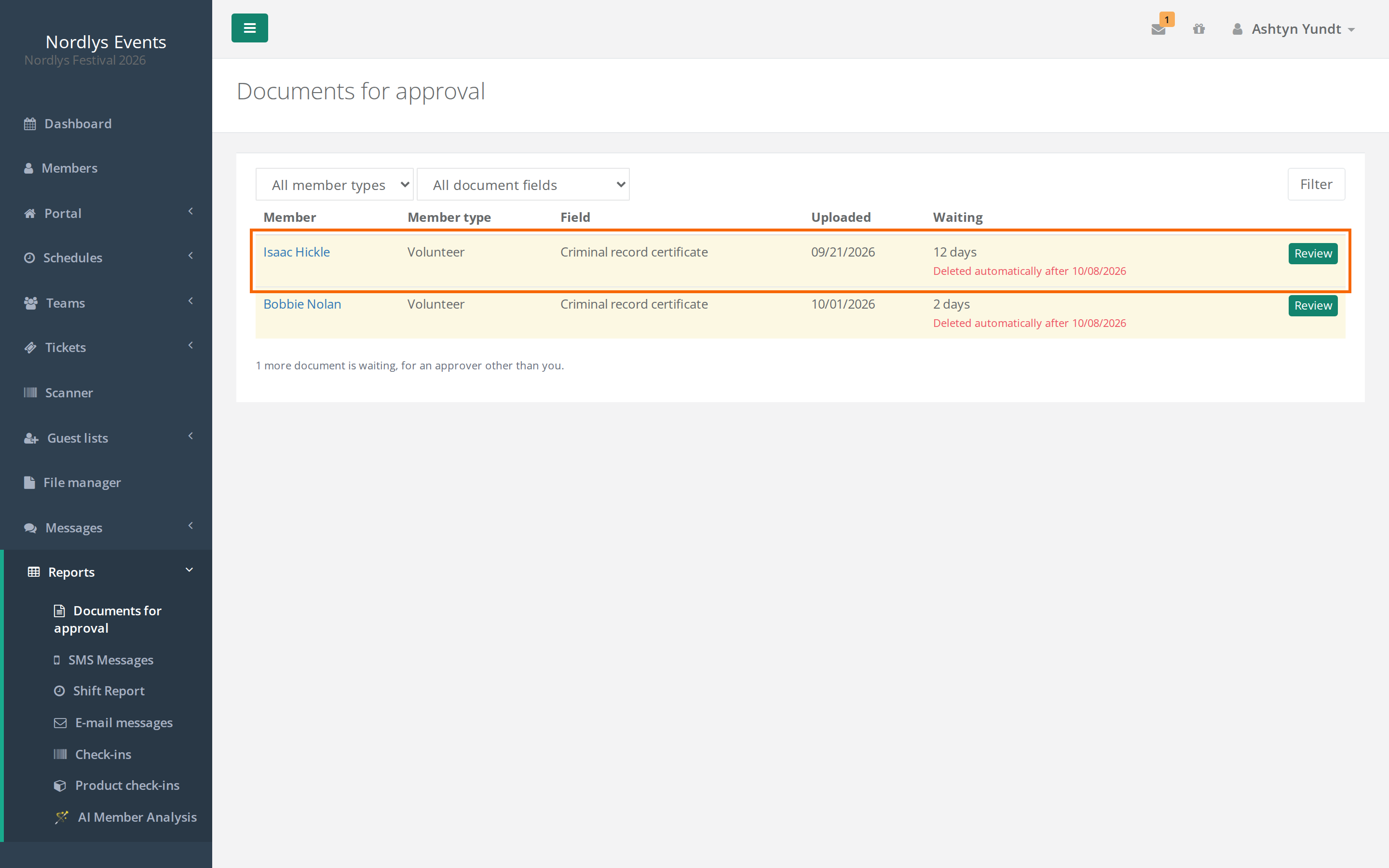
- Go to Reports > Documents for approval. The oldest document is at the top.
- If you like, choose a member type and a field, and click Filter.
- Click Review next to the document.
- Look at the document. Open full size opens it in a new tab.
- Click Approve or Reject, and confirm.
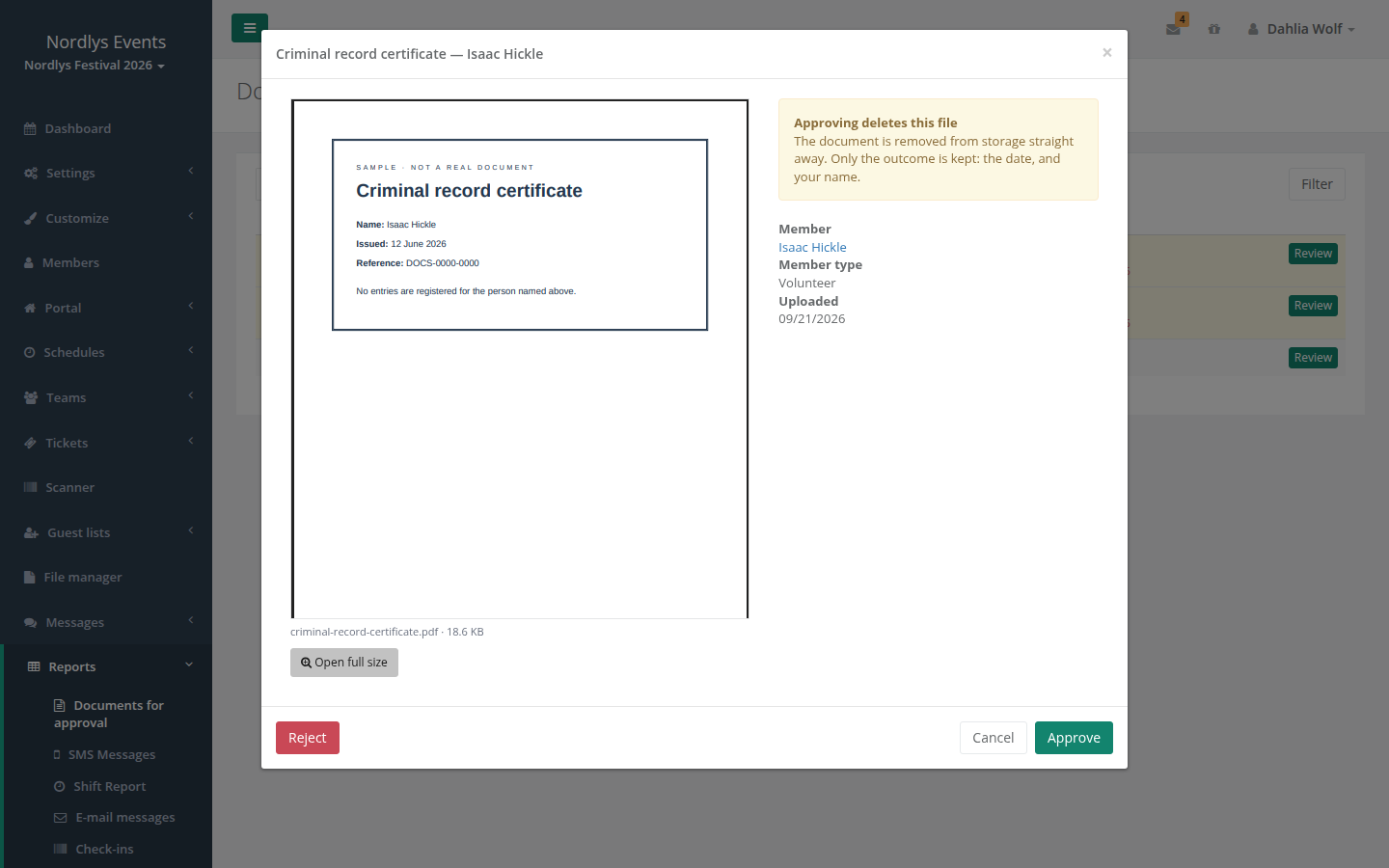
You can also click Review document in the field on the person's profile.
The list only shows the documents you may approve yourself. If documents are waiting for other approvers, it says so below the list, for example 2 more documents are waiting, for approvers other than you. If that message is all you see, you aren't an approver for those documents.
Once you have approved or rejected a document, nobody can open it again. If another approver got there first, you get the message … was already reviewed by someone else. Nothing was changed.
When nobody gets to it
With Delete unreviewed documents after, the documents still waiting are deleted automatically during the night after the date. The field then shows Not approved — document deleted. In the list, a document is highlighted in yellow during the last week before the date, and it says Deleted automatically after ….
If you leave the date empty, the documents stay until someone reviews them.
What your crew sees
- Next to the field it says: An administrator will check this document. Once it has been checked the file is deleted from our systems, and only the outcome is kept. The text is the same when team leaders are the approvers.
- While the document is waiting, they can open it with View document and upload a different one instead.
- Once the document is approved, it says Approved and the date. They can't upload a new one.
- If you reject the document, they get no email. If the field is required, they are asked to upload a new one the next time they open Crewstack in the browser. If it isn't required, you have to ask them yourself.
Pitfalls
- Reject sends no message. Write to the crew member yourself and tell them what was wrong, so they know what to upload.
- After the date, the document can't be uploaded again. If a document was deleted without anyone reviewing it, the crew member can't upload a new one in that field. Choose a date that gives you enough time.
- New documents after the date are deleted too. If someone uploads a document after the date has passed, it is deleted the following night without being reviewed. Move or remove the date if you still need to receive documents.
- New year: Approvals don't carry over when you copy the event, or when a crew member signs up for a new event. They have to upload the document again.
- Visible to without the person themselves: If you choose an option under Visible to that doesn't include the person, they can't see the field and so can't upload anything.
Didn't find the answer? Write to support@crewstack.io.