
Data fields and who can see them
Create data fields for your member types, make them required or conditional, and choose under Visible to who can see the answers.
Data fields are the information you ask people for, for example phone number, birthdate or T-shirt size. You create each field in one place and choose which member types use it and who may see the answer.
Find the data fields
Go to Settings > Member type properties. You can switch between three views at the top right:
- Fields: all fields with their type, whether they are required, and which member types use them.
- Types: the fields grouped by member type.
- Matrix: a grid with the fields in the rows and the member types in the columns.
Create a data field
- Click New Member type property.
- Tick the member types that should use the field, and choose the field's Type. Click Next.
- Give the field a name and, if you like, a description.
- Choose under Visible to who may see the answer (see below).
- Tick Required if the field must be filled in.
- If you like, choose a field under Dependent on (see below).
- Save.
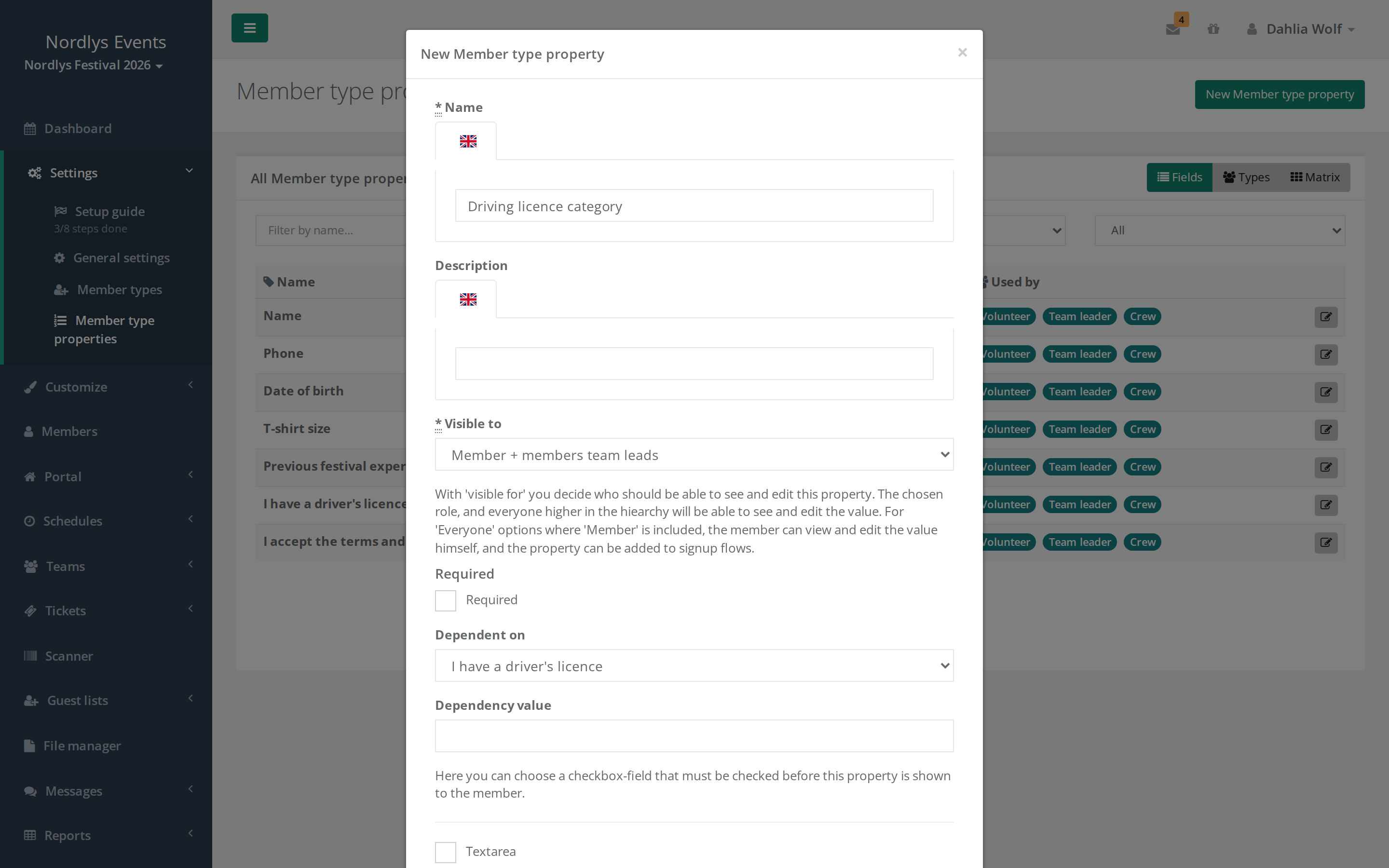
There are two kinds of fields:
- Built-in fields such as Phone, Birthdate and Bank account. Each of them exists only once in the event.
- Your own fields such as Custom string, Custom checkbox and Custom select. You can make as many of them as you like, and you name them yourself. A custom string can be made into a large text box for long answers.
Name is on every member type. It is always required and always visible to Everyone.
Two field types have their own guide. See Secondary email and Documents for approval.
You can change later which member types use a field. If people of a member type have already answered the field, you can't remove that member type from the field until you have deleted the answers with Delete values.
Required
Required applies to every member type that uses the field.
- A required field must also be in the member type's signup form. Otherwise the person isn't asked about it during signup. See Set up the signup form.
- If you add a required field after people have signed up, they get the window We need more information! the next time they are logged in. The window can't be closed until they have filled in the field.
- You can only tick Required when the crew member can see the field themselves. If you choose an option under Visible to that doesn't include the person, the tick is removed.
Conditional fields
With Dependent on, a field is only shown when another field has a certain answer. A field can depend on a Custom checkbox or a Custom select.
- Checkbox: Choose the checkbox under Dependent on, and leave the Dependency value field empty. The field is shown when the box is ticked.
- Select: Choose the field under Dependent on, and enter the number of the answer option in Dependency value. The first option is 0, the next 1, and so on. If several answers should show the field, separate the numbers with commas, for example
0,2. This only works when only one answer can be chosen.
Put the field that decides on the same page as the conditional field, or on an earlier page in the signup form.
Visible to
Under Visible to you choose who can see the answer in the field. Admins means admins and super admins. Organizer admins have the same access as a super admin.
| Visible to | Who can see the answer |
|---|---|
| Everyone | The person themselves, all team leaders and team group leaders in the event, and all admins. |
| The member itself | The person themselves and all admins. |
| Member + admins | The person themselves and all admins. The same access as The member itself. |
| Member + super admins | The person themselves and super admins. Regular admins can't see it. |
| Member + members team leads | The person themselves, the leaders of the person's teams, the team group leaders for those teams, and all admins. |
| Member + members team group leads | The person themselves, the team group leaders for the person's teams, and all admins. Not the team leaders. |
| Members team leads | The leaders of the person's teams, the team group leaders for those teams, and all admins. Not the person themselves. |
| Members team group leads | The team group leaders for the person's teams and all admins. Not the person themselves and not the team leaders. |
| Admins | Admins only. |
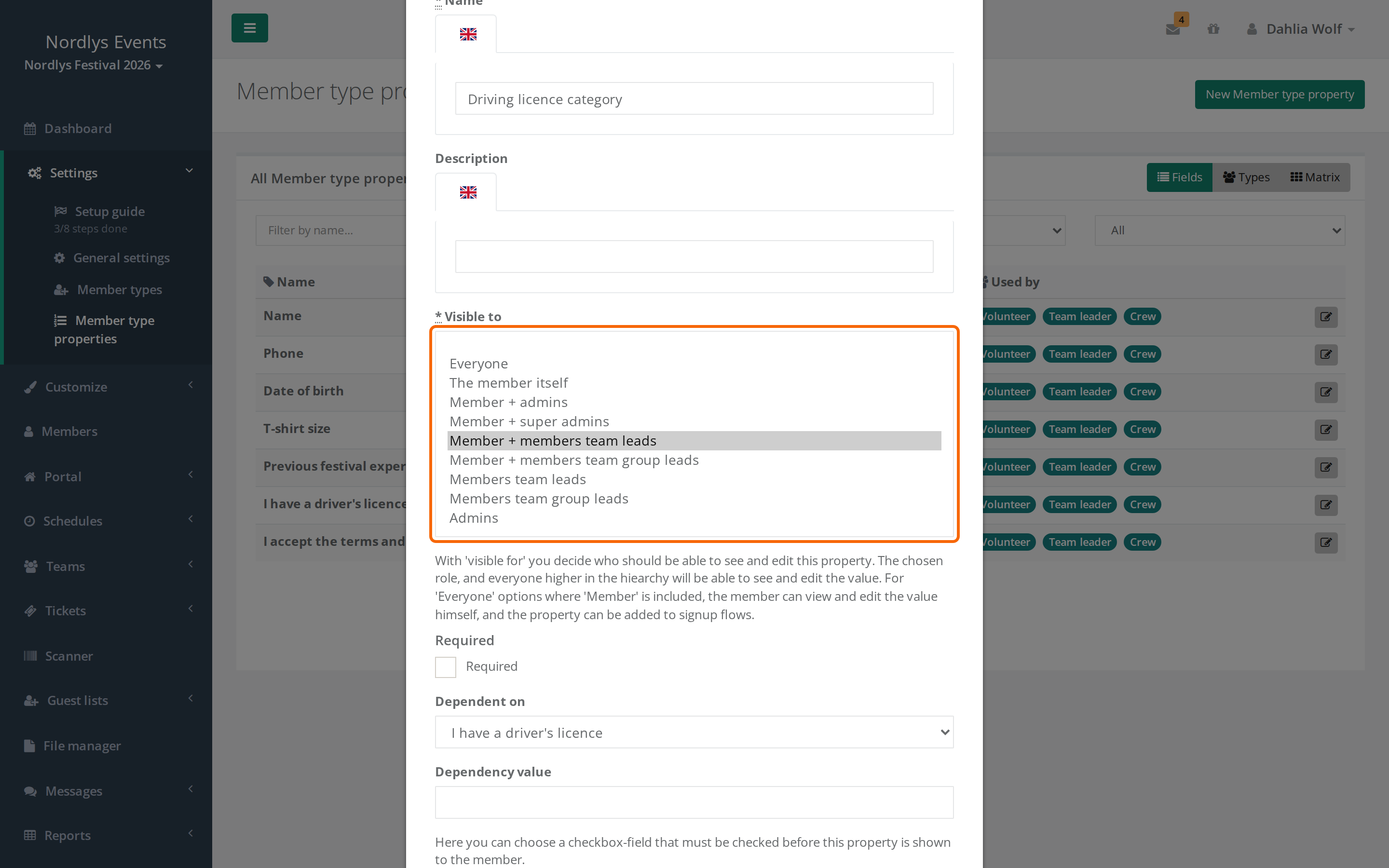
Visible to applies everywhere: on the profile, in the list under Members, when the profile is edited, in Export to Excel and in AI Member Analysis. Nobody can see an answer in the export or the analysis that they can't see on the profile.
If you can see a field, you can also change it, as long as you may edit the profile. Admins may, and so may the person themselves until they are checked in. Team leaders can't edit other people's profiles.
Use the narrow options for sensitive information such as bank accounts and health information. See also GDPR and personal data in Crewstack.
Visible to and signup
Only fields the person can see themselves can be in the signup form. That is Everyone and every option that starts with The member itself or Member +. Fields with Members team leads, Members team group leads or Admins are filled in by you on the profile.
Visible to and teammates
Under Settings > General settings > Teams you can switch on Show members a full member table for their own teams. Crew members then see a table of their teammates under My teams, with the fields you choose under Fields members can see about their own team members. See My teams: what crew members see about their teams.
Visible to applies here too. Apart from their own answers, a regular crew member only sees answers from fields that are visible to Everyone. Sensitive field types such as bank account, address and images can't be chosen for the table at all.
Pitfalls
- Everyone doesn't mean only the person's own leaders. Team leaders and team group leaders can look up everyone in the event. If only the person's own leaders should see the answer, choose Member + members team leads.
- Regular admins see almost everything. Only Member + super admins keeps an answer hidden from regular admins.
- Fields in use can't be deleted. If anyone has answered the field, first delete the answers with Delete values. If you change the answer options on a field in use, keep the order and meaning of the existing answers.
Didn't find the answer? Write to support@crewstack.io.