
File manager – share files with your teams
Where files live, who can see and upload them in each folder, and how to upload, move, pin and find files.
In the File manager you can share files with your crew, for example maps, schedules and instructions. Every team and every team group has its own folder, and inside each one is a Teamleads folder that only the leaders can see.
The folders
Crewstack creates a folder by itself when a team or a team group is created. The folders are arranged like the teams and team groups: a team's folder sits in the folder of the team's team group, and a sub-group's folder sits in the folder of the team group above it. Teams and team groups with nothing above them sit at the top, in Root folder.
The folders of teams and team groups and their Teamleads folder can't be renamed, moved or deleted. You can create more folders inside them yourselves.
Who can see what
Admins here means admins, super admins and organizer admins.
| Folder | Can see and download the files | Can upload, create folders, move, rename and delete |
|---|---|---|
| Root folder | Everyone in the event, including crew members | Admins only |
| A team's folder | Everyone on the team, including the team leaders, the leaders of the team's team group and of the team groups above it, and admins | The team's team leaders, the leaders of the team's team group and of the team groups above it, and admins |
| A team group's folder | Everyone on a team in the team group, including its sub-groups, the leaders of the team group, of its sub-groups and of the team groups above it, and admins | The leaders of the team group and of the team groups above it, and admins |
| Teamleads folder in a team's folder | The team's team leaders, the leaders of the team's team group and of the team groups above it, and admins | The same |
| Teamleads folder in a team group's folder | The leaders of the team group and of the team groups above it, and admins | The same |
| A folder you created yourselves | The same as the folder it's in | The same as the folder it's in |
A file follows the folder it's in. So if you move a file to another folder, you change who can see it.
Upload files and create folders
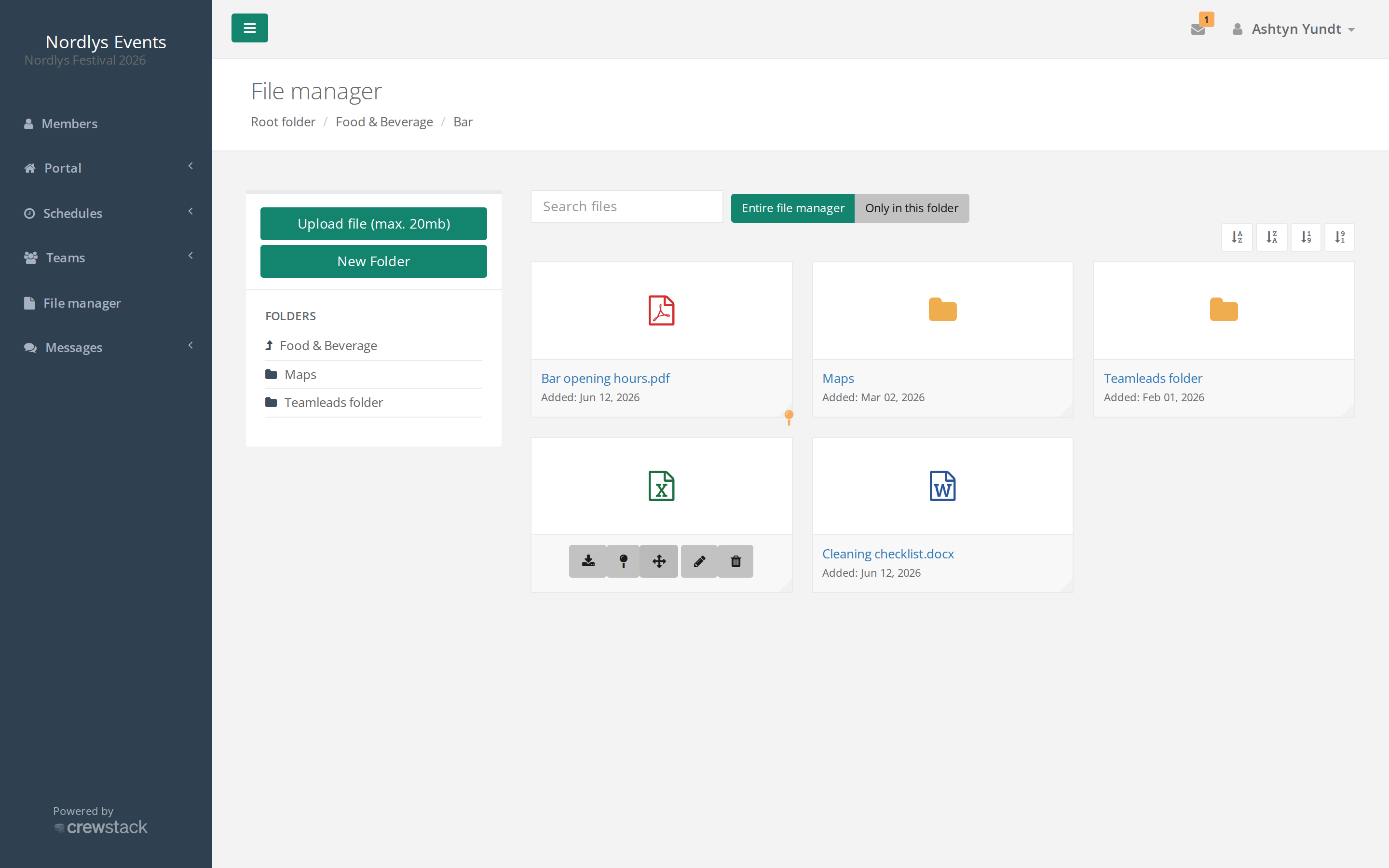
- Click File manager in the menu.
- Click your way into the folder, for example under Folders on the left.
- Click Upload file (max. 20mb), and choose the file. It is uploaded straight away.
You upload one file at a time. New Folder creates a new folder in the folder you're in.
The buttons are only there if you may upload in the folder.
Pin, move, rename and delete
Hover over a file or a folder to see the buttons. You only see the buttons you're allowed to use.
- Download: the down arrow downloads the file.
- Pin: the pin puts the file or folder at the top. It stays at the top for everyone who can see the folder. Click the pin again to unpin it.
- Move: click the arrows, search for the folder with at least two characters, and click Move here. You can also drag the file onto a folder. You can only move to folders where you may upload yourself.
- Rename: the pencil.
- Delete: the bin. If you delete a folder, everything in it disappears too. You can't undo it yourself.
Find a file
- Click an image or a PDF to view it. Other files are downloaded.
- Type in Search files, and press Enter. If you're in a folder, you can choose Entire file manager or Only in this folder. Each result shows where it is.
- Sort by name or date with the buttons next to the search field. Pinned files and folders are always at the top.
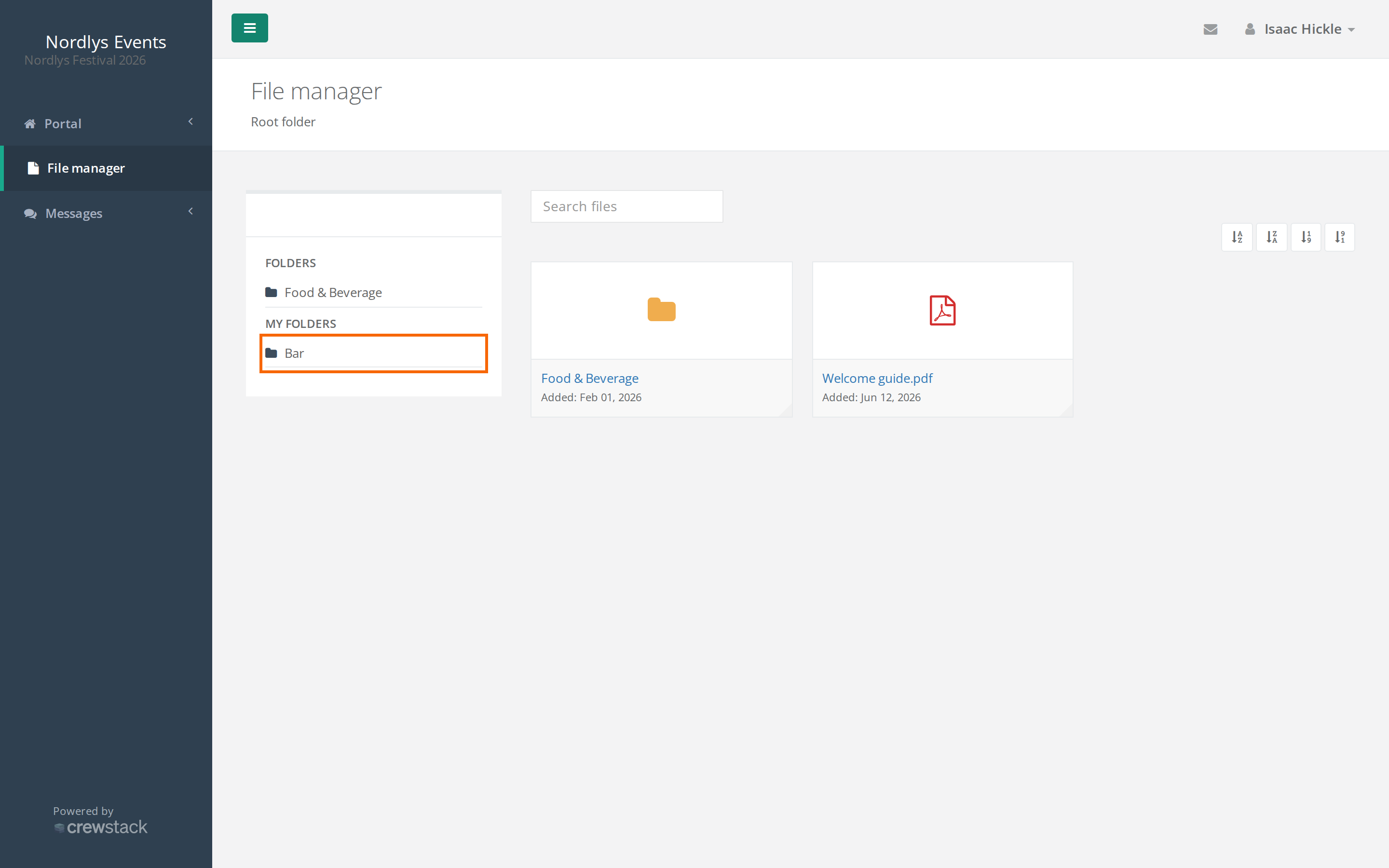
My folders: A super admin can switch on Show shortcuts to members' own team folders under Settings > General settings > File manager. Then My folders appears on the left, with a direct link to the folder of each team you're on, and to the Teamleads folder of the teams you lead. It is off by default.
What your crew sees
- They find File manager in the menu when they are logged in to the event's site in the browser. The file manager isn't in the Crewstack app.
- They see the files in Root folder and in the folders of their teams and of the team groups their teams are in. They don't see the Teamleads folder.
- They can view and download files, but not upload, move, rename or delete.
If a crew member can't find a file, check that they are on the team and that the file isn't in the Teamleads folder. Ask them to click their way to the team's folder instead of searching.
Pitfalls
- Moving changes who can see the file. If you move a file from the Teamleads folder to the team's folder, all crew members on the team can see it.
- Many people see a team group's folder. All crew members on all teams in the team group can see it.
- Search doesn't find everything. Files directly in Root folder never show up in search. If you aren't an admin, search doesn't find files in the team groups' folders either. Click your way to the folder instead.
- Can't see File manager in the menu? Then the file manager isn't switched on for your event. Contact us.
Didn't find the answer? Write to support@crewstack.io.