
Passive users
How to create people without an email or login so they can be on teams and schedules, and how to give them a real login later.
A passive user is a person you create in Crewstack yourself, without an email and without a login. Use it for people who need to be on a team or a schedule but won't log in themselves, for example people without an email or external helpers whose shifts someone else manages.
Switch on passive users
Only a super admin can do this.
- Go to Settings > General settings.
- Tick Passive users enabled under Members.
- Click Save.
The setting only applies to the event you're in.
Create a passive user
- Go to Members and click New Member at the top right.
- Choose a Member type and click Next.
- Tick Passive user. The Email field is locked.
- Fill in at least the name. You can also fill in the other data fields, for example a phone number.
- Click Create Member.
The New Member button in Members is only there when passive users are switched on, and only admins can see it.
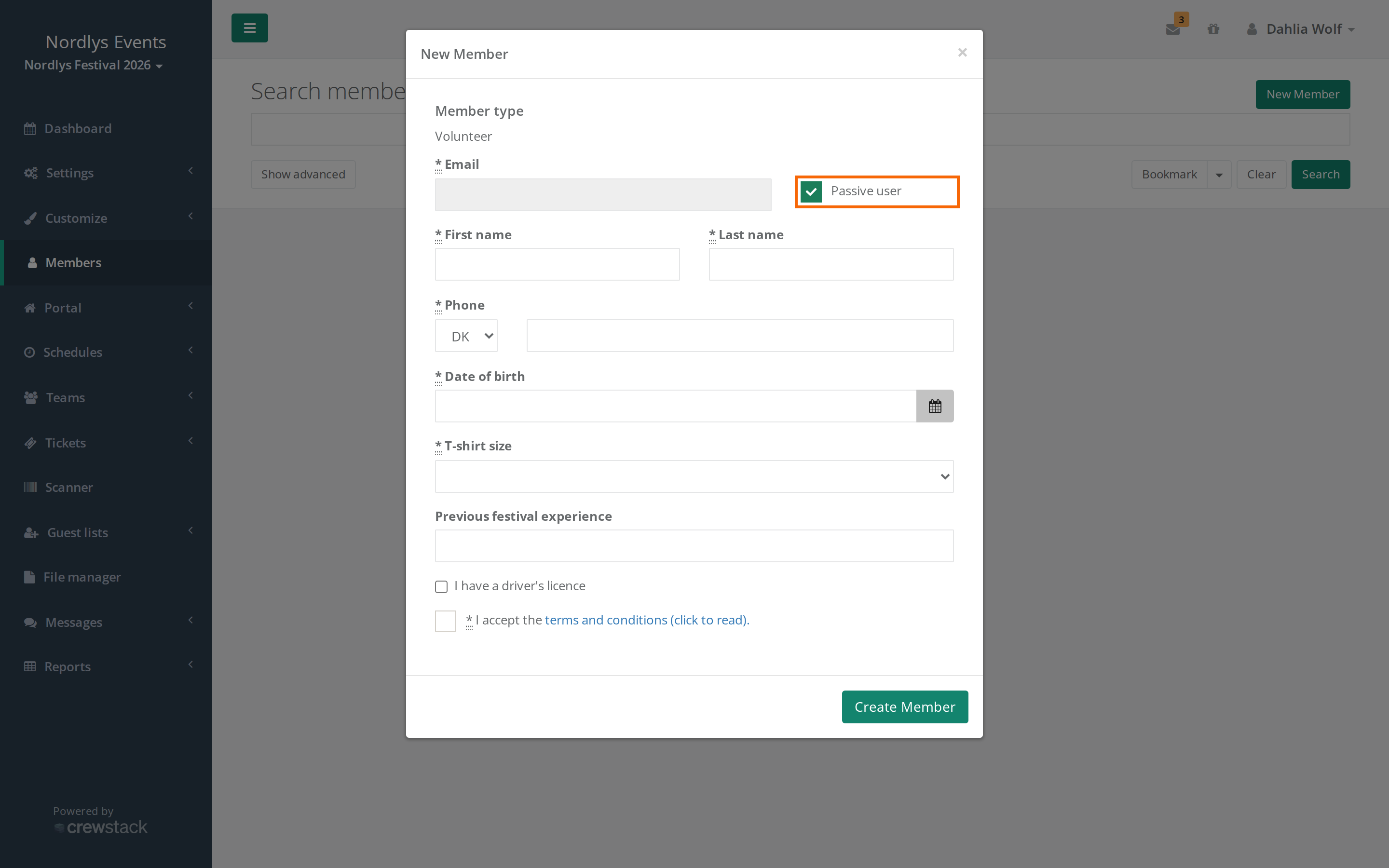
You can also create a passive user directly on a team with New Member on the team's page. That button is there when the team has a member type with Allow team member creation switched on and there are free spots. Team leaders can create people here too, and they get the Passive user checkbox when passive users are switched on. The person is added to the team straight away.
What applies to a passive user
- Crewstack makes up an email for the person that isn't a real address. So the person can't log in, neither on your site nor in the Crewstack app.
- The person gets the status Signup completed straight away. No email is sent when you create them.
- You can add the person to teams and shifts like anyone else.
- The person gets no email, SMS or push when you write to them in Messages, and they aren't included in Mail list. Other emails from Crewstack go to the made-up address and never arrive.
- If you've switched on SMS reminders for shifts and the person has a phone number, they get the reminder.
Find passive users
In Members, passive users have a small icon next to their name. If you hover over it, it says Is passive user.
To see only the passive ones, click Show advanced, set Is passive to Yes, and click Search. The filter is only there when passive users are switched on.
Give a passive user a login
If the person does need to log in after all, you can invite them. They keep their teams and shifts.
- Open the person's profile and click Invite at the top.
- Enter the person's real email in the Invite passive user window and click Invite.
- The person gets an invitation by email with a link. There they choose a password, and after that they can log in.
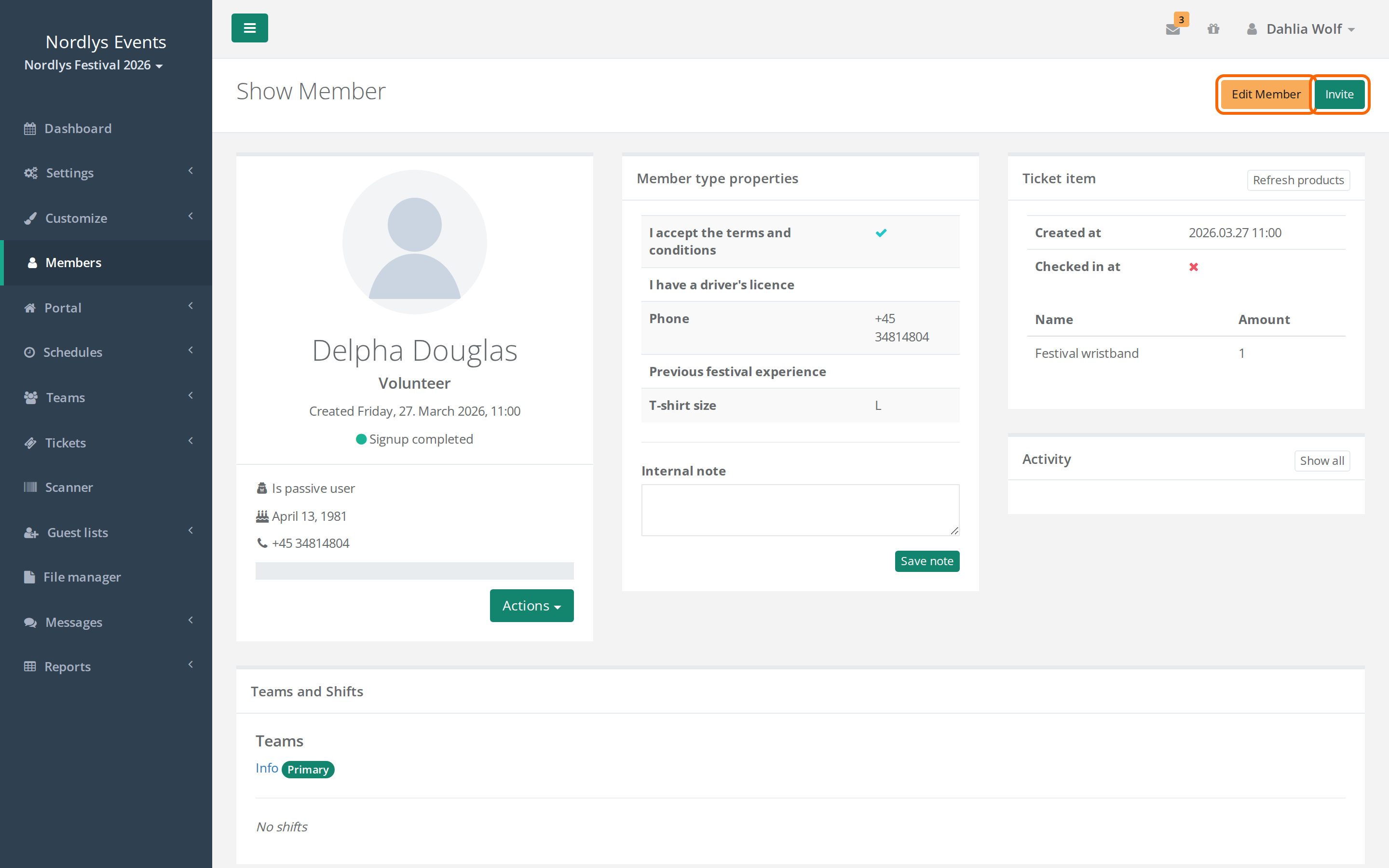
Once you've sent the invitation, the person is no longer passive and the Invite button disappears. The person can only log in once they've chosen a password. The invitation doesn't expire.
If the person hasn't received the invitation, ask them to click Forgotten your password? on the login page and enter the email you invited them with. Once they've chosen a password through that email, the invitation is accepted and they can log in.
Pitfalls
- The email is already in use. If the person already has a login with you with that email, for example from another event, you can't invite the passive user with it. Instead, create the person with New Member and their real email, without ticking Passive user. They then get a profile in the event on their existing login. Add them yourself to the teams and shifts the passive profile has, and resign the passive profile afterwards.
- Only admins can invite. Team leaders don't have the Invite button.
- If you switch the setting off again, the New Member button in Members and the Is passive filter disappear, but the passive users you already have stay passive.
- Don't let the person sign up themselves. If a passive user signs up themselves with their real email, they become a new person in Crewstack without the teams and shifts the passive profile has. Use Invite instead.
Didn't find the answer? Write to support@crewstack.io.