
Accreditation at a venue
Who the scanner lets in to a concert, and how to make accreditation lists for one concert or the whole season and copy them to the next concert.
At a venue, guest lists are called Accreditation. An accreditation list gives access to one particular concert or to the whole season. Here you can see who the scanner counts as accredited, and how to make and copy the lists.
Venue mode has to be on. See Venue mode: concerts and concert days.
Who is accredited?
The scanner always checks a person against the concert chosen in the scanner. The person is accredited if at least one of these is true:
- The person has a shift on the concert. This applies on all the concert's days, not only the day of the shift.
- The person is on an accreditation list for the concert.
- The person is on a season list. A season list covers all concerts.
- The person owns an accreditation list for the concert or a season list.
Based on that, the scanner shows green, amber or red:
| The scanner shows | What it means |
|---|---|
| Green: Accredited and on shift | The person has a shift on the concert today. The time and meeting point are shown below. |
| Green: Accredited for this concert | The person is on an accreditation list that covers the concert. The list's name is shown below. |
| Amber: Accredited, not on shift today | The person may come in, but has no shift on the concert today. For example a crew member with a shift on another day, or one who owns a list. |
| Red: Not accredited for this concert | The person may not come in. Only an admin can let the person in anyway. |
What the door staff do for each colour is in Scanning at a venue.
Make an accreditation list
You make an accreditation list the same way as a guest list. See Create a guest list. The menu is called Accreditation, and under it you find Accreditation groups, Accreditation (the lists) and Accredited people (search across everyone on the lists).
The difference is one extra field in the window. The field is called Schedule, and this is where you choose the concert:
- Choose a concert if the list only covers that one.
- Leave it on Season list (all concerts) if the list should cover all concerts, for example for regular suppliers.
Templates can't be chosen, only concerts.
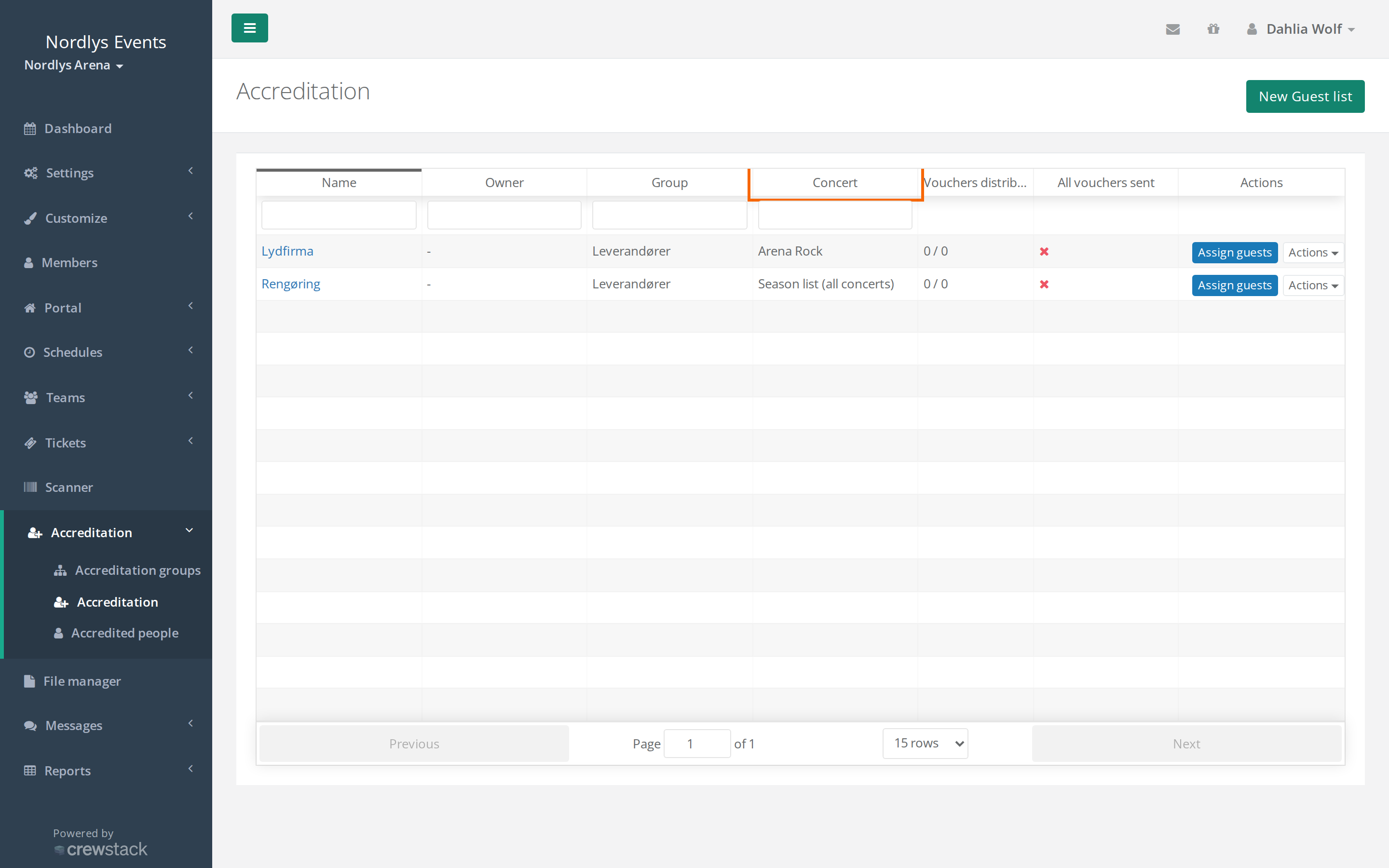
In the overview of lists, the Concert column shows which concert the list covers, or Season list (all concerts). You can filter on the column.
Copy a list to the next concert
A subcontractor often sends the same crew to many concerts. Instead of adding them again every time, you can copy the list:
- Go to Accreditation > Accreditation.
- Click Actions next to the list, and choose Copy to concert.
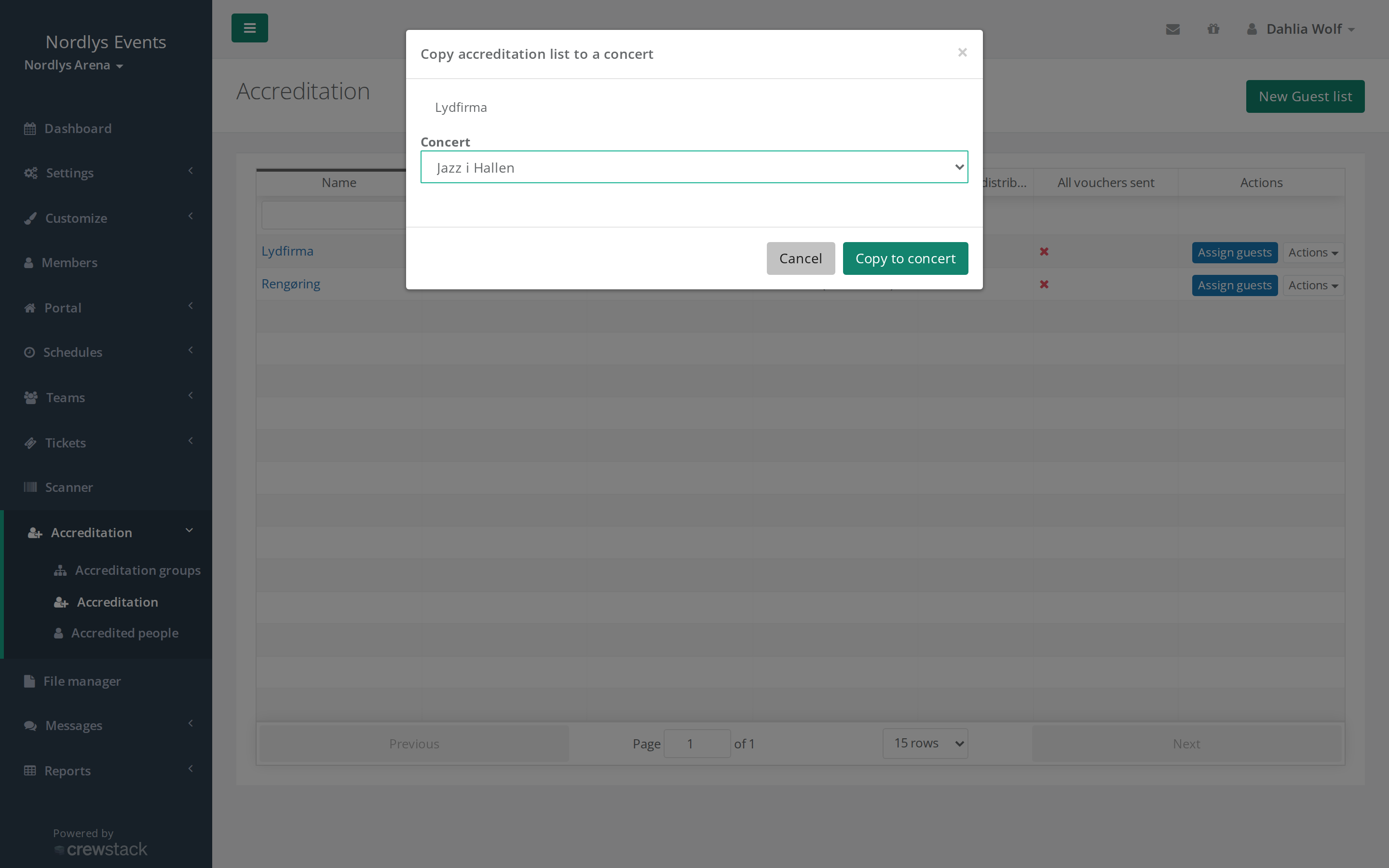
- Choose the Concert in the Copy accreditation list to a concert window.
- Click Copy to concert.
Crewstack makes a new list for the chosen concert. It has the same name as the old list with the concert's name after it, for example "Sound company — Concert 14 March". The new list has the same group, owner, price, products and people as the old one. You see the message "Copied to …".
If the list can't be copied, the message says why:
- "Cannot copy: a list called … already exists." You have already copied the list to that concert. Rename the old copy, or use it.
- "Cannot copy: the event budget cannot cover another allocation of …" There isn't enough of the product left. Raise the product's Global limit under Tickets > Products, or give the list fewer.
- "Cannot copy: … cannot cover the guests (shortfall …)" The list's products don't stretch to everyone on it.
Counter at the door
At the top of the scanner you see how many have been checked in out of how many are expected that day. Expected is everyone with a shift on the concert that day plus everyone on lists that cover the concert, including season lists. People on a season list are therefore counted every day.
Pitfalls
- A supplier shows red. The list covers another concert. Check the Concert column, or copy the list to the right concert. Also check that the right concert day is chosen in the scanner.
- Everyone gets in to every concert. The list is set to Season list (all concerts). Choose a concert in the Schedule field if it should only cover one.
- A person got too few products on the copy. If a person has several of the same product on the old list, they get only one of it on the copy. Correct the amount on the new list.
Didn't find the answer? Write to support@crewstack.io.