
Create a guest list
How to create a guest list with an owner, products, price and group, and how the owner gets their link.
A guest list is a pool of products, such as wristbands and backstage access, that you hand to an owner. The owner adds their own guests to the list and sends them their tickets, and you decide how much is on the list. This guide shows how to create the list. See Add guests to a guest list for the work inside the list.
Before you start
- You need to be an admin, super admin or Guest List Admin to create guest lists.
- The products must exist under Tickets > Products. Every guest needs at least one access item, so the list must include at least one product from the Access item group.
- Guests need a ticket template. Under Tickets > Ticket templates, the guests' member type (Guest by default) needs a template in every language the event uses. If it is missing in a guest's language, that guest can't be created.
Create the list
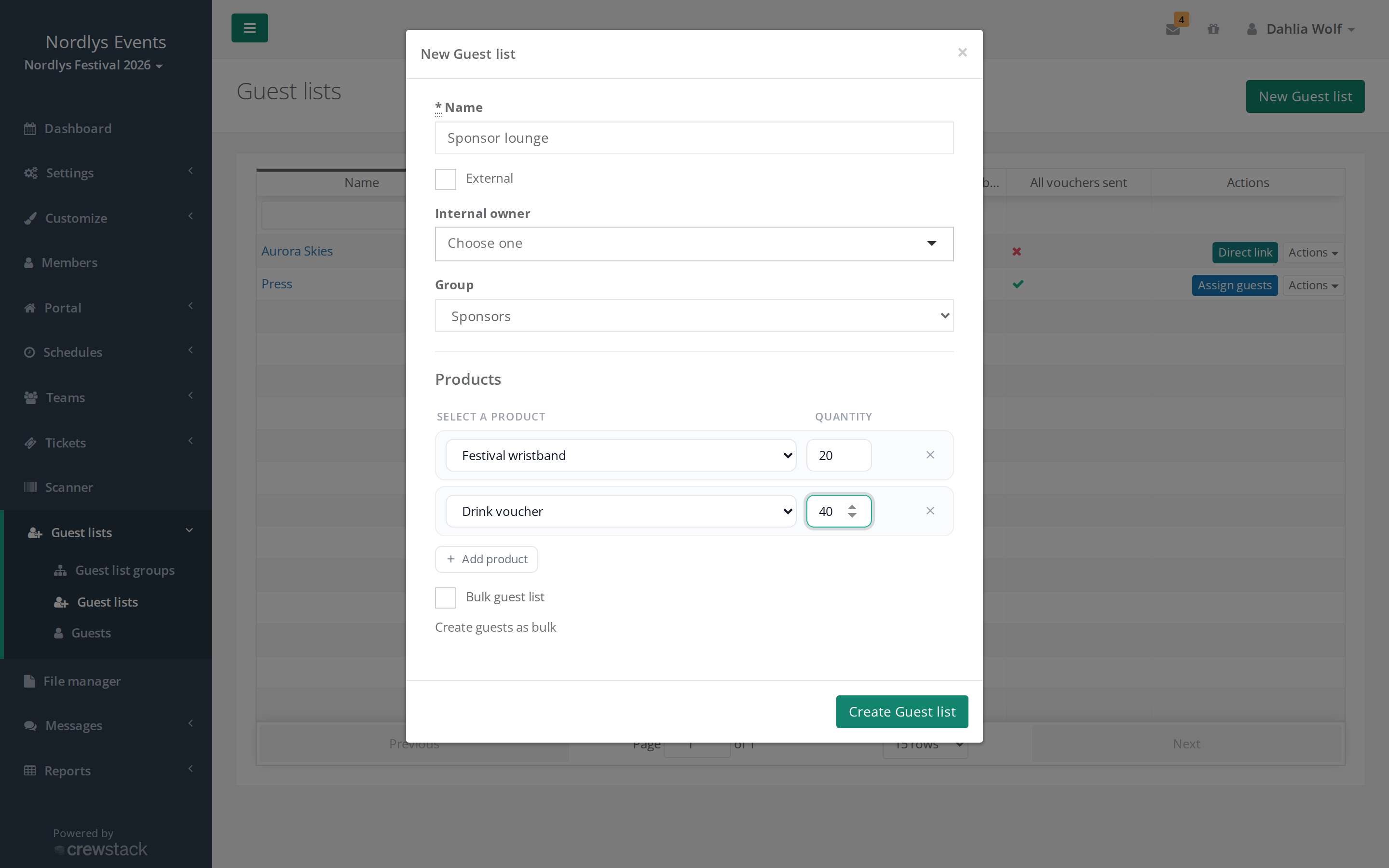
- Go to Guest lists > Guest lists and click New Guest list.
- Enter a Name. The name must be unique in the event.
- Choose the owner. Leave External unticked and search for a member in Internal owner. Or tick External and enter the address in External owner email (see below).
- Optionally choose a Group.
- Click Add product under Products, choose the product and enter the Quantity. Repeat for each product.
- Click Create Guest list.
The owner automatically gets an email with a link to the list once it is saved. The email is also sent if you change the owner later.
Internal or external owner
- An internal owner is a member of the event. The member logs in as usual and finds the list under Guest lists in the menu. A member who owns a list only sees their own lists.
- An external owner is someone without a login, such as a press contact or a band's tour manager. They work on the list through a direct link from the email. If the event has several languages, you also choose the Language for external owner the email is sent in.
You can also leave the owner empty. Then only admins can add guests to the list.
You can customise the owner's email under Customize > Mail templates. It is called Welcome email to new guestl list owner. Only super admins see Customize in the menu.
Products and budget
Under Products you decide what the owner can hand out. If you enter, say, 5 × Backstage and 5 × Wristband, the owner can give up to five guests one Backstage and one wristband each.
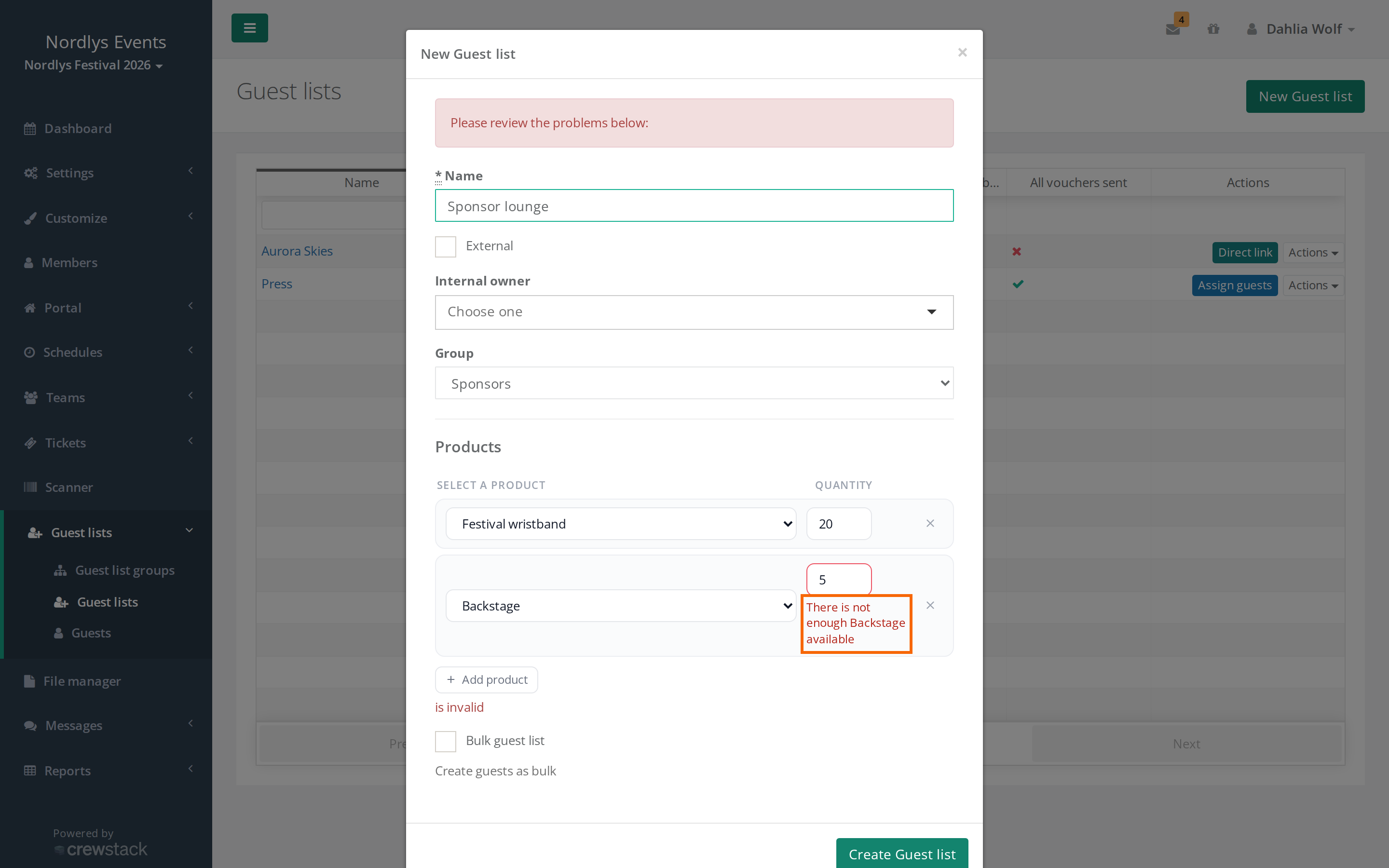
If a product has a Global limit (set on the product under Tickets > Products), Crewstack checks that all guest lists together don't get more than the limit allows. If you ask for too many, the list is not saved and the quantity shows, for example, "There is not enough Backstage available". Lower the quantity, move products from another list, or raise the limit on the product. If the Global limit field is empty (it shows Unlimited), there is no cap.
Ticket price
If Enable possible payments for guest list's tickets is switched on (requires a super admin) under Settings > General settings > Guest lists, the form gets the field Product price. This is the price per guest. Guests show as Awaiting payment, and the ticket doesn't work until it is paid. The setting can only be switched on once the organizer has connected Stripe. See Connect Stripe to receive payments.
Bulk lists
If a partner just needs a number of identical tickets, for example 20 tickets for a sponsor, tick Bulk guest list and enter the Number of bulk guests. Crewstack then:
- creates that many guests named "List name - Guest #1", "#2" and so on
- gives each guest the products you entered under Products
- multiplies the list's products by the number, so the list matches the guests
- uses the owner's email address for all the guests.
Bulk can only be chosen when you create the list. Choose an owner first, as the guests get the owner's email address.
Groups and ticket templates
Groups collect lists that belong together, such as "Press", "Bands" or "Sponsors". You create them under Guest lists > Guest list groups and pick the group in the Group field on the list. From the group overview you can choose Export to Excel for all groups, or under Actions next to a group for just that one.
Groups can also give their guests their own ticket. Under Tickets > Ticket templates, click New template, give it a name and choose the guest list groups it applies to. Then click the flag for each language in the template's row and upload the template. A tick next to the flag means that language is ready. Guests on lists in those groups then get that template instead of the default one. If it is missing in the guest's language, the guest can't be created.
Direct link for external owners
Has an external owner lost the email, or did it never arrive?
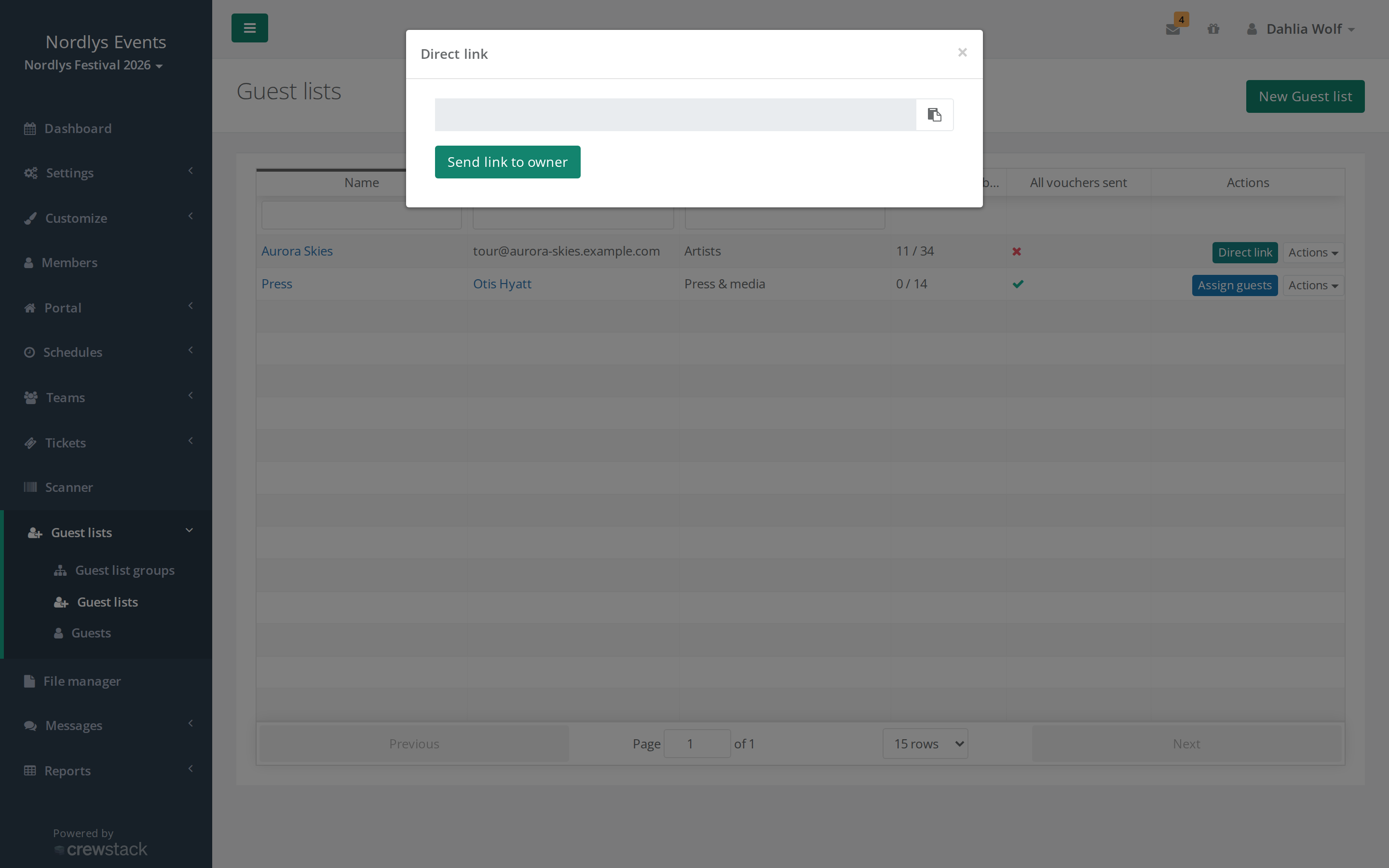
- Find the list under Guest lists > Guest lists.
- Click Direct link next to the list.
- Copy the link with the button next to the field and send it yourself. Or click Send link to owner to send the email again.
Direct link only appears for lists with an external owner. Lists with an internal owner have the Assign guests button instead, because the member logs in as usual.
Who can see and edit the list?
- Admins, super admins and guest list admins can see, create, edit and delete all lists.
- The owner can add guests to their own list, but can't change the list's name, owner or products.
- Guest List Admin is a role only a super admin can give. It is set on the member's edit page among the roles (Regular, Guest List Admin, Admin, Super Admin). The role also gives access to the scanner. See Admins and roles.
You edit or delete a list under Actions next to the list. Deleting a list deletes all its guests, and their tickets stop working. You have to type DELETE to confirm.
Pitfalls
- Nobody can add guests to the list: check that the list has at least one access item and that the guests' member type has a ticket template in all languages.
- The list can't be saved: check the product quantities against the product's Global limit, and that the name isn't already taken.
- The owner didn't get the email: use Direct link (external owners) or ask the member to log in and find the list under Guest lists (internal owners).
Didn't find the answer? Write to support@crewstack.io.