
Venue mode: concerts and concert days
How Crewstack works at a venue with many concerts a year, and how to create concerts, templates and concert days.
Venue mode is for venues that hold many concerts a year, such as arenas and concert halls, rather than a single festival. Here you can see what changes when it is on, and how to create concerts and concert days.
What changes
- Schedules become concerts. Under Schedules > Manage schedules the concerts are shown on a calendar.
- You build new concerts from a template. You copy the template's shifts onto a new date.
- Each concert has concert days, such as build-up, show day and tear-down. The days are made from the shifts.
- Guest lists are called Accreditation. A list covers one concert or the whole season. See Accreditation at a venue.
- The scanner checks crew in per concert day instead of once for the whole event. See Scanning at a venue.
Turn on venue mode
Only an organizer admin can turn on venue mode. It is done where the event is created:
- Click the event's name at the top of the menu, and choose Go to organizer.
- Go to Events.
- Click Actions next to the event, and choose to edit it. If you are making a new event, use Create a new event instead.
- Tick Venue mode activated, and save.
When it is on, Settings > General settings gets a section called Venue mode (needs super admin). Here you choose Credential issued at check-in by default: what the scanner offers to hand over when a concert day has no choice of its own. None means the person is simply scanned and moves on.
The concerts on the calendar
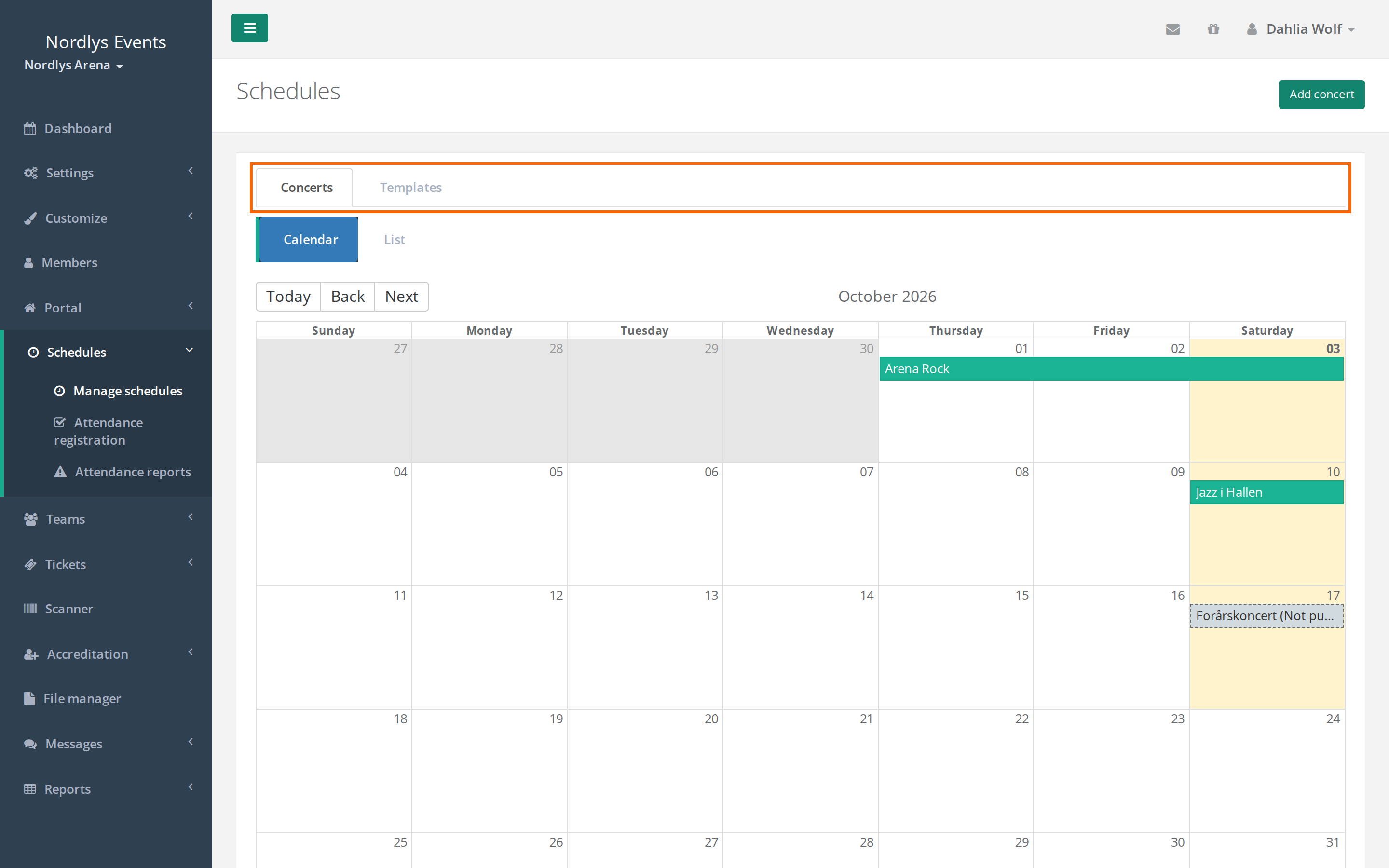
Go to Schedules > Manage schedules. The page has two tabs:
- Concerts shows the concerts as a Calendar or a List. A concert that isn't published has (Not published) after its name. The list shows the dates, the show day and the status Published or Not published. Click a concert to open it.
- Templates shows your templates.
A concert without shifts is shown on the date it was created. The list then says "No shifts yet — date shown is when the schedule was created."
Make a template
A template is a concert you copy the shifts from. Build it once with the shifts a typical concert has.
- Create a concert without a template (see the next section), and add the shifts. See Create a schedule and add shifts.
- Open the concert, and click Manage shifts.
- Click Edit settings, tick Use as template, and click Gem Schedule.
The template moves to the Templates tab. It has no concert days and can't be chosen in the scanner.
Create a concert
Only admins can create concerts.
- Go to Schedules > Manage schedules, and click Add concert.
- Type the concert's Name.
- Choose a Template. If you leave the field empty, the concert gets no shifts.
- Enter the date in First shift date (when using a template). The earliest shift in the template is put on that date, and the other shifts move with it. If you leave the field empty, the shifts keep the template's dates.
- Click Create Schedule.
The concert opens. The shifts have been copied, but nobody is on them yet. Click Manage shifts to put crew on them. The concert isn't published until you publish it. See Publish a schedule.
Concert days
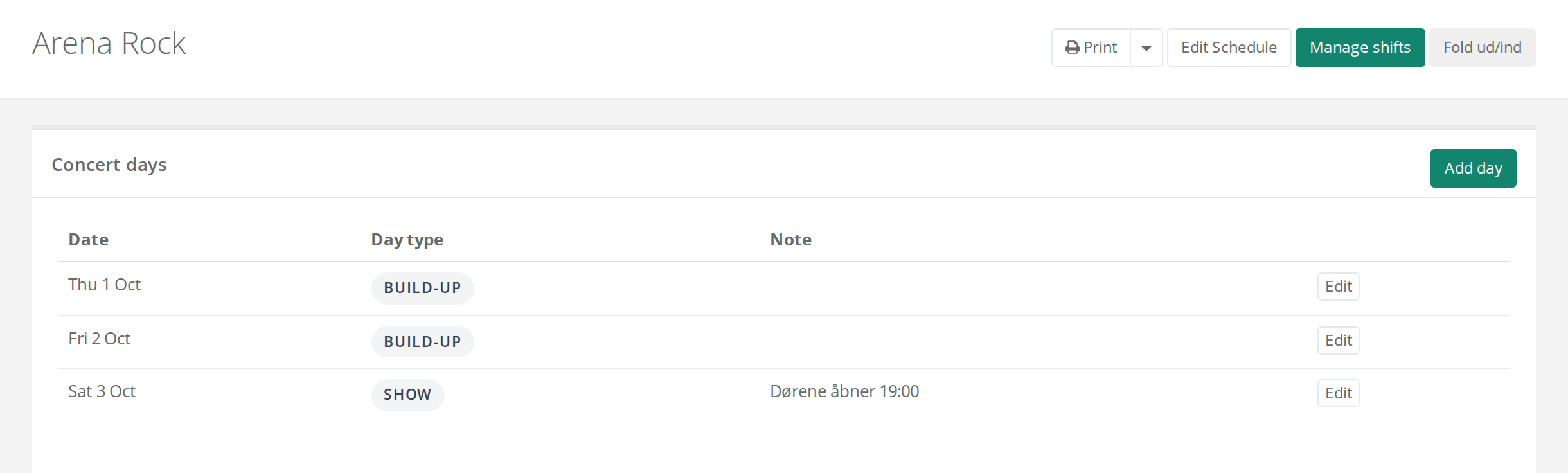
The concert's page has the Concert days box with each day's Date, Day type and Note.
Crewstack makes the concert days itself from the shifts, a few seconds after you have saved them. Every date with at least one shift becomes a concert day:
- The last day becomes Show.
- The days before become Build-up.
If you change a day yourself, the shifts won't change it again. If you set an earlier day to Show, the days after it become Tear-down.
To change or add a day:
- Click Edit next to the day, or Add day at the top of the box.
- Fill in Date and Day type (Build-up, Show, Tear-down or Other).
- Optionally fill in Doors (when the doors open), Credential policy and Note.
- Click Create Concert day or Update Concert day.
Credential policy controls what the scanner offers at check-in that day: None, Printed badge, Wristband or Operator choice (both). If you leave the field empty, the default from General settings is used.
Pitfalls
- The concert has no concert days. It has no shifts yet, or it is a template. Add shifts, or add a day with Add day.
- The show day is wrong. Without changes it is always the last day with shifts. Change the day to Show under Edit.
- A day doesn't go away when you delete the shifts. Days you have changed or added yourself stay. There is no button to delete a concert day.
- The crew from the template didn't come along. A template only copies the shifts, not the people on them. Put crew on under Manage shifts.
Didn't find the answer? Write to support@crewstack.io.