
Ask for reason when taking actions
Ask whoever moves, resigns or blacklists a person to write why, and find the reason again on the person's profile.
With Ask for reason when taking actions, whoever moves, resigns or blacklists a person, for example, is asked to write why. The reason is saved on the person's profile, so you can see later what happened and why.
Switch it on
This takes a super admin.
- Go to Settings > General settings.
- Click Admins in the menu on the left.
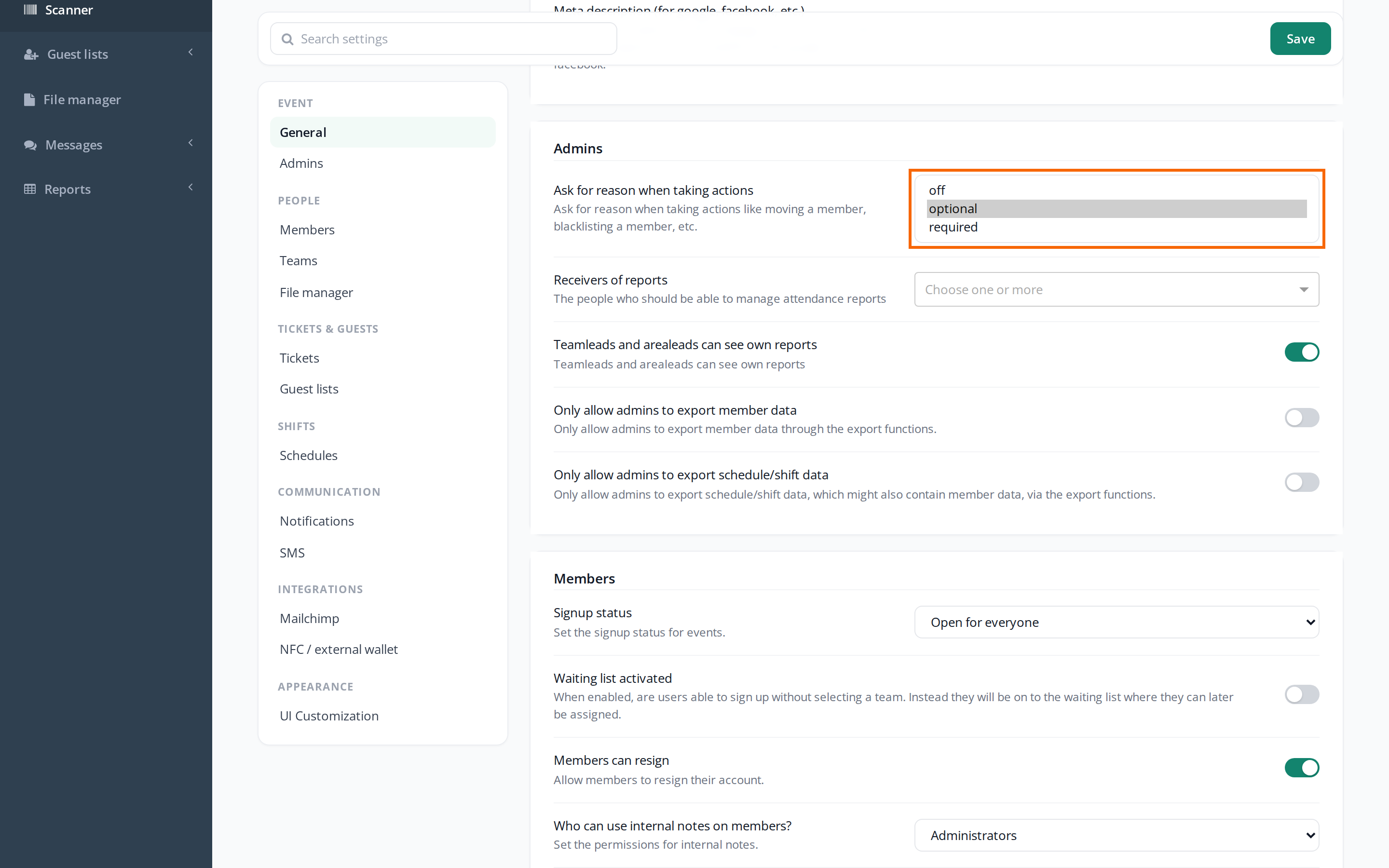
- Under Ask for reason when taking actions, choose:
- off: Nobody is asked. This is the default.
- optional: There's a field for the reason, but it can be left empty.
- required: A reason has to be written to continue.
- Click Save.
Where you're asked
When the setting is optional or required, the window has a Reason field when someone:
- moves a person to another team with Move to team
- removes a person from a team with Remove from team
- resigns a person with Resign
- blacklists a person with Blacklist
- removes a check-in from a ticket: Remove next to Checked in at on the profile, or Remove check-in on a guest list
- removes an EventPos chip from a ticket
This also applies when you select several people in Members and use Batch actions. All the selected people then get the same reason.
Team leaders are asked too when they move or remove people on their own teams.
You're not asked when you add a person to a team, or restore, un-blacklist or delete a person.
See the reasons
- Open the person's profile.
- Find the Activity box. It lists the latest actions, with the reason under each action.
- Click Show all to see the full history.
In the list under Members, a person has an orange icon next to their name if they were moved, removed from a team or resigned with a reason. Hover over the icon to see "Activity with 'reason' defined, click to see activites." Click the icon to see the activity.
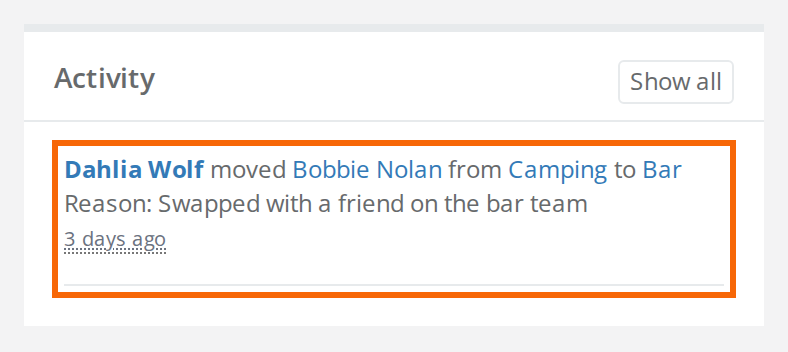
Only admins can see the activity. The person can't see the reason, and it isn't included in the mail to the person.
Pitfalls
- Team leaders can't read the reasons. They're asked to write one, but only admins can see the activity afterwards.
- The reason can't be edited. It's saved as written. Only write what's needed, because every admin in the event can read it.
- Only from now on. Actions from before the setting was switched on have no reason.
Didn't find the answer? Write to support@crewstack.io.