
GDPR and personal data in Crewstack
Your responsibility as data controller, what Crewstack does as data processor, the tools you have for personal data, and how to handle access and erasure requests.
When you use Crewstack, you process personal data about your crew. This article explains who is responsible for what, which tools Crewstack gives you, and how to handle a crew member asking for access to or deletion of their data.
Who is responsible?
- You are the data controller. You decide what information you collect about crew members, why, and how long you keep it.
- Crewstack is the data processor. We store and process data on your behalf and on your instructions.
The relationship is covered by a data processing agreement, which is part of your contract with Crewstack. Contact us if you don't have it.
Where is the data?
Everything runs on Amazon Web Services in Frankfurt (eu-central-1), including the database (Aurora PostgreSQL). Backups are taken every day. They are kept for 7 days and are encrypted.
Crewstack uses these sub-processors:
- Amazon Web Services: hosting, database and files
- Cloudflare: domains and certificates
- Mailchimp Transactional (Mandrill): sending e-mails
- Twilio: sending SMS
- Rollbar: error monitoring
If you use integrations such as Mailchimp, Corego or EventPos yourself, Crewstack sends data to your own account with them. They are then your own processors.
When the agreement ends, we handle your data as agreed in the data processing agreement.
Control who can see what
Roles. Every person in an event has a role:
- Super admin: everything in the event, including settings and roles. Only super admins can give and change roles, and only they can delete a person.
- Admin: all people and data in the event. Data fields visible only to super admins are hidden from admins. Not the settings.
- Guestlist admin: guest lists.
- Team leaders and team group leaders have no admin role, but do have access to Members. There they can look up everyone in the event, not just the people on their own teams and team groups.
Organizer admins (under Users for the organizer) have the same access as a super admin in all your events where they have a profile. They can only change roles, though, if their own profile in the event has the Super admin role. See Admins and roles.
Visible to. On each data field under Settings > Member type properties, choose under Visible to who can see the answer, e.g. Member + admins or Member + super admins. Use it for things like bank accounts and the data fields you create yourselves for health information and the like. Only a super admin can change it.
Visible to applies on the person's profile, in the list under Members, in Export to Excel and in AI Member Analysis. Nobody can see an answer through the export or the analysis that they aren't allowed to see on the profile.
Export. By default both admins and team leaders can export people to Excel. Under Settings > General settings > Admins a super admin can turn on Only allow admins to export member data and Only allow admins to export schedule/shift data. See Export people to Excel.
Two-factor authentication. Admins can protect their login with a code from an authenticator app. Open the menu with your name in the top right corner and choose Two-factor authentication > Enable two-factor authentication. Each admin turns it on for themselves. You can't make it mandatory. See Two-factor authentication for admins.
Collect as little as possible
Consider whether you need each data field. This especially applies to health information, which puts extra requirements on you. Ask, for example, "Can you do physically demanding work?" instead of "Do you have back or knee injuries?".
Documents for approval. If you need to see, for example, a criminal record certificate for work with children, use the Document for approval field instead of asking for a copy by e-mail:
- Once the document is approved or rejected, the file is deleted immediately. Only the outcome is kept: the date and who approved it.
- With Delete unreviewed documents after you can choose a date after which documents nobody has looked at are deleted automatically.
Resign, blacklist and delete
The three sound alike but do different things:
- Resign: the person is no longer part of the event, but all data is kept, and an admin can Restore the person. It is not a deletion. Crew members can resign themselves if Members can resign is turned on.
- Blacklist: the person is removed from the event just like a resign, and can't sign in or register for any of your events. The blacklist applies across all your events, and the e-mail is kept so it can be recognised.
- Delete: the person and their answers, team memberships, shifts and sent messages are deleted permanently across all your events. It can't be undone. Payments are kept for bookkeeping, and the activity log is kept for security.
What Crewstack doesn't have
Good to know when you write your own procedures:
- There's no button that gathers all data about one person in one file. See the recipe below.
- Crewstack doesn't delete or anonymise old data automatically. Previous years and resigned people stay until you delete them. The only automatic deletion is for documents for approval.
- There's no overall log of sign-ins or of who has looked at what. Under Members you can show the Last sign in column, and admins can see Activity on the person's profile.
- Admins can only see messages they have sent or received themselves.
Anonymise a whole event
When a year is over and you no longer want to keep personal data from it, we can anonymise the event for you. Contact us.
Anonymisation overwrites names, phone numbers, addresses, CPR numbers and bank accounts and removes profile pictures for everyone in the event. Other data fields, messages and notes are not changed. It can't be undone.
When a crew member asks for access
- Find the person under Members. Under Event History on the profile you can see which of your events the person has been part of. Repeat the next steps in each event.
- On the profile you'll see the person's answers (Property Values) and Teams and Shifts.
- To give the person a file, search for them under Members, show the columns you want included, and click Export to Excel.
- Check the export before you send it. Internal notes are always included as a column if you're allowed to see them, so decide what to hand over. Document fields only show the status, not who approved them or when. Messages aren't included, and you can only see those you sent or received yourself.
When a crew member asks to be deleted
This needs a super admin.
- Check whether you are required to keep anything, for example for bookkeeping of payments. That's your decision as data controller.
- If the person owns a guest list, move or delete it first. Otherwise the person can't be deleted.
- Open the person's profile and choose Delete.
- Type DELETE in capitals to confirm. If the person is on the blacklist, choose whether the e-mail should stay on the blacklist (Keep the email on the blacklist) or be removed (Remove from the blacklist as well).
The person is deleted in all your events together with all answers in data fields, team memberships, shifts and sent messages. Payments and the activity log are kept.
The person can still be found in our backups for up to 7 days and in the e-mail provider's delivery logs for 30 days. After that they are gone.
Privacy policy
You have to tell crew members how you process their data. You can do this directly in the registration. This needs a super admin:
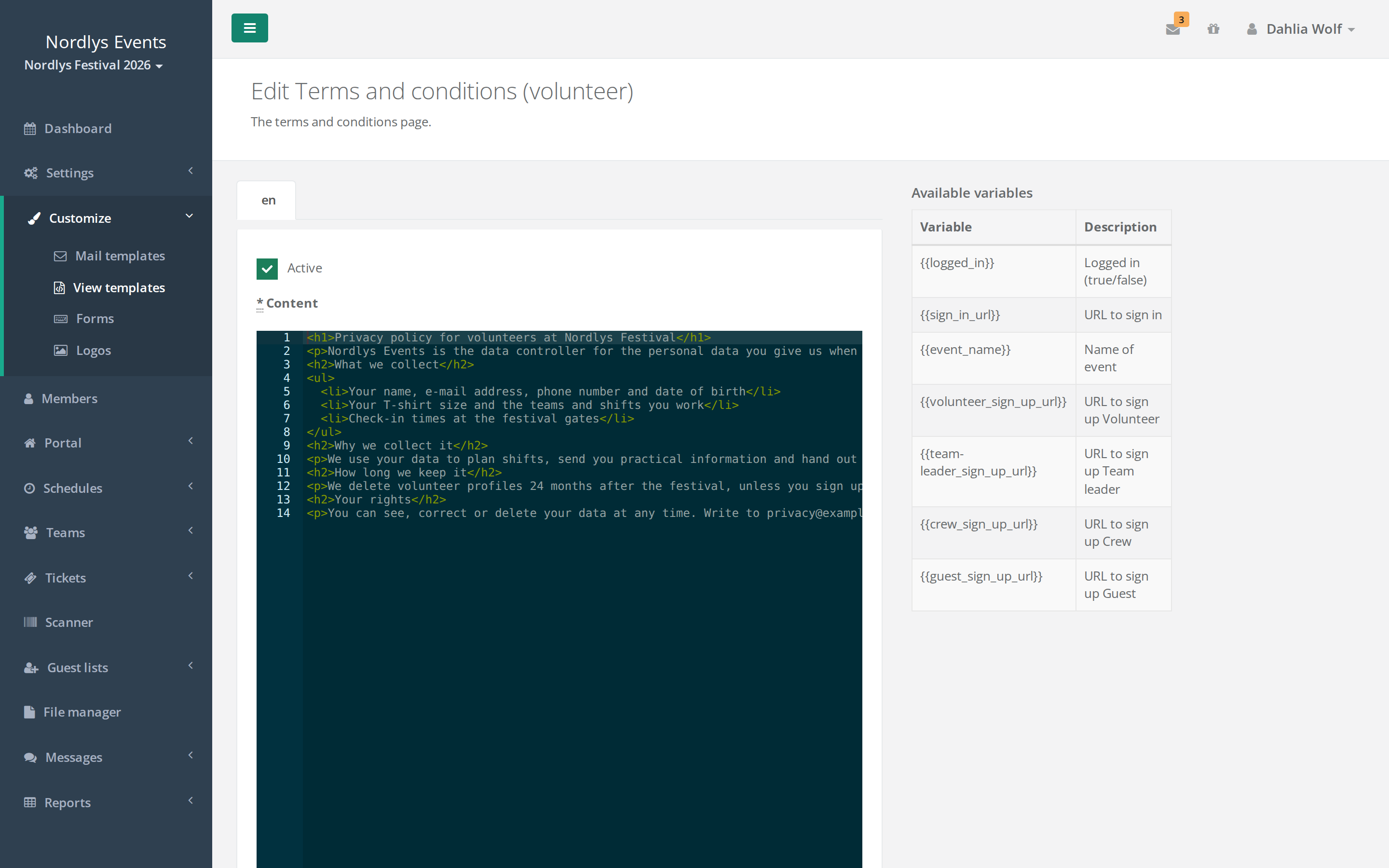
- Write your privacy policy in the Terms and conditions view template under Customize > View templates.
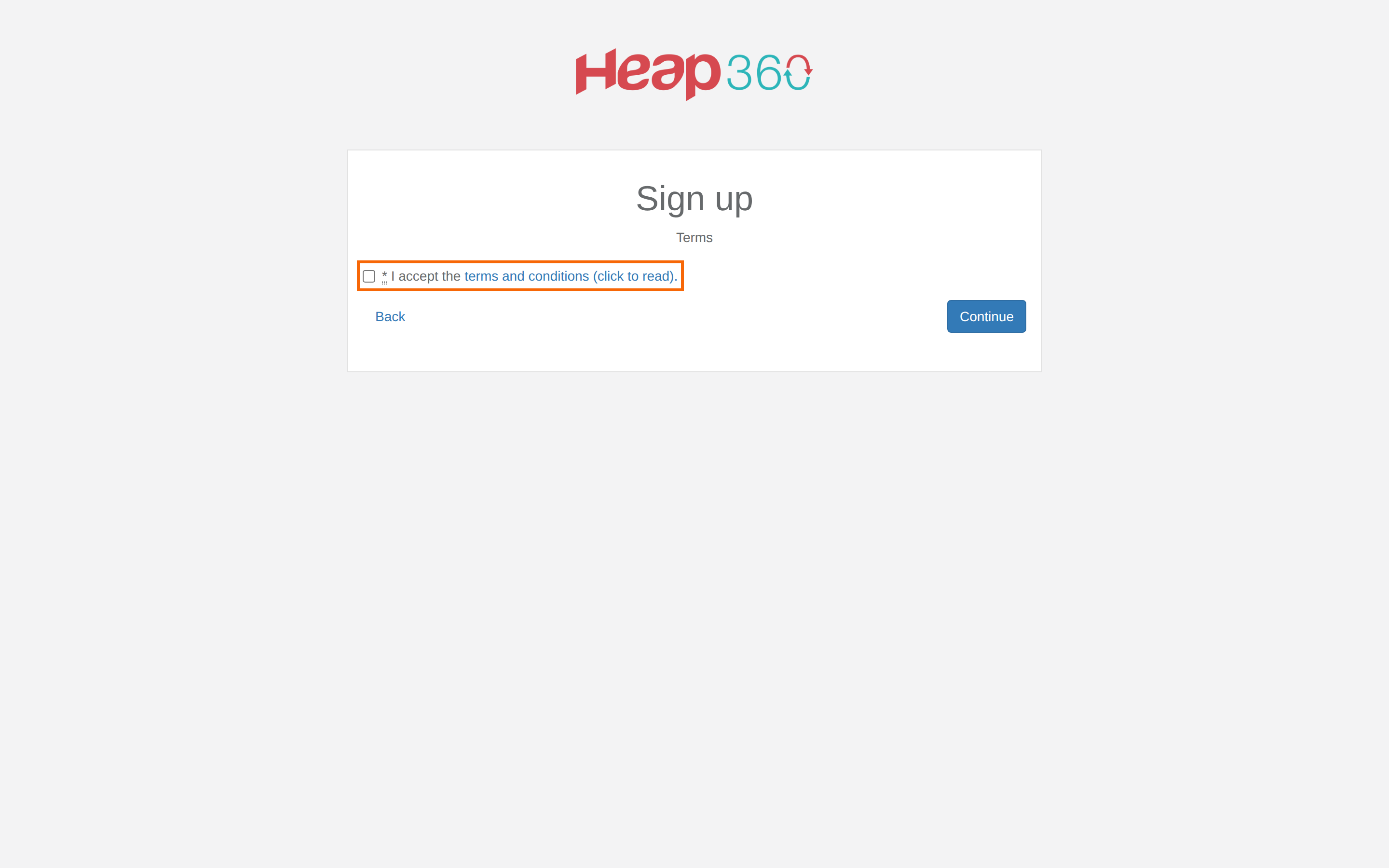
- Create a data field of the type Terms and conditions under Settings > Member type properties, and add it to the member types that must accept it. The field is always required.
The crew member then sees I accept the terms and conditions (click to read). with a link to the page and has to tick it to continue.
Template
We had a lawyer write a generic privacy policy for organisations that use Crewstack. Download it as a Word file here: Privacy policy - template
The template is in Danish. Adapt it to your organisation, and have your own lawyer or adviser review it.
Didn't find the answer? Write to support@crewstack.io.