
Export people to Excel
How to get the people from a search into an Excel file, what goes into the file, and who may export.
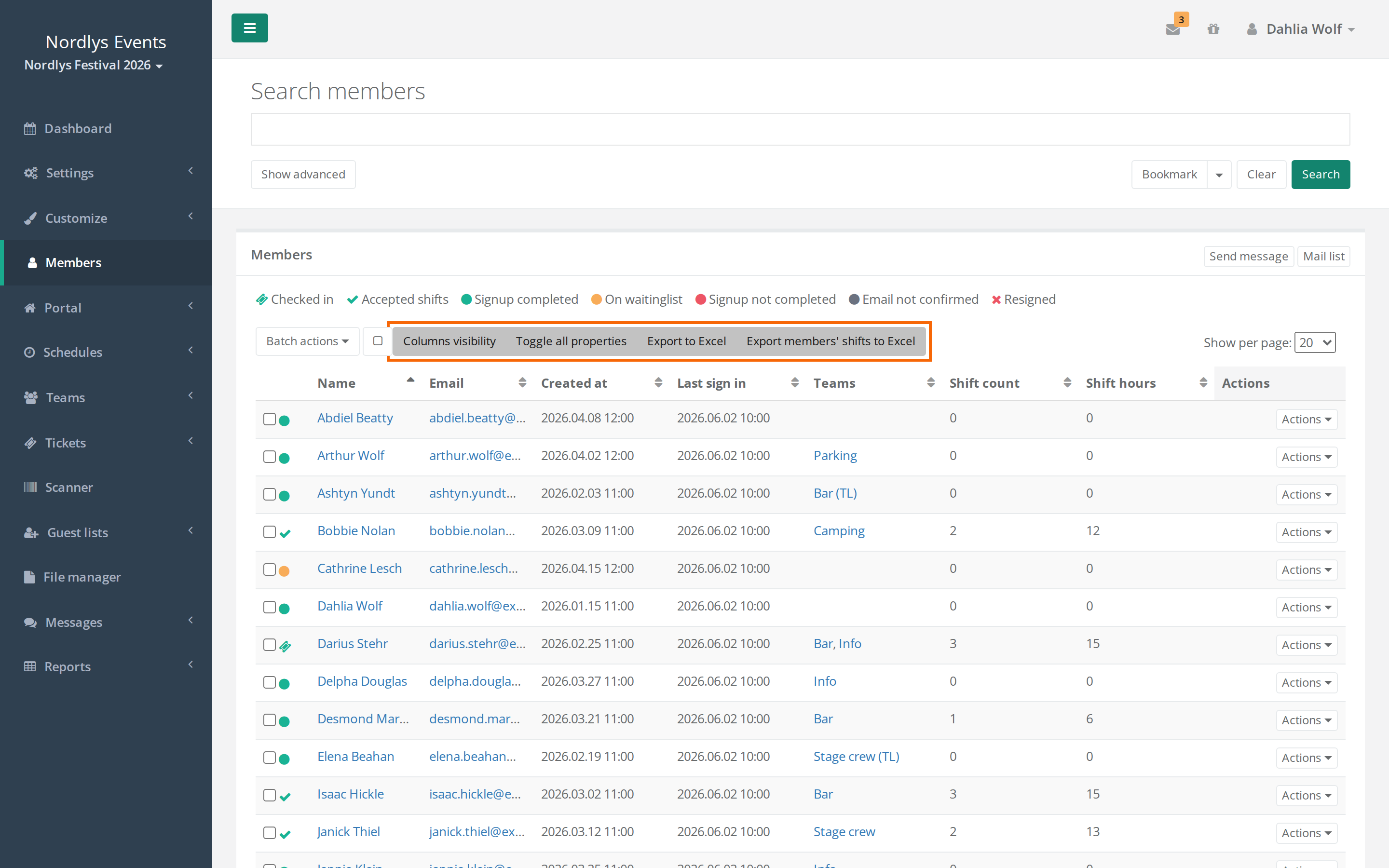
You can get the people from a search under Members into an Excel file. The file contains the columns you have chosen to show in the table.
How to export
- Go to Members.
- Search for the people you want to include. See Can't find a person in the search if you want to include, for example, resigned people.
- Choose columns with Columns visibility above the table. The data fields are hidden from the start. Toggle all properties shows them all at once.
- Click Export to Excel.
- A window tells you that the file is being made. Leave the window open. When the file is ready, the link Download Export appears in the window. Click it.
What goes into the file
- All the people the search finds, not only those on the page you can see.
- The columns shown in the table. The Name column becomes a status column and the columns First name and Last name. If you have data fields for birthdate, sex or nationality, they are included next to the name.
- Teams shows the person's teams. If (TL) follows a team, the person is team leader there.
- Internal note is always included if you're allowed to see internal notes.
- Last sign in is not included, even if the column is shown.
The data fields follow Visible to. You only get the data fields and answers that you're also allowed to see on the person's profile. See GDPR and personal data in Crewstack.
Who can export?
By default, admins, team leaders and group leaders can export from Members.
A super admin can restrict it to admins: Go to Settings > General settings > Admins and turn on Only allow admins to export member data. Export to Excel then disappears for everyone else, both under Members and on the team pages.
Export a team's people
On a team's page, the table with the team's people also has an Export to Excel button. It downloads the file straight away, with the people and columns in the table.
Export the people's shifts
Next to Export to Excel under Members is Export members' shifts to Excel. It makes a file with one row for each person on each shift that the people in your search have. When the file is ready, click Click to download the excel export in the window.
The file includes the whole shift. If others are on the shift, or others have asked for it, they are included too, even if they aren't in your search.
A super admin can restrict the shift export to admins with Only allow admins to export schedule/shift data in the same place.
To get the schedules themselves out, see Overview and export of schedules.
Pitfalls
- The file is a copy. Once you have downloaded it, it doesn't follow changes in Crewstack, and Visible to and deletion don't apply to it. Store it securely and delete it when you're done.
- Empty file, or someone missing? The export takes the people from your search. If the filters are at their defaults, resigned people and people who haven't completed signup, for example, aren't included.
- A data field missing? Check that the column is shown in the table and that you're allowed to see the field.
Didn't find the answer? Write to support@crewstack.io.