
Admins and roles
Which roles an event has, what each role and the team leaders can do, and how a super admin gives or removes a role.
Every person in an event has a role, and the role decides what they can see and do in the admin area. Here you can see what the roles can do and how to give a person a role. Only a super admin can change roles.
The roles
| Role | What the person can do |
|---|---|
| Regular | Use the portal. No access to the admin area, unless the person is a team leader or team group leader. |
| Guest List Admin | See, create and edit all guest lists and use the scanner. |
| Admin | All people, teams, team groups, schedules and messages in the event. Not the settings. |
| Super Admin | Everything in the event, including settings and roles. |
A role only applies in the event where you give it. If a person should be an admin in several of your events, they need the role in each event.
What an admin can't do
An admin can do almost everything, but only a super admin can:
- See the Settings menu (for example General settings, Member types and Member type properties) and the Customize menu (for example Mail templates and Logos).
- See Ticket templates and Products under Tickets.
- Change a person's role.
- Remove a person completely with Delete. See Resign, blacklist or delete a user.
- See answers in data fields that are only visible to super admins.
- Use Log in as on another super admin. See Log in as another person.
Team leaders and team group leaders
Team leader and team group leader aren't roles. A person gets the access because they lead a team or a team group, and it only covers what they lead.
- Team leaders can look up everyone in the event under Members and open their profile. On their own teams they can add and remove people, appoint other team leaders, create schedules and accept shifts on behalf of their crew. See Manage your team as a team leader.
- Team group leaders can do the same for all teams in their team group and in the team groups below it. They can also edit the teams' settings and create new teams in the team group.
Team leaders and team group leaders can't edit crew members' details, resign or blacklist them, or change roles.
You decide who is team leader on the team's page. See Set up teams and team groups.
Give a person a role
This needs a super admin.
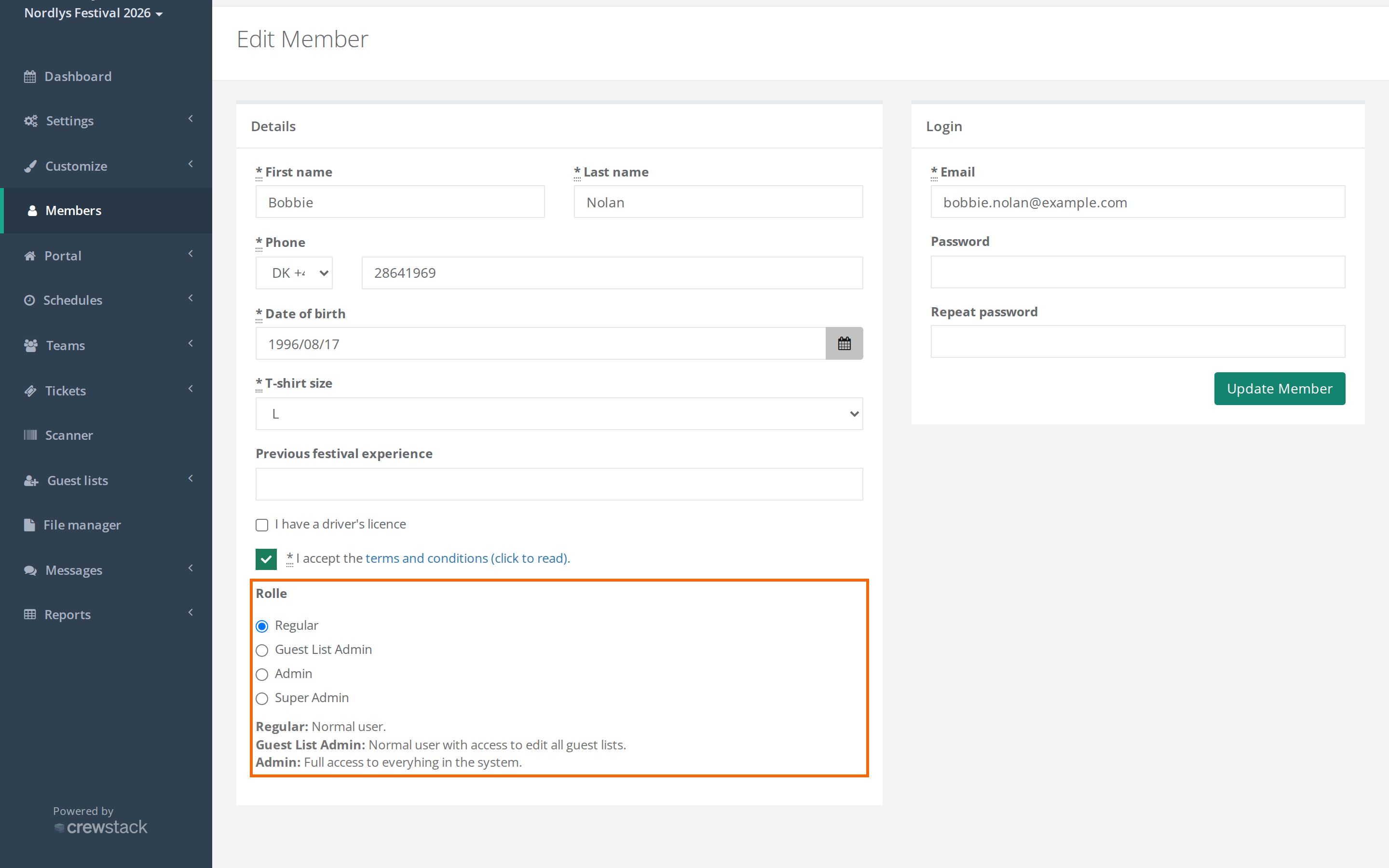
- Go to Members, and open the person's profile.
- Click Edit Member.
- Choose the role under Rolle: Regular, Guest List Admin, Admin or Super Admin.
- Click Update Member.
The role applies straight away. The person doesn't get an email about it.
You remove a role the same way: choose Regular, and save.
Find all admins
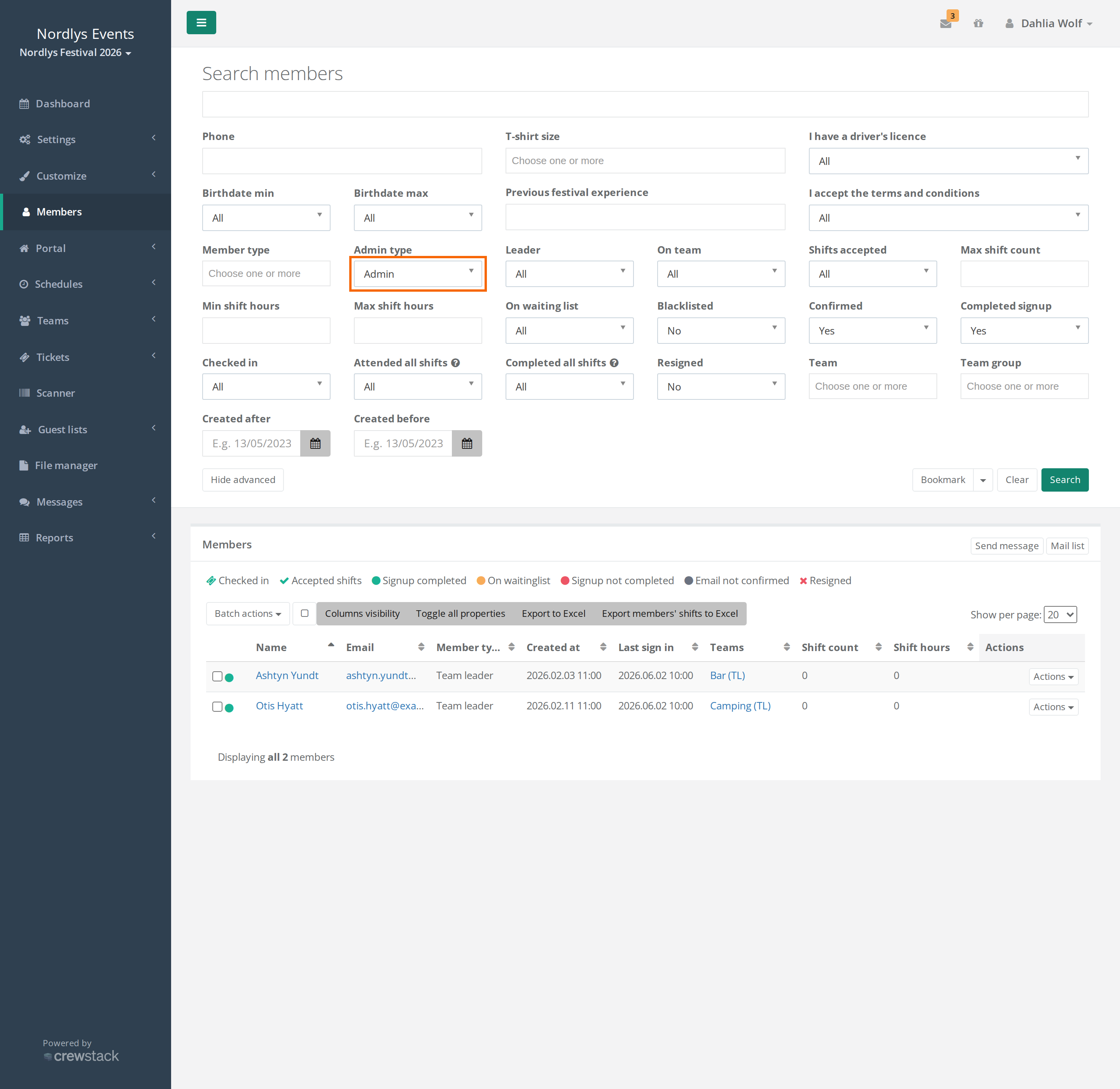
- Go to Members, and click Show advanced.
- Choose the role under Admin type: Super admin, Admin, Guestlist admin or Not admin.
- Click Search.
Organizer admins
An organizer admin has the same access as a super admin in all your events where they have a profile. You can see who is an organizer admin under Users > Users and admins on the organizer page. Only organizer admins have access there.
There, an organizer admin can also give a user access to one of your events as Admin or Super Admin. That's useful when a person needs to get into a past or additional event they haven't signed up for themselves.
An organizer admin can only be deleted by another organizer admin. See Users and organizer admins.
Pitfalls
- You can't see Rolle: Then you don't have the Super Admin role in this event. That also applies to an organizer admin if their own profile in the event has a different role. Ask a super admin to change the role.
- You remove your own Super Admin role: Then you can't give it back yourself. Make sure there are always at least two super admins in the event.
- New event, new roles: Roles don't carry over to your next event. Give them again in the new event.
- The team leader doesn't have full access: Team leaders only see the data fields they're allowed to see. That's controlled by Visible to on each data field. See GDPR and personal data in Crewstack.
Didn't find the answer? Write to support@crewstack.io.