
Two-factor authentication for admins
Protect your login with a code from an authenticator app, store your backup codes, and get back in if you lose your phone.
With two-factor authentication you type a six-digit code from an app on your phone after logging in with your password. Then nobody can log in as you, even if they know your password. It's optional, and each admin switches it on for themselves.
Who can use it
- People with the Admin or Super Admin role in an event.
- The organizer's admins.
Team leaders, team group leaders and Guest List Admin can't switch it on. You can't switch on two-factor authentication for someone else, and you can't make it mandatory for your admins.
Once you've switched it on, you keep the Two-factor authentication page, even if you later lose the admin role. So you can still switch it off.
What you need
An authenticator app on your phone, for example Google Authenticator or 1Password. The app shows a new code every 30 seconds.
Switch on two-factor authentication
- Click your name in the top right corner and choose Two-factor authentication.
- Click Enable two-factor authentication.
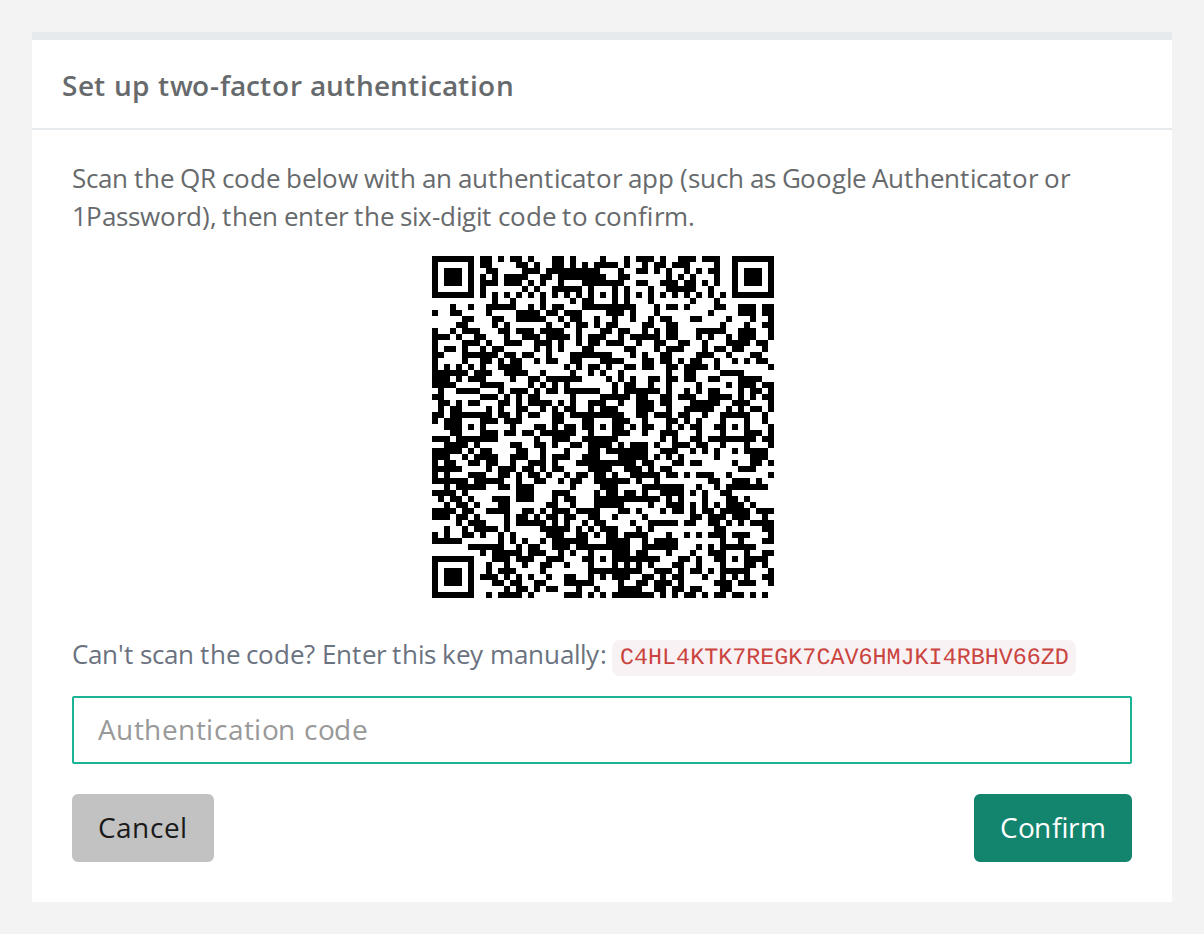
- Scan the QR code with the authenticator app. If you can't scan it, type the key below the QR code into the app.
- Type the six-digit code from the app in the Authentication code field and click Confirm.
- You now see 8 backup codes. Store them somewhere safe, for example in a password manager. They won't be shown again.
- Click Done.
In the app, the code is called Crewstack, with your email next to it.
How you log in
- Log in with your email and password as usual.
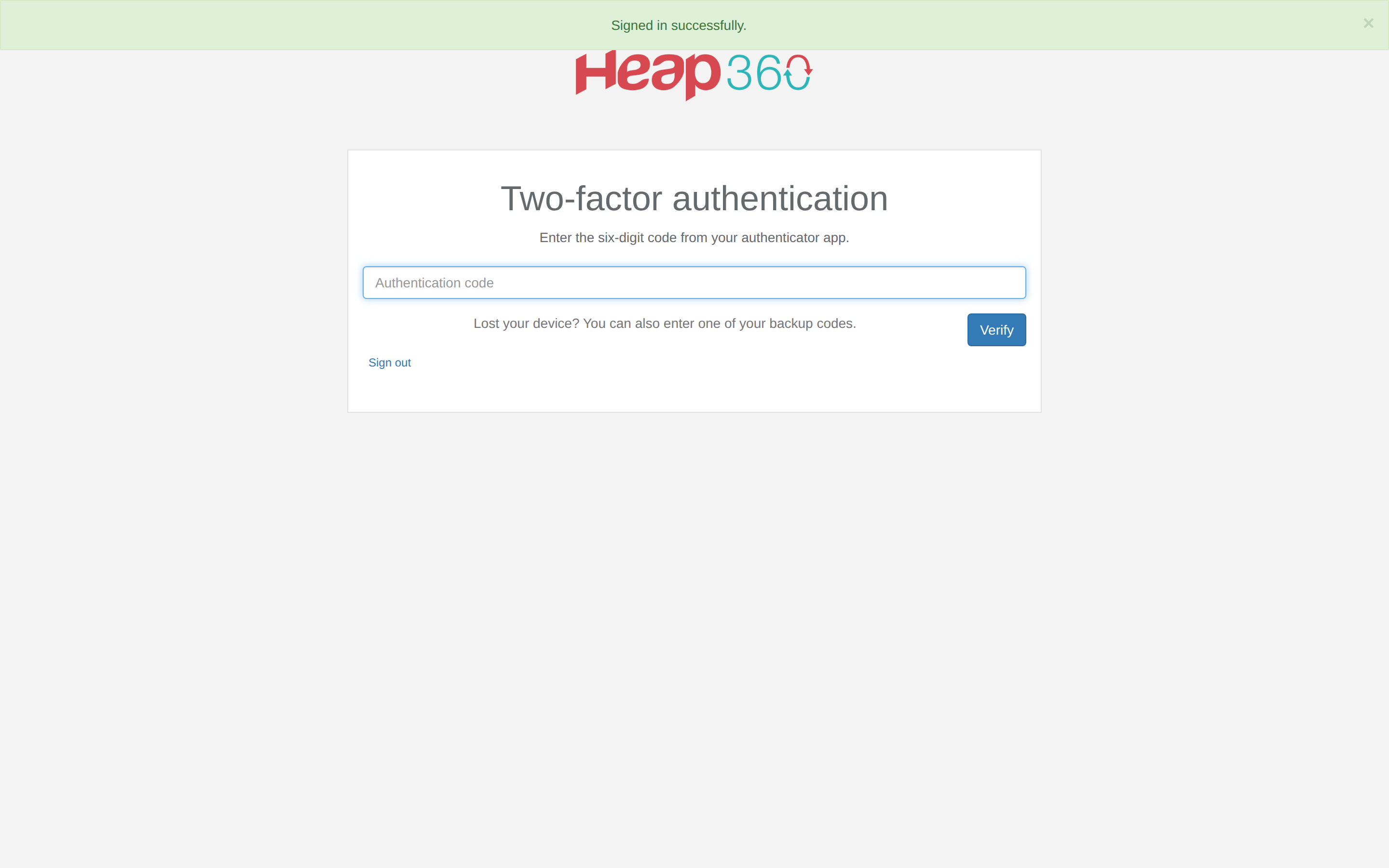
- The Two-factor authentication page opens. Type the code from the app and click Verify.
You type the code once each time you log in. Two-factor authentication belongs to your login with the organizer. So it applies in all of the organizer's events, including the ones where you aren't an admin.
Backup codes
- You can use a backup code instead of the code from the app. Type it in the same field.
- Each backup code only works once.
- The only way to get new backup codes is to switch two-factor authentication off and on again. Do it before you run out.
New phone, or switch it off
- Click your name in the top right corner and choose Two-factor authentication.
- Under Disable two-factor authentication, type a code from the app or a backup code.
- Click Disable.
If you're changing phones, switch it on again afterwards with the new phone. You get new backup codes, and the old ones stop working.
If you can't get in
- The code is rejected. Check that the phone's clock is set automatically. The code only matches when the clock is right.
- Too many failed attempts. Please wait 15 minutes and try again. After 10 wrong codes it's locked for 15 minutes.
- The phone is lost. Log in with a backup code. Then switch two-factor authentication off and on again with the new phone.
- Both the phone and the backup codes are lost. Other admins can't reset it, not even a super admin. Contact Crewstack support, who can switch two-factor authentication off so you can set it up again.
To leave the Two-factor authentication page without typing a code, click Sign out.
Helping a crew member who can't log in? See A crew member or admin can't log in.
Pitfalls
- The backup codes are shown only once. If you click Done without storing them, you can't find them again. Switch two-factor authentication off and on again to get new ones.
- Log in as: Two-factor authentication follows whoever logged in. While you use Log in as, you can neither see nor change the other person's two-factor authentication. See Log in as another person.
- Your own view template: The page where the code is typed is the Two-factor authentication view template. If you've edited it, leave
{{mfa_form}}in place. Otherwise there's no field for the code. See View templates and the front page.
Didn't find the answer? Write to support@crewstack.io.