
Group conversations
Bring a team, a team group or a schedule together in one shared conversation where everyone reads and replies in the same place, in the browser and in the Crewstack app.
A group conversation brings a team, a team group or a schedule together in one shared conversation. Everyone in the group reads the same conversation and replies in the same place, instead of each reply becoming a conversation of its own. Use it for briefings, last-minute changes and questions the whole team should see the answer to.
Group conversation or message
A regular message to a team is put in each recipient's inbox, and when someone replies, the reply goes only to you. See Messages.
A group conversation is one shared place:
- Everyone in the conversation sees every post, including each other's replies.
- The participants follow the team. When new people join the team, they join the conversation too, and anyone who leaves the team loses their seat.
- No email or SMS is sent for each post. Participants see the conversation in their inbox under Messages and get a notification in the Crewstack app.
Who can start a group conversation
- Admins can start a group conversation for any team, team group and schedule.
- Team leaders can start one for the teams they lead, and for schedules on those teams or on the team group the team belongs to.
- Team group leaders can start one for their team group, the teams in it and the schedules on them.
Only an admin can start a group conversation for a schedule that belongs to no team or team group. Your crew can't start group conversations, but they can read and reply in the ones they are in.
Start a group conversation
You can start a group conversation in three places:
- On the team's page with Start group conversation. The team is then chosen in advance.
- On a schedule with Start group conversation. The schedule is then chosen in advance.
- Under Messages with the icon with two speech bubbles next to New message (New group conversation).
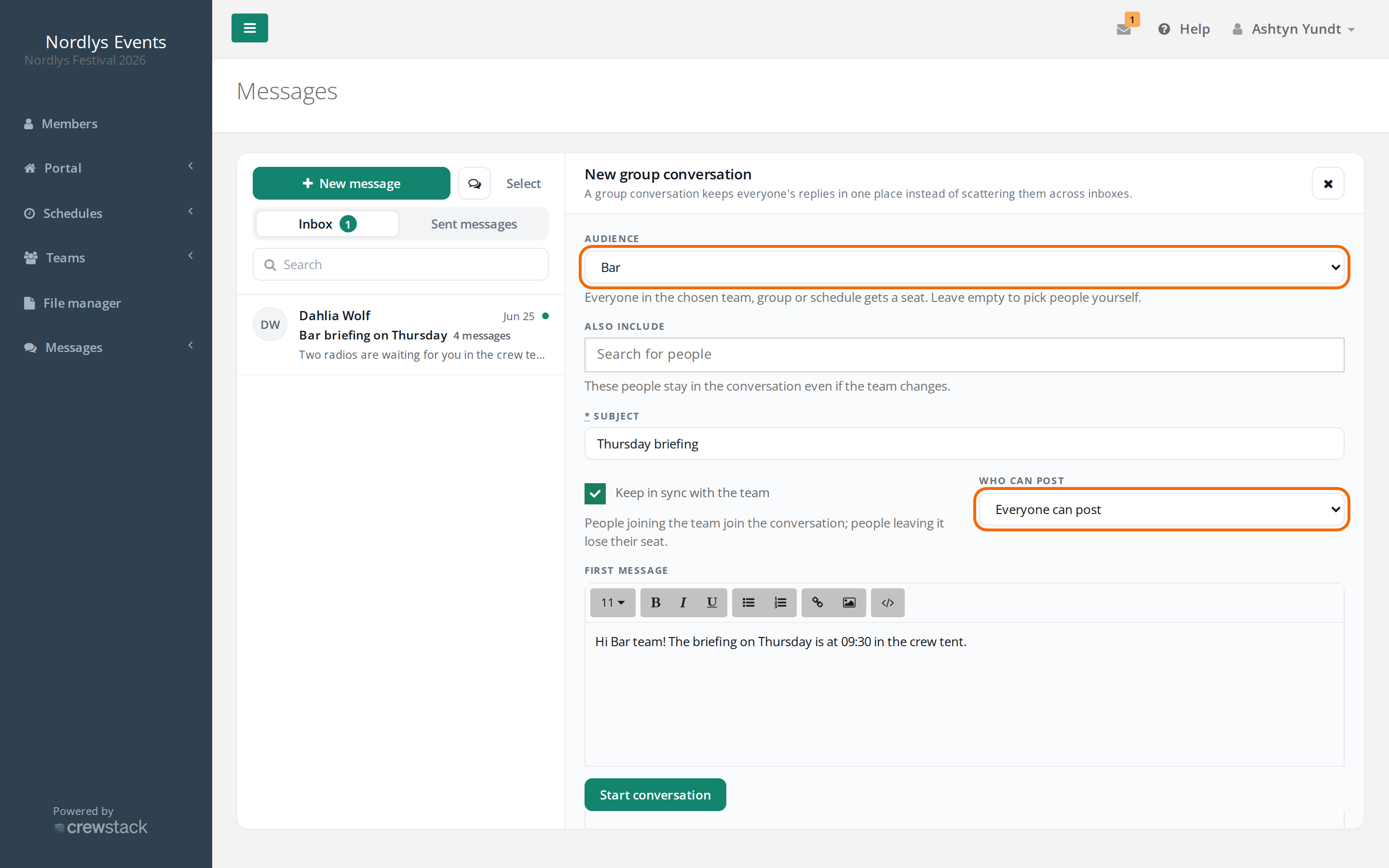
Then fill in the form:
- Choose who the conversation is for under Audience: a team, a team group or a schedule. If you leave the field empty (No team or schedule), you pick the people yourself in the next field.
- Optionally, search for people under Also include. They stay in the conversation even if the team changes.
- Write a Subject.
- Leave Keep in sync with the team on. The conversation then follows the team: people joining the team join it, and people leaving the team drop out. If you switch it off, everyone on the team right now is still included, but the conversation doesn't follow the team afterwards: people joining the team aren't added on their own, and people leaving the team stay in the conversation. You can still add and remove people among the participants, including the ones who came in from the team.
- Under Who can post, choose Everyone can post or Only leaders can post (announcement).
- Write the First message, and click Start conversation.
Who is in the conversation
When the conversation follows a team, everyone active on the team is in it, and the team's leaders are leaders of the conversation. Hidden team leaders (Hide from member list) are not included. Nor are people on the waiting list, with an unfinished signup or on the blacklist.
- For a team group, it is everyone on the group's teams, and the group's leaders lead the conversation.
- For a schedule, it is everyone with a shift on the schedule. The leaders of the team or team group behind the schedule, and anyone who is leader on a shift, lead the conversation.
- Whoever starts the conversation always leads it.
Click the number of participants at the top of the conversation (for example 6 participants) to see the list. Here leaders and admins can add someone with Add. People added by hand are marked Invited. If the conversation follows the team, only they can be removed; if it doesn't, anyone can be removed except the conversation's last leader.
If the conversation follows the team and you remove someone who is also on the team, they stay in the conversation for as long as they are on the team.
Someone who joins the team can read the whole conversation, but only what is written after that counts as unread. If someone leaves the team and comes back, they get their seat back.
Read and reply
Group conversations are in the Inbox under Messages, together with your messages. They are marked Group and show the team's name, and the conversation with the latest post is at the top. Unread group conversations count towards the number next to Inbox.
Click the conversation to open it on the right, and write your reply in the field at the bottom (Write to the group…). Click Post.
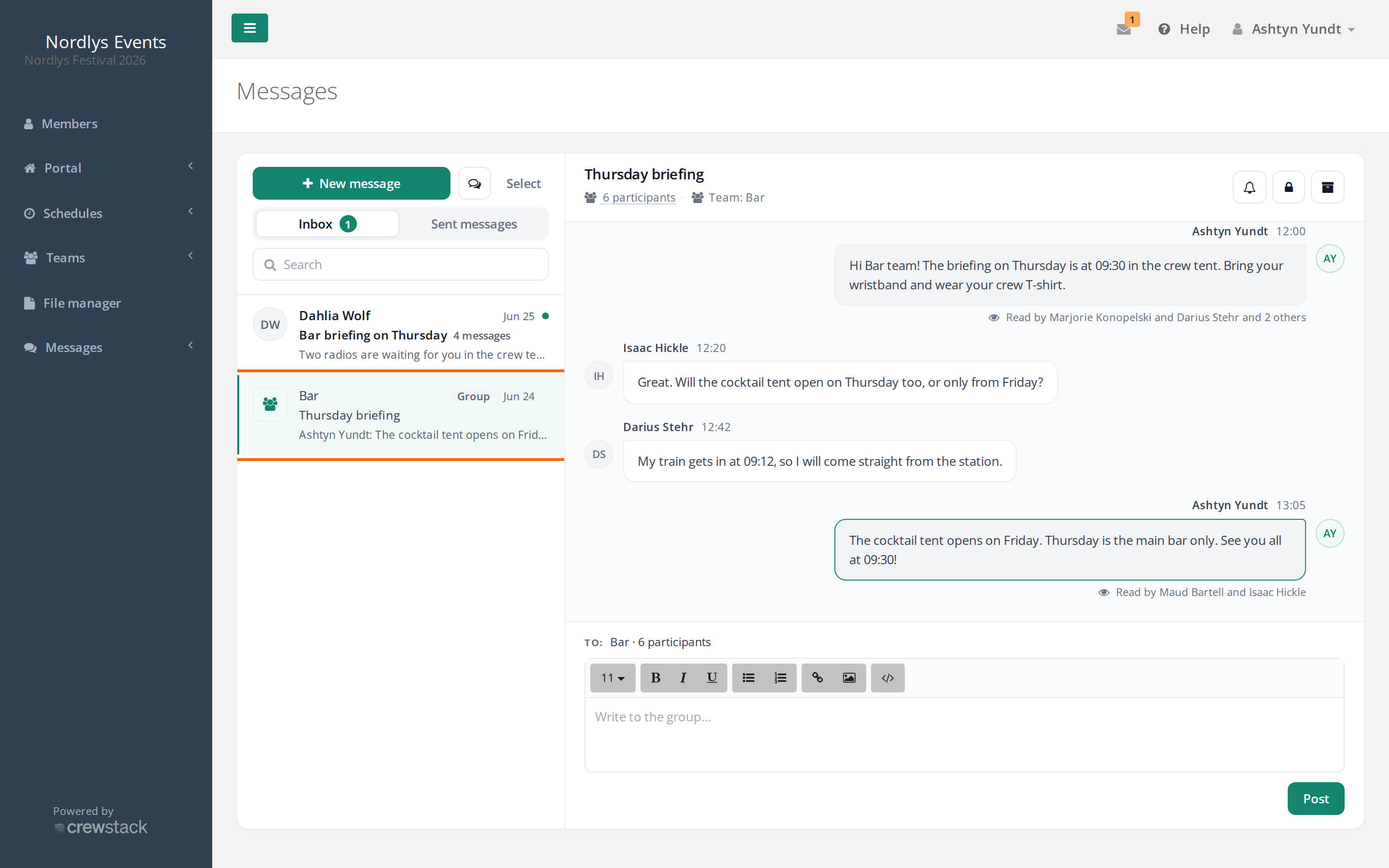
Under your own posts you can see who has read them (Read by …). If you haven't been in the conversation for a while, a line shows where the new messages start.
If you don't want notifications from a conversation, click the bell at the top of the conversation (Mute). You are still in the conversation and can see it in your inbox.
Run the conversation
Leaders of the conversation and admins have buttons at the top of the conversation:
- Close: Nobody can post in the conversation any more, but everyone can still read it. Reopen lets people post again.
- Archive: The conversation disappears from everyone's inbox. Only the person who started it and admins can see it afterwards. They find it under Archived group conversations at the bottom of the inbox and can bring it back with Restore.
When a team, team group or schedule is deleted, its group conversations are archived, not deleted.
In the Crewstack app
Your crew see group conversations under Messages in the app (the envelope at the top), together with their messages. They tap the conversation to read it and can reply in the field at the bottom.
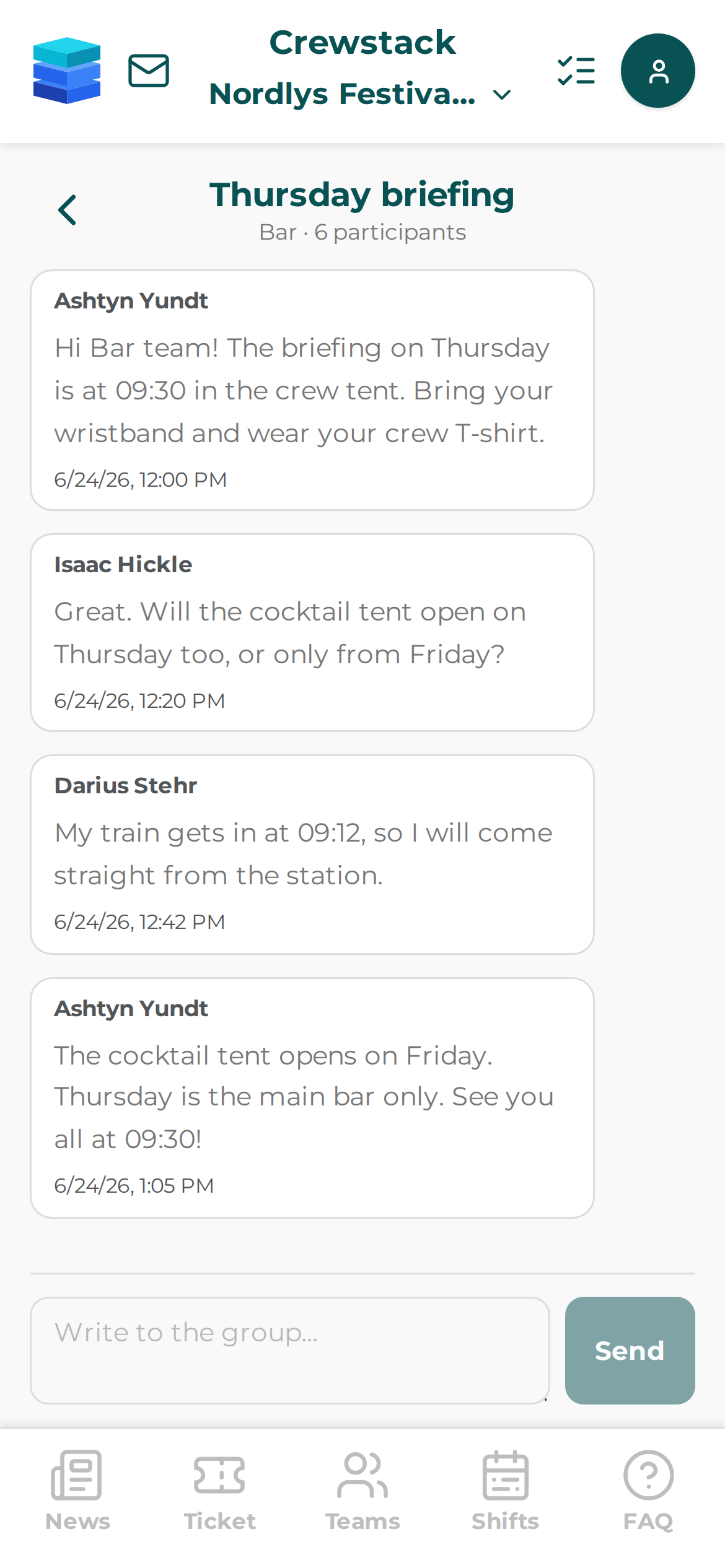
When there is a new post, participants get a notification saying New post in a group conversation, if they have turned notifications on. The notification doesn't show what the post says. See Messages and notifications in the Crewstack app.
Team leaders can also start a group conversation from the app:
- Tap the envelope, and tap New group.
- Choose the team under Team. If you lead only one team, it is chosen in advance.
- Write the Subject and First message, and tap Send.
In the app you can only start a group conversation for a team, and everyone can post in it. To start one for a team group or a schedule, to have a conversation where only leaders post, or to close or archive a conversation, use Messages in the browser.
Pitfalls
- A crew member can't see the conversation. Check that the person is on the team and has completed signup. People on the waiting list are not included. If the conversation was started without Keep in sync with the team, it doesn't follow the team. Add the person among the participants with Add.
- Participants got no email. Group conversations send no email or SMS, only a notification in the app. If everyone needs to hear by email, send a regular message. See Messages.
- You can't remove someone. If the conversation follows the team, only people added by hand can be removed. Everyone else came in from the team and drops out when they are no longer on the team. The conversation's last leader can't be removed either, you can't remove yourself, and only an admin can remove the person who started the conversation.
- Your crew can't reply. The conversation is closed, or it is set to Only leaders can post (announcement). If it says Only leaders post in this conversation, that can't be changed. Start a new conversation if everyone should be able to post.
- You can't mark group conversations as read with Select. Select in the inbox only works on messages. A group conversation is read when you open it.
Didn't find the answer? Write to support@crewstack.io.