
Messages and notifications in the Crewstack app
How your crew reads and sends messages in the Crewstack app, and how they switch on notifications on their phone.
In the Crewstack app, your crew can read the messages you send, reply to them and write to their team leader. With notifications switched on, they get an alert on their phone when a new message arrives. Here you can see how it works, so you can help them.
Messages in the app
The envelope at the top left of the app opens Messages. A red number on the envelope shows how many unread messages there are.
- The app shows the messages the person has received in the event and the ones they have sent themselves. They are the same messages the person sees under Messages in the browser.
- The person taps a conversation to read it and can reply in the field at the bottom (Write a reply…).
- A reply goes to whoever sent the message, not to all recipients. It's the same as in the browser. See Messages.
Write to the team leader
This is how a crew member writes to their team leader:
- Tap the envelope and tap Compose. Or go to Teams and tap Contact next to the team leader.
- Choose the team leader under To. If the person has only one team leader, it's chosen already.
- Enter Subject and Message and tap Send.
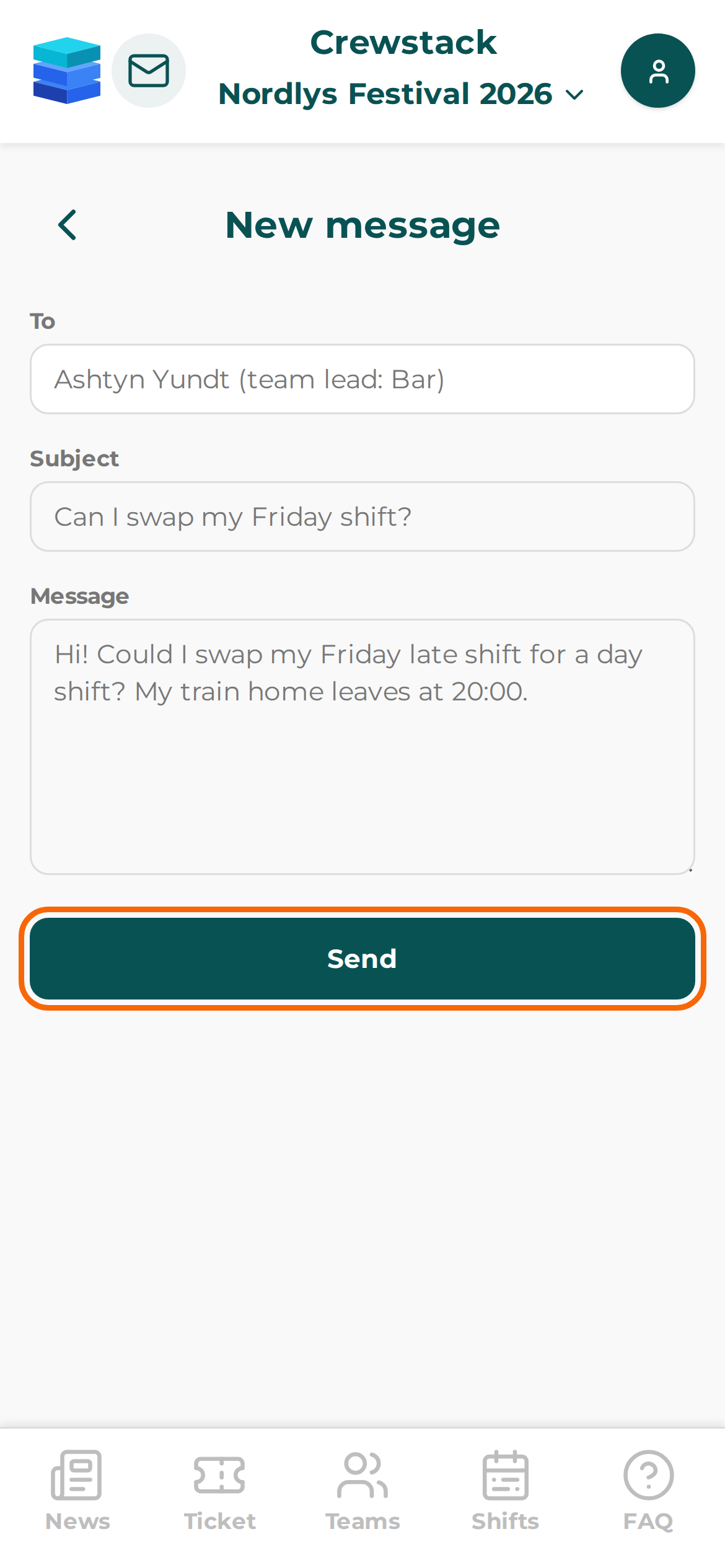
The team leader gets the message in their Inbox under Messages in Crewstack and an email saying there is a new message. If the team leader also has the app with notifications switched on, they get a notification.
In the app, crew members can only start a conversation with the team leaders of their own teams. They can't write to administrators or other crew members, but they can reply to the messages you send.
If it says No team leads are available to message., the person's teams have no team leaders, or the team leaders are hidden with Hide from member list. See Manage your team as a team leader.
As a team leader: write to your team from the app
- Go to Teams and tap Team members on your team.
- Tap Message team.
- Enter Subject and Message and tap Send.
The message goes to everyone active on the team, just like when you write to the team in the browser. In the app you can't send the message as an SMS or schedule it. You do that under Messages in the browser. See Messages.
The Message team button is only there on teams you lead, and not if you are hidden with Hide from member list.
Notifications
The app can show a notification on the phone when the person gets a new message. The notification shows the event's name and You have a new message, but not what the message says. When the person taps the notification, the app opens the message in the right event.
Notifications only come for new messages, not for news or changed shifts. The email about the message is sent as always, whether notifications are on or not.
Switch notifications on
Ask the crew member to:
- Tap the profile picture at the top right and choose Settings.
- Tap Enable notifications under Notifications.
- Allow notifications when the phone asks.
Then it says Notifications are on.
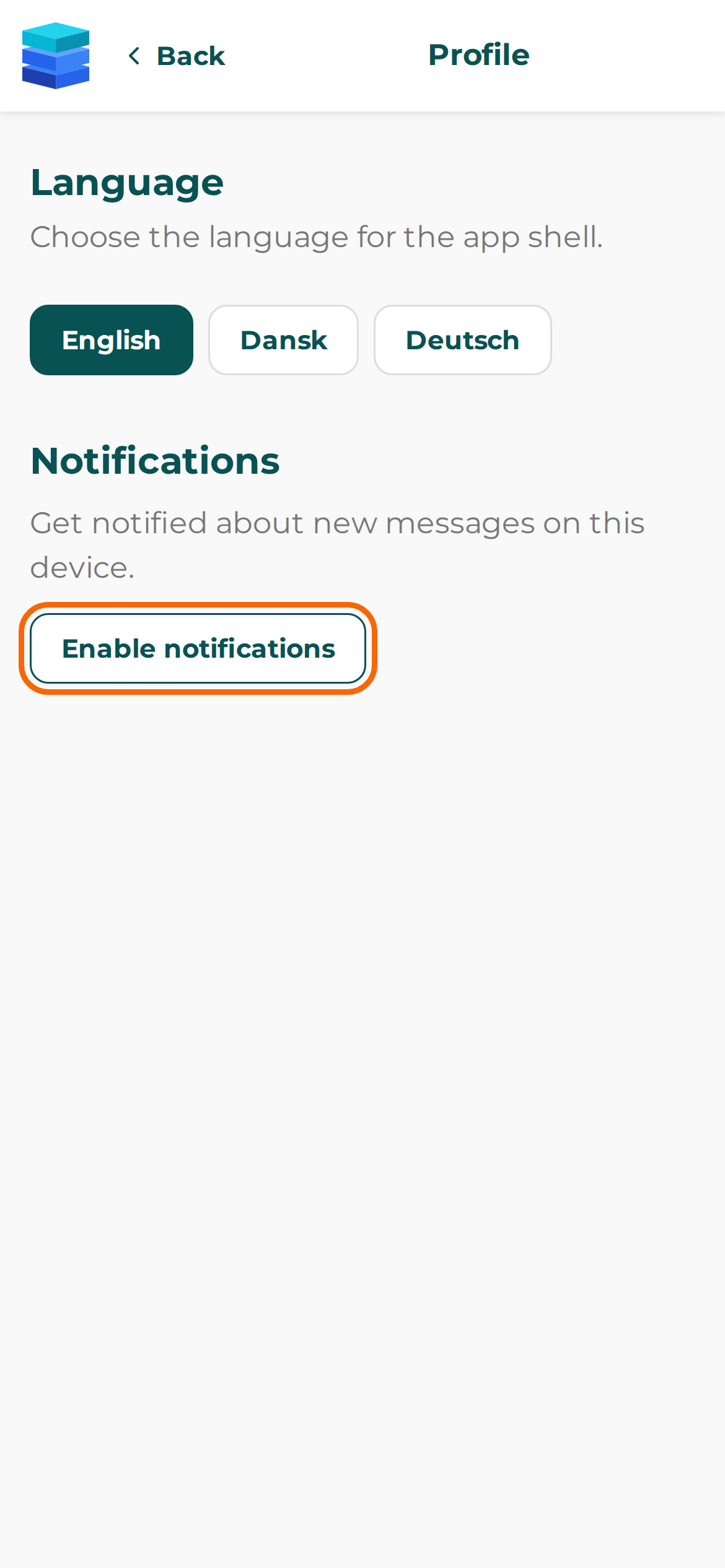
Notifications apply to the phone they are switched on on. In the app from the App Store or Google Play, they apply to all events in the app. If the person uses Crewstack in a browser, they have to be switched on for each event.
The person switches them off again with Disable notifications. Log out also switches them off.
Check this
If a crew member doesn't get notifications, go through the list:
- Does the person get the message at all? Only people who have completed signup and are neither on the waiting list, blacklisted nor resigned get messages. See Messages.
- Are notifications switched on? Under Profile > Settings it should say Notifications are on.
- *Does it say Notifications are blocked in your browser settings.?* The person has declined notifications. If they use the app from the App Store or Google Play, they have to allow notifications for Crewstack in the phone's settings. In a browser, they have to allow them in the browser's settings for the site. Then ask them to tap Enable notifications again.
- *Does it say Notifications are not supported in this browser.?* The browser can't show notifications. Ask the person to get the app from the App Store or Google Play.
- *Does it say Could not enable notifications. Try again.?* Check that the phone has a connection and try again.
- Has the person got a new phone or logged out? Notifications follow the phone, and Log out switches them off. Ask the person to log in and switch notifications on again.
- Does the person use the app in a browser and have several events? Then notifications have to be switched on for each event. Switch event by tapping the event's name at the top.
Pitfalls
- Your crew can't write to you in the app. They can only start a conversation with their team leaders. If you want to hear from them, write to them first. Then they can reply.
- Replies only go to the sender. If a crew member replies to a message to the whole team, the reply only goes to whoever sent the message.
- The notification doesn't show the content. The person has to open the app to read the message.
Didn't find the answer? Write to support@crewstack.io.