
Membership fees
How to let crew members pay a membership fee or deposit by card, see who has paid, and register cash payments.
You can have crew members pay a membership fee or a deposit to take part. You set the price per member type, and crew members pay by card, either during signup or when they get their ticket. If someone has paid in cash or some other way, you register it on their profile.
Before you start
The money goes to your own Stripe account, so an organizer admin first has to connect your organizer account to Stripe. See Connect Stripe to receive payments.
If Stripe isn't connected, you can't switch payments on, and the setting shows "Stripe is not connected to the organizer …".
Switch on payments for the event
- Go to Settings > General settings.
- Find the Members section and tick Enable possible payments for member's tickets.
- Optionally write a text in Additional text in member payments popup. It is shown in the window that asks crew members to pay.
- Click Save.
The setting only applies to the event you are in.
Set a price on a member type
- Go to Settings > Member types.
- Click Actions > Edit Member type next to the member type.
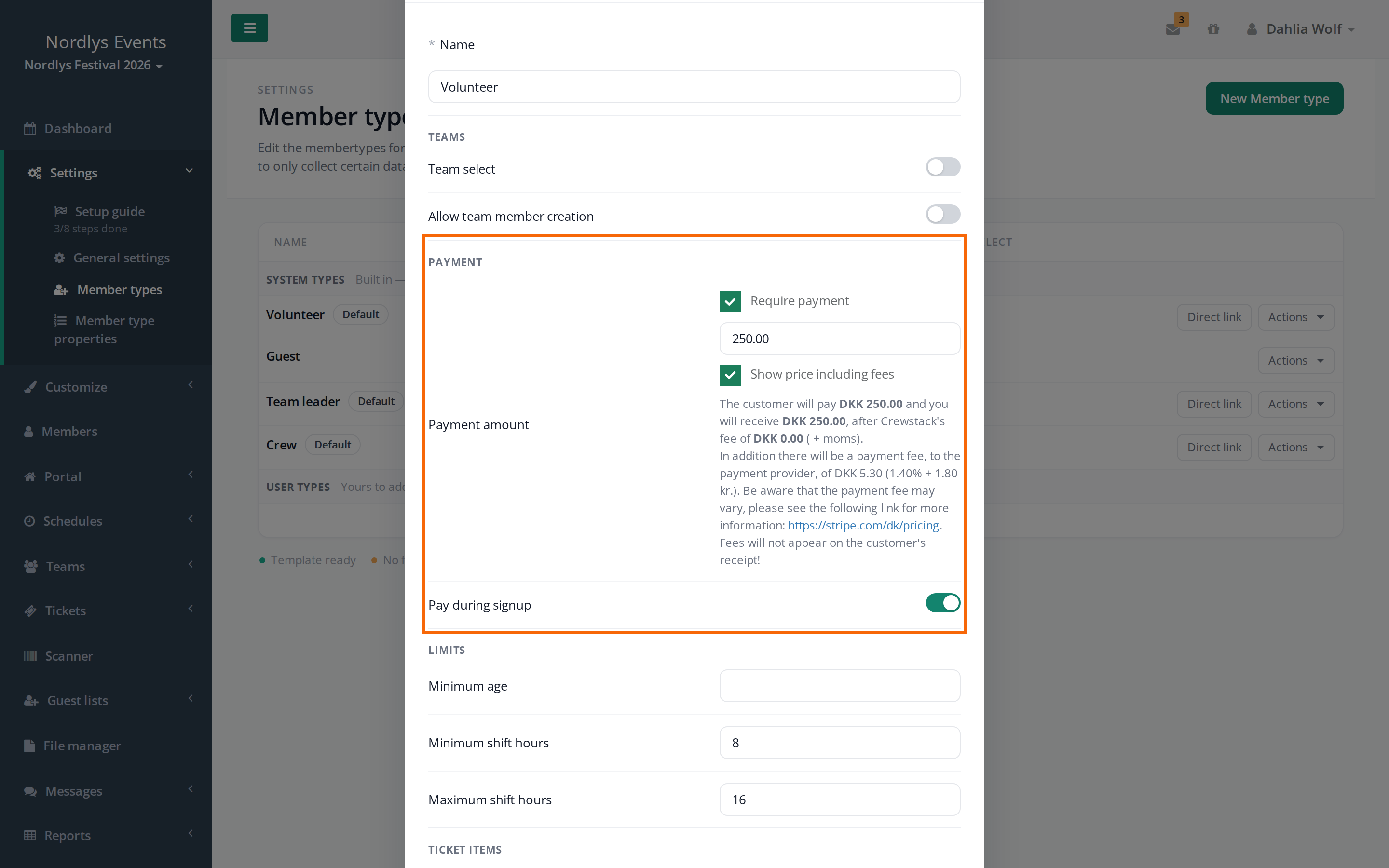
- In the Payment section, tick Require payment and enter the price.
- Choose whether Pay during signup should be on. It is on by default. See the next section.
- Click Update Member type.
The Payment section is only there when payments are switched on for the event. Prices are in Danish kroner (DKK).
Below the price you can see what the crew member pays, what you get after Crewstack's fee, and what Stripe charges as a fee. If Show price including fees is on, the price you enter is what the crew member pays. If you switch it off, Crewstack's fee is added on top.
When do crew members pay?
With Pay during signup switched on:
- New crew members pay at the end of signup. They click Pay for signup, pay by card at Stripe and come back to the signup, where they click Confirm.
- Crew members who are already signed up with the member type get the Missing deposit window the next time they open a page in Crewstack. The window can't be closed. They click Pay and pay by card.
- If a crew member is put on the waiting list during signup, they don't have to pay straight away. When you remove them from the waiting list, they get the Missing deposit window the next time they log in.
With Pay during signup switched off:
- Crew members can sign up without paying.
- They pay when they get their ticket. My ticket then shows Payment has not been made and the Pay ticket button.
- A ticket that hasn't been paid doesn't work in the scanner.
After a payment, the crew member gets a receipt by email. A super admin can change the text in the Payment receipt template under Customize > Mail templates.
See who has paid
- Under Members, the Paid column shows a banknote icon: green for Paid, orange for Partial paid and red for Not paid. Hover over the icon to see when the person last paid and how much they have paid in total.
- Under Show advanced you can set Paid in full to Yes or No.
- The person's profile shows the payment status at the top.
- The Excel export shows the amount the person has paid.
Register a cash payment
If a crew member has paid in cash or some other way outside Crewstack, register it like this:
- Open the person's profile.
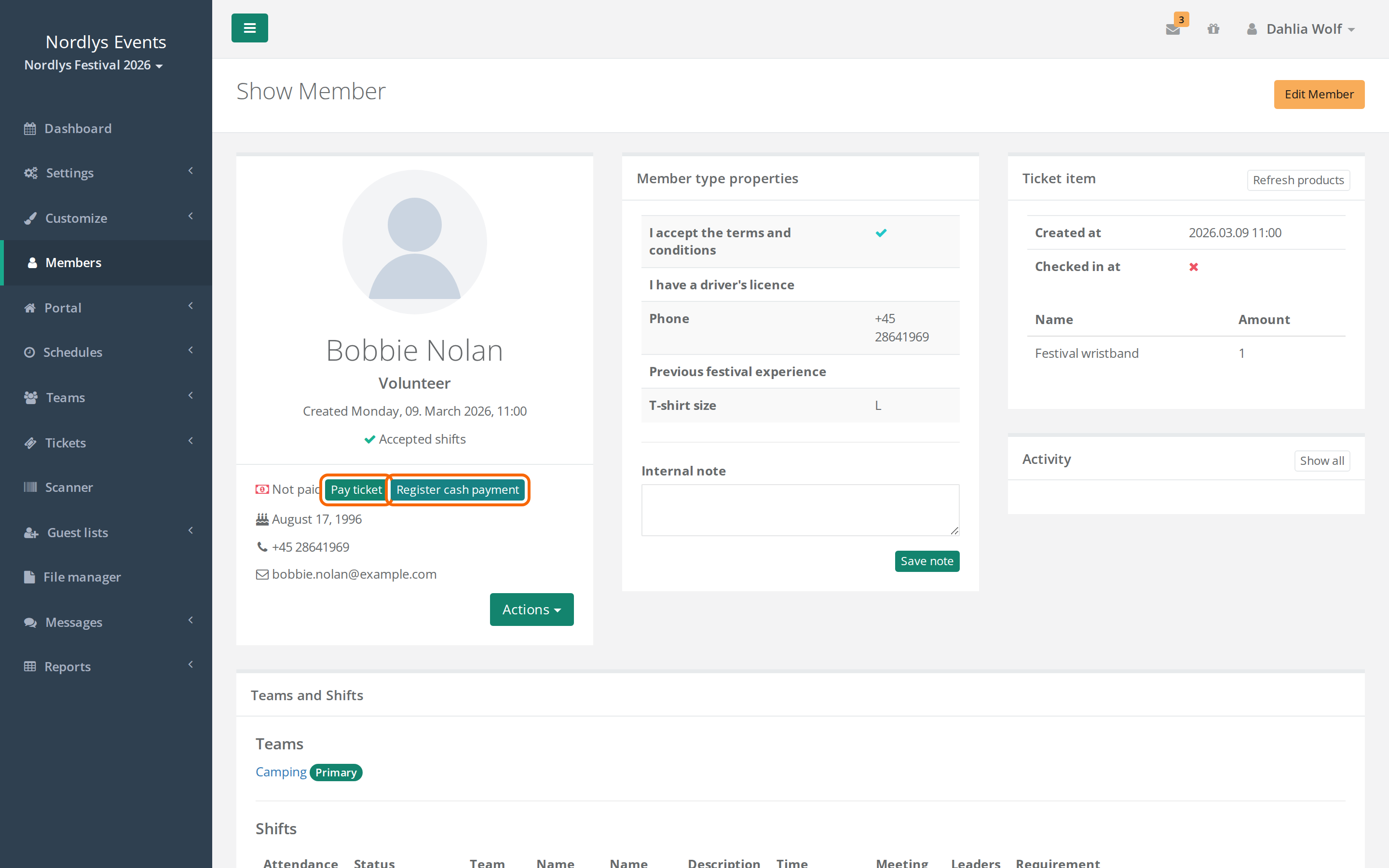
- Click Register cash payment next to the payment status at the top.
- Enter the amount. It can't be more than the person still owes.
- Click Register.
The person gets a receipt by email. If they have only paid part of it, they show as Partial paid.
The buttons are only there while the person hasn't paid in full. Next to them is Pay ticket, where you can pay by card on the person's behalf. You then get the receipt yourself.
Correct the paid amount
Use Set paid amount if a payment was registered wrongly or if you have refunded money.
- Open the person's profile and click Set paid amount. If the profile has many actions, it is under Actions.
- In Paid amount, enter what the person has paid in total. It can't be more than the price.
- Write why you are correcting the amount. This is required.
- Click Save paid amount.
The change and your reason are saved in the activity log. The person gets no email.
Pitfalls
- Payments under My ticket don't show under Members. If the crew member pays under My ticket, the ticket is paid and works. But under Members and on the profile, the person still shows as Not paid. Check your Stripe account before you register a cash payment, so nobody pays twice.
- Partial payment and My ticket: If a crew member has paid part in cash and has to pay the rest under My ticket, they are asked to pay the full price. Only register a partial payment if the rest will also be paid outside Crewstack or through the Missing deposit window.
- The payment has to be completed. The payment is only captured and registered once the crew member has been sent back from Stripe to Crewstack. If they close the window at Stripe too early, the amount is only reserved on the card. Ask them to pay again.
- The price follows the member type. If you raise the price, or give a person a more expensive member type, they owe the difference and show as Partial paid. With Pay during signup switched on, they get the Missing deposit window again.
- Everyone with the member type has to pay, including admins who have that member type.
- If you switch payments off for the event, everyone counts as paid and nobody is asked to pay.
Didn't find the answer? Write to support@crewstack.io.