
Connect Stripe to receive payments
How an organizer admin connects your Stripe account so your events can take card payments for membership fees and guest list tickets.
Crewstack uses Stripe for card payments: membership fees from crew members and payment for tickets on guest lists. The money goes straight to your own Stripe account. An organizer admin connects Stripe once, and then all your events can receive payments.
Before you start
- Only organizer admins can connect Stripe.
- Contact Crewstack first at support@crewstack.io. We have to approve your address with Stripe before you can connect, and at the same time we switch on payments for your organizer account. Until then, you see "Payments is not enabled for your organization. …" instead of the Stripe button.
- Payments require an agreement with Crewstack. Crewstack charges a fee per payment, as agreed in your contract. Contact us to find out more.
How to connect Stripe
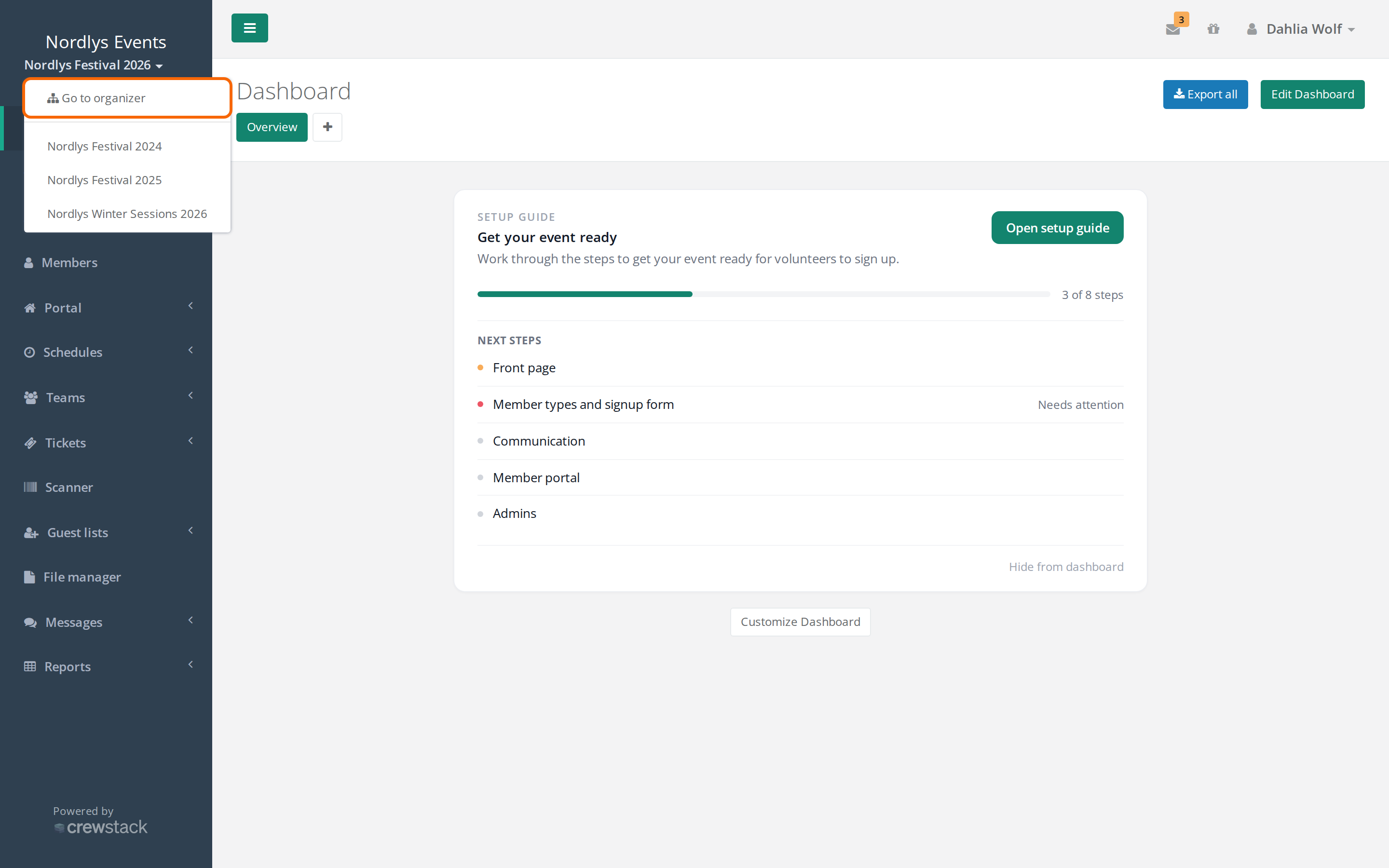
- Click the event name below the logo at the top of the menu and choose Go to organizer.
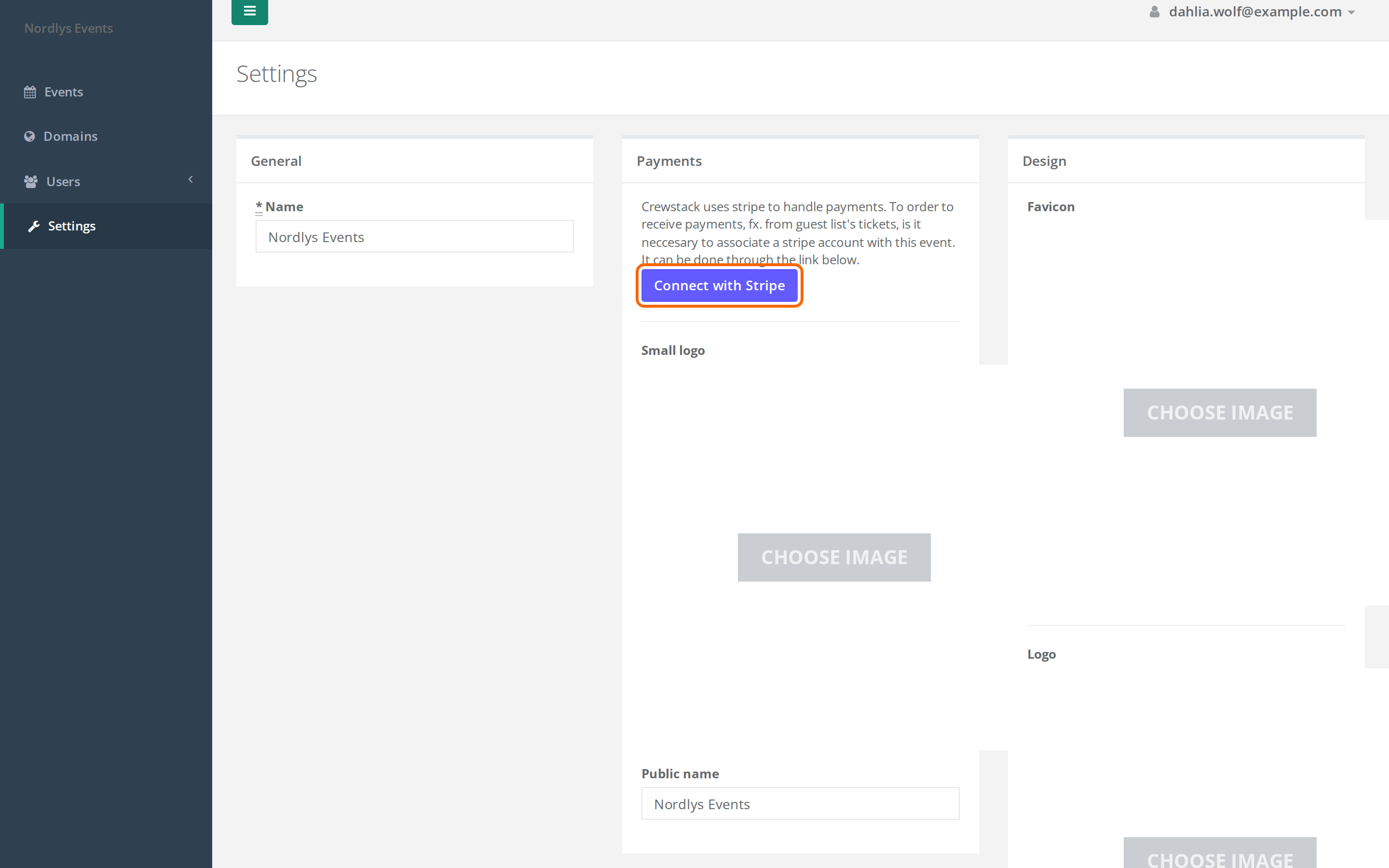
- Click Settings in the menu.
- Click Connect with Stripe in the Payments box.
- Log in to your Stripe account, or create one, and follow Stripe's instructions.
- When you are done at Stripe, you are sent back to Crewstack and see the message "This organization is now connected with stripe, and can receive payments."
After that, the Payments box says "This organization is connected to stripe, and can receive payments."
If you cancel at Stripe or something goes wrong, you come back to the page with an error message from Stripe, and nothing has changed.
Switch on payments in your events
Once Stripe is connected, a super admin can switch on payments in each event under Settings > General settings:
- Enable possible payments for member's tickets: Crew members pay a membership fee or deposit. See Membership fees.
- Enable possible payments for guest list's tickets: Tickets on guest lists can have a price. See Create a guest list.
Until Stripe is connected, the two settings can't be switched on. As an organizer admin you see a message next to the settings with the link Go to organizer settings. Others see "Stripe is not connected to the organizer, so payments cannot be received. Ask an organizer administrator to connect it."
Good to know
- All your events use the same Stripe account.
- Crew members and guests pay by card at Stripe. Amounts are in Danish kroner (DKK).
- Stripe charges a fee for each payment, and Crewstack also charges a fee. When you set a price in Crewstack, the text below the field shows what will be paid and what you get.
- Crewstack can't refund payments. You do that yourselves in your Stripe account.
- You can't remove the connection or switch to a different Stripe account in Crewstack.
Didn't find the answer? Write to support@crewstack.io.