
Mailchimp sync
How Crewstack keeps a Mailchimp list up to date with the crew in your event, who is included, and when the list is updated.
If you use Mailchimp for newsletters, Crewstack can keep a list in Mailchimp up to date with the crew in your event. This is optional. Crewstack only sends people to Mailchimp. You send the emails themselves from Mailchimp.
How to switch it on
You need an API key from your Mailchimp account and the ID of the Mailchimp list your crew should be added to.
- Go to Settings > General settings.
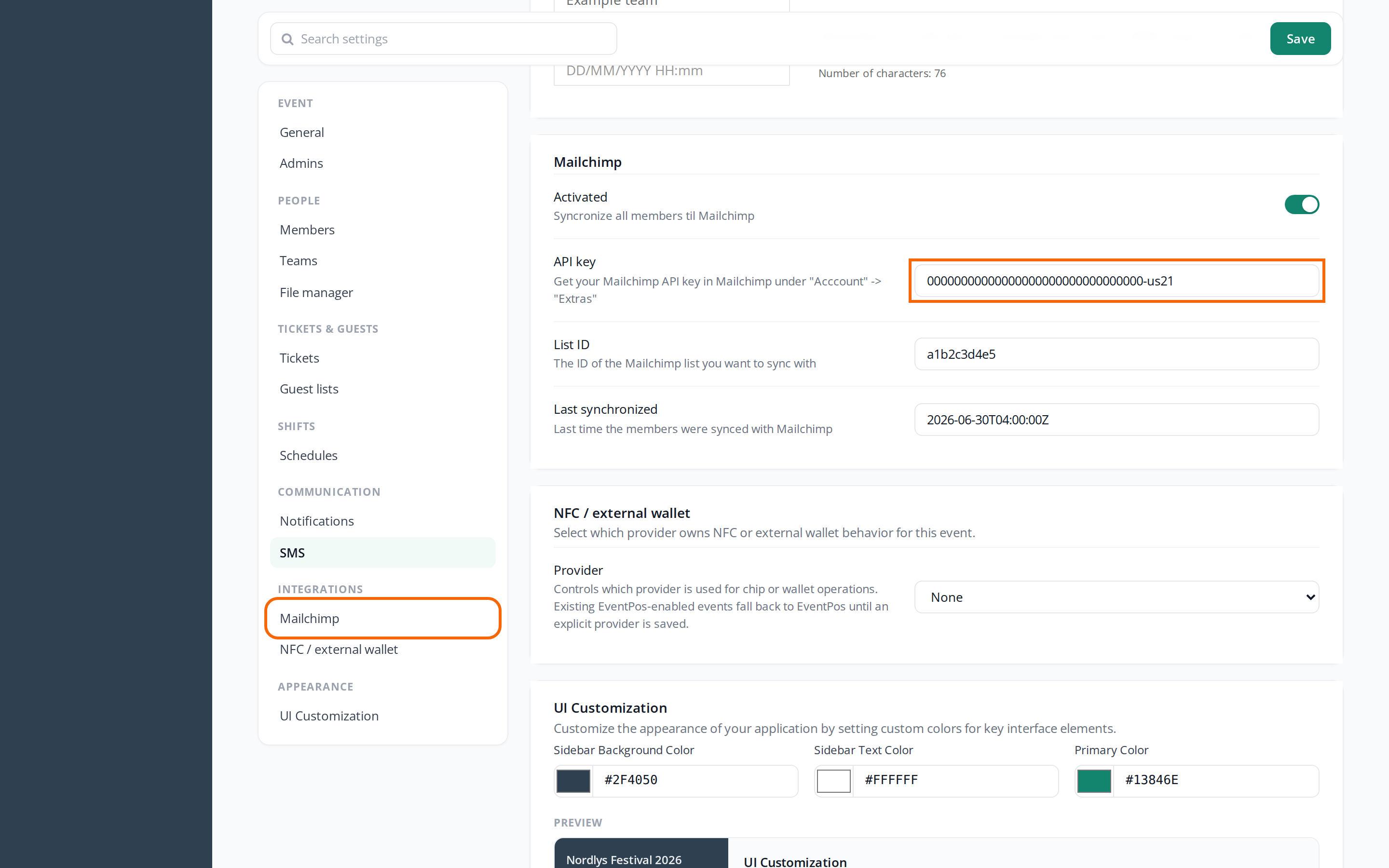
- Find the Mailchimp section. It is under Integrations in the overview on the left.
- Tick Activated.
- Paste the key into API key and the list's ID into List ID.
- Click Save.
The list is updated for the first time within 12 hours. After that, you can see the time in Last synchronized.
Who is added to the list?
Crewstack sends the people in the event who
- have completed signup,
- aren't on the waiting list and
- aren't blacklisted.
People without a name are skipped.
Each person is subscribed to the list with their email, first name, last name, member type and language. First name, last name and member type are in the fields FNAME, LNAME and MEMBERTYPE, which Crewstack creates on the list itself if they are missing. Use MEMBERTYPE if you want to send to one member type at a time in Mailchimp.
When is the list updated?
- Every 12 hours. There is no button to sync straight away.
- New crew members are included in the first update after they have completed signup.
- If a person is resigned, they are removed from the list straight away.
Check this
If nobody or too few people end up on the list, check:
- Is Activated on, and are both API key and List ID filled in? The list is only updated when all three are set.
- Is Last synchronized more than 12 hours old or empty? Then the key or the list ID is probably wrong. Paste them in again and click Save.
- Has the person completed signup, and are they not on the waiting list?
- Does the person have a name on their profile?
Pitfalls
- Only resigned people are removed. People who are blacklisted or deleted, or who are moved to the waiting list later, stay on the list in Mailchimp. Remove them yourself in Mailchimp. See GDPR and personal data in Crewstack.
- A new email gives a new contact. If a person changes their email, the new email is added to the list, but the old one stays.
- One list per event. The settings only apply to the event you are in. If you have several events, for example a new year, Mailchimp has to be set up in each event.
- The API key is visible to everyone who can open General settings. Tip: Create a key in Mailchimp just for Crewstack, so you can delete it when you no longer use it.
Didn't find the answer? Write to support@crewstack.io.