
Plan meals from the shifts
See how many people are on shift each day at lunch, dinner or other time windows, split by member type or team, and export the numbers for the kitchen.
When the kitchen needs to know how many crew members to feed at lunch and dinner each day, the Shift Report can count it from the schedules. You pick the days and the time windows, and the report shows the number of people per day in each window. Only admins have the report.
How to count
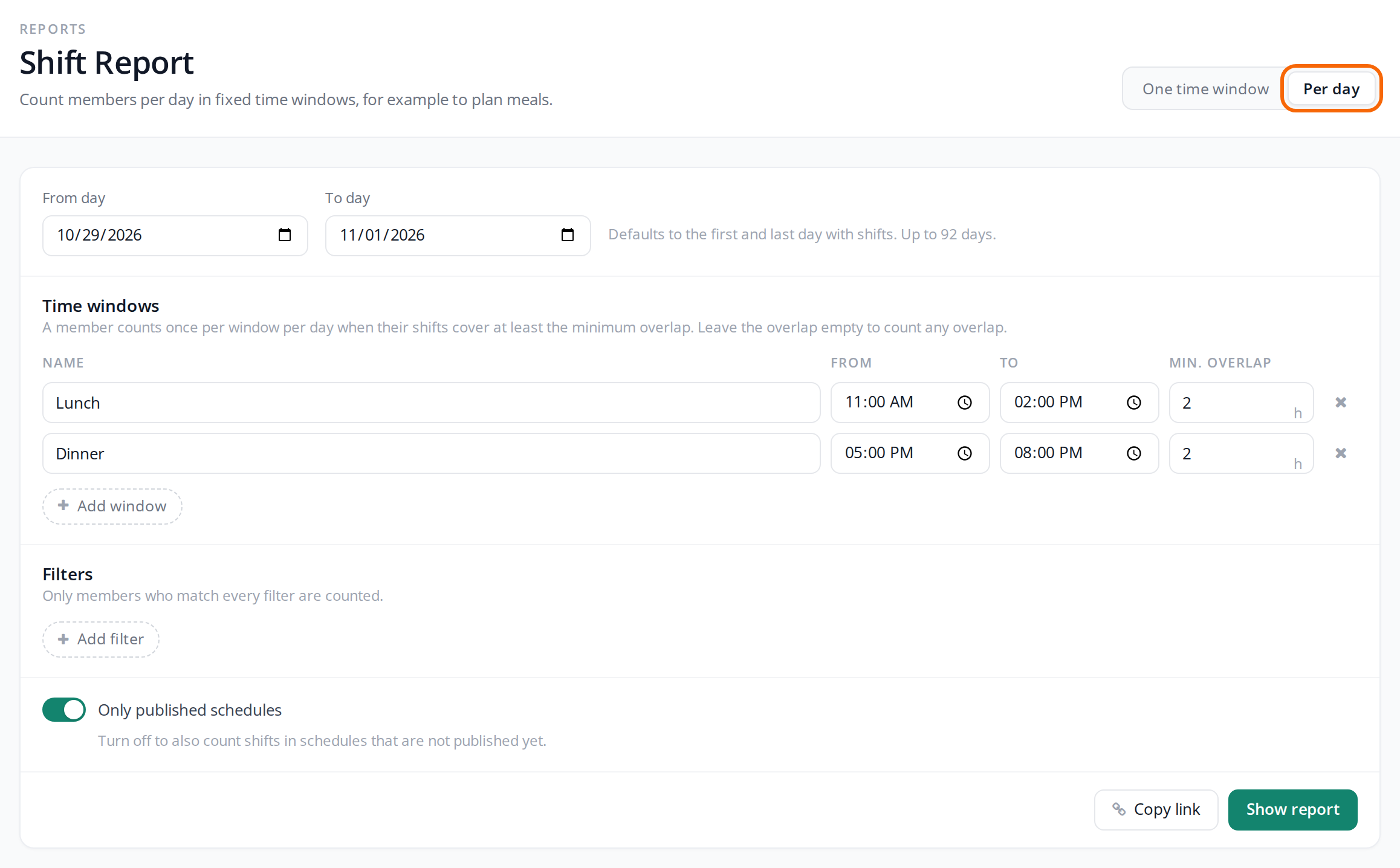
- Go to Reports > Shift Report.
- Click Per day at the top right.
- Choose From day and To day. The first and last day with shifts are filled in for you. You can choose up to 92 days.
- Adjust the windows under Time windows. See the next section.
- To count only some of the people, click Add filter and filter on member type, area, product, data fields or shift length.
- Click Show report.
The report counts one week at a time and shows how far it has got. The first days are on screen while the rest are counted. The totals and the export appear once every day has been counted.
Time windows and minimum overlap
The first time, there are two windows: Lunch 11:00-14:00 and Dinner 17:00-20:00, both with a Min. overlap of 2 hours. You can change them, remove them with the cross and add more with Add window, up to 8.
- Name is what the column is headed. If you leave it empty, the window is shown with its times.
- From and To are the window. If it ends before it starts, for example 23:00-02:00, it runs past midnight and belongs to the day it starts. It says "Ends the next day" under it.
- Min. overlap is how many hours of the window a person's shifts must cover before the person counts. Leave it empty to count everyone with a shift in the window.
With a 2-hour overlap at lunch 11-14, a shift from 08 to 12 doesn't count, but a shift from 08 to 13 does. If a person has two shifts in the same window, the time is added up, but the person counts only once.
Only published schedules is on. Turn it off if you also want to count shifts in schedules that are not published yet.
Read the report
The report has a row per day and a column per window. Total on the right adds up the windows, so a person who gets both lunch and dinner counts twice there. The Total row at the bottom adds up the days.
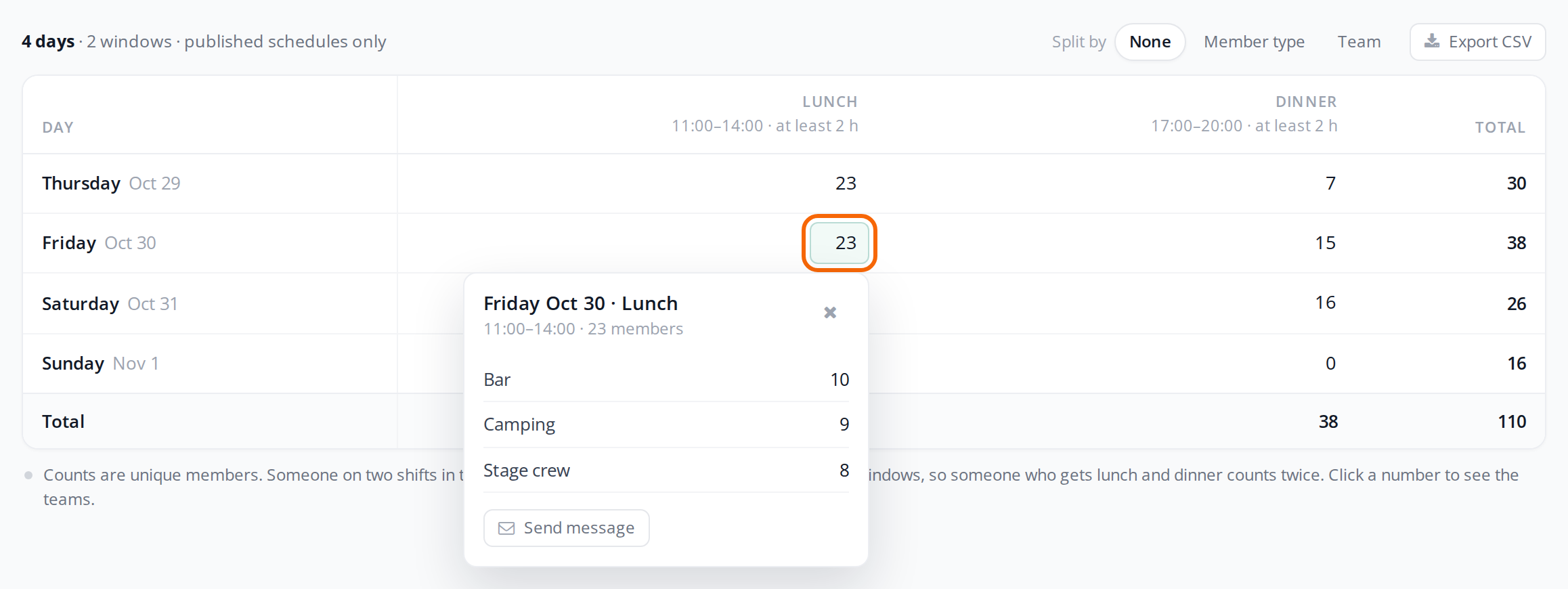
Click a number to see which teams the people come from. From there you can write to them with Send message. The message opens in a new tab with the people as recipients.
Under Split by you can break the numbers down:
- Member type gives a column per member type in each window. The member types add up to the number in All.
- Team shows the teams as rows and the days as columns, one window at a time. Choose the window above the table. Schedules for an area are listed under the area's name, and schedules that belong to neither a team nor an area are listed under No team.
Export for the kitchen
Click Export CSV to download the numbers as a file you can open in Excel. The file follows the split you chose under Split by, and has a row per day and a Total row at the bottom.
If someone else needs to see the same report, click Copy link. The link holds the days, windows and filters, so whoever opens it gets the report as you set it up. They need to be an admin themselves.
Pitfalls
- The teams add up to more than the total: A person with shifts on two teams in the same window counts on both teams, but only once in All members.
- A person with several short shifts: The overlap is worked out on all of the person's shifts in the window together. If a person has 30 minutes on one team and two hours on another, they count on both teams.
- The numbers change: The report shows the schedules as they are when you click Show report. If shifts get moved around, count again before you send the numbers to the kitchen.
- Counting took too long: On very large events, a week can take too long to count. Click Try again, or try with fewer days or fewer filters.
- No numbers: If it says "Nobody is on shift in these time windows.", check the days and whether the schedules are published. Turn off Only published schedules to count the ones that aren't.
To find out who is on shift at one particular time, use One time window instead. See Overview and export of schedules.
Didn't find the answer? Write to support@crewstack.io.