
Overview and export of schedules
See all shifts and people on a schedule, print it, export the shifts to Excel, and find out who is on shift at a given time.
When you need to see the whole schedule at once, print it for a notice board or work with the shifts in a spreadsheet, there are three places to go: the schedule's overview, the Excel export and the Shift Report.
The schedule's overview
Go to Schedules > Manage schedules, and choose Actions > Overview next to the schedule. If you're in the schedule planner, click Shifts overview at the top right.
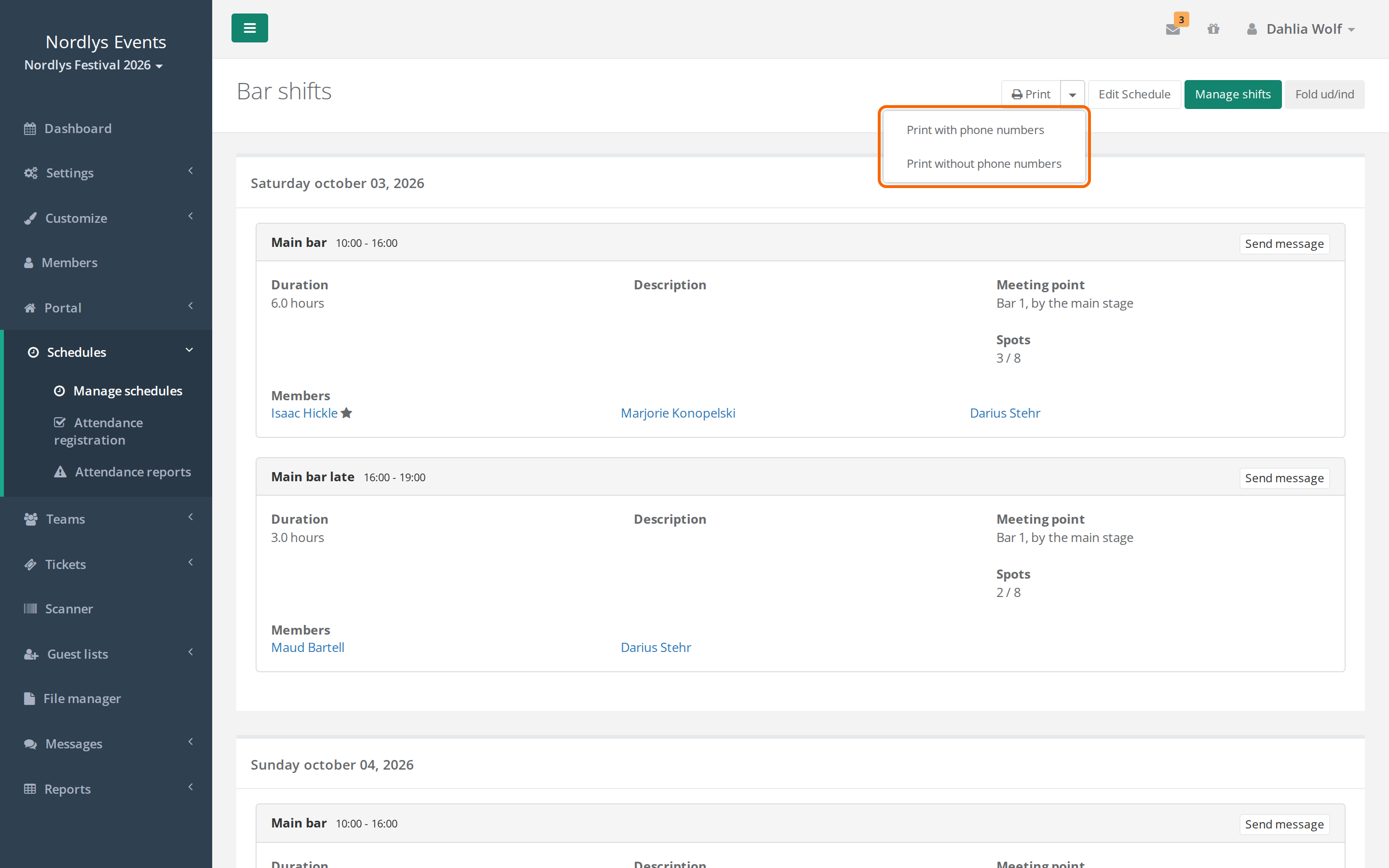
The overview shows the shifts day by day. For each shift it shows:
- name and time
- Duration, Description and Meeting point
- Spots: how many are on the shift, out of how many there is room for
- Members: who is on the shift. A star means shift leader. If the shift has requirements, people are listed under the requirement they meet.
Click a name to see the person's details. Send message next to the shift writes to everyone on the shift. Manage shifts takes you back to the schedule planner.
Print the schedule
Click Print at the top of the overview. Phone numbers are included in brackets after the names when the person has a phone number. If the list will hang where others can see it, click the arrow next to Print and choose Print without phone numbers. Print with phone numbers does the same as Print.
Export the shifts to Excel
From the team page:
- Go to Teams, and open the team.
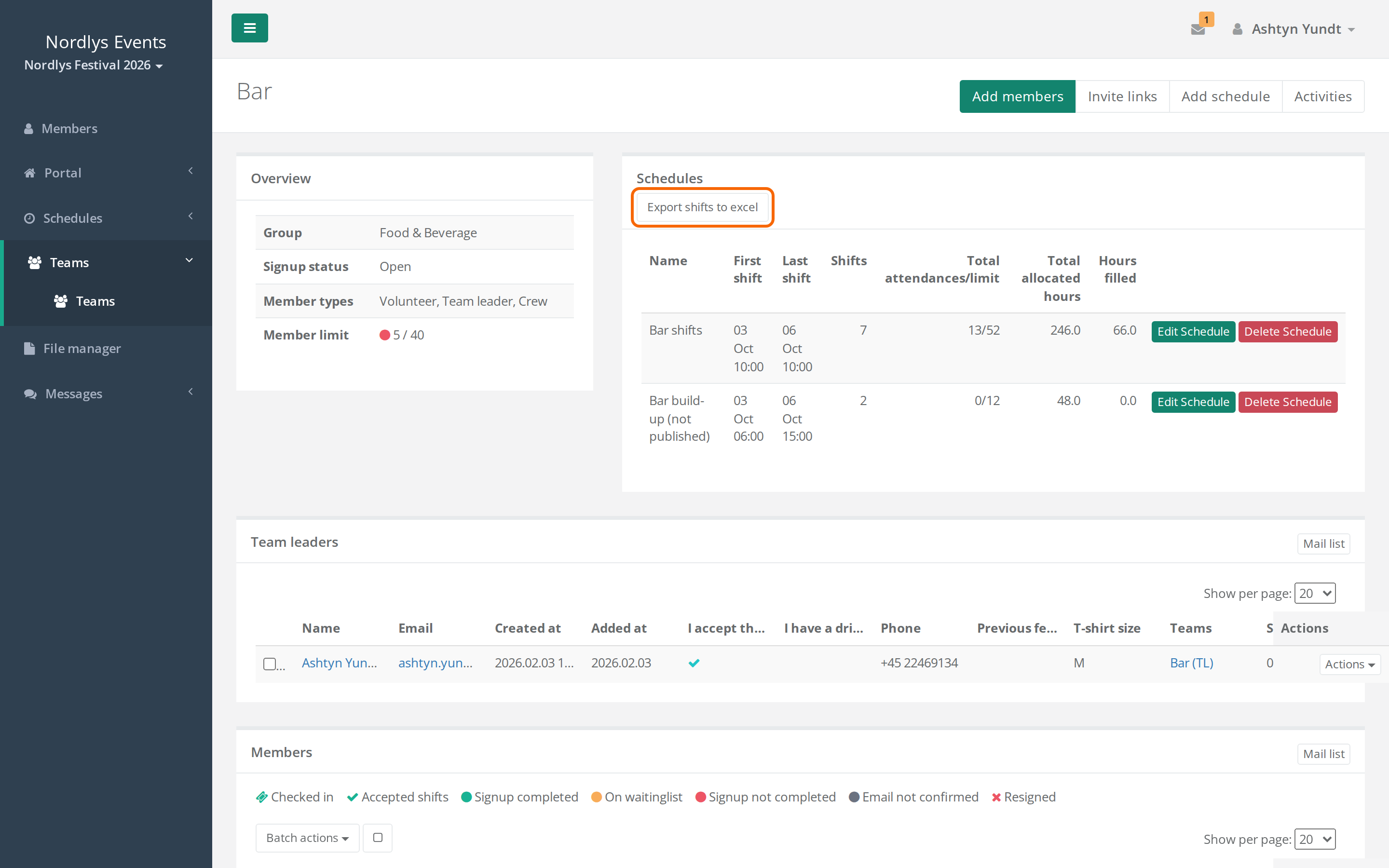
- Click Export shifts to excel above the Schedules list.
- Read the warning about handling the data, and wait for the link.
- Click Click to download the excel export.
The file has one line per person per shift with name, email, phone, team, schedule, shift, start and end, number on the shift, shift grade and shift bundle. The Assigned column says Yes for people on the shift and No for people who only preferred it. All of the team's schedules are included, also those that aren't published. Shifts without people are not included, and neither are schedules for a whole area. The button is only there when the team has shifts.
From Members:
- Go to Members, and search for the people you want included.
- Click Export members' shifts to Excel above the list.
- Wait for the link, and click Click to download the excel export.
The file has the same columns. It contains every shift the people in your search are on, and every person on those shifts, also those who weren't in your search.
A super admin can turn on Only allow admins to export schedule/shift data under Settings > General settings > Admins. Then team leaders can't export shifts.
Who is on shift? Shift Report
The Shift Report shows how many people are on shift in a given period, across all teams. Only admins have it.
- Go to Reports > Shift Report.
- Choose From time and To time, and click Submit. Or click Working now to see who is on shift right now.
- To narrow it down, click Add filter and filter on member type, area, product, data fields or shift length.
The report lists each team with the number of people on shift. Click the team to see each shift with the schedule's name and the number per member type. In the totals, a person with several shifts only counts once. Shifts on schedules that aren't published are included.
Below the report, Load members brings up the names, and Send message to all writes to everyone in the report.
Pitfalls
- The export is a snapshot: The schedule can change after you downloaded the file. Always check the latest changes in Crewstack.
- No export button: The team has no shifts yet, or export is limited to admins.
- Unpublished schedules are included: Both the export from the team page and the Shift Report include schedules that crew members can't see yet.
Didn't find the answer? Write to support@crewstack.io.