
Ticket templates
Design the PDF tickets. Upload an A4 background, place the QR code and fields, and make a template for each member type in each language.
A ticket template is the design of the PDF ticket: an A4 image as the background, with for example the QR code, name and products placed on top. Without templates the tickets can't be made public, and nobody can download their ticket. The templates have to be in place whether you use guest lists or not.
Which templates do you need?
- A template for each member type in each of the event's languages. That includes the built-in member type for guests, Guest, even if you don't use guest lists.
- Guests get the Guest template, unless their guest list is in a group that has its own template (see below).
- Which language a person gets depends on the System language field. If the member type doesn't have that field, everyone gets the template in the event's primary language.
Only when every member type has a template with an uploaded file in every language can you switch on Tickets are public and can be download through the portal under Settings > General settings > Tickets.
The overview
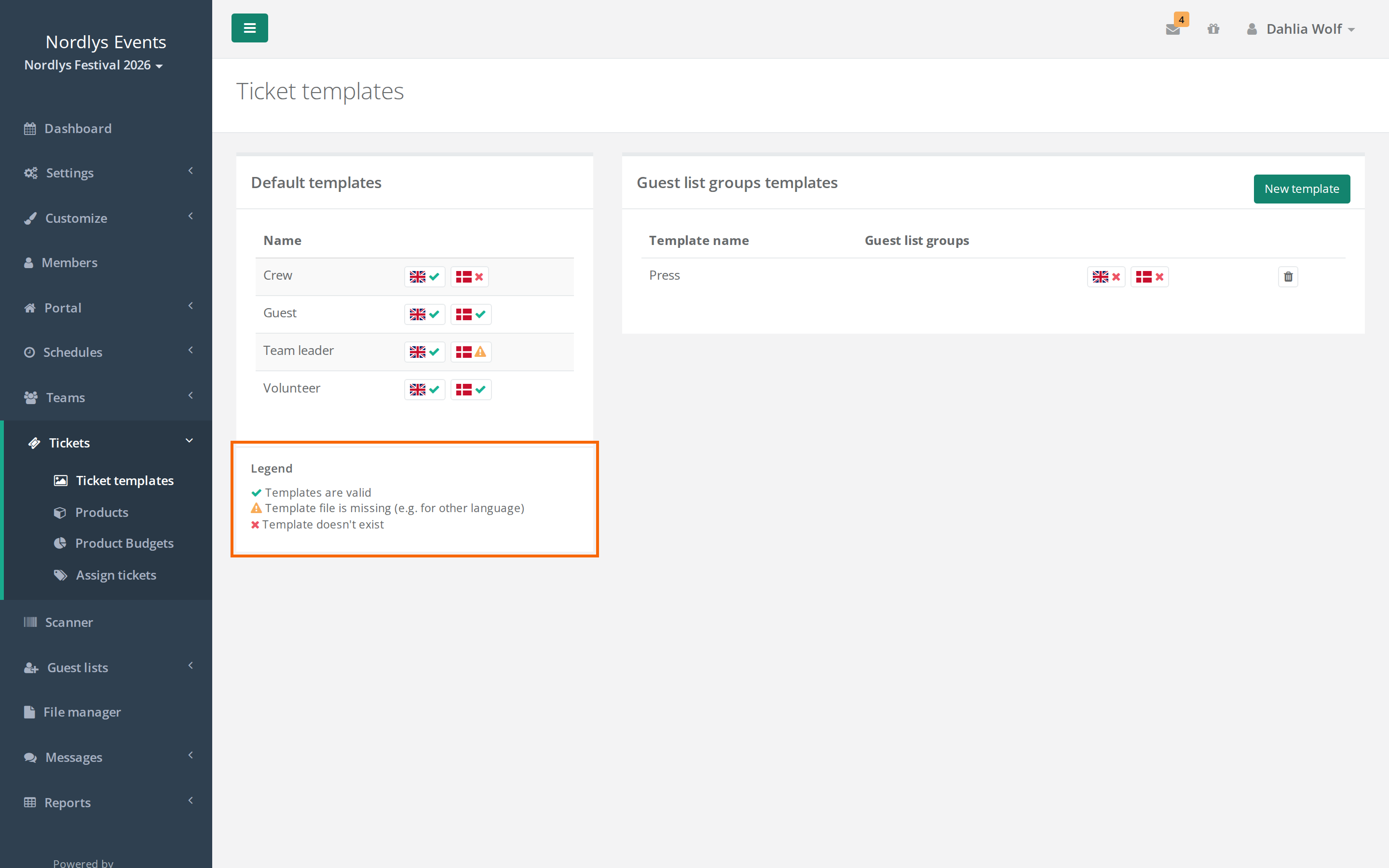
Under Tickets > Ticket templates, the Default templates table shows every member type with a flag for each language. The icon next to the flag shows the status:
- Check mark: Templates are valid.
- Warning triangle: Template file is missing (e.g. for other language). The template exists, but no image has been saved.
- Cross: Template doesn't exist.
Click the flag to create or edit the template in that language. On the right are the templates for guest list groups.
You can also see the status under Settings > Member types. Next to each member type there is a coloured dot for each language. Click it to open the template.
Make the image
- A4 portrait, exactly 2480 × 3508 pixels. That is A4 at 300 DPI.
- PNG or JPEG. If your design is a PDF, export it as a PNG in that size first.
- Leave room for the QR code and the texts you want to add.
If the image has another size, Crewstack rejects it with "Image dimensions must be 2480x3508 pixels". If it is another file type, it says "Invalid file type. Please upload a JPEG or PNG."
Create or edit a template
- Go to Tickets > Ticket templates.
- Click the flag for the language next to the member type.
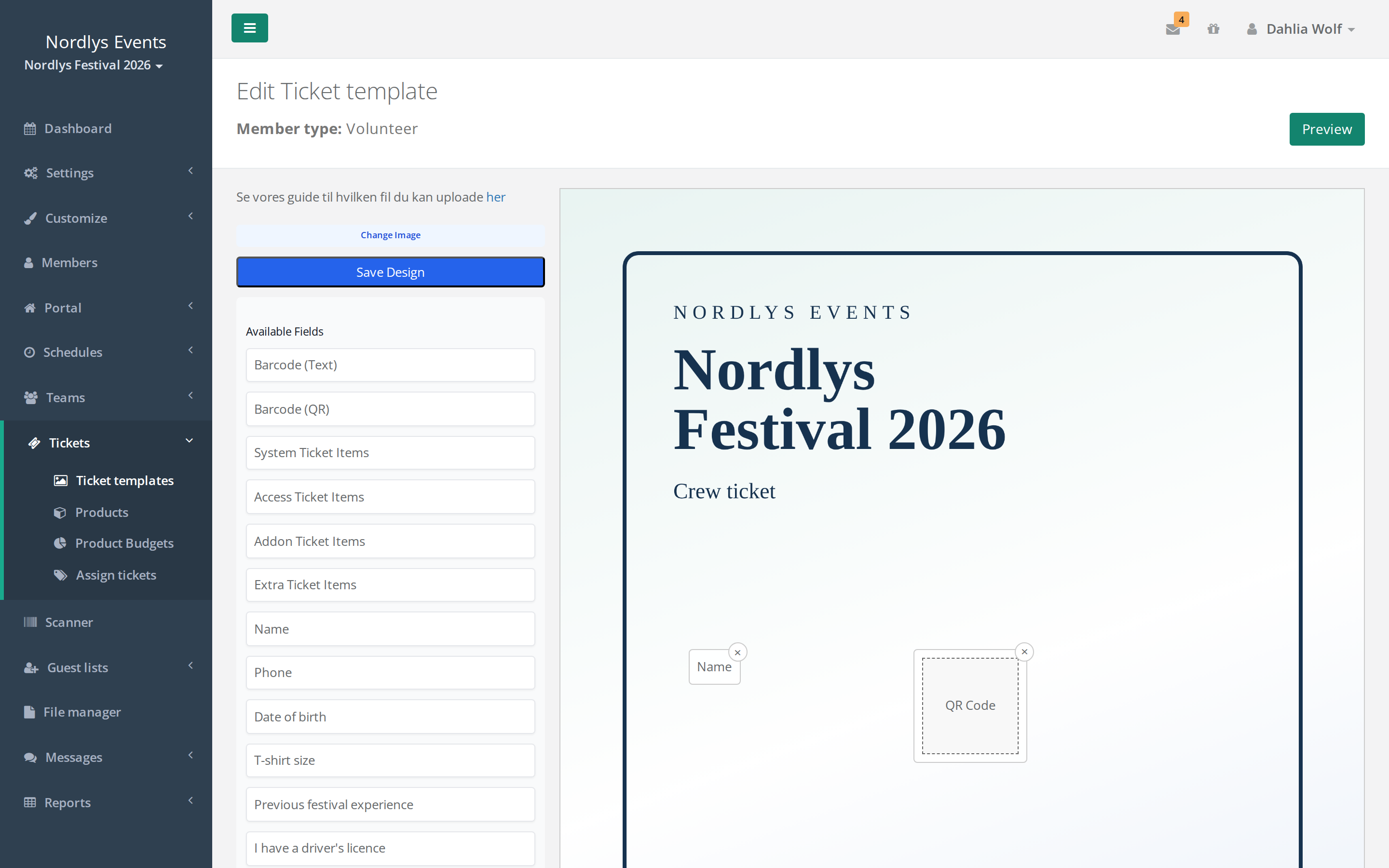
- Choose the image in the file picker. If the template already has an image, first click Change Image.
- Drag fields from Available Fields onto the ticket. Drag a field to move it, and click × to remove it. You can make the QR code bigger or smaller.
- Click Save Design. The image and fields are only saved once you click here.
- Click Preview, optionally choose a person, and click Preview again to see the ticket as a PDF. If you choose nobody, the ticket is shown with your own details.
- Repeat for the other languages and member types.
The fields you can place:
- Barcode (QR) and Barcode (Text): the ticket's barcode as a QR code and as a number. This is what the scanner reads.
- System Ticket Items, Access Ticket Items, Addon Ticket Items and Extra Ticket Items: the products the person has on their ticket.
- The member type's fields, for example the name. On the guests' templates they are Name, Email, Guest list and Comment.
Separate templates for guest list groups
If guests on, say, the press list should get a different ticket from other guests, give the group its own template:
- Create the group under Guest lists > Guest list groups, and choose it in the Group field on the guest lists.
- Click New template under Tickets > Ticket templates, give it a name and choose the guest list groups it applies to.
- Click the flag for each language in the template's row, and upload and place the fields as above.
Guests on lists in those groups then get that template instead of the Guest template. See Create a guest list.
Pitfalls
- You can't tick "Tickets are public". A template or a file is missing somewhere. Look for warning triangles and crosses, also next to Guest.
- You added a language. Then every member type also needs a template in the new language.
- The image is uploaded, but the overview still shows a warning triangle. You didn't click Save Design.
- A crew member gets a ticket in the wrong language. Check what they chose in System language.
- The ticket still can't be downloaded. The template is only one of the conditions. See A crew member can't get their ticket.
Didn't find the answer? Write to support@crewstack.io.