
Product assignments: give your team's members products
How to give your team's members products from the team's pool, for example meal vouchers, under Product assignments on the team page.
If your team has a pool of a product, for example 30 meal vouchers, you give them to the team's members under Product assignments on the team page. You can give everyone the same or give some people more than others.
Who can give products
The team's team leaders, the team group leader for the team's group, and admins.
An admin or team group leader gives the team the pool itself under Tickets > Product Budgets. See Product pools: share out products on a team.
Open the product assignments
- Go to Teams > Teams, and click the team's name.
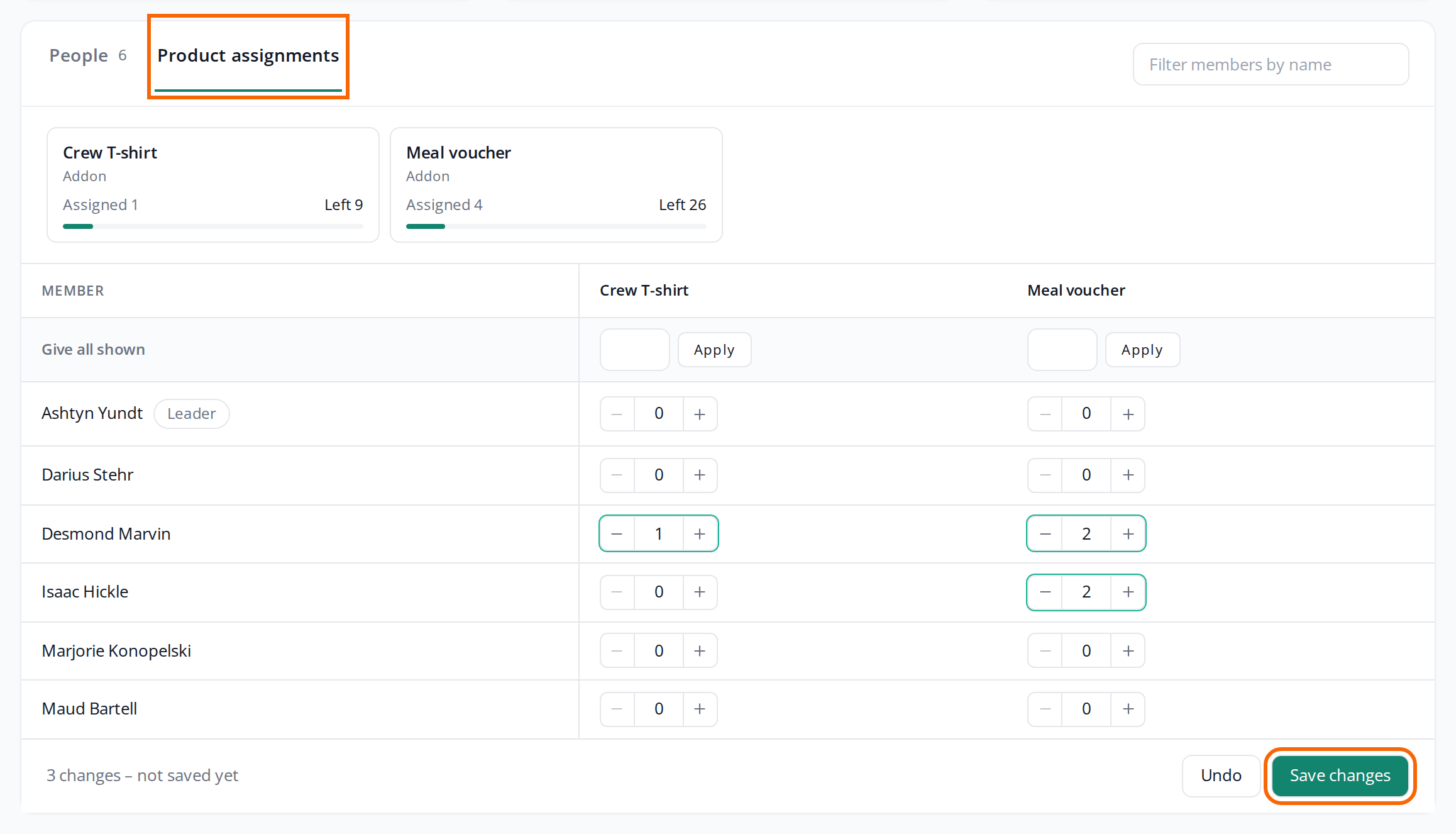
- Click Product assignments at the top of the page.
The People box then switches to the Product assignments tab. The People tab takes you back to the list of people.
What's on the tab
- The pools at the top: one box per product with Assigned, how much of the pool has been given out, and Left, how much you can still give. Both figures include changes you haven't saved yet.
- The table below: one row per person on the team and one column per product. The team leaders come first and are marked Leader.
- +2 auto next to a number means the person already gets 2 of the product automatically, for example because the product is on the team. They don't count towards the number you give.
People on the team's waiting list aren't in the table.
Give products
- Click + or − next to the person in the product's column, or type the number in the field.
- Repeat for the other people and products. A field you've changed gets a coloured border, and at the bottom it says, for example, "3 changes – not saved yet".
- Click Save changes.
If everyone should get the same, type the number in the field next to Give all shown in the product's column, and click Apply. If you've searched for a name in the field at the top right, it only applies to the people you can see.
Undo removes all the changes you haven't saved.
Once you've saved, the Product pools box on the team page updates with the new figures.
When the pool isn't big enough
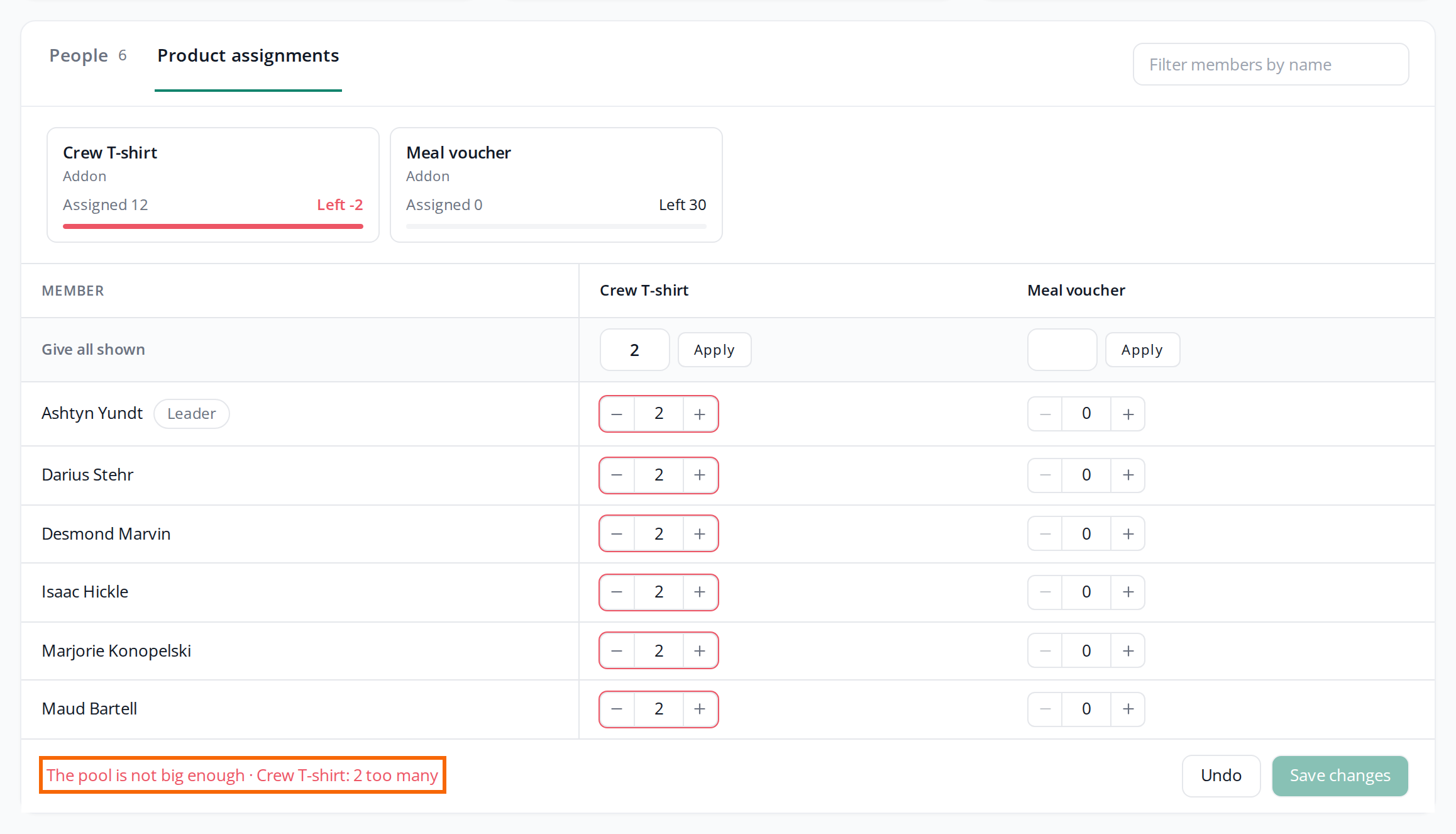
If you give more than is left in the pool, the figure at Left turns red and negative, the fields you've changed get a red border, and at the bottom it says, for example, "The pool is not big enough · Meal voucher: 2 too many". You can't click Save changes until you've lowered the numbers.
When the team doesn't have its own pool
If the team only uses the pool from the team group or the event above it, it says "The team has no pool of its own" instead of the table. You can only give products directly to people when the team has its own pool.
If you're an admin or team group leader, there's also a link, Set up the team's pool, to the team under Product Budgets. If you're a team leader, ask an admin or your team group leader to give the team a pool.
If you leave the tab without saving
If you switch to the People tab, Crewstack asks: "You have unsaved product assignment changes. Discard them?" If you say yes, the changes are gone. Crewstack asks the same if you go back in the browser. If you leave the page, the browser asks first too.
Pitfalls
- You get "Not enough assignable products available" when you save: The pool has become smaller since you opened the tab, for example because someone else gave from it or put the product on the team. Reload the page and try again.
- An old link to the product assignments: Links and bookmarks to the old page for the team's product assignments now open the team page on the Product assignments tab.
- Products on the team count too: If the product is also on the team under Edit Team, it uses the same pool. So do assignments from Assign tickets with the team as the budget source.
- If you set a person back to 0, the products become free in the pool again, and you can give them to someone else on the team.
Didn't find the answer? Write to support@crewstack.io.