
Product pools: share out products on a team
How to share out a team's pool of, for example, meal vouchers between the team's members, and how an admin gives the team the pool under Product Budgets.
With product budgets, an admin can give a team a pool of a product, for example 30 meal vouchers. The team leader then shares the pool out between the team's members, for example 2 each and a few more for those who take extra shifts.
See the team's pools
Open the team. If the team has a pool, the Product pools box is on the team's page with the columns Product, Auto Assigned, Assignable and Used. Assignable is what can still be shared out.
If there is no box, the team doesn't have a pool yet. Ask an admin or your team group leader to give the team one (see below).
Share out the products on the team
The team's team leaders, the team group leader and admins can do this.
- Open the team and click Manage product assignments in the Product pools box.
- At the top, under Product overview, each product is listed with Used and Assignable.
- Below there is a column for each product and a row for each person on the team. Enter how many each person should have in the field next to the person.
- Click Save assigned amounts.
If everyone should have the same, enter the number in the field under Apply to shown members at the top of the product's column and click Apply. If you have typed something in Filter members by name, it only applies to the people you can see.
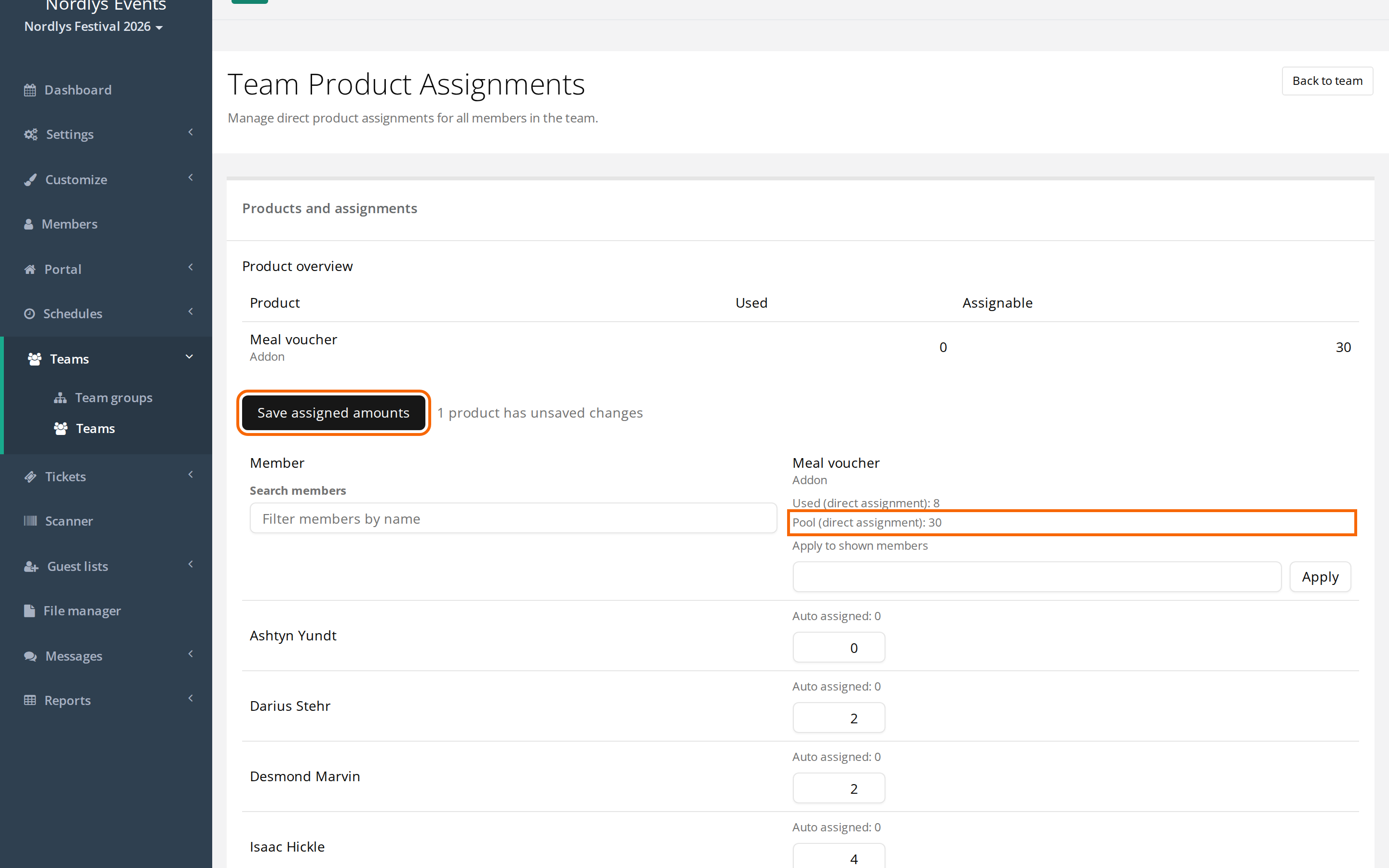
Each column shows:
- Used (direct assignment): how many you have shared out in total, with the numbers you have entered.
- Pool (direct assignment): the most you can share out.
- Auto assigned next to each person: what the person already gets because the product is on the team. It isn't counted in the field.
If you share out more than the pool allows, the column turns red and it says "Fix invalid totals before saving." You can't save until you have lowered the numbers.
Give the team a pool
Only admins and team group leaders can give a team a pool. Team group leaders only see the budgets for their own team groups.
- Go to Tickets > Product Budgets.
- Click Select products... and choose the products you want to give pools of.
- Find the team in the table. If the team is in a team group, click the arrow next to the group to expand it. You can also search in the Search teams or groups... field.
- Click the team's cell in the product's column. The Edit Budget window opens.
- Untick Inherit from parent.
- Enter the amount in Value. You can enter at most the number shown at Maximum.
- Click Save.
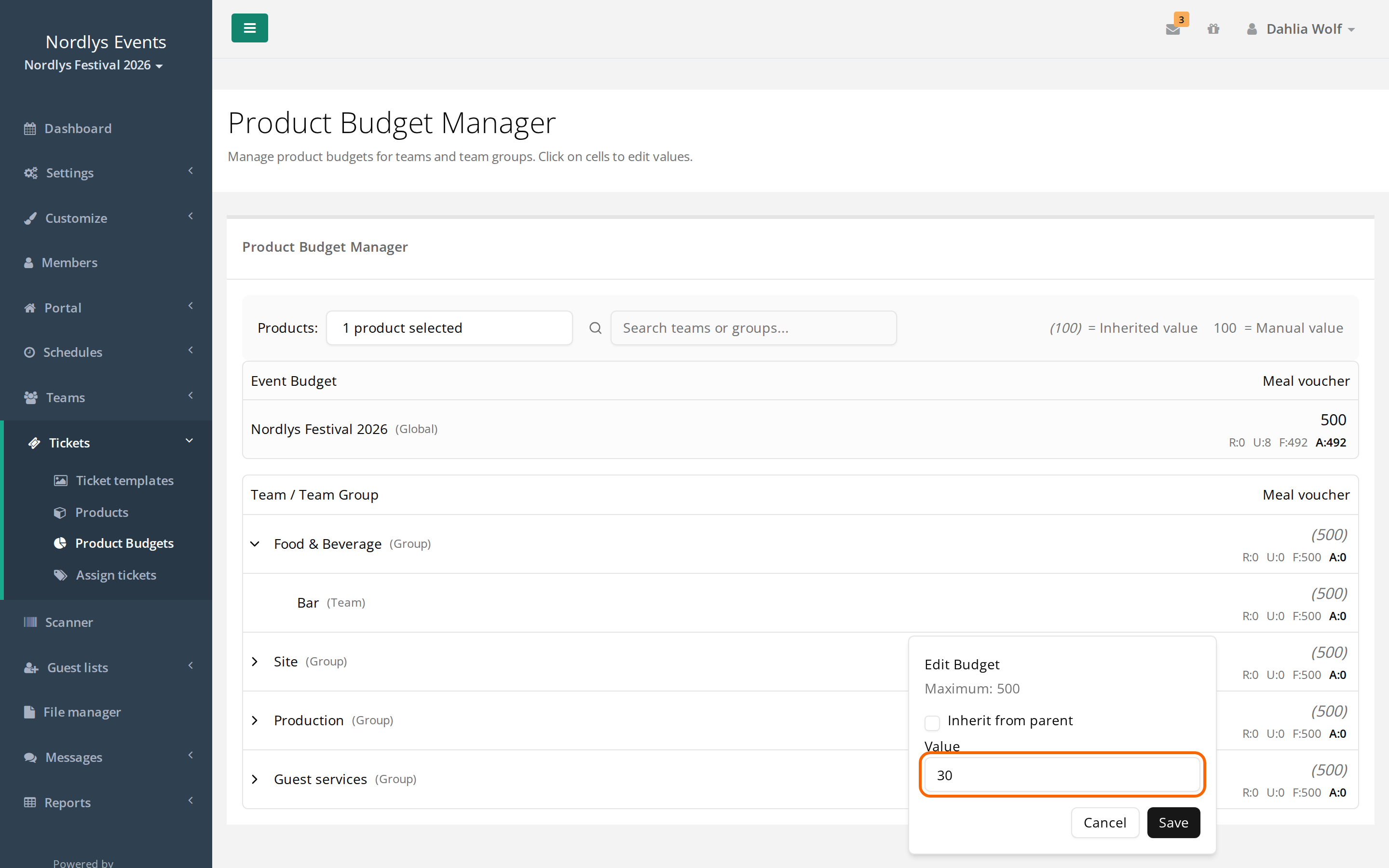
How to read the table:
- Admins see Event Budget at the top. It is the product's Global limit for the whole event.
- A number in brackets is inherited from the team group or the event above the team (= Inherited value). A number without brackets is set on the team itself (= Manual value).
- Below the number are R, U, F and A: Reserved, Used, Free and Assignable. Hover over the letter to see the name.
- A cell turns red if the budget is above its limit. The top of the page then says, for example, "2 budgets are above their limits".
You can also give a team group a pool. The teams in the group inherit it, and a team can never get more than the group above it.
Pitfalls
- The team needs its own pool: A team that only inherits from the team group or the event can't share anything out. The pool must be set on the team itself, with Inherit from parent unticked.
- A pool isn't an assignment: Nobody gets anything until the team leader has shared out the pool and clicked Save assigned amounts.
- Products on the team count too: If the product is also on the team under Edit Team, it uses the same pool as what you share out. So do assignments from Assign tickets with the team as budget source. See Assign tickets to a single person.
- Removing an assignment frees up the place: If you set a person down to 0, you can give the products to someone else on the team.
Didn't find the answer? Write to support@crewstack.io.