
Attendance registration and shift leaders
How to register during the event who showed up and completed their shift, and how to give a shift leader or attendance registrar access to do it.
During the event you register on each shift who showed up and who completed the shift. This is called attendance registration. You can do it in the browser or in the Crewstack app, and you can give others access to do it for you.
Who can register attendance?
- Admins can register attendance on all shifts.
- Team leaders and team group leaders can register attendance on all shifts on the schedules they can see under Manage schedules.
- Shift leaders can register attendance on the shifts they lead.
- Attendance registrars can register attendance on the shifts they've been added to, without being on the shift themselves.
Everyone with access finds Attendance registration under Schedules in the menu. Further down you can see how to make a crew member a shift leader or an attendance registrar.
Find the shift
- Go to Schedules > Attendance registration.
- Choose a tab:
- Schedule shows the shifts grouped by schedule.
- Date shows the shifts grouped by day.
- Upcoming shifts shows the shifts that start within the next hour, and those that started up to 15 minutes ago. Click Show the next 12 hours to look further ahead, up to 48 hours. The list refreshes itself every minute.
- Click the time of the shift.
Next to each shift you can see how many people are registered with each status.
Register attendance
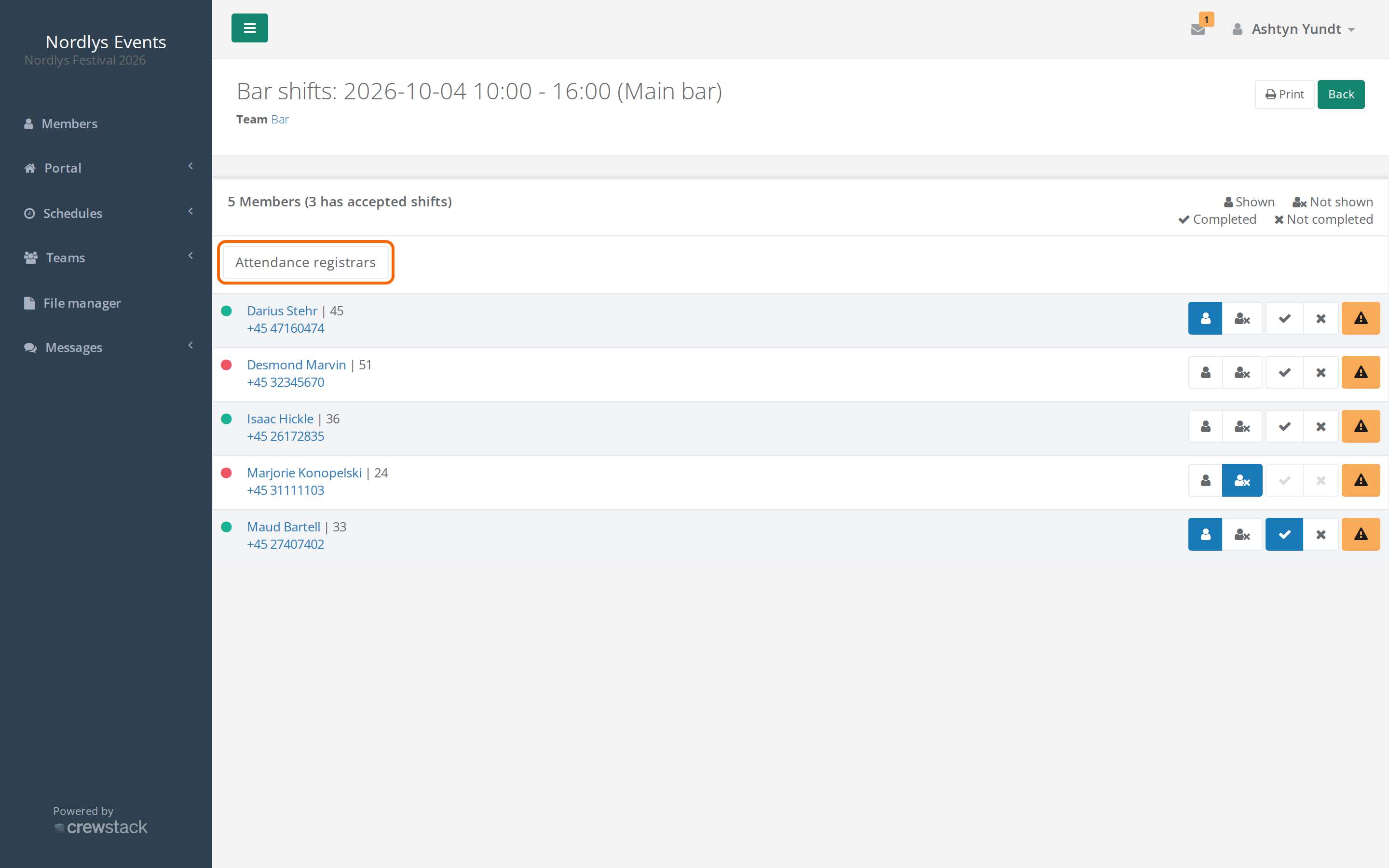
The shift page lists everyone on the shift. Each person has four buttons. The legend is at the top of the page:
- The person icon: Shown
- The person icon with a cross: Not shown
- The check mark: Completed
- The cross: Not completed
- When the crew member shows up, click Shown.
- When the shift is over, click Completed or Not completed.
Every click is saved straight away. There is no save button.
- If you click Completed first, the person is also set to Shown.
- If the person is set to Not shown, you can't choose Completed or Not completed.
- If you clicked the wrong button, click Shown while the person is set to shown. After the question "Are you sure you want to remove the attendance?" the registration is removed.
The dot in front of the name shows whether the person has accepted the shift. The top of the page shows how many people are on the shift and how many have accepted.
Print gives you a list with name, phone number and check boxes for Shown and Completed. Use it as a paper backup.
Register attendance in the Crewstack app
If the Crewstack app is switched on for your event, you can register attendance on your phone:
- Go to Shifts, and tap Attendance registration. You can also go to Profile > Attendance.
- Find the shift under Upcoming or Past. You can search in Search shifts or filter by date.
- Tap Shown or Not shown next to the person, and afterwards Completed or Not completed.
If the phone loses the connection, the changes are saved on the phone. It then says, for example, "Saved on this device — 2 waiting to sync." The changes are sent when the phone is online again.
Differences from the browser:
- Completed and Not completed can only be chosen once the person is set to Shown.
- The app only shows shifts on schedules that are published.
- Shift leaders have Leader next to their name.
Make a crew member a shift leader
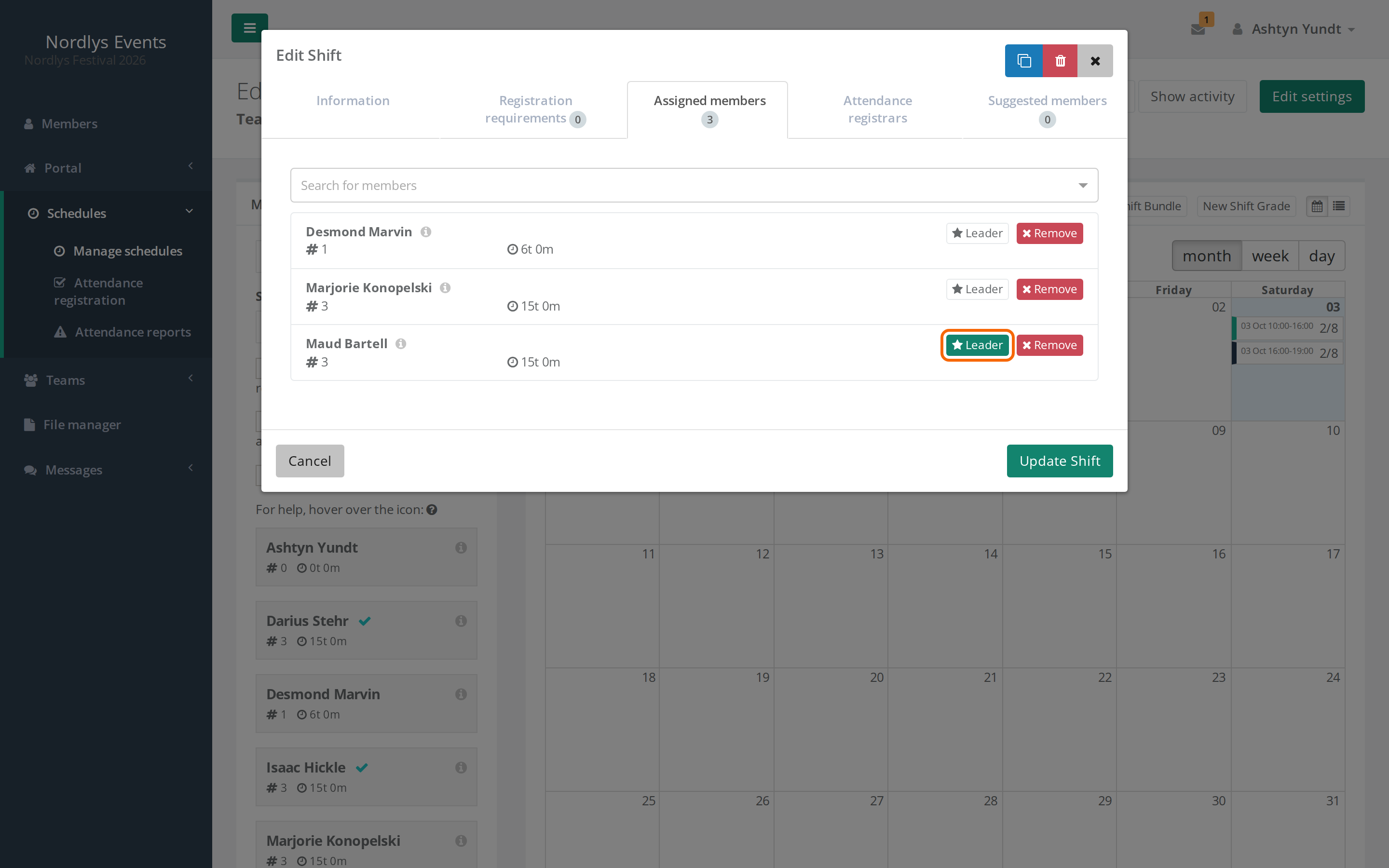
A shift leader is a crew member on the shift who may register attendance on that shift.
- Go to Schedules > Manage schedules, and click the schedule.
- Click the shift.
- Go to the Assigned members tab.
- Click Leader next to the person.
- Click Update Shift.
The shift leader gets Attendance registration in the menu and can register attendance on the shift. On the schedule's overview and in the Show members on shift list in the portal there is a star next to the shift leader, and under My Shifts the shift leader is listed in the Leaders column.
Add an attendance registrar
An attendance registrar can register attendance on a shift without being on it. This is useful when, for example, a team coordinator checks people in but doesn't work the shift.
- Open the shift in the schedule planner as above, and go to the Attendance registrars tab. You can also click Attendance registrars at the top of the shift's page under Attendance registration.
- Choose the person under Select member.
- Click Add registrar.
The person is added straight away. You remove an attendance registrar with Remove.
For attendance registrars:
- They can only be added on schedules that belong to a team, and only by the team leader, a team group leader above the team or an admin.
- The person must be on the team, must have completed signup and must not be on the waiting list or blacklisted. If the person leaves the team, they lose the access.
- People who already have access (admins, team leaders, team group leaders and shift leaders on the shift) aren't on the list.
- The Attendance registrars tab only appears once the shift has been saved.
- If Send email when member is assigned to a new shift is switched on under Notifications in General settings, the attendance registrar gets an email with a link to the shift. If the schedule is published, the email is sent straight away. Otherwise it is sent when you publish the schedule with Notify members that schedule has been published switched on.
Report on a crew member
If something happens on a shift, for example a no-show or an incident, you can write a report on the person.
- Click the yellow button with the warning triangle next to the person on the shift's page.
- Write the report in Report message.
- Click Create Attendance report.
The reports are collected under Schedules > Attendance reports in the tabs Unread, Read and Done. Open a report and use the buttons next to Mark as to move it. In the app it's called a Note.
Who sees the reports:
- Admins see all reports.
- People chosen in Receivers of reports see all reports.
- Team leaders, team group leaders and shift leaders see and write reports on the shifts they can register attendance on, when Teamleads and arealeads can see own reports is switched on. It is by default. If it's switched off, only admins can write reports.
Both settings are under Settings > General settings > Admins, which only a Super Admin can see.
Pitfalls
- The shift is missing in the app: The schedule isn't published. Register attendance in the browser, or publish the schedule.
- The person isn't under Select member: The person isn't on the team, is on the waiting list, hasn't completed signup or already has access.
- No Attendance registrars tab: The schedule belongs to a team group or the whole event, not to a team. Make the person shift leader on the shift instead.
- Shift leader only applies to one shift: If the person should lead several shifts, click Leader on each shift.
- A shift leader's shift can't be exchanged: A shift where the person is shift leader can't be put on the shift exchange. See Shift exchange.
Didn't find the answer? Write to support@crewstack.io.