
Shift exchange
How to let crew members exchange shifts with each other in the portal, who can see the offers, and how to keep track as a team leader.
With the shift exchange, crew members can exchange shifts with each other in the portal. The exchange happens as soon as the two crew members agree, and you don't have to approve it. Here you can see how to switch it on, who can see the offers, and how to keep track.
Switch on the shift exchange
The shift exchange has to be switched on in two places:
- On the event: A Super Admin goes to Settings > General settings > Schedules, ticks Shift exchange open, chooses who can see the offers under Shift exchange visible to, and saves.
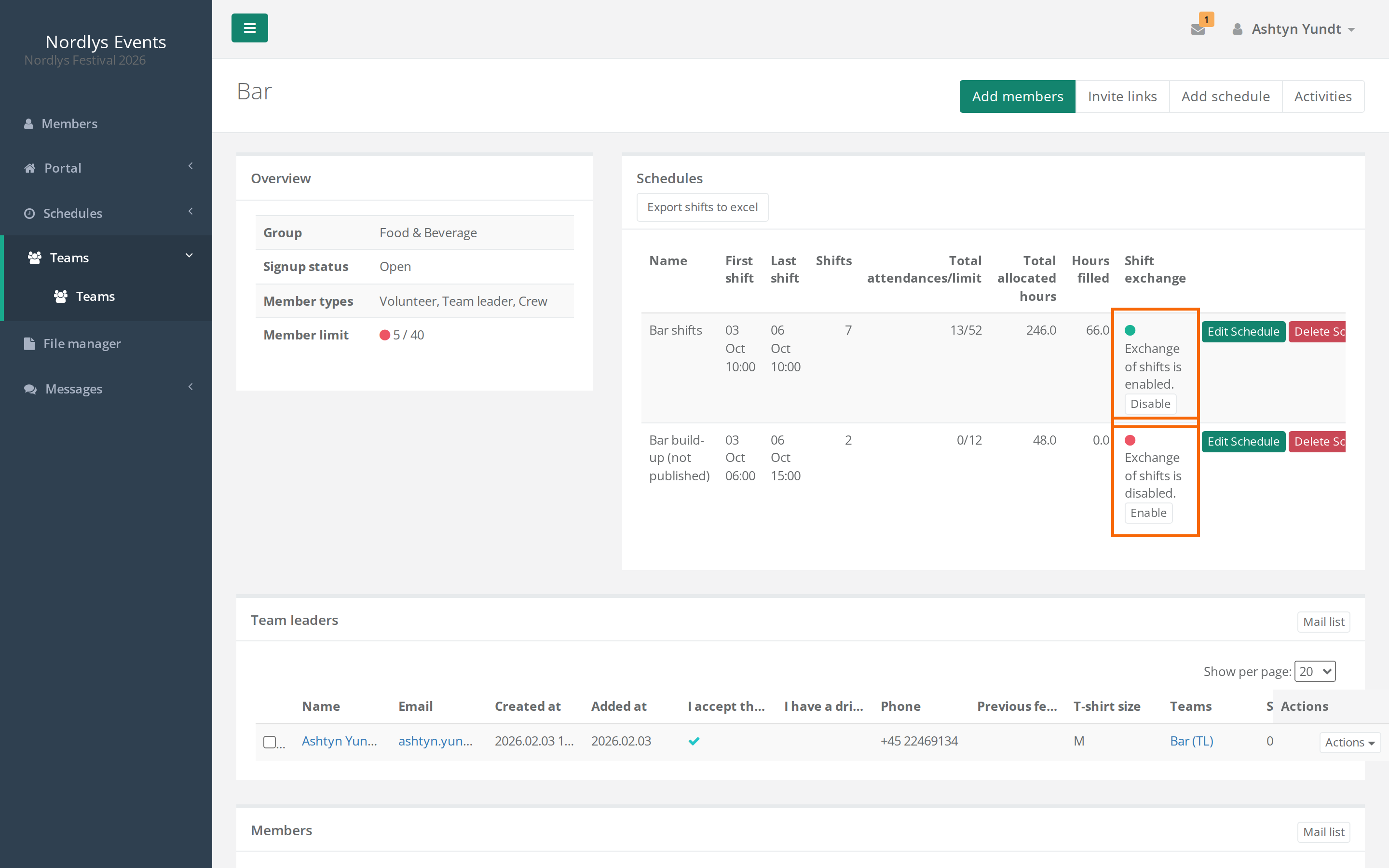
- On the schedule: Go to Teams, and open the team. In the table of the team's schedules there is a Shift exchange column. Click Enable next to the schedule. It now says "Exchange of shifts is enabled."
The team leader, a team group leader above the team and admins can switch the shift exchange on and off for the team's schedules. It is switched off on new schedules.
The crew member can only exchange shifts on a schedule that is Published and has the shift exchange switched on. A shift where the crew member is shift leader can't be exchanged.
Who can see the offers?
That is decided by Shift exchange visible to on the event:
| Shift exchange visible to | Who can see and respond to an offer |
|---|---|
| Members on the same schedule | Crew members who have shifts on the same schedule themselves. This is the default. |
| Members on the same team | Crew members on the team that owns the schedule, when they have a shift they can exchange themselves. |
| Everyone in the event | Everyone in the event who has a shift they can exchange themselves. |
With Members on the same schedule, crew members always exchange within the same schedule. With the other two, a crew member can exchange a shift on one schedule for a shift on another.
How crew members exchange shifts
So you can help when a crew member asks:
- The crew member goes to Shift Exchange in the portal menu.
- The crew member clicks New Shift exchange offer, chooses their shift under Shift, optionally writes a Message and saves. The offer is now listed under My offers with the status Available.
- Other crew members who can see the offer open it. Under Offer to exchange shift they choose one of their own shifts and save.
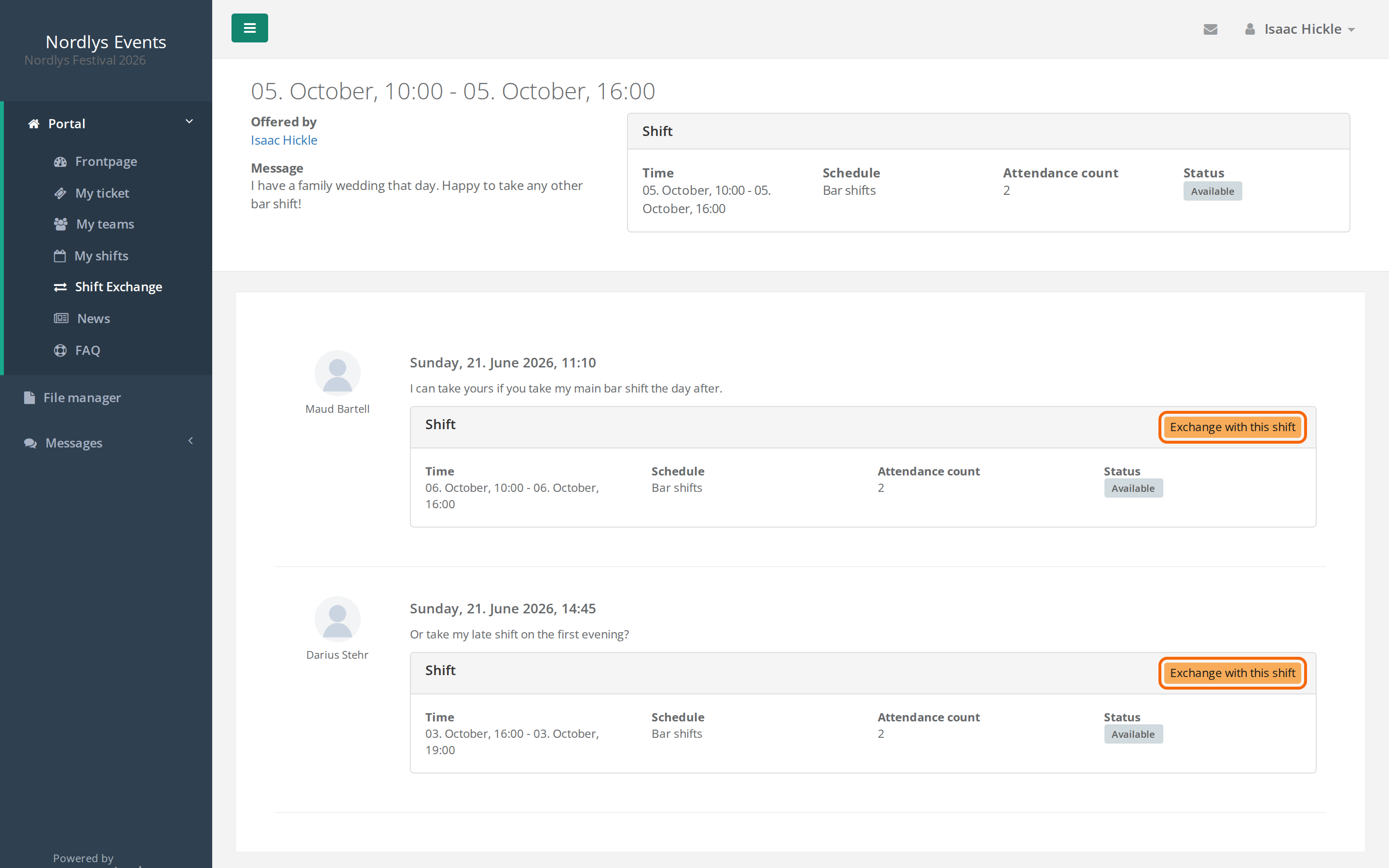
- The crew member who put the shift up opens their offer, sees the responses and clicks Exchange with this shift next to the response they want.
The exchange happens straight away. The person who responded isn't asked again. The offer gets the status Exchanged, the chosen response Accepted, and the other responses Rejected.
As long as an offer is open, the crew member can edit the message or delete the offer. A deleted offer gets the status Cancelled.
What happens in an exchange
- The two crew members swap places on the shifts.
- The acceptance follows the shift. If the shift was accepted, it stays accepted for the new person. If it wasn't, the new person has to accept it. See Shift acceptance.
- Neither of them gets an email about the new shift.
- Crewstack doesn't check whether the shifts overlap other shifts, whether the crew member meets the shift's requirements, or whether the hours add up.
Keep track as a team leader
- Under Portal > Shift Exchange you see the open offers on your teams' schedules. Admins see all offers.
- Click Exchange log at the top of the page to see the exchanges completed on your teams' schedules: the schedule, who exchanged, the two shifts and when.
- You can't approve or reject an exchange. If you want to stop the shift exchange on a schedule, click Disable next to the schedule on the team's page.
Pitfalls
- The Shift exchange column is missing on the team's page: Shift exchange open isn't switched on for the event.
- *The crew member sees "You don't have any shifts to exchange":* They have no shifts on a published schedule with the shift exchange switched on, or is shift leader on all their shifts.
- Schedules for a team group or the whole event: They aren't on a team's page, so the shift exchange can't be switched on for them.
- Disable cancels offers: If you switch the shift exchange off on a schedule, all open offers on it are cancelled. If you switch it on again, they don't come back by themselves. The crew member can click Reactivate next to their offer under My offers.
- Closing for the whole event: If you untick Shift exchange open, Shift Exchange disappears from the menu, and the page shows "The shift exchange is currently closed." Open offers aren't cancelled and are back when you open again.
- Exchanges across teams: With Everyone in the event, a crew member can exchange their way onto a shift on another team's schedule without being on that team.
- Double bookings: An exchange can give a crew member two shifts at the same time. Check the Exchange log if in doubt.
Didn't find the answer? Write to support@crewstack.io.