
Shift grades
How to split the shifts on a schedule into grades, so crew members have to pick a set number of shifts of each kind.
Shift grades split the shifts on a schedule into types, for example "Night" or "Bar". For each grade you can require crew members to take at least a number of shifts and set a cap on how many they may take. Grades only work when crew members pick or prefer their own shifts. See How crew members pick their own shifts.
What can a shift grade do?
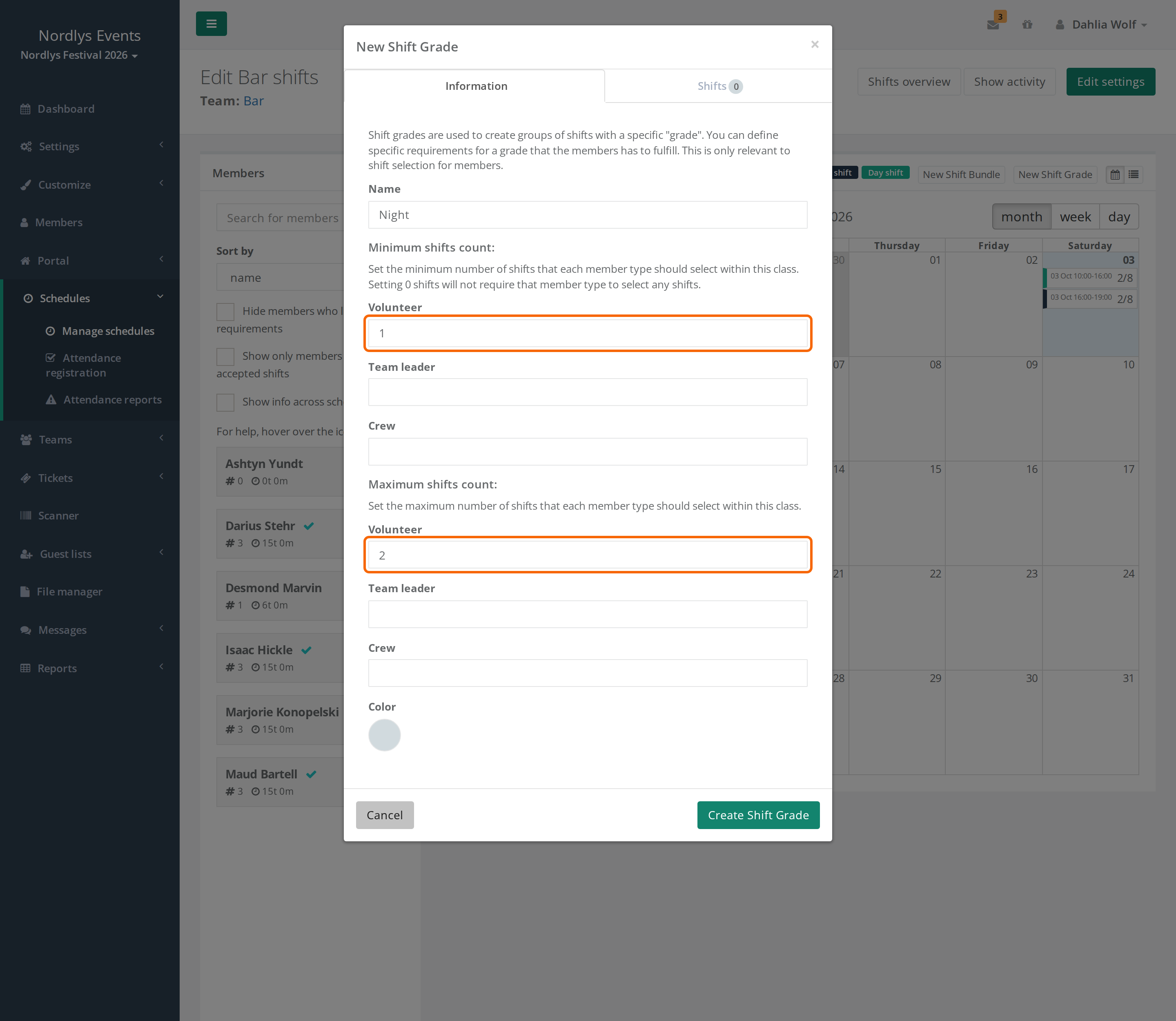
- Minimum shifts count: The crew member can't accept their shifts until they have that many shifts in the grade. If the field is empty or 0, there is no requirement.
- Maximum shifts count: With direct selection, the crew member can't pick more shifts in the grade. If the field is empty, there is no limit. 0 means no shifts in the grade can be picked.
- Both numbers are set per member type. You see the member types of the team or team group that owns the schedule. If there are none, you see all member types except guests.
- A grade belongs to one schedule. If you have several schedules, each needs its own grades.
- The numbers count all the crew member's shifts in the grade on the schedule, including the ones you assigned yourself.
How to create a shift grade
You need to be able to edit the schedule. Admins and leaders of the team or team group that owns the schedule can.
- Go to Schedules > Manage schedules and click the schedule's name.
- Click New Shift Grade at the top of the Shifts box.
- Enter a Name. Crew members see the name next to the shifts.
- Fill in Minimum shifts count and Maximum shifts count for each member type.
- Choose a Color.
- Click Create Shift Grade.
- Open each shift that belongs in the grade, choose the grade under Grade and click Update Shift.
The grade now shows as a coloured label at the top of the Shifts box. Click the label to edit the grade. The Shifts tab lists the grade's shifts and the Total hours, and Remove takes a shift out of the grade.
What does the crew member see?
- Each shift shows the grade's name next to Type:.
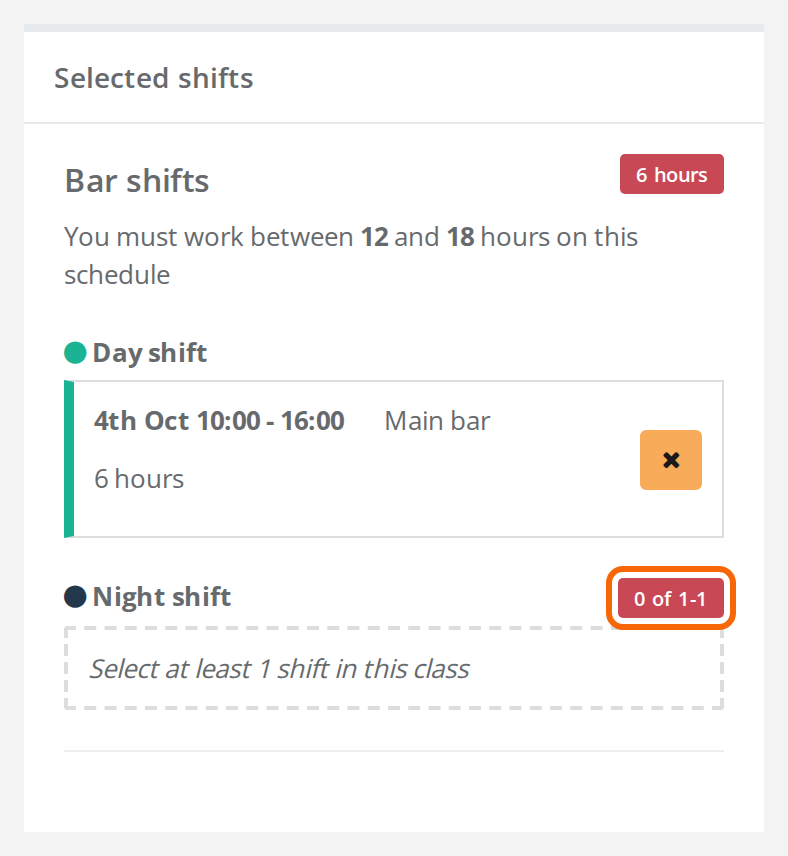
- In the Selected shifts panel each grade is listed with its colour and a counter, for example "1 of 2" or "1 of 2-4" (picked of minimum, or of minimum and maximum). The counter is red until the minimum is reached. It only shows when the grade has a minimum.
- If the crew member has no shifts in the grade yet, it says, for example, "Select at least 2 shifts in this class".
- Once the maximum is reached, the other shifts in the grade say "You cannot select more shifts of this type."
- Above the list, the crew member can filter by grade in the Alle klasser field.
Pitfalls
- The grade has no shifts: If the grade requires at least one shift but contains none, nobody can accept. When you open the schedule, Shift selection warnings says so, for example "Grade "Night" requires at least one shift for Volunteer, but has no shifts — members will be unable to accept."
- Too few spots: The warning only checks whether the grade has shifts. It doesn't check whether there are enough spots for everyone. Do the sum yourself: the minimum times the number of crew members has to fit on the grade's shifts. Shifts marked Hidden can't be picked, but they still count for the warning.
- You assign too many yourself: If you give a crew member more shifts in the grade than the maximum, they can't accept. Raise the maximum, or accept on the crew member's behalf. See Shift acceptance.
- Shift preferences and the maximum: On a schedule with shift preferences, the crew member can prefer more shifts in the grade than the maximum. Then "You have not yet choosen all your shifts!" stays in the portal until they remove some preferences. Leave Maximum shifts count empty on schedules with shift preferences unless you want to limit the preferences.
- The grade is only checked where the crew member has shifts: If they have shifts on another schedule with shift selection or preferences, but none on this one, the grade's minimum isn't checked when they accept.
- Schedule from a template: The grades are copied with their numbers. If the template comes from another event, set the minimum and maximum again, because the numbers belong to the member types of the old event.
- You delete a grade: The shifts stay, without a grade.
Didn't find the answer? Write to support@crewstack.io.