
How crew members pick their own shifts
What needs to be switched on for your crew to pick or prefer shifts in the portal, what they see, and what happens next.
You can let your crew pick or prefer their own shifts in the portal. It saves you from assigning every shift by hand. Here you can see what needs to be switched on, what a crew member sees and what happens next, so you can help when someone on your crew asks.
Pick or prefer?
Each schedule works in one of two ways:
- Direct shift selection: The crew member signs up for shifts themselves. The shift is theirs straight away, first come, first served.
- Shift preferences: The crew member marks the shifts they can do. Nothing is reserved. You then assign the shifts based on the preferences.
An event can use both, on different schedules.
What needs to be switched on
- On the event: A Super Admin goes to Settings > General settings > Schedules and switches on Shift selection allowed (direct selection) and/or Shift preferences allowed (preferences).
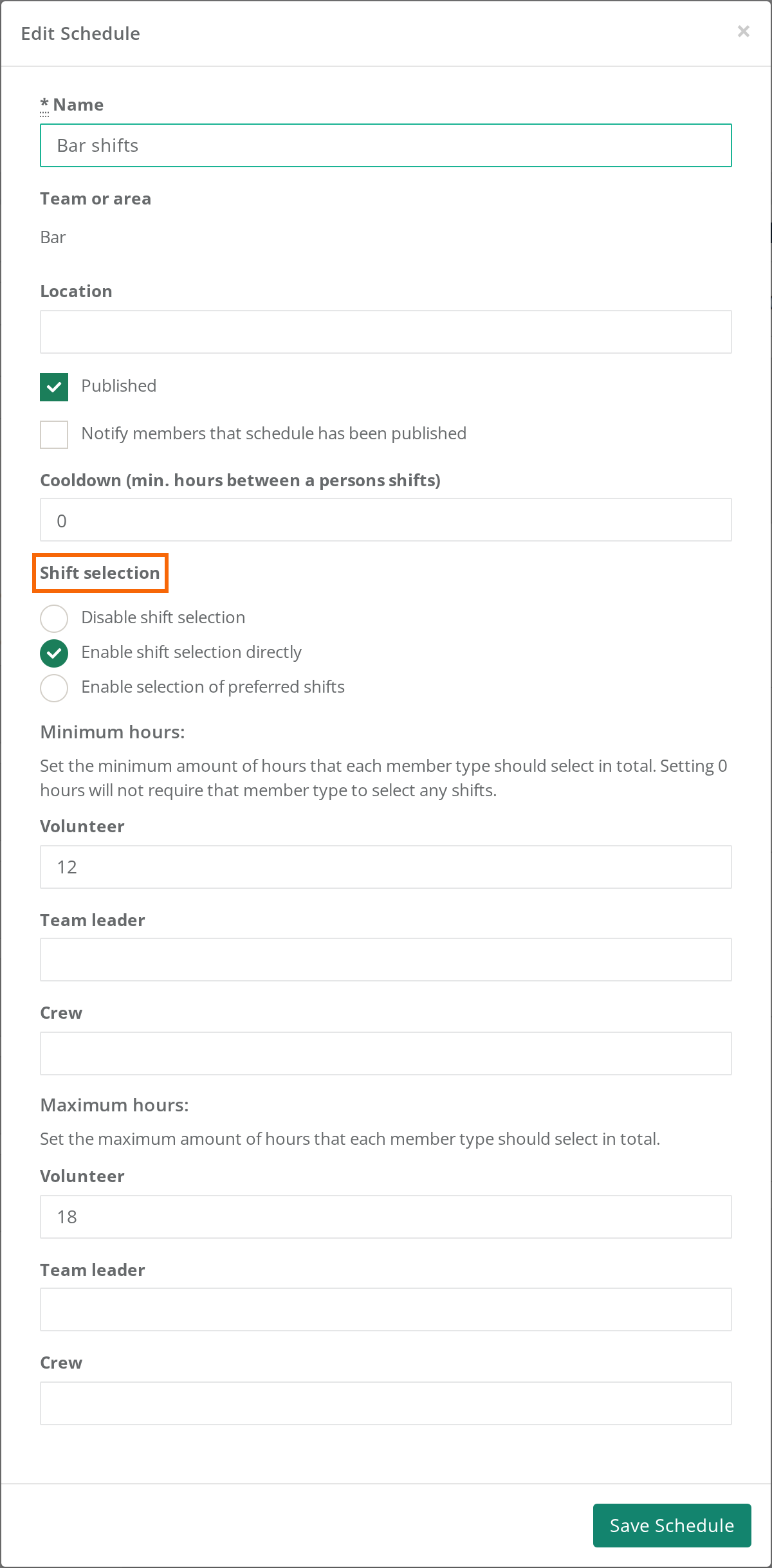
- On the schedule: Open the schedule, click Edit settings, and under Shift selection choose either Enable shift selection directly or Enable selection of preferred shifts. Team leaders can do this themselves on their team's schedules.
- The schedule is published: Published must be ticked in the same window. See Publish a schedule.
- The crew member belongs to the schedule: They must be on the team that owns the schedule, or on a team inside the team group that owns it. A schedule with no team or team group applies to everyone in the event.
- The crew member is ready: They are not on the waiting list and hasn't already accepted their shifts.
Only shifts in the future that aren't marked Hidden can be picked.
Where does the crew member find it?
The crew member clicks Find shifts in the portal menu. The menu item is there when they belong to a schedule with shift selection. They can also go to My shifts and click Update Shifts at the top. As long as they haven't picked enough, the top of the portal also says "You have not yet choosen all your shifts!" with the link Click here to do it now.
Shifts can't be picked or preferred in the Crewstack app. The app only shows the shifts the crew member has been given, under Shifts. Ask them to use the portal in a browser. See The Crewstack app for your crew.
What does the crew member see?
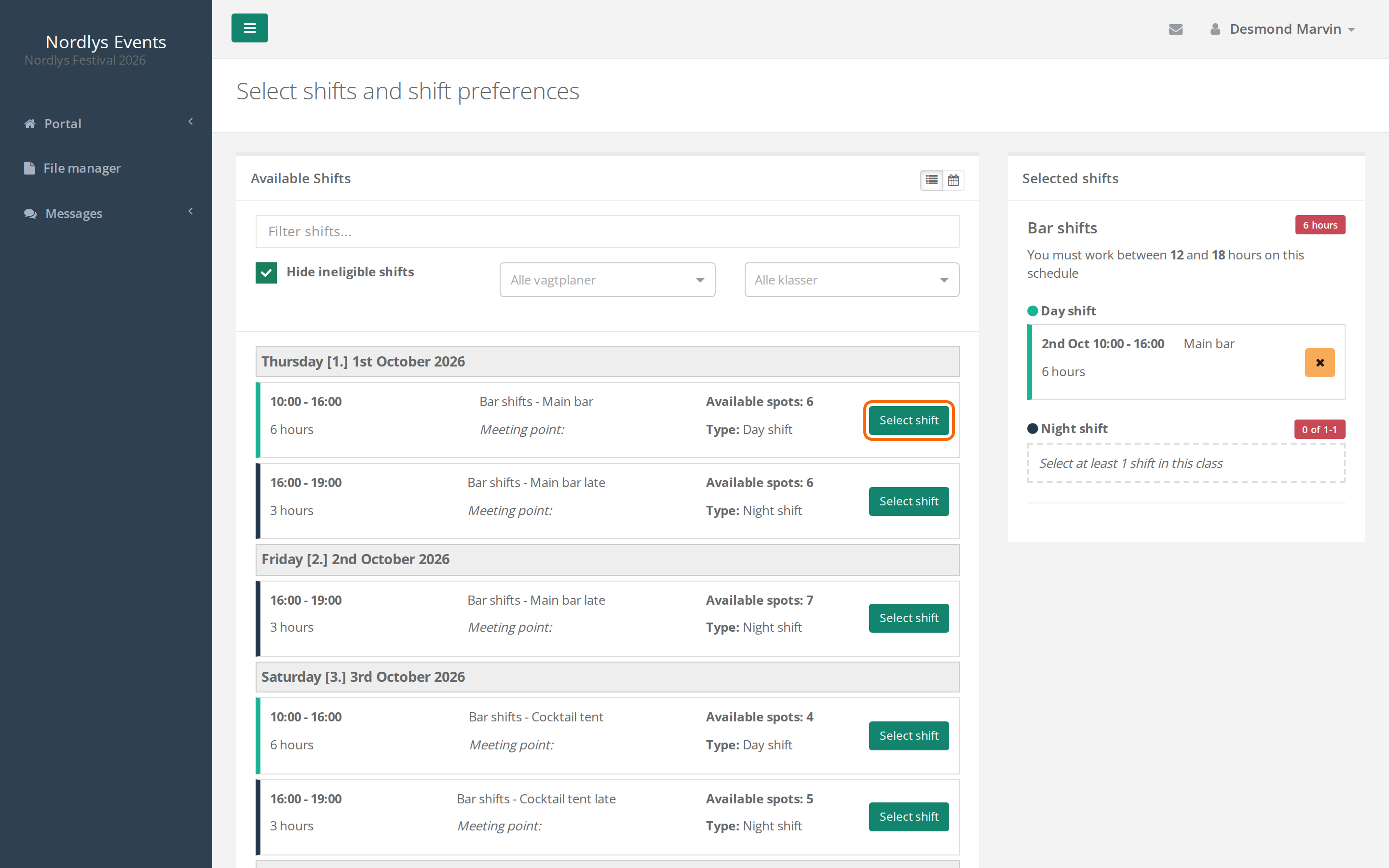
- On the left is Available Shifts as a list or a calendar. Hide ineligible shifts removes the shifts the crew member can't take.
- Each shift has Select shift (direct selection) or Prefer shift (preferences). For shift bundles, it's Select shifts or Prefer shifts. A picked shift can be removed again with Remove shift.
- Every click is saved straight away. There is no save button.
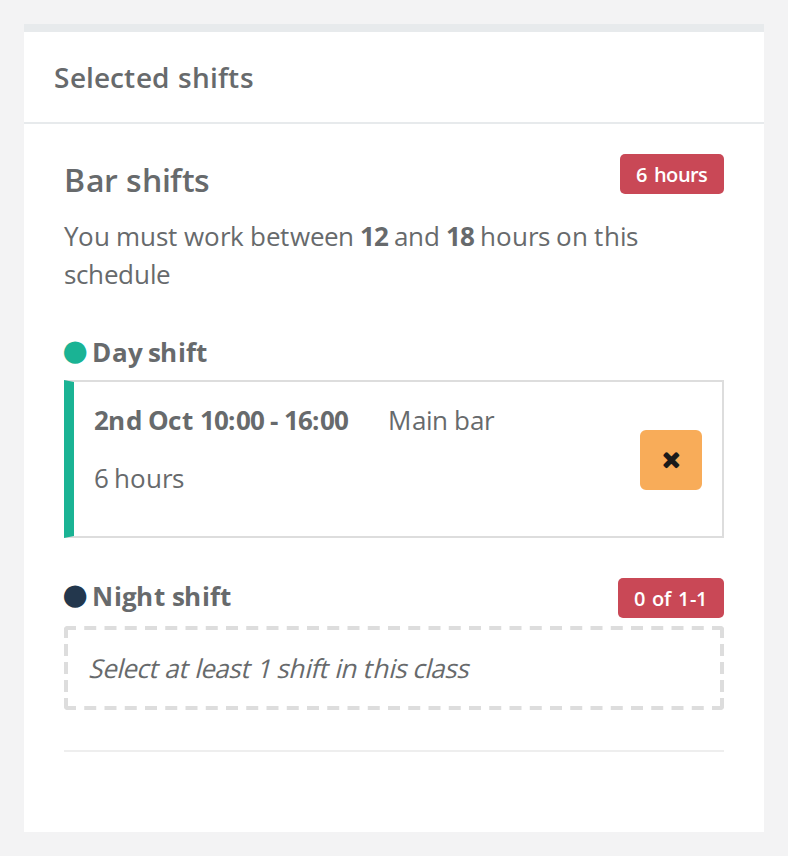
- On the right, Selected shifts shows what the crew member has picked and the rules for each schedule where at least one shift is picked, for example "You must work at least 12 hours on this schedule." For shift grades, it shows how many have been picked out of the number required.
- Preferences are listed under Preferred shifts with the text "N.B: Shifts on this list are not confirmed yet, only preferred."
If a shift can't be picked, the button explains why:
| The crew member sees | What it means |
|---|---|
| "The shift is locked." | You assigned the shift on a schedule without direct shift selection. |
| "No more available spots, or you don't fulfill the requirements." | The shift is full, or the crew member doesn't meet the shift's requirements. |
| "This shift overlaps with one or more of your already selected shifts." | The crew member is already on a shift at the same time. |
| "You don't have enough hours left for this shift." | The shift would take the crew member over the maximum. |
| "You cannot select more shifts of this type." | The maximum for the shift grade has been reached. |
Limits
- Hours: Under Edit settings on the schedule, you set Minimum hours and (for direct selection) Maximum hours for each member type. If the field is empty, Minimum shift hours and Maximum shift hours from the member type are used (Settings > Member types > edit > Limits). For Minimum hours, 0 means no requirement. If you don't want an upper limit, leave Maximum hours (and Maximum shift hours on the member type) empty. 0 means no hours can be picked at all.
- Shift grades: A shift grade can require a Minimum shifts count and allow a Maximum shifts count per member type. See Shift grades.
- Shift bundles: Shifts in a bundle can only be taken together. See Shift bundles.
- Registration requirements: A shift can require something of the crew member, for example an age. Spots with requirements can only be taken by crew members who meet them.
The maximum stops the crew member from picking more. The minimum stops them from accepting until they've picked enough.
What happens next?
With direct selection: Once the crew member has picked enough, it says "You have shifts awaiting your approval.", and they accept under My shifts. After that, the shifts are locked and they can't pick shifts any more. See Shift acceptance.
With preferences: You assign the shifts in the schedule planner. Open a shift and look at the Suggested members tab to see who preferred it. Until then, the crew member sees their preferences under Preferred Shifts on My shifts. Once you've assigned the shifts, the crew member accepts them as usual. See Assign shifts from shift preferences.
Shift exchange: If Shift exchange open is switched on for the event and shift exchange is enabled on the schedule, the crew member can still swap shifts under Shift Exchange after accepting. See Shift exchange.
Pitfalls
- The schedule isn't published: The crew member sees neither the button nor the shifts. See Publish a schedule.
- The crew member accepted too early: Then they can't pick again. Click Withdraw acceptance of shifts on their profile.
- Shifts you assigned can be removed: On a schedule with direct selection, the crew member can remove a shift you put them on, until their shifts are accepted.
- A new shift on a published schedule for a crew member who has accepted: They can pick shifts again until the new shift is accepted.
- You change the hours after people have accepted: Crewstack asks whether to reset acceptance for those who no longer meet the requirements. See Shift acceptance.
- The minimum can't be reached: If there are too few shifts or hours to meet the minimum, nobody can accept. Check Shift selection warnings.
Didn't find the answer? Write to support@crewstack.io.