
The confirmation email doesn't arrive
What to do when a crew member hasn't received the email with the link to confirm their email, and how to send it again.
When a new crew member signs up, Crewstack sends a confirmation email with a link. They can neither log in nor finish their signup until they've clicked the link. Here's what to do when the email hasn't arrived.
How the confirmation email works
- The email is sent as soon as the crew member has entered their email and chosen a password. They then see the page Please confirm your email address.
- Until they click the link, they're turned away at login with the message You have to confirm your email address before continuing.
- The link doesn't expire. If you send the email again, it contains the same link, so the link in an older email still works.
- When they click the link, their email is confirmed, and they're logged in and can continue their signup.
- A login belongs to you as the organizer, not to a single event. Once the person has confirmed their email, it's confirmed in all your events.
Find the person
- Go to Members and click Show advanced.
- Set Confirmed to No and Completed signup to All.
- Enter the person's email in the search field at the top, and click Search.
People who haven't confirmed their email have a grey circle and the status Email not confirmed.
If you can't find the person, they may have tried to sign up for one of your earlier events. In that case, read the section about it further down.
Check this
- The spam folder. Ask the person to look in their spam folder. By default, the email has the subject Please confirm your signup for [event].
- The email is spelled correctly. Check the email on the person's profile. If it's wrong, click Edit Member, correct Email under Login, and save. Then send the email again.
- Send the email again. Open the profile and click Resend confirmation email. If the profile has many actions, the button is under Actions.
- See whether the email was sent. Go to Reports > E-mail messages and search for the person's email. Here you can see whether the email was sent and whether it was rejected. See Sent emails – check whether an email went out.
- The email has a link. The text of the email comes from the template Member signup confirmation under Customize > Mail templates. It must contain
<confirmation_url>, otherwise there's no link in the email. If you have a separate version for a member type, check that one too. Only super admins can see Customize.
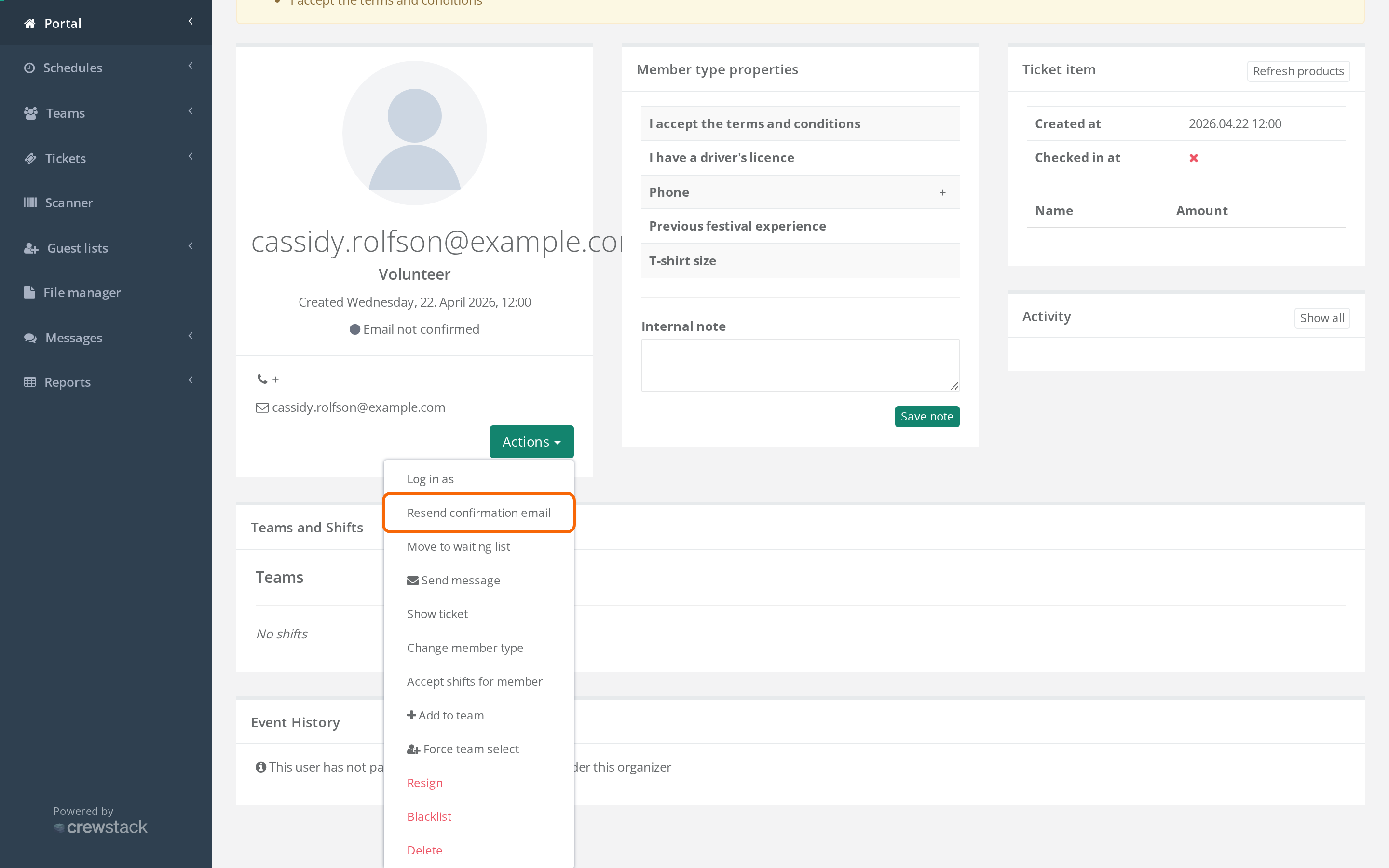
When you click Resend confirmation email, you get the message You will receive an email with instructions for how to confirm your email address in a few minutes. The message is written to the crew member, but the email goes to the person on the profile, not to you.
Send the email to many people at once
- Find the people in Members as described above.
- Select them in the table.
- Choose Batch actions > Resend confirmation email.
- Click Resend confirmation email in the window.
Only the selected people who haven't confirmed their email get the email.
The crew member can get the email again themselves
Ask the crew member to do this:
- Go to the login page for your event and click Didn't receive confirmation instructions?.
- Enter their email on the page Resend confirmation instructions and click Continue.
If they get the message … was already confirmed, please try signing in, their email is confirmed and the problem is something else. See A crew member or admin can't log in.
The person has tried to sign up before
If the person signed up for one of your earlier events without confirming their email, the email is still unconfirmed. When they sign up for the new event, Crewstack recognises the email and asks for their password from last time. If they enter it, they're turned away with You have to confirm your email address before continuing.
The person doesn't get a new email by themselves, and they aren't in Members in the new event, because their signup there hasn't started. So you can't send the email from the profile.
Instead, ask the person to click Didn't receive confirmation instructions? on the login page for the new event (see above). Once they've clicked the link in the email, they can use your signup link again and log in with their password.
Pitfalls
- A new password doesn't help. Resetting the password doesn't confirm the email. The person has to click the link in the confirmation email.
- The email is shared across all your events. If you correct the email on the profile, you change the person's login in all your events.
- The email keeps being rejected. If E-mail messages shows that the email was rejected, ask the person for a different email. Correct it on the profile and send the email again.
Didn't find the answer? Write to support@crewstack.io.