
A crew member or admin can't log in
Find out why a crew member or another admin can't log in, and fix it from their profile.
When a crew member tells you "I can't log in", it's almost always one of a few things: they haven't confirmed their email, they have resigned, or they're using the wrong email or the wrong link. Here's how to find the cause and what to do about it.
What to know about logging in
- A login (email and password) belongs to you as the organizer, not to a single event. The crew member uses the same login for all your events and years. If they change their password in one place, the new password works across all your events.
- With another organizer on Crewstack, the person has a completely separate login, even with the same email.
- The crew member has to log in through the link for the event they signed up for. If they use the link for one of your other events, they are turned away.
- The Crewstack app has its own passwordless login. See The Crewstack app further down.
What does the message mean?
Ask the crew member to tell you exactly what the screen says. The message usually tells you what's wrong.
| The message | Cause |
|---|---|
| Invalid email or password. | Wrong email or password, or the person is a passive user. |
| You have to confirm your email address before continuing. | The person hasn't clicked the link in the confirmation email. |
| Member not found for [event]. Try to sign up instead. | Email and password are correct, but the person isn't signed up for this event. They're using the wrong link, or they never signed up for it. |
| You have resigned from [event]. Please contact [event] to be reasigned. | The person has resigned. |
| You are blacklisted from [organizer] and are therefore not allowed to sign in. | The person is blacklisted. |
| This link is no longer valid. … | The password reset link is more than 6 hours old. The person needs to request a new one. |
Find the person and check their status
- Go to Members.
- Click Show advanced.
- Set Confirmed, Completed signup, Resigned and Blacklisted to All.
- Type the person's email in the search field at the top and click Search. Search by email rather than name, because the person may not have got as far as entering their name.
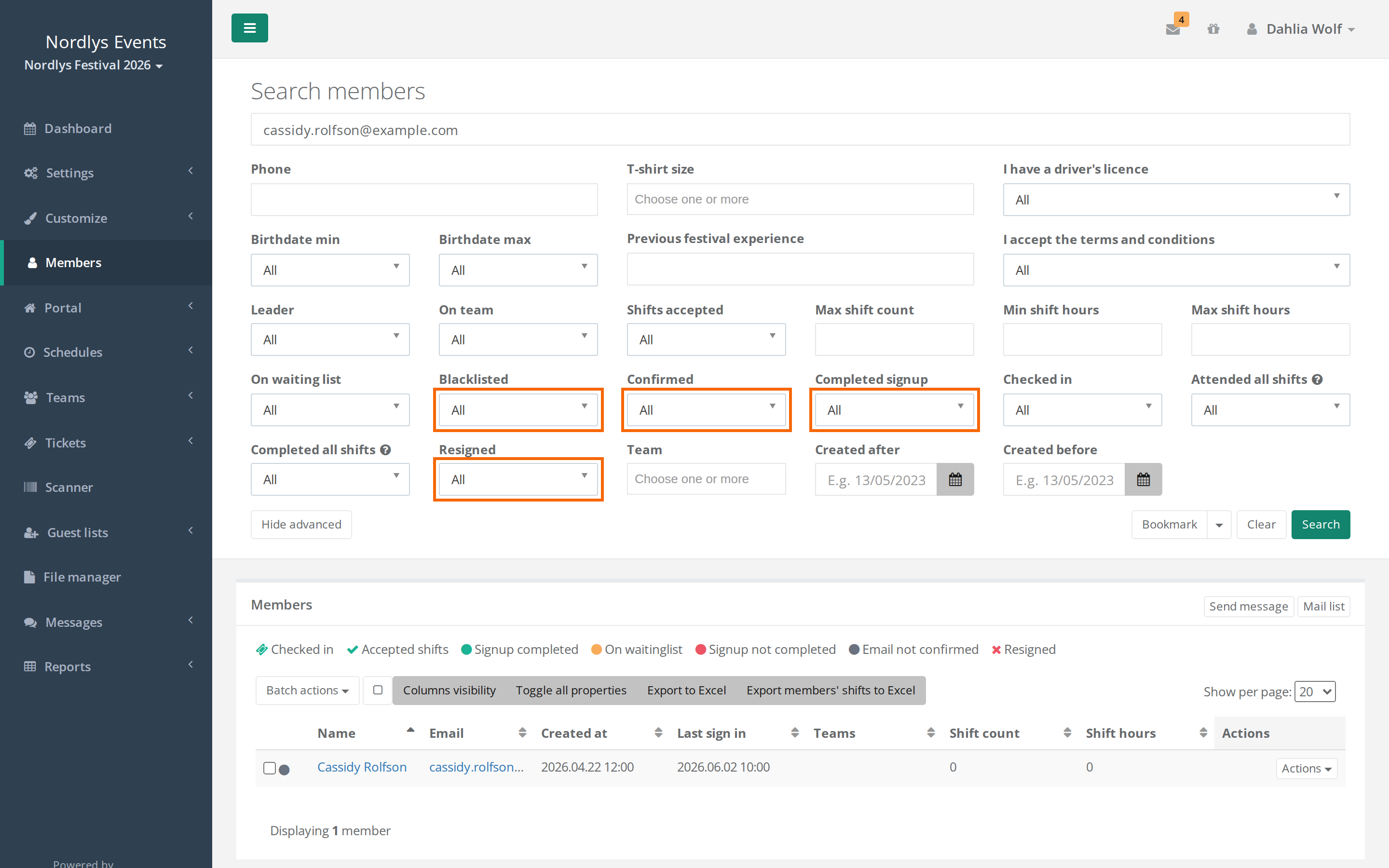
If you still can't find the person, see Can't find a person in the search.
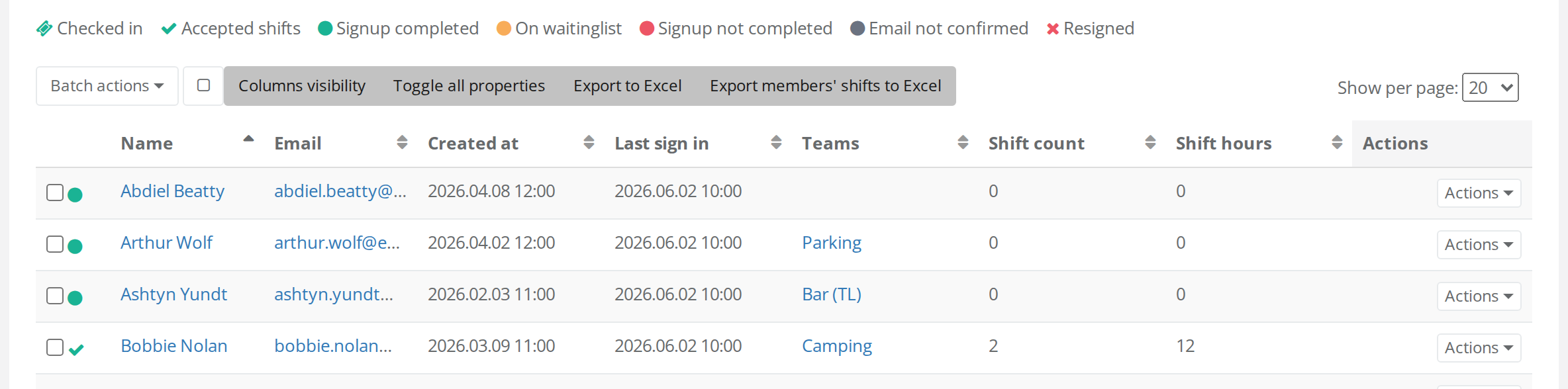
The icon to the left of the name shows the person's status. The legend is also shown above the table.
| Icon | Status | Can the person log in? |
|---|---|---|
| Grey circle | Email not confirmed | No |
| Red circle | Signup not completed | Yes, and is sent on to the signup |
| Yellow circle | On waitinglist | Yes, but only sees the waiting list page |
| Green circle | Signup completed | Yes |
| Green check mark | Accepted shifts | Yes |
| Green ticket | Checked in (only if you use tickets) | Yes |
| Red cross | Resigned | No |
Check this
Grey circle: Email not confirmed
The person hasn't clicked the link in the confirmation email they got when they signed up. Until they do, they can't log in. A new password won't help.
- Open the person's profile.
- Click Resend confirmation email.
- Ask the person to check their spam folder and click the link in the new email. That logs them in, and they can carry on with the signup.
The person can also click Didn't receive confirmation instructions? on the login page themselves.
If the email still doesn't arrive, see The confirmation email doesn't arrive.
Red circle: Signup not completed
The person has confirmed their email but hasn't made it all the way through the signup. When they log in, they're sent back to the signup, and the answers they've already given are saved. If they get stuck along the way, see Crew members are stuck in the signup.
Red cross: Resigned
The person has been resigned from the event, either by themselves or by an admin. They can neither log in nor sign up again on their own. Open the profile and click Restore. See Resigned users – find and restore.
Blacklisted
A blacklisted person also has a red cross, and their profile shows a red box saying Blacklisted. Blacklisting applies to all your events, so the person can't log in anywhere with you. If it was a mistake, click Un-blacklist in the red box. See Resign, blacklist or delete a user.
Passive user
Passive users have no password, and their email was made up by the system, so they can't log in. To give them a login:
- Open the profile and click Invite at the top.
- Enter the person's real email and click Invite.
- The person gets an invitation by email, where they choose their own password.
See Passive users.
Green status, but the person still can't log in
- Check that they're using exactly the email shown on the profile.
- Check that they're using the link for the right event and the right year.
- Ask them to click Forgotten your password? on the login page. The link in the email works for 6 hours, and only the link in the most recent email works.
- You can also correct the person's email or give them a new password: open the profile, click Edit Member and change the fields under Login.
The Crewstack app
The Crewstack app doesn't use passwords. This is how the crew member logs in:
- Open the app, enter the email and tap Send me a link.
- Crewstack sends the email Your Crewstack login with a button and a 6-digit code.
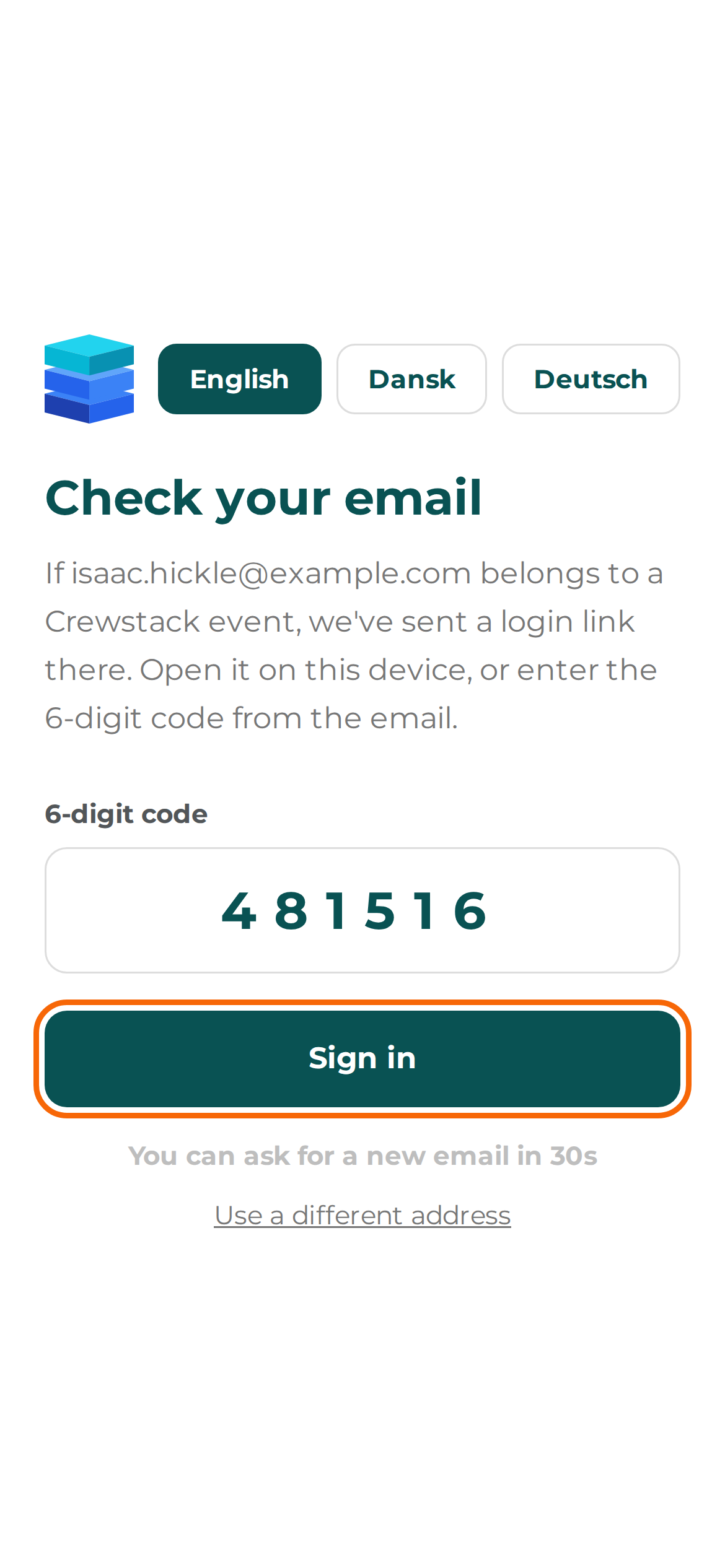
- Tap Open Crewstack in the email on the phone where the app is installed. Or type the code into the app and tap Sign in.
The link and the code work for 15 minutes and can only be used once.
If it doesn't work:
- No email arrives. The app gives the same answer whether the email exists or not. An email is only sent if the address belongs to a person who is signed up for an event that has the app switched on and isn't hidden, and who is neither resigned, blacklisted nor passive. Check the person in Members, and ask them to look in their spam folder.
- That code is wrong or has expired. Ask for a new email. The code is more than 15 minutes old, has already been used, or has been typed wrong too many times. Ask the person to tap Send a new email and use the code from the most recent email. There has to be 30 seconds between each new email.
- Too many attempts. Try again in … min. Too many emails or codes were requested in a short time. The person has to wait the number of minutes shown.
- The link opens a page called "Open the Crewstack app". The app isn't installed on the device where the email was opened. Ask the person to install the app, or type the code into the app on their phone.
- The page says "Open Crewstack in the app". The person is on the website in a browser. You can only log in with email inside the app, which you get from the App Store or Google Play. In the phone's browser, the person can use the link in the Mobil App box on the portal front page instead. See The Crewstack app for your crew.
The Crewstack app is only included in some contracts with Crewstack, and Crewstack switches it on for you. If you want the app for an event, write to support@crewstack.io.
Two-factor authentication for admins
If an admin can't get past the Two-factor authentication page:
- The code is rejected. Check that the phone's clock is set automatically. The code changes every 30 seconds.
- Too many failed attempts. Please wait 15 minutes and try again. After 10 wrong codes, logging in is locked for 15 minutes.
- The phone is lost. Use one of the 8 backup codes shown when two-factor authentication was switched on. Each code works once. Then go to Two-factor authentication, click Disable (this needs another backup code) and switch it on again on the new phone. The person then also gets new backup codes.
- Both the phone and the backup codes are lost. Neither you nor any other admin can reset it. Contact Crewstack support, who can switch two-factor authentication off so the person can set it up again.
See Two-factor authentication for admins.
See what the person sees: Log in as
If the person can log in but sees something other than you expect, you can, as an admin, click Log in as on the person's profile and see Crewstack exactly as they do. Anything you save meanwhile is saved in their name, and Log in as doesn't test the person's password. See Log in as another person.
Didn't find the answer? Write to support@crewstack.io.