
Sent emails – check whether an email went out
How to see under Reports whether Crewstack has sent an email to a person, and whether it arrived or was rejected.
Under Reports > E-mail messages you can see the emails Crewstack has sent from your event: automatic emails such as confirmation emails and shift emails, and emails from Messages. Use the page when a crew member says they haven't received an email.
Find an email
- Go to Reports > E-mail messages.
- Enter the recipient's email in the E-mail field. You can also search by subject in Emne.
- Send after date is set to one week ago by default. Choose an earlier date if you're looking for an older email.
- Click Search.
The page shows at most 1000 emails, and you can't go back more than one month. Use the fields under the column headings to filter the result further.
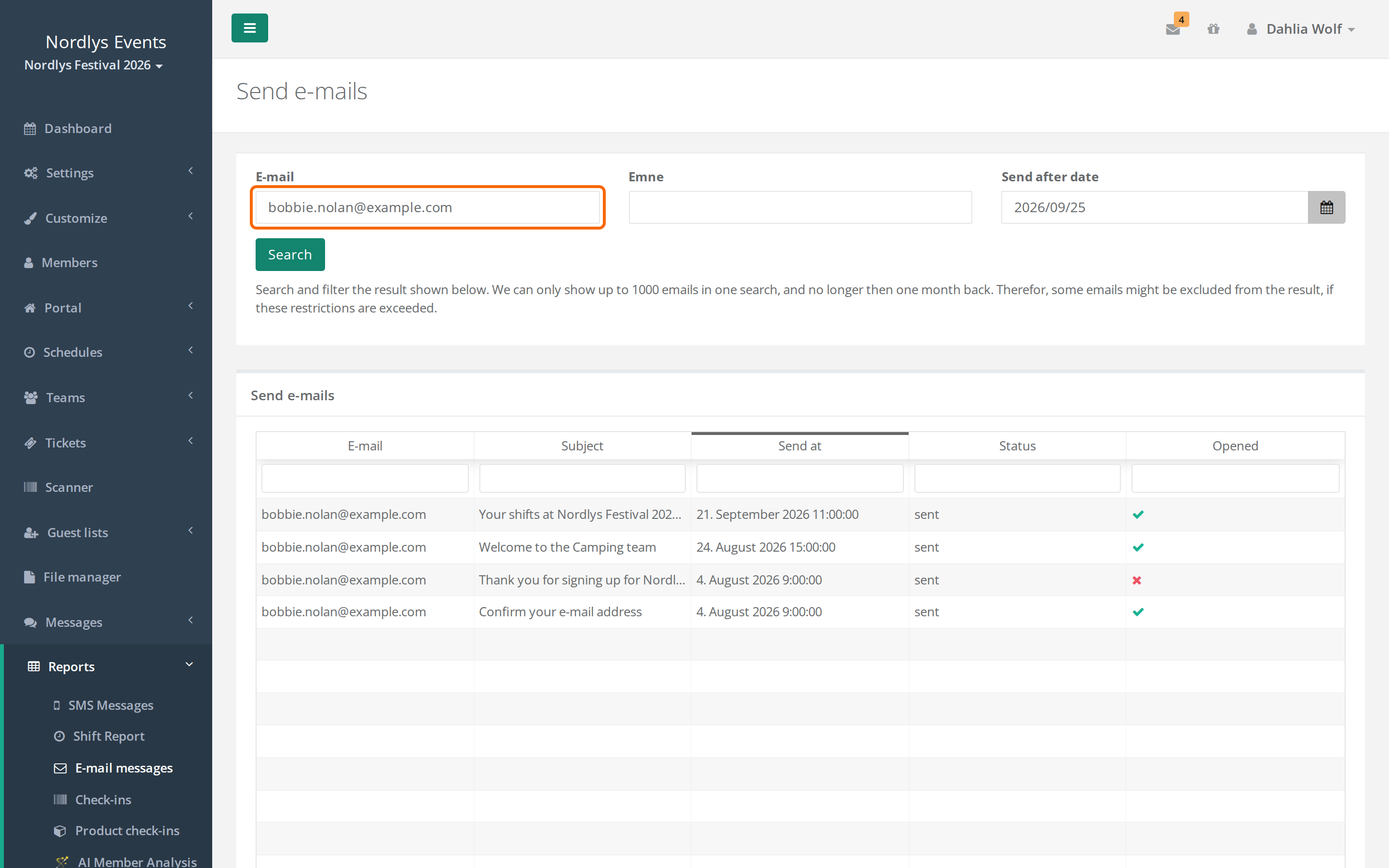
What the table shows
- E-mail: who the email was sent to.
- Subject: the email's subject.
- Send at: when the email was sent.
- Status: what happened to the email at the email provider. The status is in English.
- Opened: a check mark if the email provider has registered that the email was opened.
sent means the email was delivered to the recipient's mail server. bounced means the recipient's mail server rejected the email, for example because the address doesn't exist or the mailbox is full. rejected means the email provider didn't send the email, for example because the address has rejected emails before.
What to do next
- The email was sent, but the person can't find it. Ask the person to look in their spam folder and search for the subject. Then send the email again if you can, for example with Resend confirmation email on the profile. See The confirmation email doesn't arrive.
- The email was rejected. The address doesn't work. Ask the person for a different email, correct it on the profile under Edit Member > Login, and send the email again.
- The email isn't there at all. Check that the email address is spelled correctly and that the date in Send after date is early enough. If the email wasn't sent, check whether the person should have received it at all. For example, people on the waiting list or with an unfinished signup don't get messages. See Messages.
What the report doesn't include
- Emails that are more than one month old.
- Emails from your other events. The report only shows emails from the event you're in.
- Login emails for the Crewstack app.
- Emails sent from a different sender address than the event's usual one, for example from a mail template or a guest list with its own sender.
- Text messages. They're under Reports > SMS Messages.
If the list is always empty, even for emails you know were sent, the report can't fetch emails for your event. That happens if the event doesn't have its own sender address, or if your emails are sent through a different mail server than Crewstack's email provider.
Where does the information come from?
The report fetches the emails directly from the email provider every time you search. Crewstack doesn't keep its own copy of the sent emails. So if you delete a person, emails to them still show in the report for up to 30 days. See Resign, blacklist or delete a user.
Didn't find the answer? Write to support@crewstack.io.