
Messages
Write to members, teams, team groups or member types, follow replies as conversations, send as SMS and schedule for later.
Messages is the direct way to reach your crew inside Crewstack. You can write to one person or to whole teams, team groups and member types at once, and recipients are notified by e-mail, in the Crewstack app and optionally by SMS.
How the messages page works
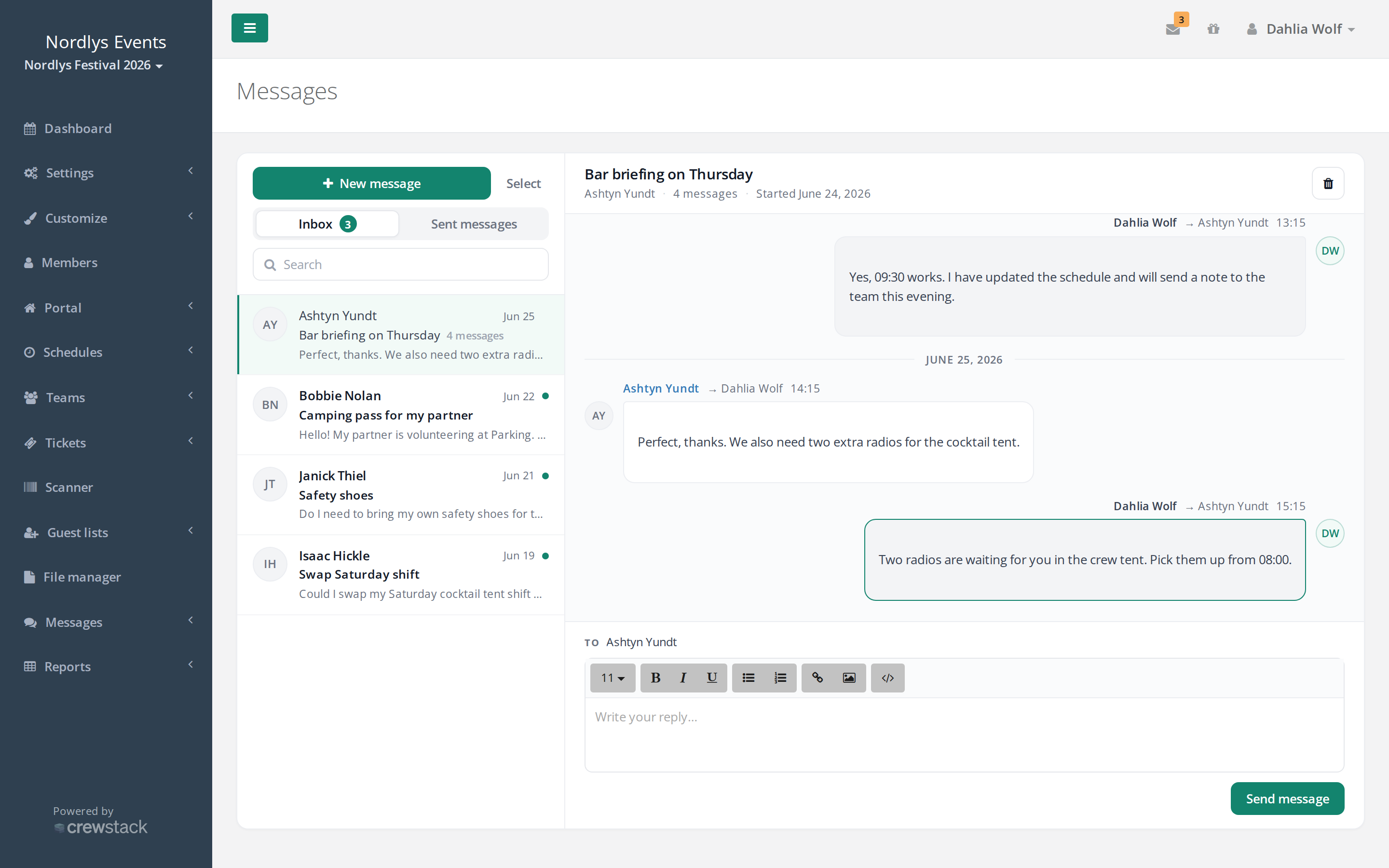
You'll find everything under Messages in the menu. The page is split in two:
- On the left is the list of conversations with the Inbox and Sent messages tabs and a search field (Search). Unread conversations are highlighted, and the number of unread ones is shown next to Inbox.
- On the right, the conversation you click opens, or the message you're writing.
Write a new message
- Click New message.
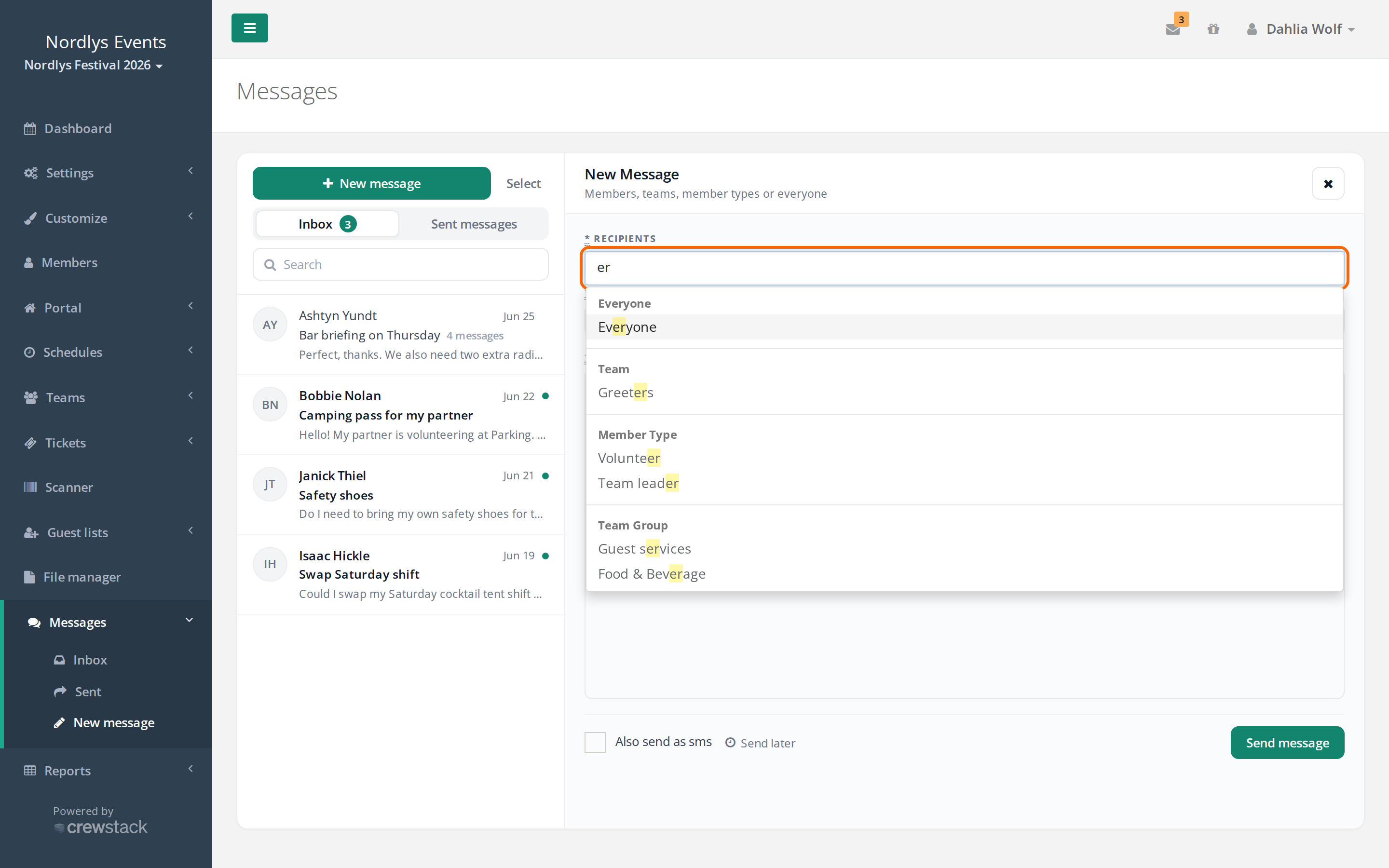
- Choose one or more Recipients. Type in the field to search, or pick one of the suggestions.
- Enter a Subject and the message itself. You can use formatting, links and images.
- Click Send message.
As an admin you can write to:
- Everyone: everybody in the event
- Member Type: everybody with a given member type
- Team Group: everybody on the teams in a team group
- Team: everybody on a team
- Member: individual people
You can also start a message from other places: Send message on a member's page, Send message on a shift in the schedule (to the people on that shift) and Send message above the list under Members (to everybody in your search). The last one opens a small window with only Subject and the text (and Also send as sms if you're allowed). There's no Recipients field, and you can't schedule it.
Who receives the message?
A team, team group, member type or Everyone is looked up at the moment the message is sent. Only active people receive it, meaning people who have completed their registration and are not on the waiting list, not blacklisted and have not resigned.
Each recipient gets the message in their Crewstack inbox and an e-mail saying there is a new message. If they use the Crewstack app and have turned on notifications, they also get a push notification.
The push notification only says "You have a new message", not what the message says. The crew member turns notifications on in the app under Profile > Settings > Notifications > Enable notifications. This has to be done on each device. See Messages and notifications in the Crewstack app.
Replies and conversations
Replies are collected in a conversation, so you can follow the whole exchange in one place. At the bottom of an open conversation you can type your reply directly (Write your reply…).
- A reply goes to the sender of the message, not to all recipients.
- Reply to all only appears if you've turned on Members can reply to everyone under Setup guide > Communication.
- Replies land in your Inbox. If you write to a whole team and several people reply, each reply becomes its own conversation between you and that person.
- As the sender you can see who has read the message in Crewstack. As soon as someone has opened it, an eye appears at the top of the conversation. If one person has read it, their name is shown next to the eye. If several have, click the eye to see the list (Read by).
- Recipients can delete a message from their own inbox. You can select several conversations with Select and then click the eye icon (Mark as read) or the trash icon (Delete selected).
Also send as SMS
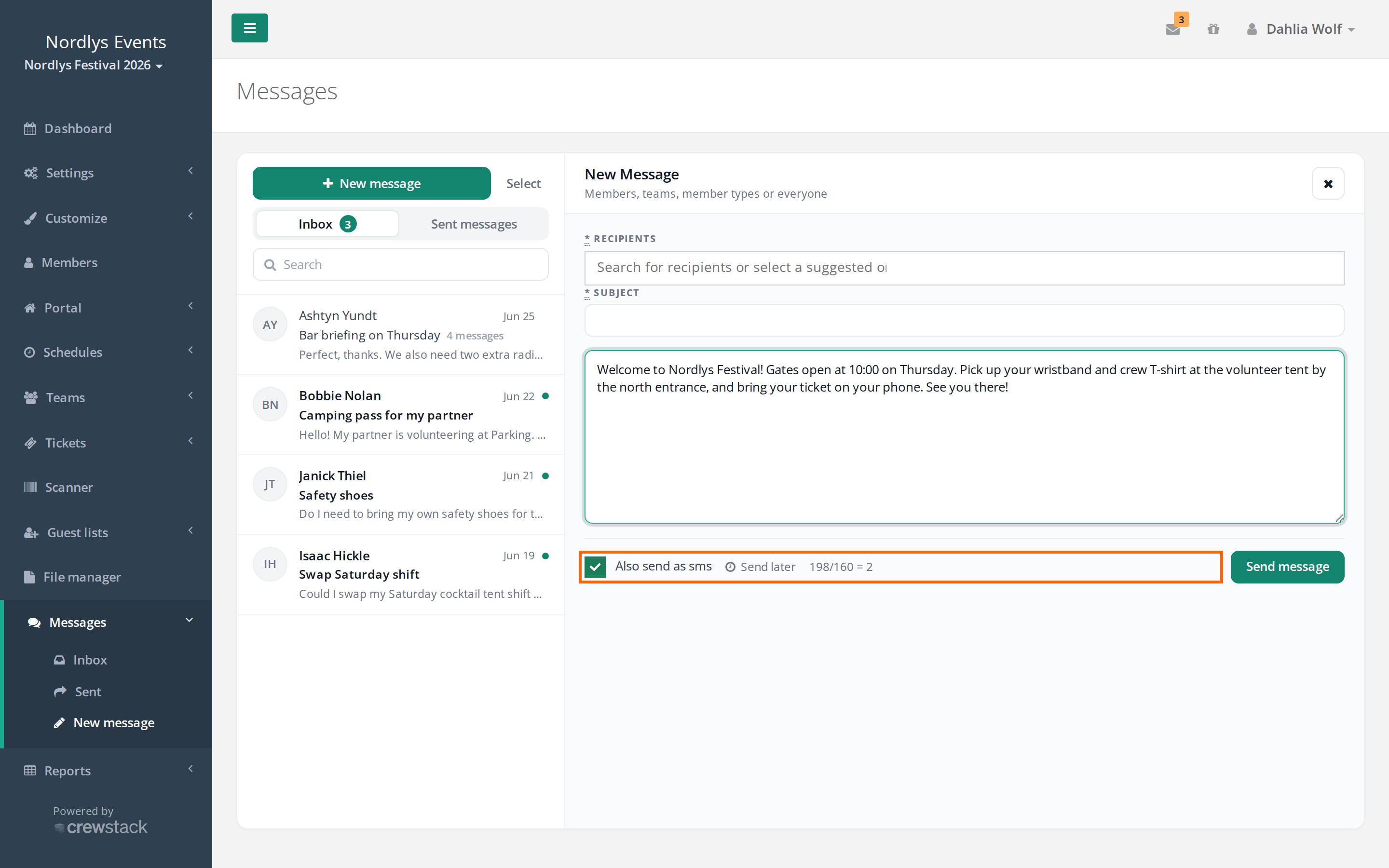
If SMS is turned on for the event and you're allowed to send SMS, you'll see the Also send as sms box below the message. Tick it and recipients get the message as an SMS on top of the e-mail.
When you tick it:
- The message becomes plain text. Formatting, links and images are removed, also in the version stored in Crewstack.
- A counter shows the number of characters and SMS messages (e.g.
200/160 = 2). The counter treats every started block of 160 characters as one SMS. The actual split can differ, for example with special characters and emojis. - Each recipient gets their own SMS, so 100 recipients and a 2-part message make 200 SMS messages.
SMS costs extra. You can see the price under Settings > General settings > SMS or in your agreement with Crewstack.
You can't send a reply in a conversation as SMS.
Turn on SMS
This needs a super admin. Go to Settings > General settings > SMS:
- Tick Activated.
- Tick Messages can also be sent as SMS.
- Under Who should have permission to send message as SMS?, choose Administrators, Team leaders or both.
- Enter a Sender name (max. 11 characters). It's shown as the sender instead of a phone number. Use only the letters a-z and digits, with no spaces and no special characters such as æ, ø and å.
Send later
You can write a message now and have it sent later, for example a reminder early in the morning on the first day of the festival. Everyone who can write messages can schedule them. SMS doesn't have to be turned on.
- Write the message as usual.
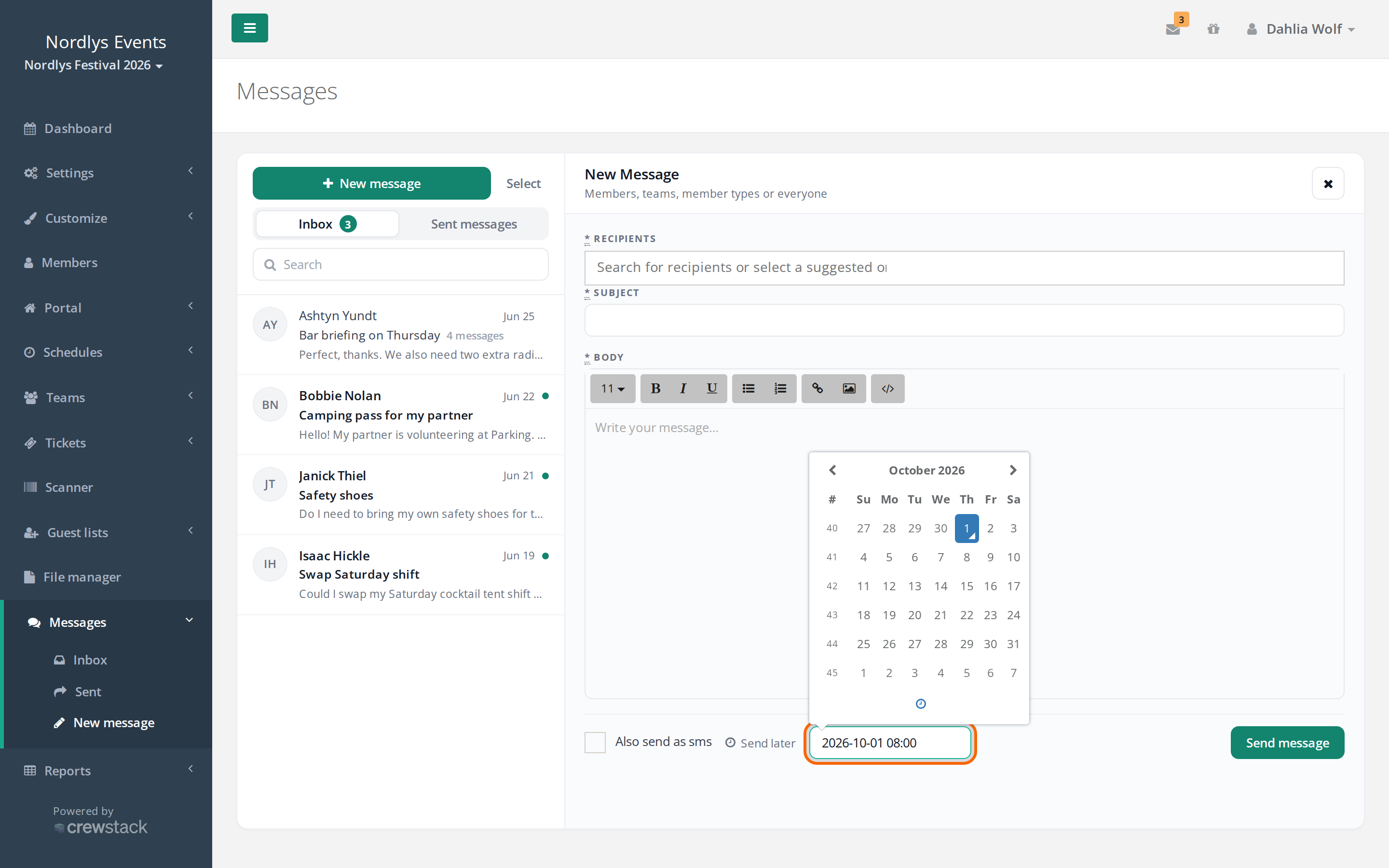
- Click Send later and pick a date and time.
- Click Send message.
The time follows the event's time zone, which you can see under General settings (Time zone). Recipients are only looked up when the message is sent, so people who join the team before then are included too.
Cancel a scheduled message
A scheduled message shows up under Sent messages straight away. It can't be edited, but you can delete it until it's sent:
- Open the message under Sent messages.
- Click the Unschedule and delete icon at the top of the conversation.
Write a new message if you want to change the text or the time.
See what was sent
Under Reports, admins can see what actually went out:
- E-mail messages: the e-mails the event has sent, with their status and whether they were opened. You can search by e-mail, subject and Send after date. The page shows at most 1000 e-mails and only the last month.
- SMS Messages: the latest 200 SMS messages with recipient, type (Message or Shift reminder), content and status. Failed also shows the error, for example when a number is invalid.
What team leaders can do
Team leaders also have Messages and can:
- write to the teams they lead (the suggestions under Send to teams you lead) and to individual people
- as team group leaders, also write to their team group and the teams in it
- schedule messages
- send as SMS, if Team leaders is selected under Who should have permission to send message as SMS?
Team leaders can't write to Everyone or to a member type, and they can't see the reports.
Common pitfalls
- A crew member didn't get the message. Check that the person has completed their registration and isn't on the waiting list. People on the waiting list, with an unfinished registration, on the blacklist or who have resigned don't receive messages, not even when you pick them individually.
- No e-mail arrived. Search for the person's e-mail under E-mail messages. Passive users get the message in their inbox, but no e-mail, SMS or push.
- The SMS failed. The person has no phone number, or the number is wrong. An 8-digit number without a country code is sent as a Danish number (+45), so foreign numbers need a country code.
- You can't recall a message. Only a scheduled message can be deleted before it's sent.
- You can't see Messages in the menu. Messages is part of the member portal. Contact us if it isn't turned on for your event.
Didn't find the answer? Write to support@crewstack.io.