
General settings
Where to find the event's settings, what each section controls, and which fields are locked.
General settings gathers all of the event's settings on one page. Some of them you can also change in the Setup guide. You find the rest here, and this is where you quickly look up a setting another article refers to.
How to use the page
- Go to Settings > General settings.
- Find the section in the menu on the left, or type a word in Search settings at the top. The page then only shows the settings that match.
- Change the setting. Each setting has a short explanation under it.
- Click Save at the top of the page.
Nothing is saved until you click Save. That is different from the Setup guide, where everything is saved straight away. They are the same settings in both places, so if you change one, the other changes too.
Sections that belong to a part of Crewstack the event doesn't have access to are not shown.
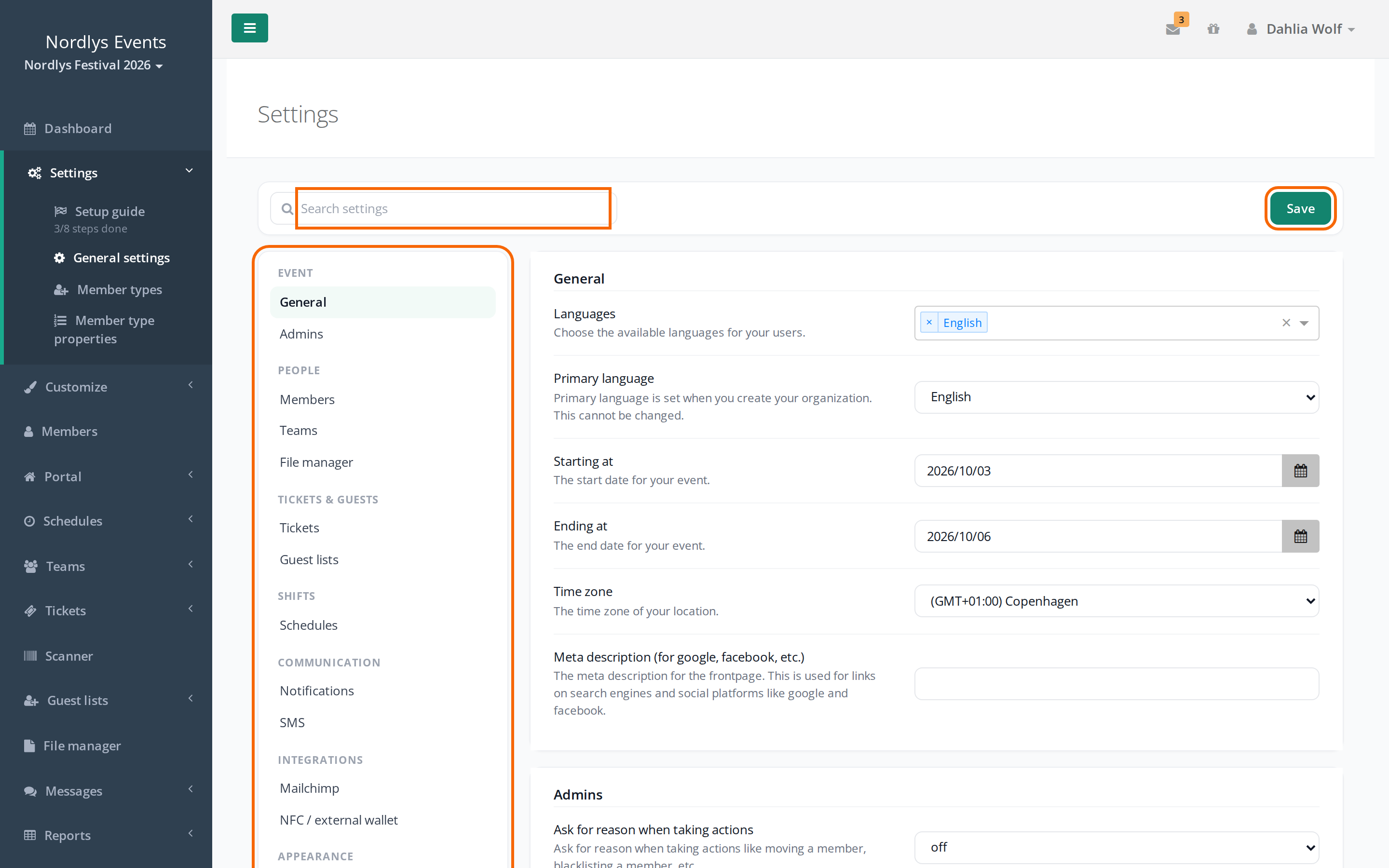
The sections
| In the menu | Section | What it controls |
|---|---|---|
| Event | General | Languages, Primary language, Starting at, Ending at, Time zone and the description for Google and Facebook |
| Event | Admins | Reasons for actions on people, who receives reports, team leads' reports, and whether only admins may export data. See Ask for reason when taking actions. |
| People | Members | Signup status, Waiting list activated, Members can resign, internal notes, passive users and payment for member tickets |
| People | Teams | Minimum age, members on several teams, what team leads may do, tags, and what members can see about their teammates. See My teams: what crew members see about their teams. |
| People | File manager | Shortcuts to members' own team folders. See File manager – share files with your teams. |
| Tickets & guests | Tickets | Whether tickets can be downloaded, whether to hide them, and partial handout in the scanner |
| Tickets & guests | Guest lists | Payment for guest list tickets and import for guest list owners |
| Shifts | Schedules | Shift exchange, Shift selection allowed, Shift preferences allowed and meeting point |
| Communication | Notifications | SMS reminders before shifts and the automatic emails about shifts, teams and shift exchange. See Automatic emails and SMS reminders. |
| Communication | SMS | SMS on and off, sender name, and who may send messages as SMS |
| Integrations | Mailchimp, NFC / external wallet, EventPos, Corego | Connections to other systems |
| Appearance | UI Customization | Colours of the sidebar and buttons, with a preview. See Logos and colours. |
EventPos and Corego only show when you have chosen them as Provider under NFC / external wallet. If the event is set up as a venue, there is also a Venue mode section. See Venue mode: concerts and concert days.
Check this before signup opens
- Languages: Choose every language your crew should be able to use. Each language needs texts in the mail, view and ticket templates. People choose their language in the System language field. See Several languages in your event.
- Starting at and Ending at: The minimum age is calculated from the start date.
- Signup status: It is Closed when the event is new. Choose Open for everyone, Open by invite only or one of the options for previous members when you are ready.
- Tickets are public and can be download through the portal: Only when this is on can crew members download their ticket. See Ticket templates.
Fields you can't change
- Primary language was chosen when the event was created and can't be changed.
- Time zone can't be changed here either.
- Payment for member tickets and guest list tickets can only be switched on once the organizer has connected Stripe. Until then the fields are greyed out. If you are an admin for the whole organizer, there is a link, Go to organizer settings.; otherwise ask one of them to connect Stripe.
- Tickets are public and can be download through the portal is greyed out until every member type has a ticket template with an uploaded file in each of the event's languages.
Pitfalls
- Your changes disappeared. You didn't click Save. The button is at the top of the page, not under each section.
- The search doesn't find the setting. The section may belong to a part of Crewstack the event doesn't have access to, or the setting lives elsewhere, for example the text of emails under Customize > Mail templates.
- Admins can't find the page. The Admin role has no Settings in the sidebar. That takes Super Admin.
Didn't find the answer? Write to support@crewstack.io.