
Import people to a team
How to create many people on a team at once from an Excel file or a list you paste in.
If you have a list of crew in Excel or another spreadsheet, you can create them all on the team at once. The import does the same as New Member, just for many people at a time. The columns in your list can be called anything.
Who can import
The Import members button is next to New Member at the top of the team's page. You see it when you may create people on the team:
- You're an admin or a team leader of the team.
- The team has at least one member type with Allow team member creation, and there are free spots for it. See Set up member types.
How to import
- Click Import members on the team's page.
- If the team has several member types, choose the Member type. Everyone in the list gets that member type.
- Drag in a file, or click Choose file. The import reads Excel (.xlsx, .xls), OpenDocument (.ods) and CSV. You can also copy the cells in Excel or Google Sheets and paste them under Or paste a list.
- If the file has several sheets, choose the right one under Sheet. Check that First row is headers matches your list. Click Next.
- Under Which column is what?, Crewstack has guessed what each column is from its heading and its contents. Correct any that are wrong under Imported as, and choose Don't import for columns you don't need. Click Next.
- If your list uses its own words for a field with choices, for example "Sm" for the T-shirt size S, choose under Match your values to the choices what each word means. The choice applies to every row with that word. The step is skipped when all values match.
- Review the rows, and correct the ones that need it. See below.
- Click Import with the number of rows on the button, for example Import 12 rows.
You can import up to 500 rows at a time. If the list is longer, split it up.
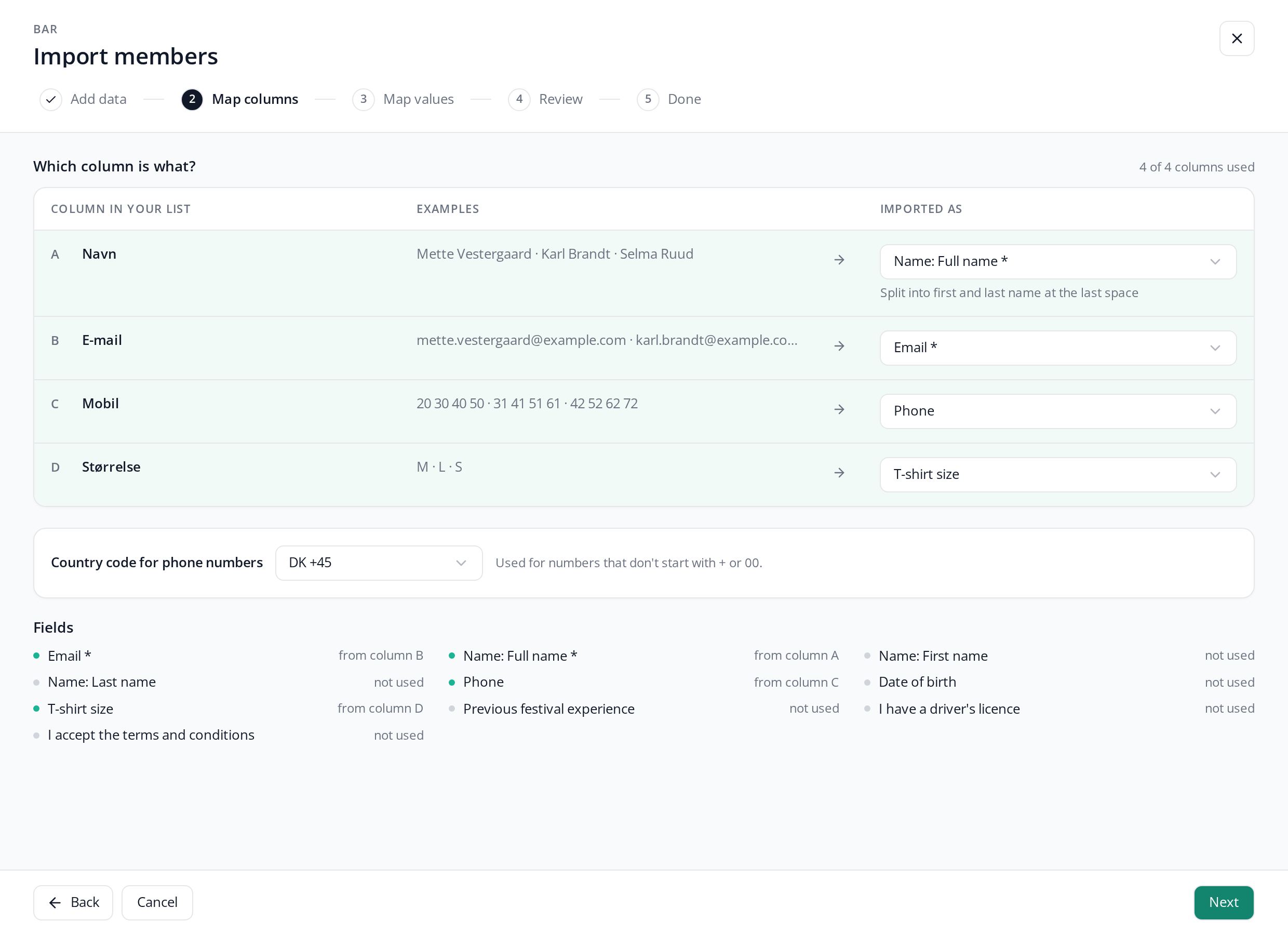
Email and name need a column. The name can be in one column, Full name, which is split into first and last name at the last space, or in two columns with first and last name. Phone numbers that don't start with + or 00 get the country code from Country code for phone numbers.
Review the rows
Each row gets a status:
- New: the person is created on the team and gets a welcome email.
- Existing member: the person is already in the event, but not on the team. They're only put on the team if you switch on Add … existing members to the team. They keep their own details, so what's in your list isn't used.
- Resigned: the person has resigned from the event. They're only restored if you switch on Restore … resigned members, and then get a welcome email.
- Already on the team: the row is skipped.
- Can't be added: the reason is shown under the status, for example "On another team, and members can only be on one team".
- Needs fixing: the error is shown in red in the cell, for example "Not a valid email address".
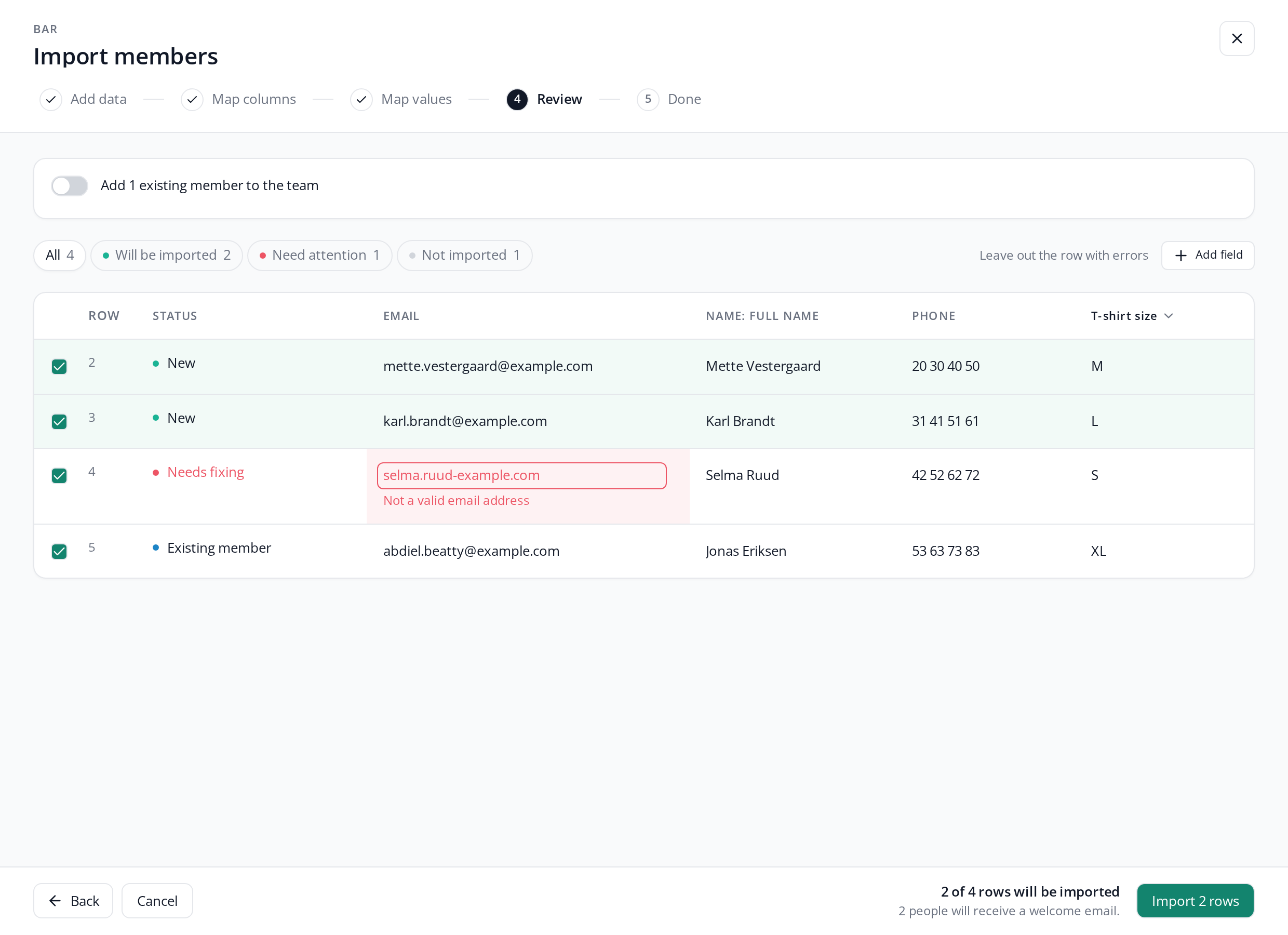
Click a cell to correct it. The row is checked again as soon as you're done. If you don't want to import a row, untick it, or click Leave out the … rows with errors. The filters All, Will be imported, Need attention and Not imported show only the rows you want to see.
At the bottom it says how many will get an email, for example "3 people will receive a welcome email." Existing members get an email saying they've been added to the team when Send email when member is added to a team is switched on. See Automatic emails and SMS reminders.
Fill in a field for many rows at once
Click the heading above a column, for example T-shirt size, choose a value, and click Set on … rows. The value goes on every row the filter is showing right now. To fill in only some of the rows, choose the filter first.
- If the field can have several values, you choose between Add to … rows, which keeps what the rows already have, and Replace on … rows.
- Clear on … rows empties the field on the rows shown.
- Add field adds a field your list has no column for, so you can fill it in here.
If a required field isn't in your list, you can also move on from Which column is what? and fill it in here. That doesn't apply to email, name, phone number and other details each person has their own of. Your list needs to have those.
Afterwards you can still correct a single cell.
When you click Import
Crewstack checks all the rows again before anything is saved. If something has changed since you reviewed the list, for example because one of the people signed up in the meantime, nothing is imported. You see "Nothing was imported", and the changed rows are marked Changed since you looked. Check them, and click Import again.
If there isn't room on the team, for the member type or in the team's product budget, you can't import. The reason is shown at the top under "This can't be imported yet", for example "14 people are selected, but the team has 10 free spots." Leave out some rows, or ask an admin to give the team more spots.
When the import has finished, it says how many were created and added. Click Close and show the list to see them on the team.
Pitfalls
- The Import members button is missing: the team has no member type with Allow team member creation, or there are no free spots for it.
- You close the import: what you've done is lost. Crewstack asks first.
- Dates: write them as 31-12-2001 or 2001-12-31. Dates that are formatted as dates in Excel are read correctly.
- The same person twice in the list: the second row gets "Same email as row …" and has to be corrected or left out.
Didn't find the answer? Write to support@crewstack.io.