
Set up member types
What member types are, how to create, clone and delete them, and what the settings on a member type do.
A member type is a kind of person you take in, for example crew, team leads or people from an external supplier. Each member type has its own signup link, its own data fields and its own signup form, so you can ask different people about different things.
How it fits together
- The member type decides which rules apply to the person: team selection, payment, age and shift hours.
- The data fields are the information you ask for. On each field you choose which member types use it. See Data fields and who can see them.
- The signup form decides which of the fields the person is asked about during signup, and in which order. See Set up the signup form.
In the Setup guide the step is called Member types and signup form. New events start with some default member types and fields, so the step is only done once you have ticked Member types and fields are reviewed. See Get started with the setup guide.
Find the member types
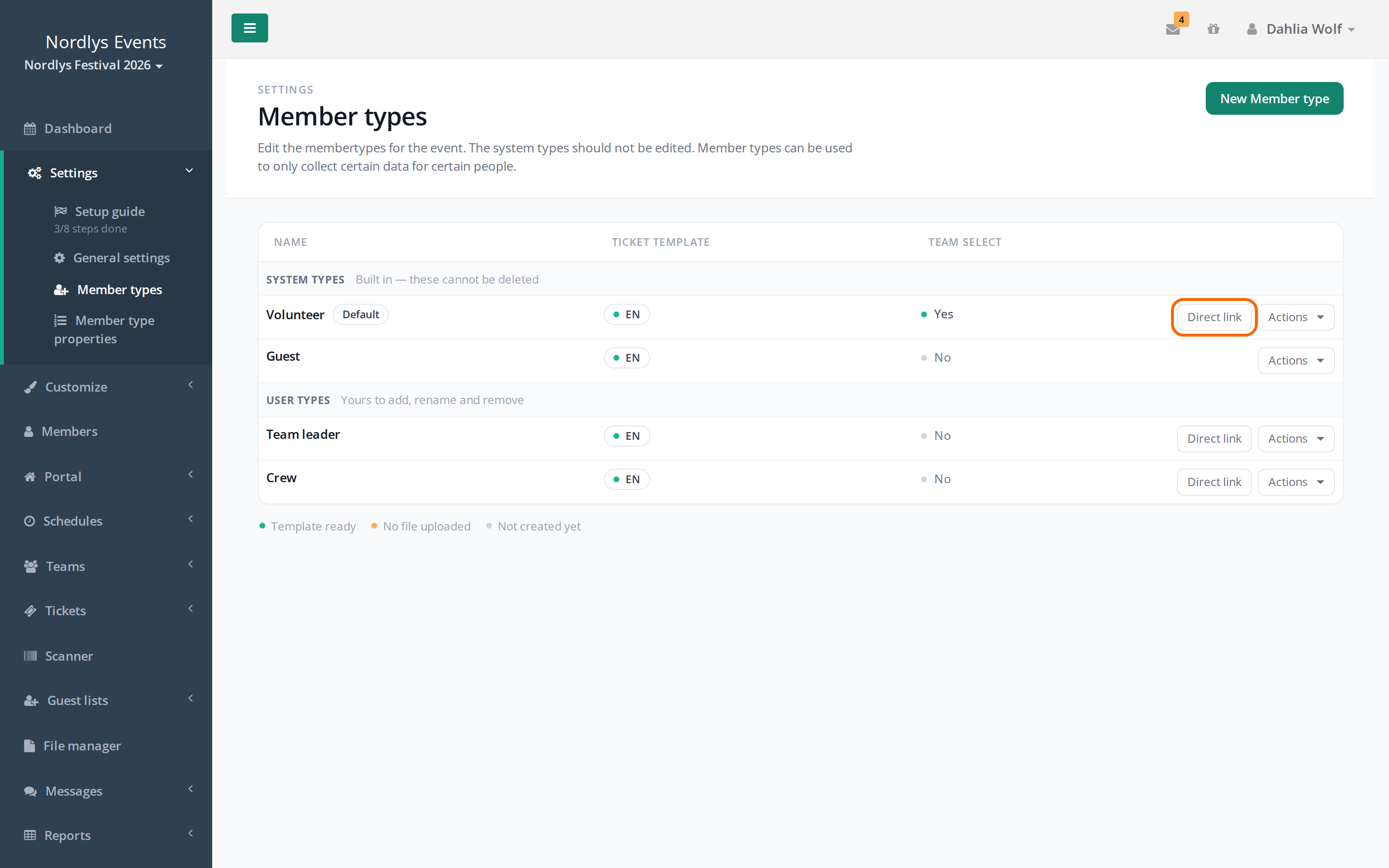
Go to Settings > Member types. The list has two groups:
- System types are built in and cannot be deleted. The one marked Default is the member type people sign up as when they go to /tilmelding or /signup on the event's address. The other system type is used for guests on guest lists and has no signup link.
- User types are your own. You can create, rename and delete them.
The Team select column shows whether people of the type choose a team themselves during signup.
Create a member type
- Go to Settings > Member types.
- Click New Member type.
- Enter the name. If the event has several languages, you can enter the name in each language. It must at least be filled in for the event's primary language.
- Choose the settings (see below), and save.
The new member type automatically gets the Name data field and an empty signup form. Then add the data fields it should use, and build the form.
The settings on a member type
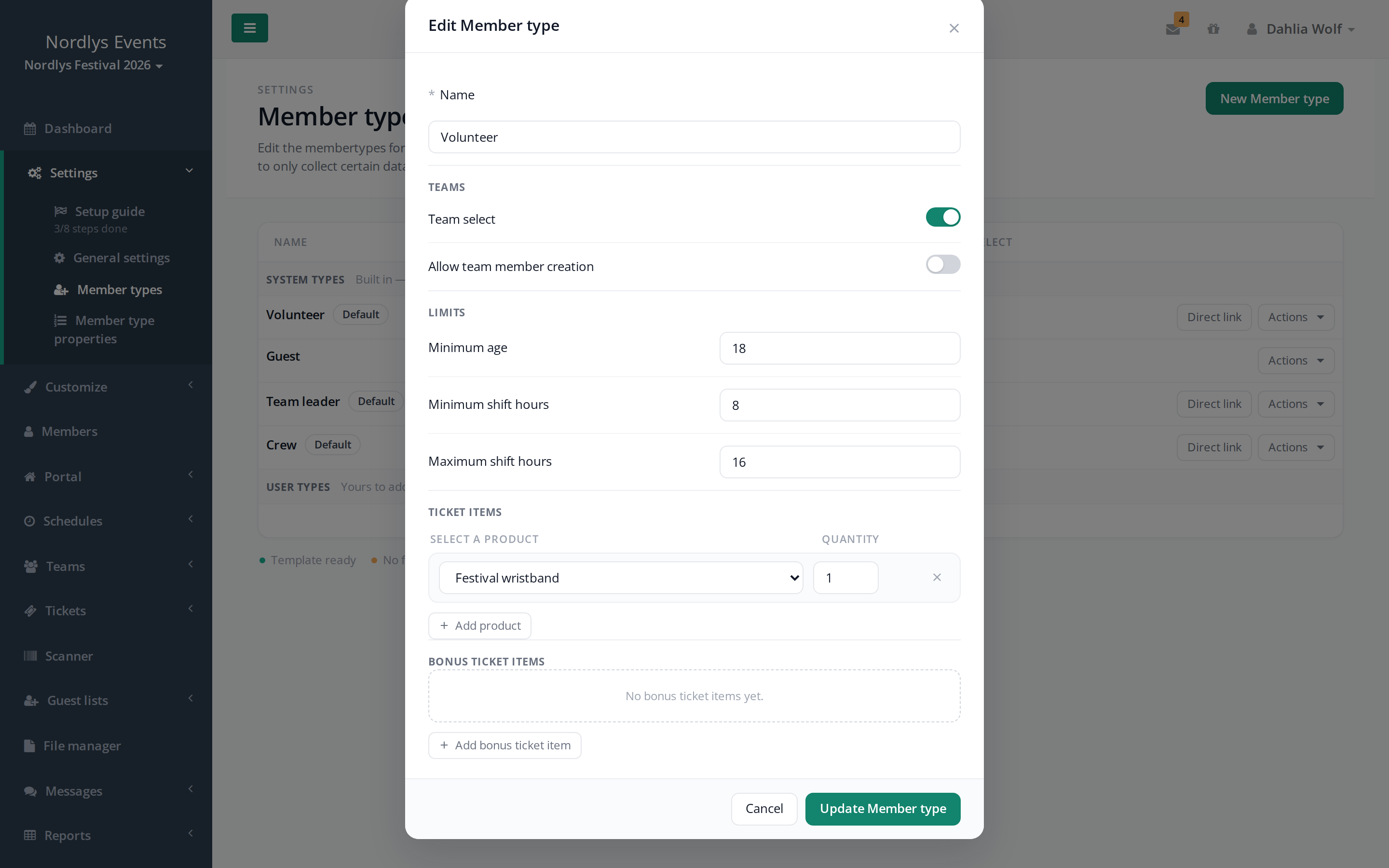
Click Actions > Edit Member type next to the member type. Which sections you see depends on what is switched on for your event.
Teams
- Team select: The person chooses a team themselves during signup. See How crew members sign up.
- Allow team member creation: You can create people of this member type directly on a team's page with New Member. The team must have the member type selected under Member types and have free spots for it.
Payment
This section only shows when payment for member tickets is switched on for the event. Here you set the amount, and whether people pay during signup. See Membership fees.
Limits
- Minimum age: The person must be at least this old to sign up. The rule only applies if there is a birthdate field in the signup form. If the field is empty, the Minimum age from General settings applies.
- Minimum shift hours and Maximum shift hours: How many hours people of the type must choose when they pick shifts themselves. If a schedule has its own hours for the member type, the schedule's hours apply. See How crew members pick their own shifts.
Ticket items and Bonus ticket items
These sections only show when tickets are switched on. Ticket items are what everyone with the member type gets automatically.
Bonus ticket items are extra products that people with the member type get automatically once they have a certain number of shifts or shift hours on published schedules. See Create products and give them to your crew.
Share a direct link
Next to each member type, except guests, there is a Direct link button. It shows the signup link for that member type so you can copy it. Whoever uses the link signs up as that member type and goes through its signup form.
The link is based on the member type, not its name. So it keeps working if you rename the member type.
Delete a member type
Click Actions > Delete Member type. You can only delete user types, and only when nobody has the member type. Move those people to another member type first with Change member type on their profile. You find them with Actions > Search members next to the member type.
Pitfalls
- Required is set on the field, not on the member type. A required data field is required for every member type that uses the field. If a question should be required for one member type but optional for another, make two of your own fields. Built-in fields like Phone exist only once per event.
- Renaming can break a link on the front page. Under Customize > View templates each member type has a variable for its signup link, for example
{{frivillig_sign_up_url}}for the member type Frivillig. The variable is made from the member type's name in the event's primary language. If you rename the member type, the variable changes name, and a button on the front page that uses the old variable stops working. Fix the front page after renaming. See The signup button on the front page doesn't work. - People must be moved before you can delete. You can't delete a member type as long as anyone has it.
Didn't find the answer? Write to support@crewstack.io.