
Can't find a person in the search
How to search under Members, which filters hide people, and what to check when a person doesn't show up.
Under Members you find everyone signed up for the event. By default the search hides some people, so when you can't find a particular person, it's almost always because of the filters.
How to search
- Go to Members.
- Type a name, email or phone number in the search field at the top.
- Click Search.
The list stays empty until you search. Click Search with an empty search field to see everyone.
What you can type in the search field:
- Part of a name or an email, for example hansen or @gmail.com. Upper and lower case don't matter.
- Several words, for example anna hansen. The search then only shows people who match all the words.
- A phone number, with or without spaces.
The filters hide some people
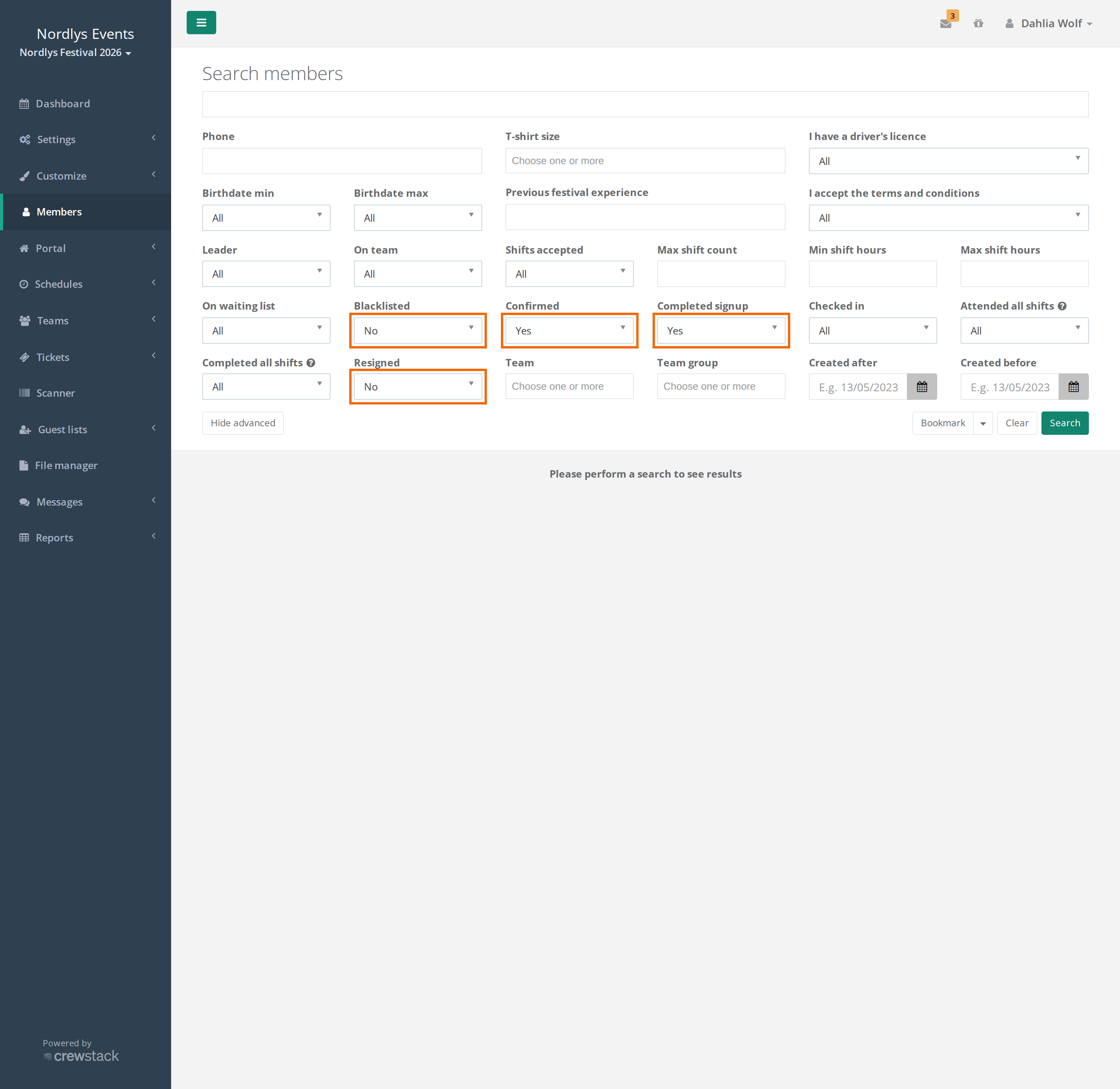
Click Show advanced to see the filters. Four of them are set from the start, so the search only shows people who have fully completed signup:
| Filter | Set by default to | Hides |
|---|---|---|
| Confirmed | Yes | People who haven't confirmed their email. |
| Completed signup | Yes | People who haven't completed signup. |
| Resigned | No | Resigned people. |
| Blacklisted | No | Blacklisted people. |
Set the four filters to All and click Search. The other filters are set to All from the start. If you have set one of them yourself, for example On waiting list, set it back to All.
Shortcut: If the search finds no one, you see "No results found for the current search." Click Try again without any filters. right after it. Crewstack then searches again for what's in the search field, with all filters set to All.
As a team leader or group leader
You can search among all people in the event, not only those on your own teams. But you don't have the filters Confirmed, Completed signup, Resigned and Blacklisted. Your search always shows only people who have completed signup and who are neither resigned, blacklisted nor passive.
If you can't find the person, ask an admin to search for them. See also A crew member or admin can't log in.
Filter by team and team group
Under Show advanced, admins can filter by Team and Team group. If you choose a team group, the people on all teams in the group are included, also the teams in its sub-groups.
Team leaders and group leaders don't have these two filters. You find the people on your own teams under Teams > Teams.
Check this
- Did you search by email? Also try only the part before the @, in case the person misspelled the address.
- Are the four filters set to All? See above. This requires you to be an admin.
- Is the person signed up for this event? The person uses the same login for all your events, but has to sign up for each event separately. If they are only in last year's event, you won't find them this year. An organizer admin can go to Users at the organizer, search for the person's full email and see all your events the person is in. See Users and organizer admins.
- Did the person use a different email? Ask which address they got the confirmation email at, and search for that.
- Is the person signed up with a different organizer? With another organizer in Crewstack the person has a completely separate login. You can't see those.
Didn't find the answer? Write to support@crewstack.io.