
Users and organizer admins
How an organizer admin looks a person up across your events, gives a user access to an event as an admin and removes an organizer admin.
Under Users on the organizer page, you as an organizer admin can look a person up across all your events, give a user access to an event as an admin and see who is an organizer admin. That's useful when you can't find a person in an event, or when a colleague needs to get into a past or additional event.
What the roles can do in each event is covered in another article. See Admins and roles.
Before you start
- Only organizer admins can open the organizer page.
- You can't make a person an organizer admin here. You can only see and remove organizer admins.
Go to Users
- Click the event name below the logo at the top of the menu and choose Go to organizer.
- Click Users in the menu.
Find the events a person is in
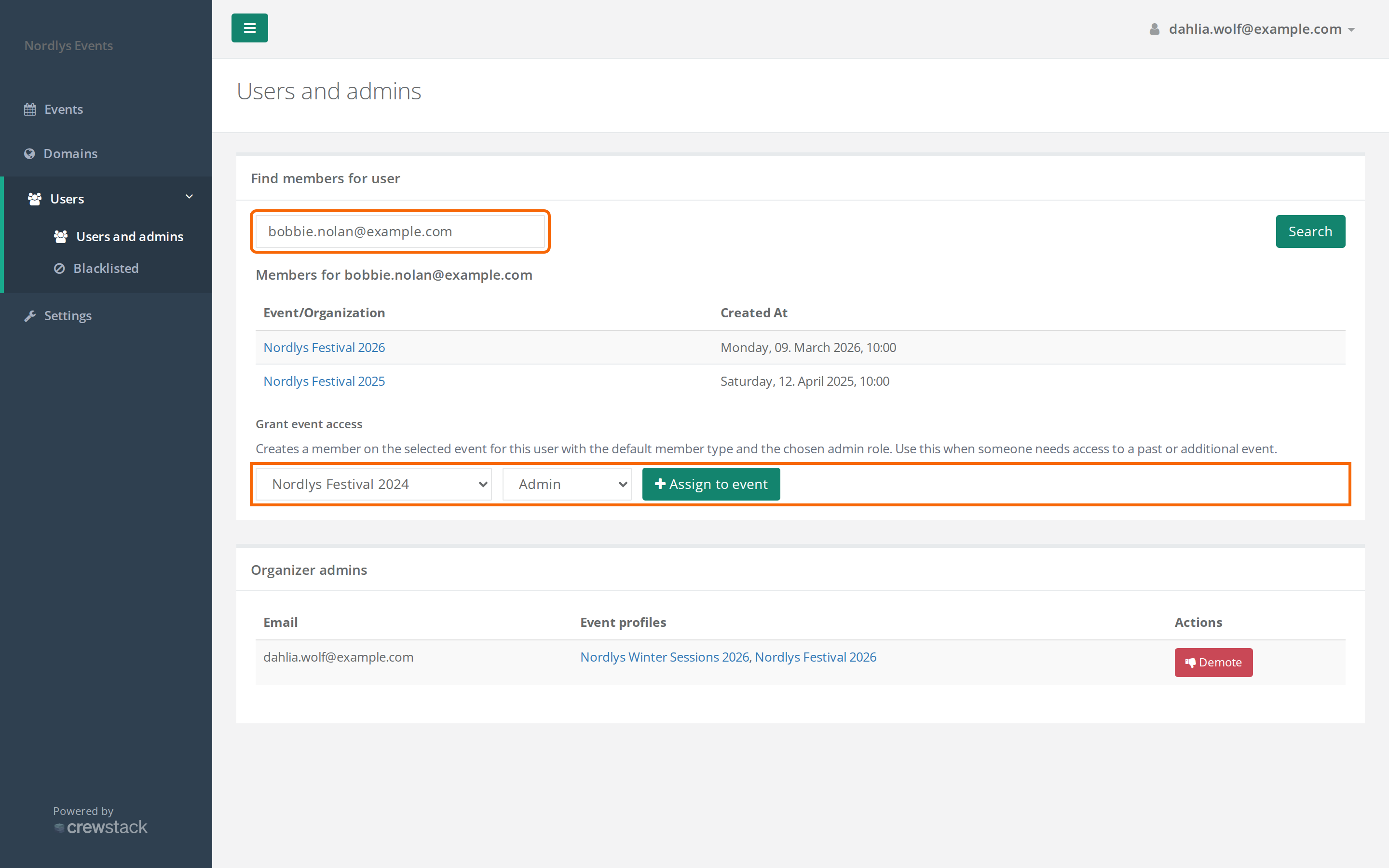
- Type the person's full email address in the field under Find members for user.
- Click Search.
Under Members for … you see all the events with you that the person is in, and when they were created there. Click an event to open the person's profile in that event. The profile opens in a new tab.
- The search only finds full email addresses. Upper and lower case don't matter.
- If it says No user found with email: …, nobody with you has a login with that email. Check the spelling. The person may also be signed up with another organizer in Crewstack. You can't see those.
- If it says User … was found but has no memberships in any events or organizations., the person has a login with you but isn't in any event right now.
Events the person has resigned from aren't on the list. See Resigned users – find and restore.
Give a user access to an event
Use this when a person needs to be an admin in an event they haven't signed up for themselves, for example last year's event or an additional event.
- Look the person up as described above.
- Under Grant event access, choose the event in Select event.
- Choose the role: Admin or Super Admin.
- Click Assign to event.
It then says … was successfully given access to ….
What happens:
- The person is created in the event with the member type marked Standard under Member types, and with the role you chose.
- Their signup counts as complete, and they aren't put on the waiting list.
- The person logs in with the login they already have with you. They don't get an email about it, so tell them yourself.
- If the person has resigned from the event before, they are restored. Their old teams and shifts don't come back.
Grant event access only shows when there are events the person isn't in. Otherwise it says This user already has an active membership on every event in this organizer.
Here you can only give the roles Admin and Super Admin. If the role needs changing later, a super admin does it on the person's profile in the event.
| Message | What it means |
|---|---|
| … is blacklisted and cannot be given access | The person is blacklisted with you. See Resign, blacklist or delete a user. |
| … does not have a default member type | The event has no member type marked Standard. See Set up member types. |
| Please select an event | You haven't chosen an event in Select event. |
See and remove organizer admins
Under Organizer admins you see all your organizer admins with their email. Under Event profiles are the events where they have a profile. Click an event to open the profile.
An organizer admin has the same access as a super admin in all events where they have a profile.
How to remove an organizer admin:
- Click Demote next to the person.
- Confirm in the window Are you sure you want to demote this user? They will no longer have administrator access to the organizer.
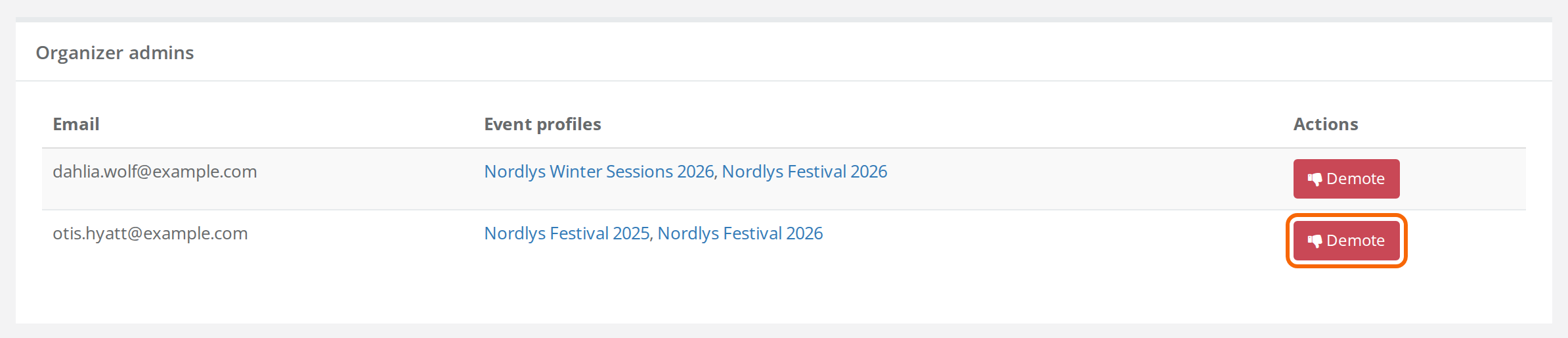
The person can then no longer open the organizer page. In each event they now only have the role their profile has there. Their login and profiles are not deleted.
Pitfalls
- You can demote yourself. Crewstack doesn't check whether you're the last organizer admin. If you demote yourself, you lose access to the organizer page straight away and can't get it back yourself.
- Give the role in the event first. If a person you demote should still be a super admin in an event, give them the role Super Admin on their profile in that event before you demote them. Otherwise they only have the role their profile has, often Regular.
- The profile doesn't open. You need a profile of your own in the event to open other people's profiles there. If you don't have one, you're logged out when you click the event. Give yourself access with Grant event access first.
- The person was in last year, but not this year. A login belongs to you as the organizer, but the person has to be in each event separately. See Can't find a person in the search.
Didn't find the answer? Write to support@crewstack.io.