
View templates and the front page
Edit the front page and the other pages people see before they log in, and the design around all emails. With a short HTML guide.
View templates control the pages people see before they log in: the front page, signup, sign in, forgotten password, FAQ, terms and the waiting list. They also control the design around all emails. You edit the text of the emails themselves under Mail templates.
The templates
| Template | What it is |
|---|---|
| Frontpage | The page the signup link opens. It welcomes people and has the buttons to sign up and sign in. |
| Sign up | The page with the signup form. |
| Sign in, Reset password, Create new password, Two-factor authentication, Resend confirmation instructions | The pages for signing in and sorting out passwords. |
| FAQ and Terms and conditions | Public pages with questions and answers and with your terms. |
| Waiting list | The page a person on the waiting list sees when they sign in. |
| Warning page and Notice page | The frame around error and info messages. |
| Page layout | The frame around all pages: logo, language choice and content. |
| Stylesheet (CSS) | Colours and fonts on all pages. |
| Email layout | The frame around all emails. |
Edit the front page
The front page is the most important template. It is the first thing people see, and the default text is a generic welcome in English.
- Go to Customize > View templates. You can also click Edit the front page in the Setup guide.
- Click Default next to Frontpage.
- There is a tab for each of the event's languages. Write the text on each tab.
- Tick Active on each tab that should be used.
- Click Save all to stay on the page, or Save all and close to go back to the list.
- See the result under Preview at the bottom. If you have changed something, save and reload the page.
Keep the buttons to sign up and sign in. Write a short welcome, and say what the event is and what people get out of taking part.
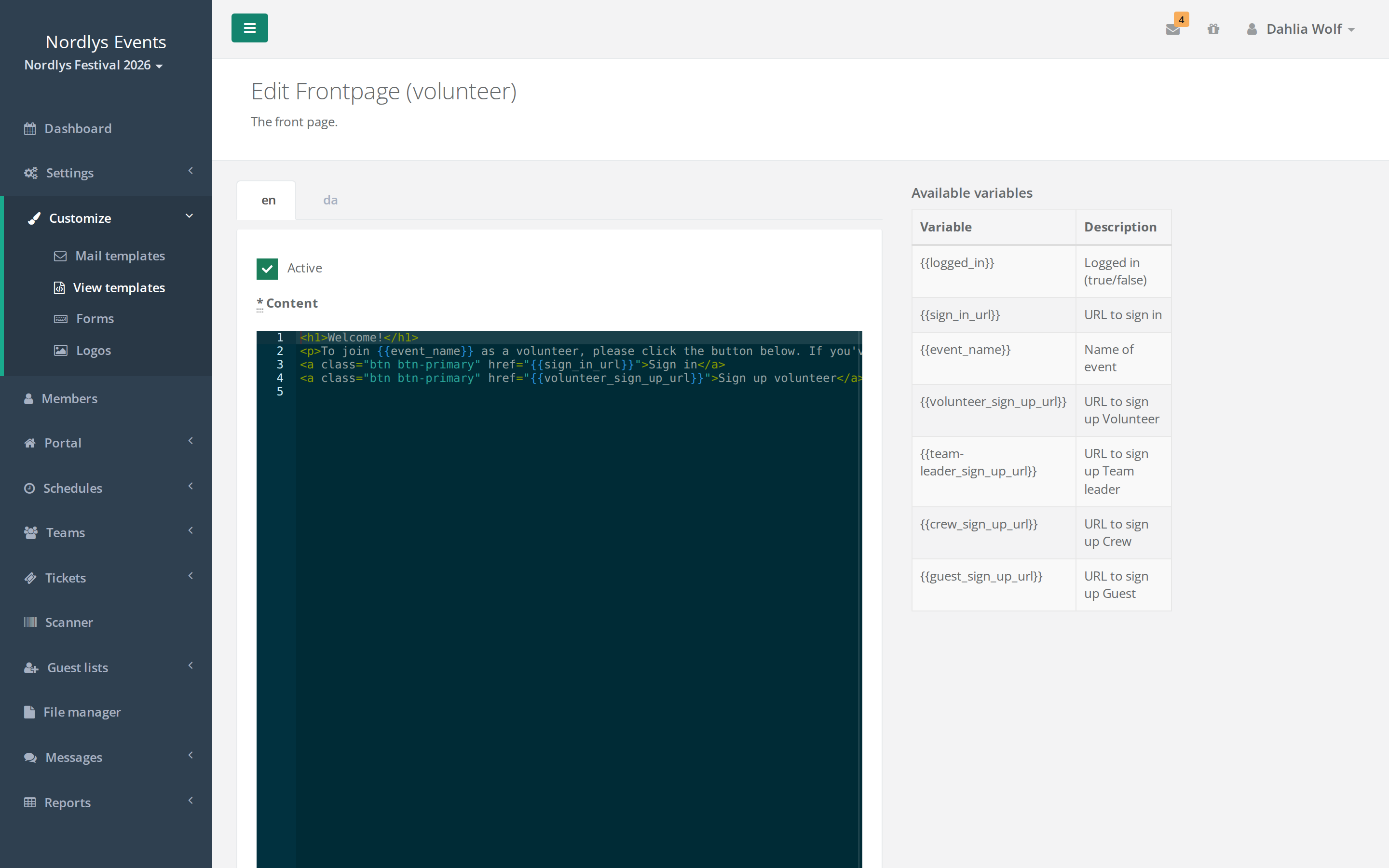
Variables
Words in double curly brackets, for example {{event_name}}, are replaced when the page is shown. The Available variables table on the right shows which variables the template can use. The most important on the front page:
{{event_name}}: the event's name{{sign_in_url}}: the address for signing in- a signup link for each member type, for example
{{frivillig_sign_up_url}}for the member type Frivillig. The name follows the member type's name in the event's primary language. The table shows the exact variable for each member type.
Some templates have a variable holding the form itself, for example {{sign_in_form}} on Sign in and {{sign_up_form}} on Sign up. Don't delete them, or the form disappears from the page.
The logo at the top of the pages is the organizer's front page logo from Customize > Logos. It applies to all of the organizer's events. If no front page logo has been uploaded, a default logo is shown. See Logos and colours.
A little HTML
The templates are written in HTML. These cover most needs:
| Write | You get |
|---|---|
<h1>Welcome</h1> |
A big heading |
<h2>Practical</h2> |
A smaller heading |
<p>Text</p> |
A paragraph |
<strong>important</strong> |
Bold text |
<br> |
A line break |
<a href="https://example.com">Read more</a> |
A link |
<a class="btn btn-primary" href="{{sign_in_url}}">Sign in</a> |
A button |
Remember to close what you open: <p> ends with </p>.
Member types and languages
Under Member types you can make a separate version of a template for a member type. It is only used on the Sign up, FAQ and Terms and conditions pages and in Email layout. All other pages, including the front page, always use Default.
The pages are shown in the language the visitor has chosen. If there is no active version in that language, the event's primary language is used.
Pitfalls
- The signup button on the front page doesn't work. The default front page links to
{{volunteer_sign_up_url}}. That only works if a member type is called Volunteer in the primary language. Change the link to the variable listed for your member type under Available variables, and test the button. - You renamed a member type. Then its signup variable changes name too. Fix the link on the front page.
- The text doesn't show in one language. The tab doesn't have Active ticked. The text in the primary language is shown instead.
- The preview shows a different text. The preview always shows Default in the primary language, even when you are editing another version. Open the page itself to see it.
- The emails look wrong. The logo and colours in emails sit in Email layout. Leave
{{content}}in place, or the text disappears from every email.
Didn't find the answer? Write to support@crewstack.io.