
Appearance of pages and emails
Set colours, font, background image and the email wrapper for the front page, login and signup without writing CSS.
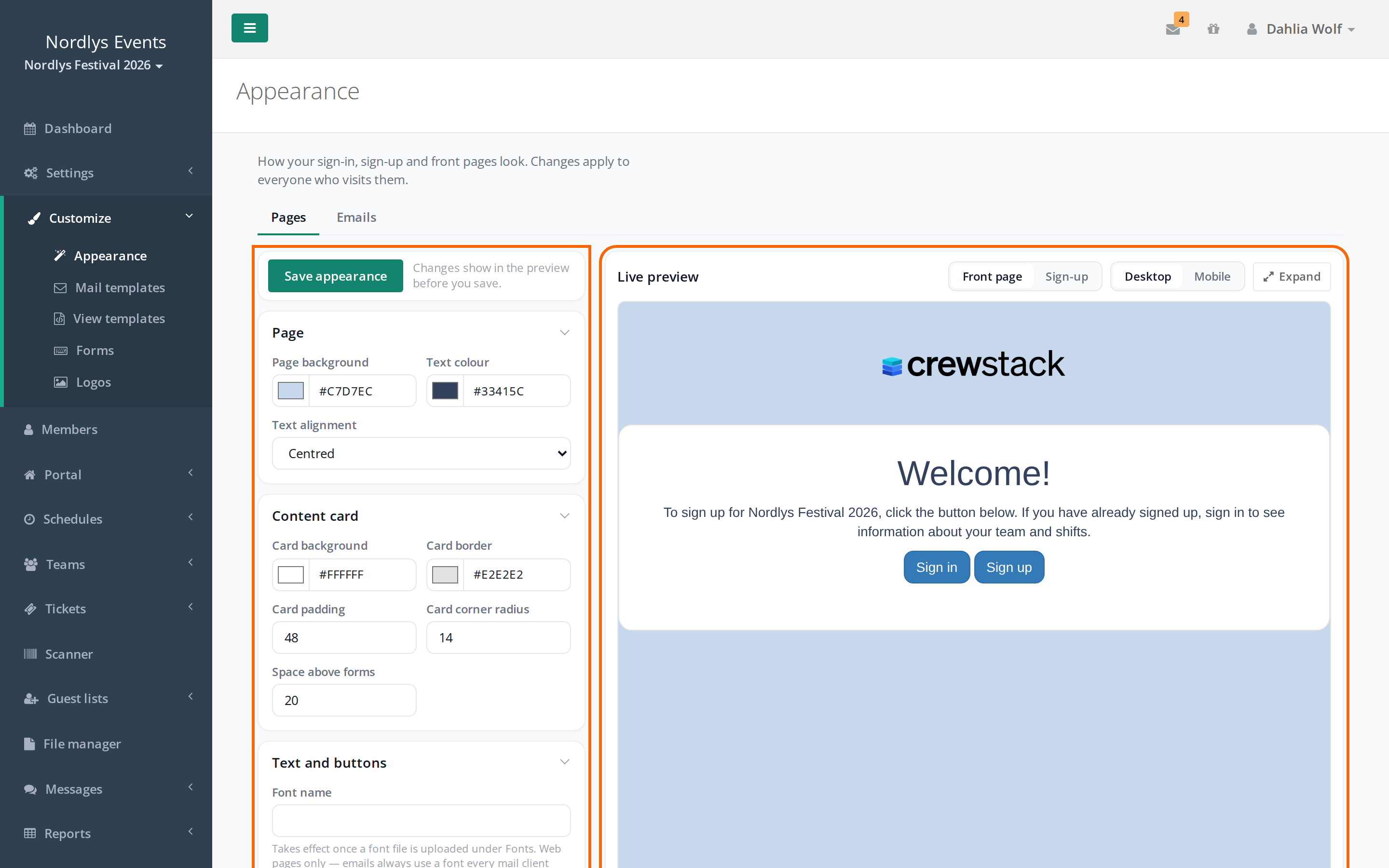
Under Customize > Appearance you decide how the front page and the login and signup pages look, and how the wrapper around your emails looks. You choose colours, sizes, font and background image in fields and see the result as you edit. You don't write CSS.
The page has two tabs: Pages and Emails. They are saved separately.
What you can set on the pages
| Group | What it controls |
|---|---|
| Page | The page's background colour, the text colour, and whether the text is left-aligned or centred. |
| Content card | The box in the middle of the page with text and form: background, border, spacing, rounded corners and the space above forms. |
| Text and buttons | The font, how bold the headings are, and how round the corners of the buttons are. |
| Logo | The width of the logo and the space around it. |
| Background image | An image behind the whole page, with a coloured overlay so the text can be read. |
| Fonts | Your own font files. |
Two things are set elsewhere:
- The logo itself is the organizer's Front page logo under Customize > Logos.
- The colour of the buttons is Primary Color under Settings > General settings > UI Customization.
See Logos and colours.
How to change the look of the pages
- Go to Customize > Appearance. You are on the Pages tab.
- Edit the fields on the left. You choose a colour by clicking the colour swatch or by typing a colour code, for example #13846E. Sizes are typed as a number in pixels.
- Watch the Live preview on the right. It shows the changes before you save.
- Switch between Front page and Sign-up and between Desktop and Mobile to see both pages in both widths. Expand shows the preview full screen, and Close or Esc goes back.
- Click Save appearance.
Once you have saved, the changes apply to everyone who visits the pages.
How to set a background image
- Open the Background image group. It is folded until there is an image.
- Choose a file in the Background image field. The image must be PNG, JPEG or WebP and at most 8 MB.
- Choose Image fit: Fill the page, Fit inside the page or Tile.
- Under Scrolling, choose whether the image Scrolls with the page or Stays still.
- Set Overlay colour and Overlay strength. The strength is a number from 0 to 100, and 0 is no overlay. Raise it until the text is comfortable to read.
- Click Save appearance.
The image only shows in the preview once you have saved. It is always centred, so you can't choose which part is shown. Check it in the Mobile width.
To remove the image, tick Remove this image and click Save appearance.
How to use your own font
- First save other changes with Save appearance. An upload reloads the page.
- Open the Fonts group.
- Choose the file in the Font file field. It must be woff2, woff, ttf or otf and at most 2 MB.
- Choose the Weight and Style the file contains. A regular font is 400 and Normal, a bold one is 700.
- Click Upload a font file. Repeat for each file, for example a regular and a bold one.
- Type a name in Font name under Text and buttons. You choose the name yourself. Use letters, numbers, spaces and hyphens, at most 60 characters.
- Click Save appearance.
The font is only used once there is both an uploaded file and a name. It only applies to the pages. Emails always use a font every mail client has.
How to set the look of the emails
The Emails tab controls the wrapper around the emails the event sends automatically: colours, width, corners, spacing, font and a footer text. You edit the text of the emails under Mail templates. See Mail templates.
The settings do nothing until you switch them on.
- Go to Customize > Appearance and click the Emails tab.
- Edit the fields under Colours and Size and type. Under Email font you choose between Helvetica, Georgia, Verdana and Trebuchet.
- Type a Footer text if you want one. It is shown under every email and is plain text, typically your address and contact details.
- Watch the Live preview on the right.
- Click Save email settings.
- Click Send a test email. You get a welcome email in the saved wrapper at your own email address. Check it in your mail client. A browser is more forgiving than a mail client.
- Switch Use these settings for emails on and click Save email settings.
If you switch it off and save, the emails use the wrapper they had before.
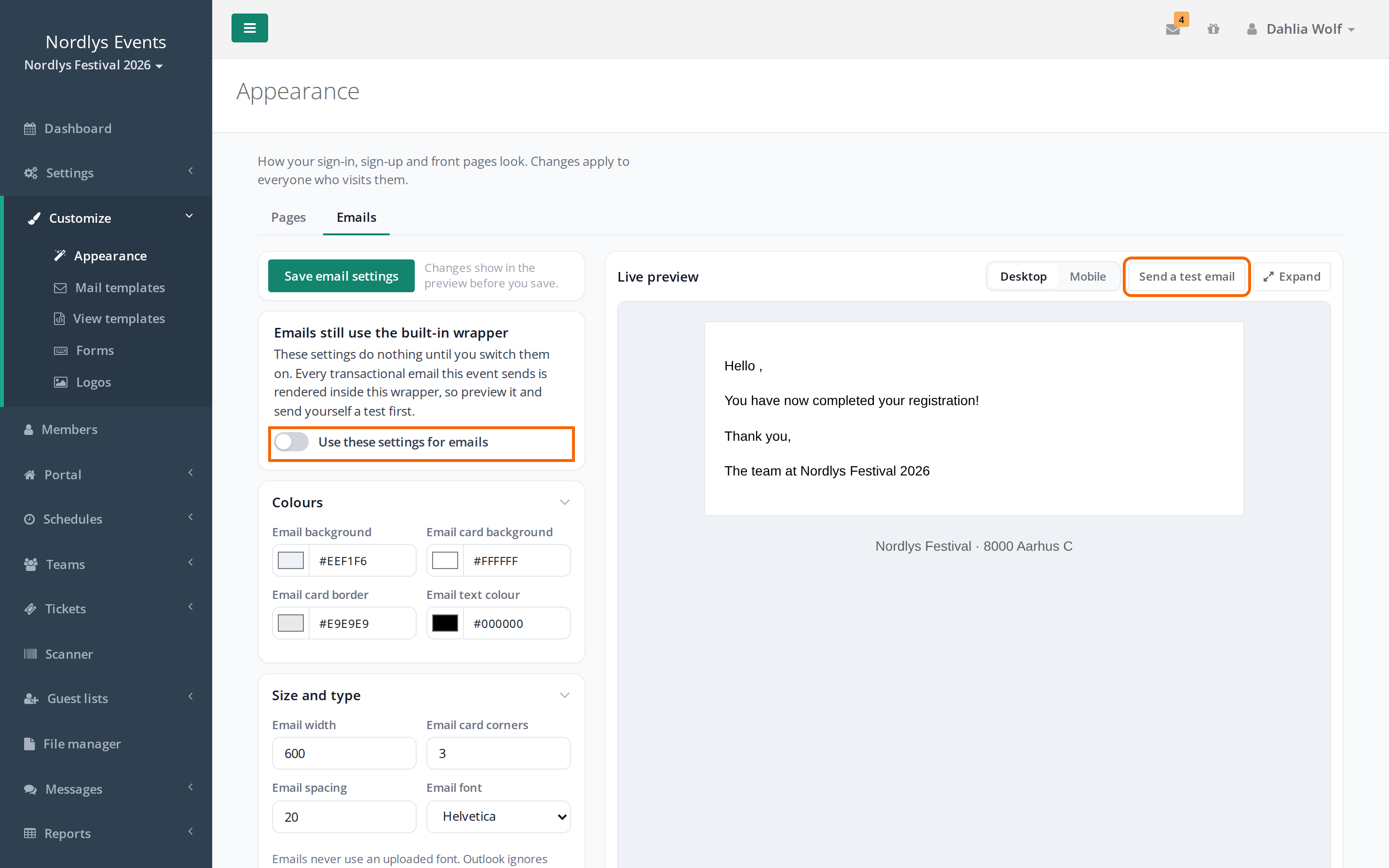
Links in the emails get the event's Primary Color. The wrapper has no logo. If you want your logo in emails, leave the switch off and use the view template Email layout. See View templates and the front page.
If you have hand-written CSS
If the event has a saved Stylesheet (CSS) under Customize > View templates, that is still what styles the pages. At the top of the Pages tab it says "This event has a hand-written stylesheet", and the settings have no effect yet. The preview shows what they would do.
You can keep using your CSS. If you want to move to the settings, it takes two steps:
- Click Import from the stylesheet. Crewstack reads colours and sizes from your CSS into the fields and saves them. The pages don't change.
- Check the preview, both Front page and Sign-up, and both Desktop and Mobile. Only what the settings can represent comes across. Fix the rest in the fields. Fonts and a background image don't come across, so you upload those here.
- Click Save appearance if you changed anything.
- Click Use these settings instead and confirm.
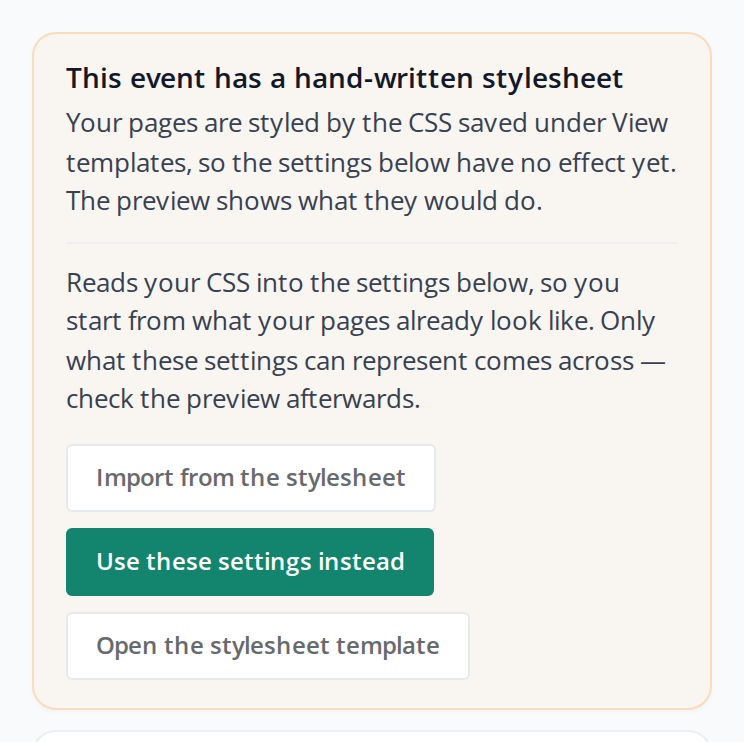
Your CSS is not deleted. The top now says "Your hand-written stylesheet is switched off", and Use the stylesheet again switches back. Under View templates, Stylesheet (CSS) still holds your CSS, but without Active ticked on the tab for the event's primary language.
Emails work the same way. If you have edited the view template Email layout, the emails use it until you switch Use these settings for emails on. Then the settings replace your template in every email, including versions made for a member type. If you switch it off, your template is used again. It stays under View templates the whole time.
Custom domain
If the event has its own domain, the settings work there too. The background image and fonts are loaded from the same address the page is shown on, so there is nothing to set up. See A custom domain for an event.
Pitfalls
- The settings don't change the pages. The event has a hand-written stylesheet that is active. Click Use these settings instead at the top of the Pages tab.
- The page background already has a colour. If a Sidebar Background Color is chosen under UI Customization, Page background starts out as that colour until you choose another and save. See Logos and colours.
- What you had edited disappeared. Upload a font file, Remove, Import from the stylesheet, Use these settings instead and Send a test email reload the page. Anything you haven't saved is lost. Save first.
- The font isn't used. Either a file under Fonts or a name in Font name is missing. A new font only shows in the preview once you have saved.
- A colour or a number was refused. A colour code must be # followed by six (or three) characters, for example #13846E. Numbers must be within the field's limits, for example 20 to 800 for Logo width. The field keeps what you typed, with the reason next to it, and nothing on the tab is saved until you have fixed it.
- The test email doesn't look like the preview. The test email uses the saved settings. The preview also shows what you haven't saved. Click Save email settings and send the test again.
- The hand-written stylesheet styles the pages again. Someone has ticked Active on Stylesheet (CSS) under View templates and saved. That switches the stylesheet back on.
- Import from the stylesheet found nothing. Then it says "Nothing in that stylesheet matches a setting on this page. Set them by hand instead." Rules that only apply to certain screen widths, for example mobile, are not read.
- The new year's event doesn't have the look. The settings under Appearance, the background image and the fonts don't come along when the event is copied to a new year. Set them again in the new event. See A new year or season.
Didn't find the answer? Write to support@crewstack.io.