
Logos and colours
How to change the logos and favicon, and how to set the event's colours for the menu, buttons and links.
The logos and colours decide how Crewstack looks to your crew and admins. The logos apply to all your events. You set the colours for each event.
The logos
Under Customize > Logos there are three images:
| Image | Where it's shown |
|---|---|
| Favicon | The small icon in the browser tab and in bookmarks. Also when someone adds the page to the home screen of their phone. |
| Logo | At the top of the menu in the admin and in the portal, and at the top of the organizer page. Also on the page external owners of a guest list open from their link. |
| Front page logo | At the top of the front page and of the login and signup pages. If none has been uploaded, a default logo is shown. |
Change a logo
- Go to Customize > Logos.
- Click Choose Image under the image you want to change. If there is already an image, the button says Change Image.
- Choose the file.
- Click Update Organizer.
- Logo sits on the menu's background colour. Use a logo that can be seen on that colour, for example a white logo on a dark menu.
- Favicon is shown in small, square sizes. Use a square image.
- Organizer admins can also change Logo and Favicon under Settings on the organizer page. They are the same images.
Set the event's colours
- Go to Settings > General settings.
- Click UI Customization in the menu on the left.
- Choose a colour in each field. Click the colour swatch to pick the colour, or type a colour code, for example #13846E.
- Check the result in Preview below the fields.
- Click Save at the top of the page.
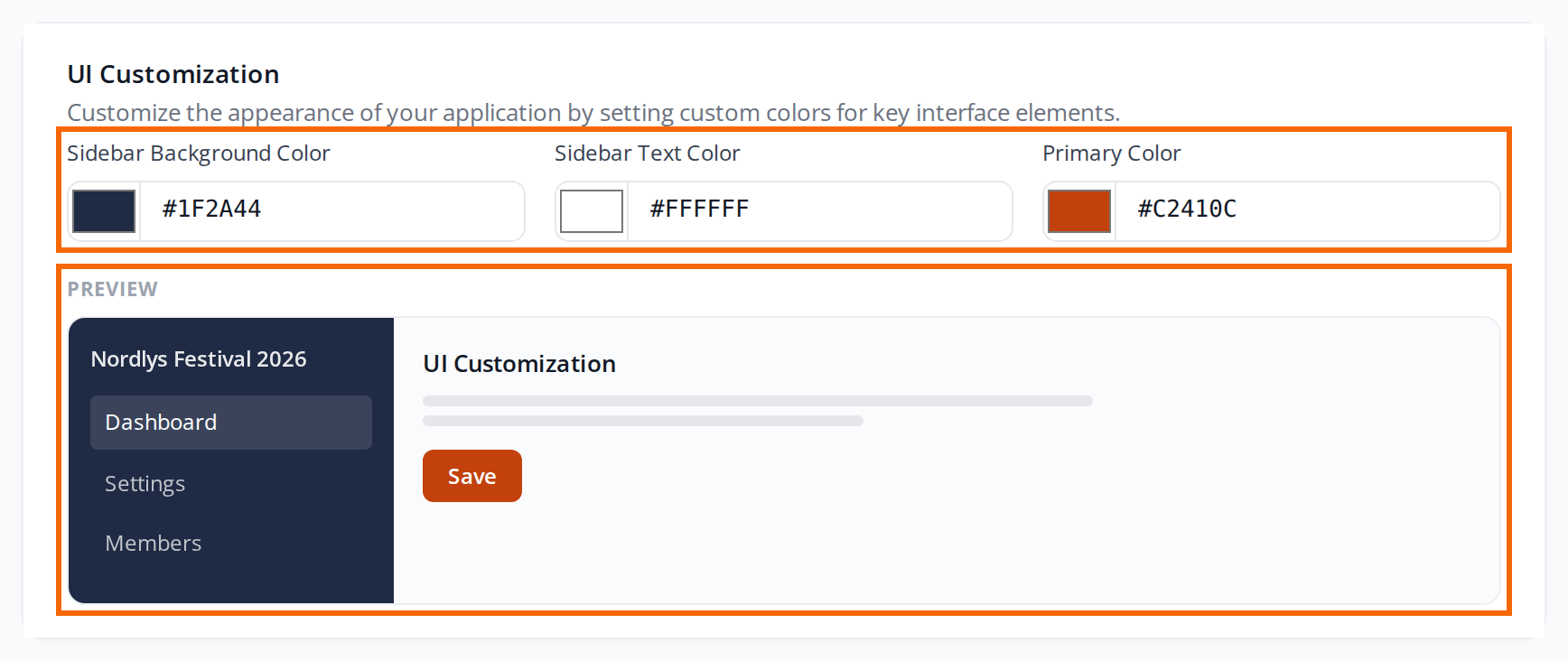
| Field | What it controls |
|---|---|
| Sidebar Background Color | The background of the menu in the admin and in the portal. |
| Sidebar Text Color | Text and icons in the menu. |
| Primary Color | Buttons, links, the selected item in the menu and other highlights. The buttons on the front page and on the login and signup pages get the colour too. |
The colours only apply to the event you're in. The organizer page always uses the default colours.
The page external owners of a guest list open from their link also uses Primary Color, and the menu's background colour behind the logo.
Pitfalls
- The colour doesn't change. A colour code must be # followed by six (or three) characters, for example #13846E. A code in any other form is ignored, and the default colour is used.
- The changes disappeared. You didn't click Save. The button is at the top of the page. See General settings.
- Emails don't have your logo and colours. You set the logo and colours in emails in the view template Email layout. See View templates and the front page.
- You can't remove an image. You can only change it to another one.
Didn't find the answer? Write to support@crewstack.io.