
The signup button on the front page doesn't work
Why the signup button on your front page reloads the page or leads to the wrong place, and how to fix the link in the view template.
The front page is the page crew members see when they open the link to your event. The buttons on the front page are links in the view template Frontpage. If the signup button just reloads the front page, or leads to the wrong signup, the link in the template is wrong.
How the button works
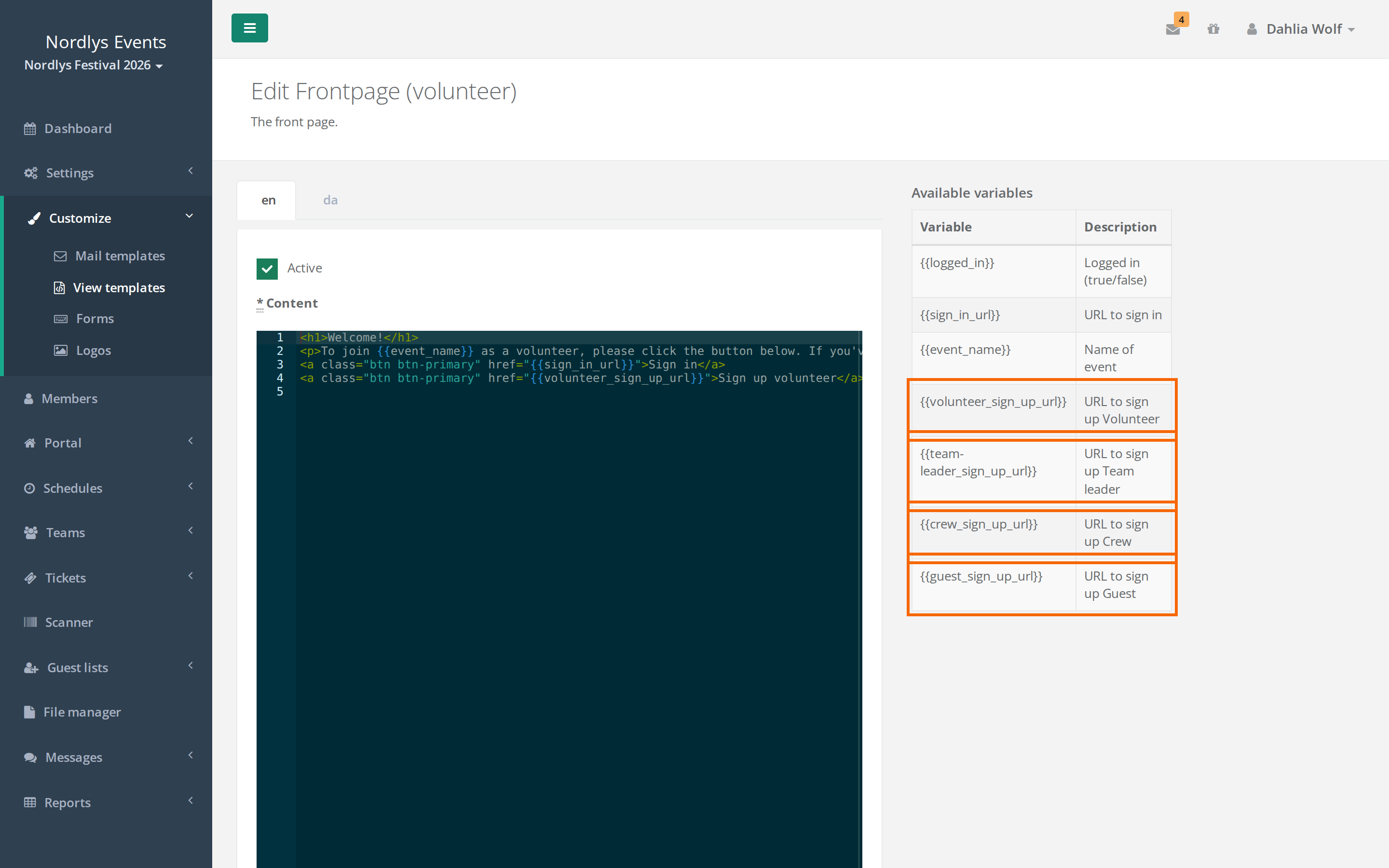
The button's link is a variable that Crewstack fills in with the address of the signup for a particular member type. There is one variable for each member type, for example {{frivillig_sign_up_url}} for the member type Frivillig. See Set up member types.
The variable is made from the member type's name in the event's primary language. The name is written in lower case, spaces and symbols become hyphens, and æ, ø and å become ae, o and a. The member type Crew Øst, for example, gets the variable {{crew-ost_sign_up_url}}.
If the variable doesn't exist, the link is empty and the button just reloads the front page. This typically happens when:
- You renamed the member type after the front page was made.
- The front page has never been edited. The default front page links to
{{volunteer_sign_up_url}}, which only works if you have a member type called Volunteer. - There is a typo in the variable.
Fix the link
- Go to Customize > View templates.
- Find the row Frontpage and click Default on the right of the row.
- Find the button in the text. The link comes after
href=, for examplehref="{{frivillig_sign_up_url}}". - Look at the list Available variables on the right. At the bottom there is a variable ending in
_sign_up_urlfor each member type. Copy the variable for the right member type and paste it in place of the old one. - Do the same in each language tab at the top of the editor.
- Click Save all.
- Open the front page in a private browser window and click the button to test it.
Use the direct link instead
You can also use the full address of the signup instead of a variable. Then the link keeps working even if you rename the member type.
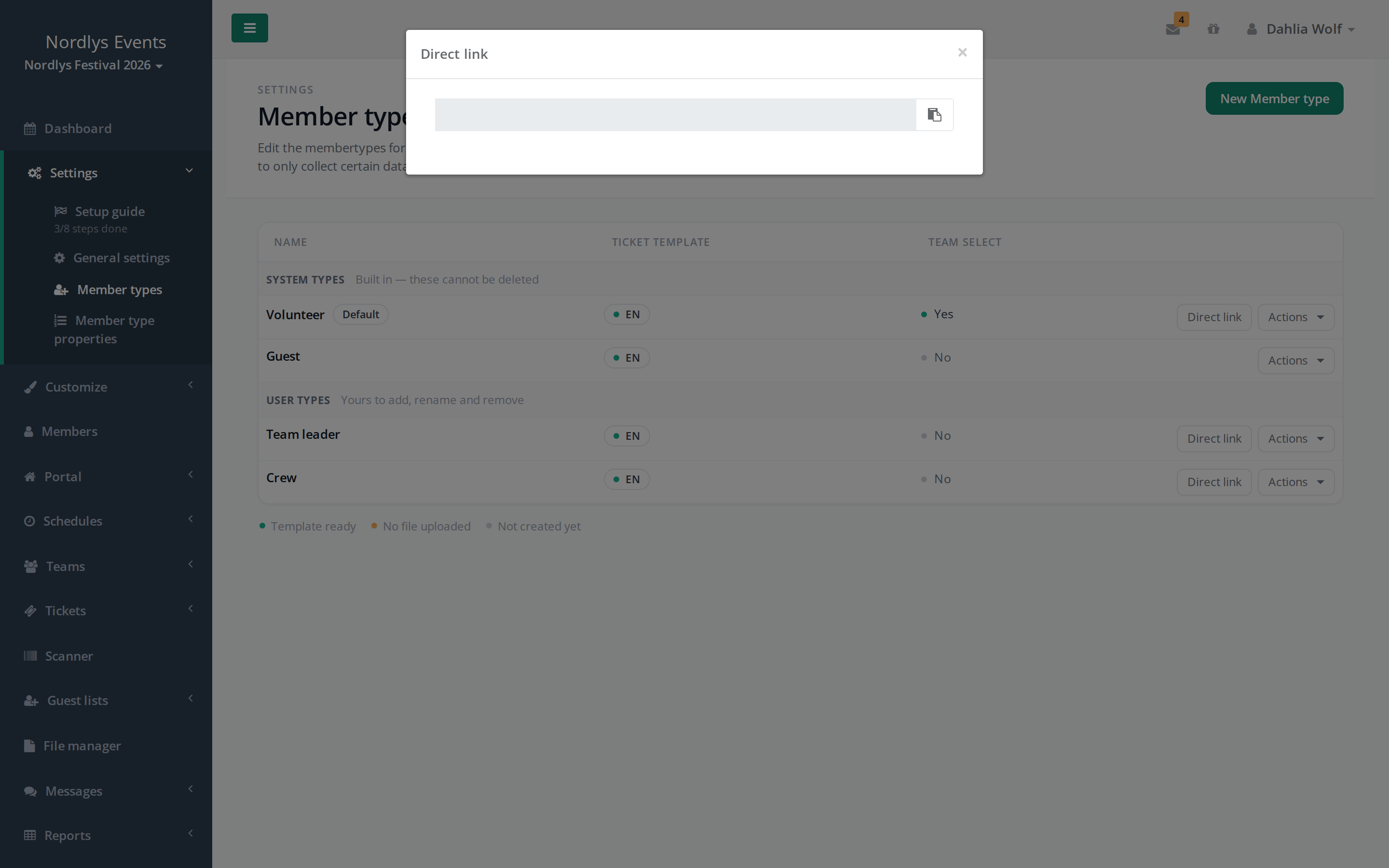
- Go to Settings > Member types.
- Click Direct link on the member type's row and copy the address.
- Paste the address after
href=in the Frontpage view template instead of the variable, for examplehref="https://…", and click Save all.
Check this
- The button reloads the front page. The variable doesn't exist. Fix it as described above.
- The button leads to the wrong signup. The variable belongs to a different member type. Check the name in the variable.
- The button works in one language but not in another. Each language tab has its own text. Fix the link in all language tabs.
- The button leads to a page saying signup is closed. The link works, but signup isn't open to everyone. See Crew members are stuck in the signup.
Pitfalls
- If you rename a member type, the front page has to be fixed. Only the name in the event's primary language counts. If you only change the name in another language, nothing happens to the variable.
- Changes for a member type aren't shown on the front page. Always edit the front page under Default.
Didn't find the answer? Write to support@crewstack.io.