
Polls: ask your crew a question and collect the answers
Create a poll with options and seats, send it to the right crew members, and see who has answered and who hasn't.
With Polls you ask your crew one question with fixed options, for example whether they are coming to the crew party, which meal slot they want, or which bus they are taking. They answer in the portal or in the Crewstack app, and you see all the answers in one place, with a list of those who haven't answered yet.
Only admins can create polls and see all the answers. If you switch on Team leads can answer for their team, team leads also see the answers of the crew members on their teams, with comments and guest names. If you can't see Polls in the sidebar, they aren't switched on for you. Contact support@crewstack.io.
Create a poll
- Click Polls in the sidebar, and click New poll.
- Type the question in Title, for example Are you coming to the crew party? Use Description for where, when and anything else they need to know. If the event has several languages, there is a field for each language.
- Type the options under Options. There are two to start with. Click Add option for more, and move them up and down with the arrows.
- Type a number in Capacity if there is a limited number of seats. Leave the field empty for no limit.
- Under Answering, choose whether your crew can Pick one option or Pick any number of options, and whether they may bring a guest or leave a comment.
- Set Closes if there is a deadline. Set Opens if the poll should only open later.
- Under Audience, choose who the poll is for.
- Click Create poll.
The poll is now a draft. Your crew can't see it until you publish it.
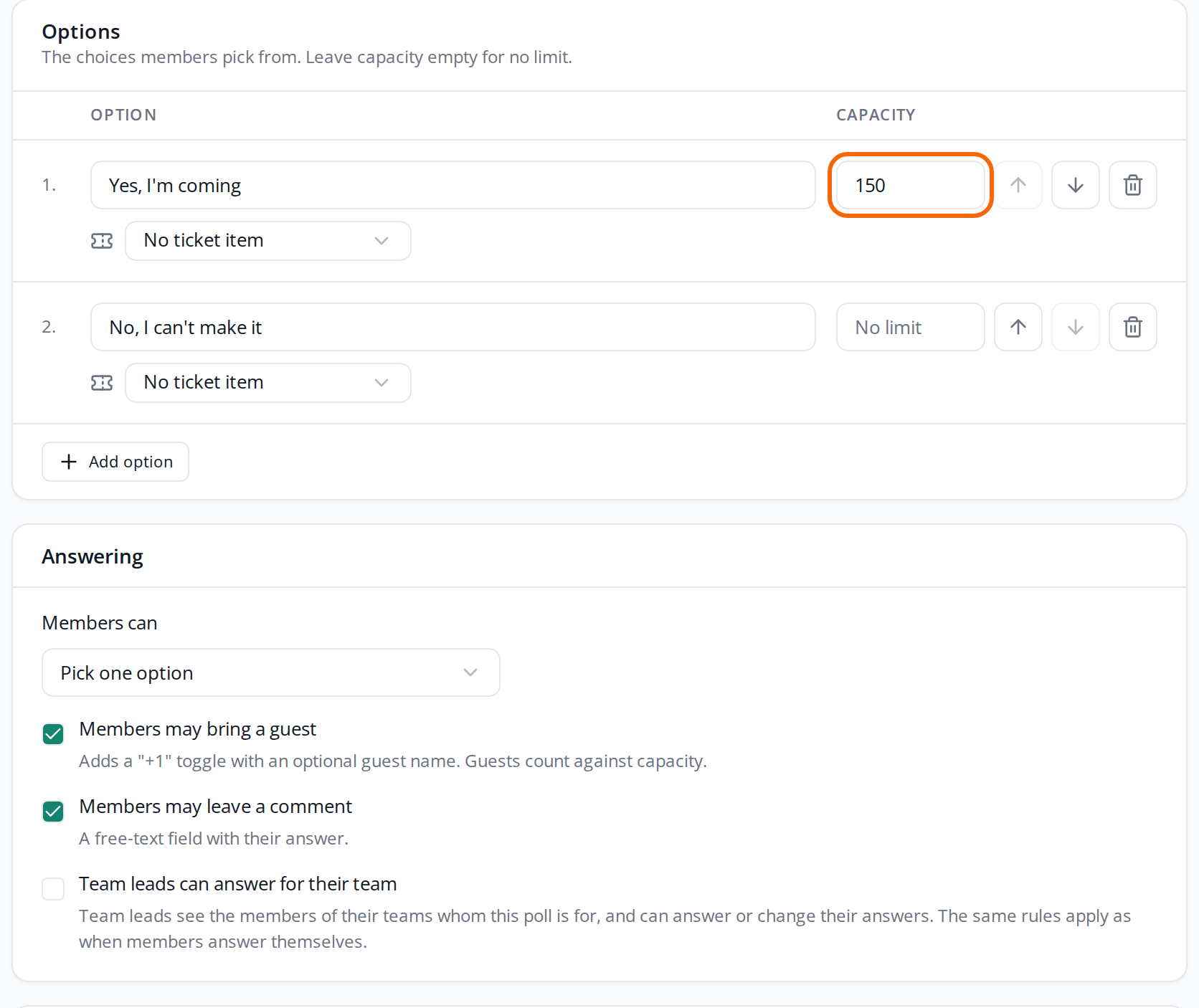
Answering
- Members may bring a guest adds a "+1" toggle with an optional guest name. The guest counts against the capacity, so a crew member with a guest takes two seats.
- Members may leave a comment adds a free-text field to the answer, for example for allergies.
- Team leads can answer for their team lets team leads answer for the crew on their teams. See Answer a poll for your team.
Timing
The times are in the event's time zone. Without Opens, the poll opens as soon as you publish it. Without Closes, it stays open until you close it.
With a deadline, Remind members who have not answered is on from the start. Those who haven't answered then get one push notification 24 hours before the deadline.
Audience
Choose Everyone, or any mix of Team leads, teams, team groups and member types. A team group includes everyone on the teams in the group, sub-groups included. Team leads means everyone who leads at least one team.
Only active people are included. People on the waiting list, blacklisted people and passive users can't see or answer polls.
Publish the poll
- Open the draft under Polls.
- Click Publish. If you have unsaved changes, click Save first.
- Tick Also send an email if your crew should get an email too.
- Click Publish again to confirm.
When the poll opens, the crew members in the audience get a push notification in the Crewstack app if they have turned on notifications. The email is called New poll among the mail templates and links to the poll in the portal. See Mail templates.
If the poll has an Opens time in the future, it shows as Scheduled, and the notification goes out when it opens.
You can't publish a poll without visible options or without an audience, or once the deadline has passed.
What your crew sees
- In the portal, Polls is in the sidebar under Portal. If a poll is waiting for their answer, it is also on the front page with the button Answer now.
- In the Crewstack app, the polls icon is at the top right next to the profile picture, with a red number for the polls waiting for an answer.
Crew members pick an option and click Send answer. On an option with a capacity they see how many seats are left, and on one without a limit how many have picked it, for example 3 signed up. They never see who has answered. Until the deadline they can change their answer and click Save changes, or click Withdraw answer. Once the poll is closed, they can see their answer but not change it.
An option that is full shows Full and can't be picked.
See the answers
Click the poll under Polls. At the top are Answers, Guests, Seats taken and Seats left, and under Options are the numbers for each option.
The list of answers shows Member, Answer and Answered, and Comment if your crew may leave a comment. Click an option above the list to see only those who picked it.
Below the list is how many people in the audience haven't answered yet. Click Show list to see them with their email.
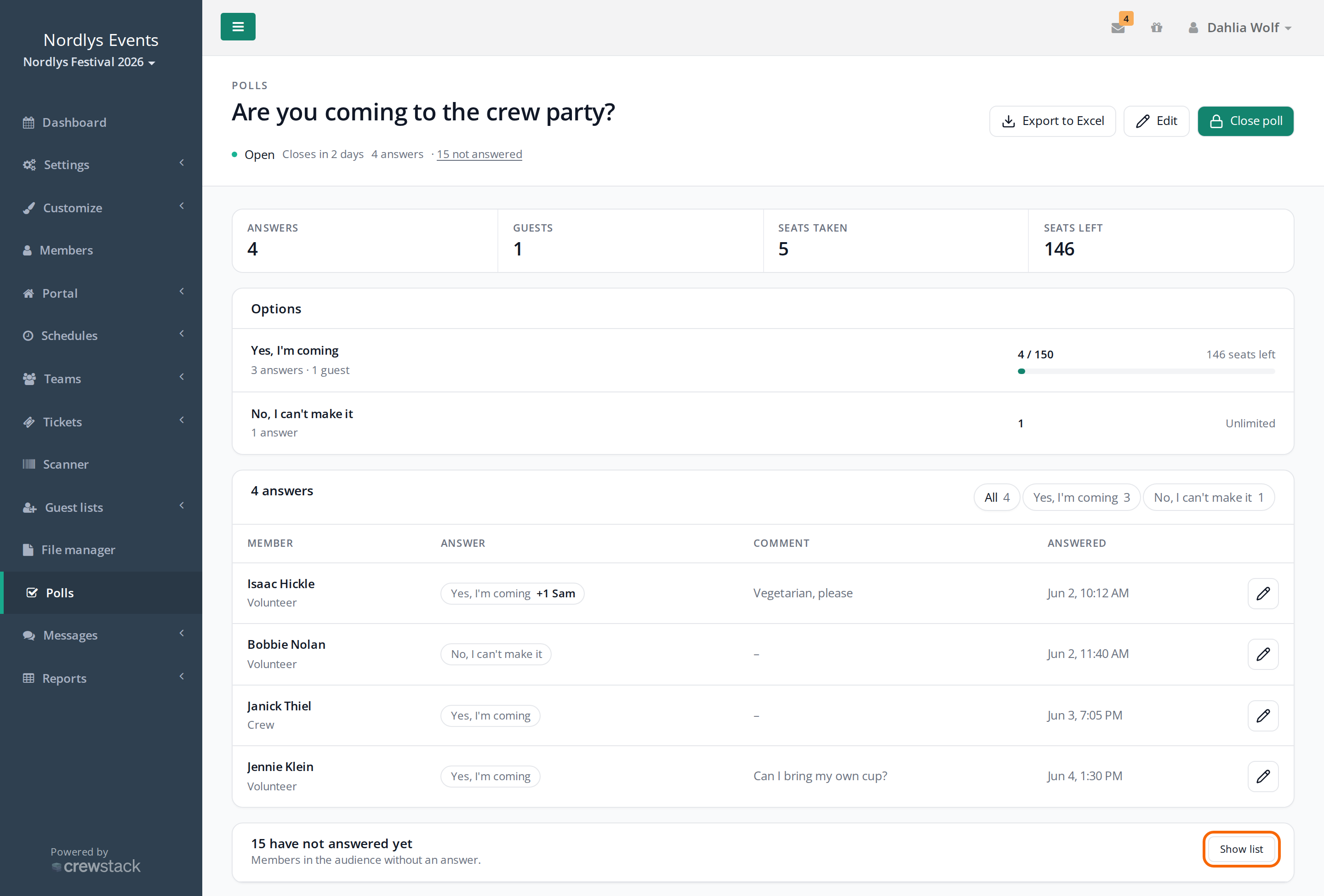
Export to Excel downloads a spreadsheet with three sheets: Answers with each answer, guest and comment, Summary with the numbers for each option, and Not answered with those still missing.
Change an answer
Once the poll is published, you can change your crew's answers:
- Click the pencil next to an answer to change it, or click Remove answer.
- Open the list of those who haven't answered, and click the icon next to a person to answer for them.
As an admin you can change answers after the poll has closed, and you can put more people on an option than its capacity.
Edit or close the poll
Click Edit to change a published poll, and click Save.
- An option that has answers can't be removed, only hidden. The crew members who picked it keep their answer, but no one new can pick it.
- You can't switch to Pick one option when someone has picked several, and you can't switch guests off when someone has brought a guest.
- If you move Closes to a later time, the poll opens again if the deadline had passed. If the reminder has already gone out and the new deadline is more than 24 hours after it, a new reminder goes out 24 hours before the new deadline.
Click Close poll to stop the answers before the deadline. After that your crew can't answer or change their answers. You can still change the answers. A closed poll can't be opened again.
You can delete a draft with Delete draft at the bottom of the editor. The button is only there while the poll is a draft.
Pitfalls
- No push notification: The push notification only reaches people who have turned on notifications in the Crewstack app. Tick Also send an email if everyone should be told. You can only choose this when you publish.
- A crew member can't see the poll: Check that the person is in the audience, and that they aren't on the waiting list, blacklisted or a passive user.
- Team leads in the audience: Team leads means all team leads in the event, not the team leads of the teams you picked.
Didn't find the answer? Write to support@crewstack.io.