
Answer a poll for your team
As a team lead you can answer a poll for everyone on your team at once, for example book the bus or the beds for the whole team.
Some polls let team leads answer for their team. As a team lead you can then, for example, book the bus or the beds for the whole team at once instead of waiting for everyone to answer. Your crew can see that you answered for them.
When can you answer for the team?
- An admin has ticked Team leads can answer for their team on the poll. See Polls: ask your crew a question and collect the answers.
- You can answer for the people on the teams you lead whom the poll is for. If you're a team group lead, that's every team in your group. People on your team who aren't in the poll's audience aren't included.
- You give your own answer on your own poll, like the rest of the crew.
- If you are on the waiting list yourself, you can't answer for the team.
- You answer for your team in the portal, on a computer or in the browser. It can't be done in the Crewstack app.
Find the poll
- Go to Portal > Polls.
- Under Answer for your team are the polls with how many on the team have answered, for example 1 of 5 answered.
- Click the poll.
Answer for everyone at once
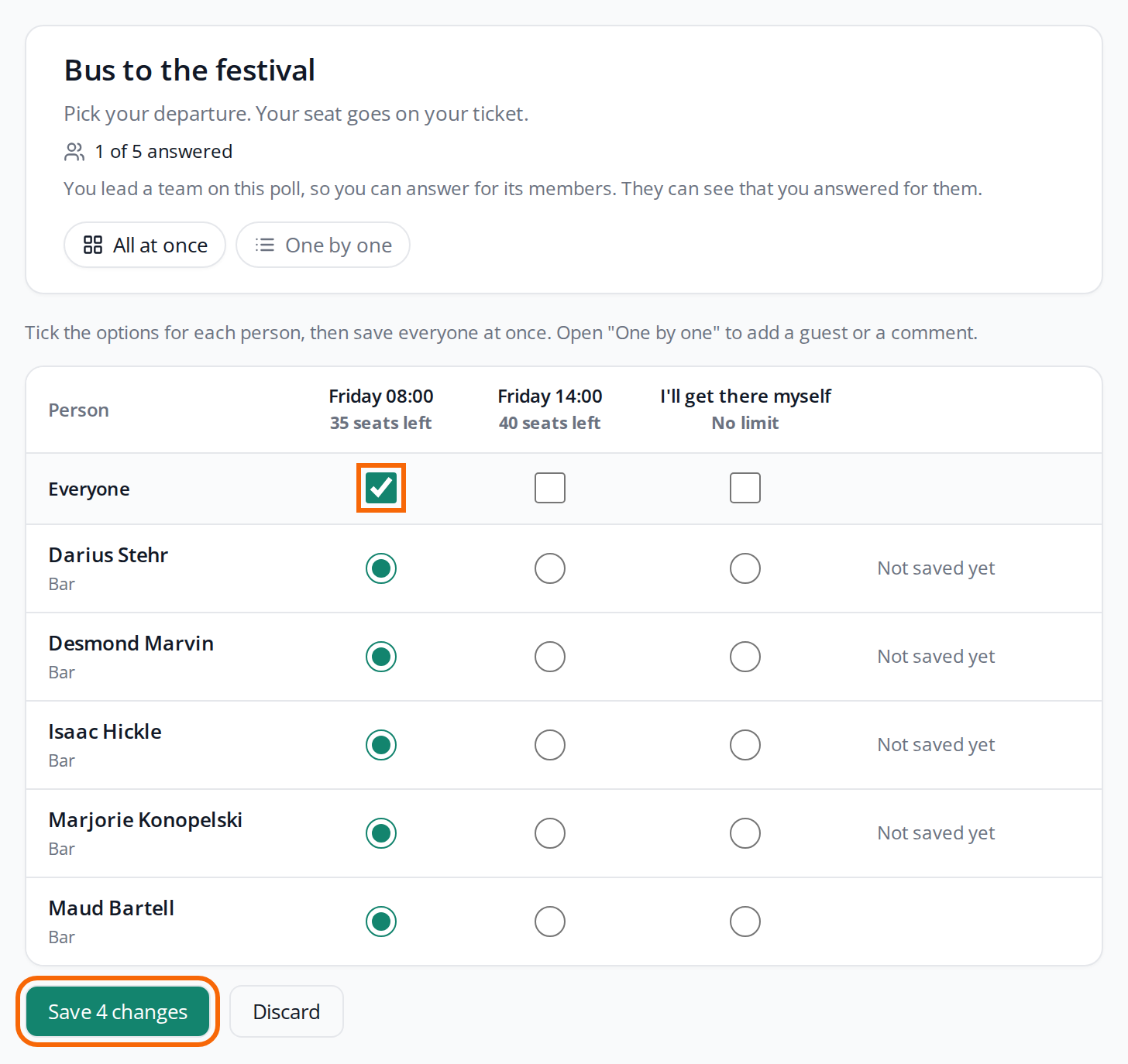
All at once shows a row for each person and a column for each option.
- Tick each person in the option they should have. The tick in the Everyone row sets the whole column at once.
- Check the number at the top of the column. It shows how many seats are left once you save.
- Click Save 4 changes. The button shows how many changes you are saving. Before you have changed anything, it says Save all and can't be clicked.
If you remove a tick, that option is removed from the person's answer when you save. Only when no ticks are left in the person's row do you withdraw their whole answer.
Each person is saved on their own. If an option filled up while you were ticking, the others are saved, and the row that couldn't be saved is marked with the reason. It says, for example, "3 saved, 1 could not be saved. See the marked rows."
Guest or comment
In the rows you can only pick options. If someone should bring a guest or have a comment, click One by one. Here each person has their own card, which you fill in like your own poll. Remove answer removes the person's answer.
The same rules as your crew
You answer on the same terms as your crew does:
- Once the poll is closed or the deadline has passed, you can't change the answers. It says "This poll is closed, so answers can no longer be changed."
- A full option can't be picked.
- If a person's ticket from the poll has been handed out, the row says Ticket handed out, and you can't change their answer. See Booking polls: transport and beds on the ticket.
What the others see
- The crew member sees "Answered by" with your name on their poll. If they want to change the answer, they can do it themselves while the poll is open.
- Admins see "by" with your name next to the answer on the answers page, and in the Answered by column in the Excel file.
If the crew member or an admin changes the answer afterwards, your name disappears from it.
Pitfalls
- You can see comments and guests: On the Answer for your team page you see the comments and guest names your team members have written.
- You can't see the poll under Answer for your team: Check with an admin that Team leads can answer for their team is on, and that someone on your team is in the poll's audience.
- The person isn't in the list: The person isn't in the poll's audience, is on the waiting list, or you lead neither their team nor the team group it's in.
Didn't find the answer? Write to support@crewstack.io.