
Mail templates
Edit the text of the emails Crewstack sends automatically, per member type and language, with tokens and a preview.
Under Mail templates you edit the text of the emails Crewstack sends automatically, for example when someone signs up, gets a new shift or has forgotten their password. You can have one text for everyone or a separate text for a particular member type, and you write the text in each of the event's languages.
The list
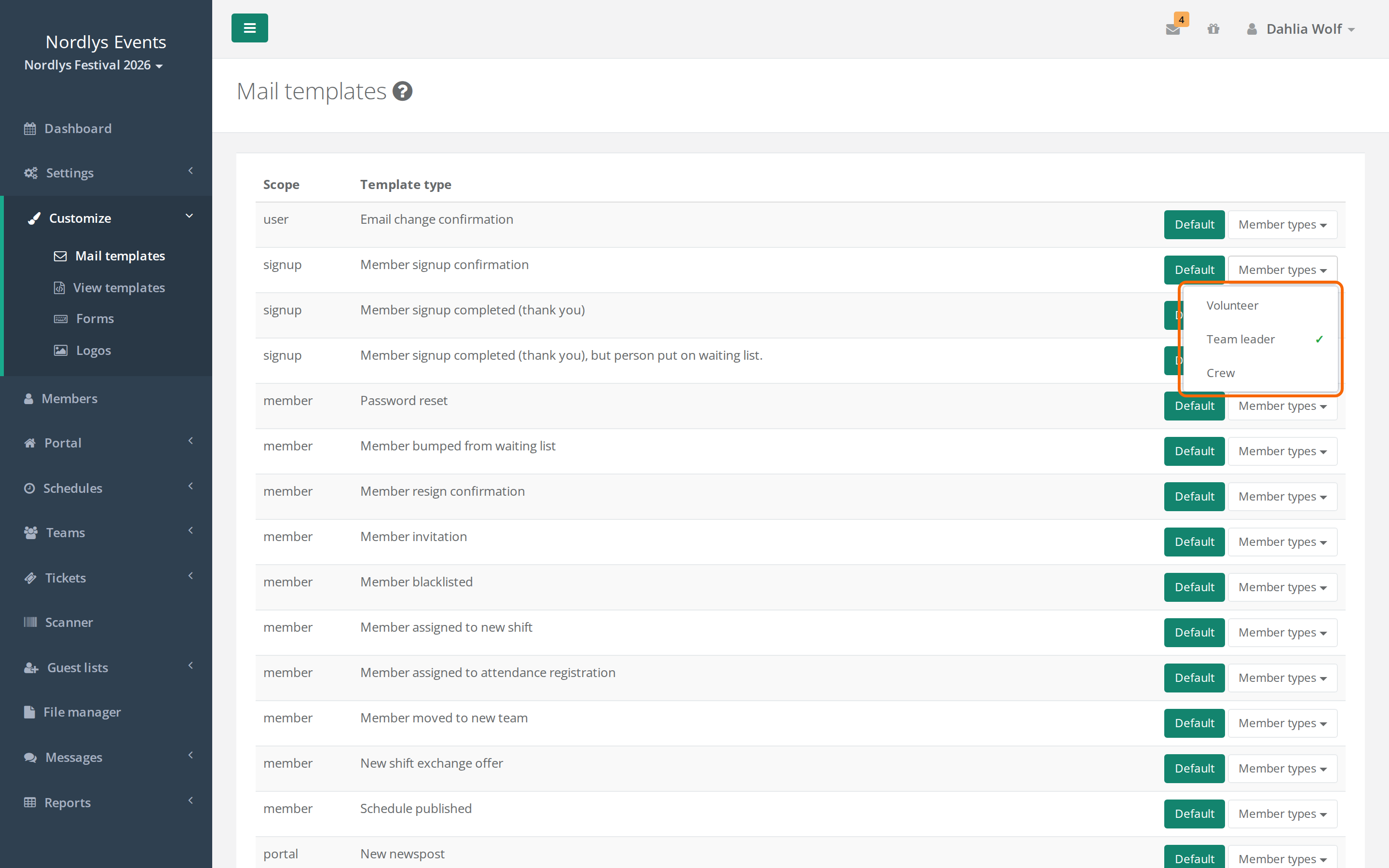
Each row is one email. The Template type column shows the email's name. Where the name includes the member type, it says "Member", for example Member signup confirmation. Next to each email there is:
- Default: the base text everyone gets unless a more specific template exists.
- Member types: a list where you can make a separate text for a member type. Member types that already have their own template have a green check mark, even if the template doesn't have Active ticked.
- Guest list groups: only for emails to guests and guest list owners, for example ticket emails. Here you make a separate text for a guest list group.
Edit an email
- Go to Customize > Mail templates.
- Click Default next to the email, or choose a member type under Member types.
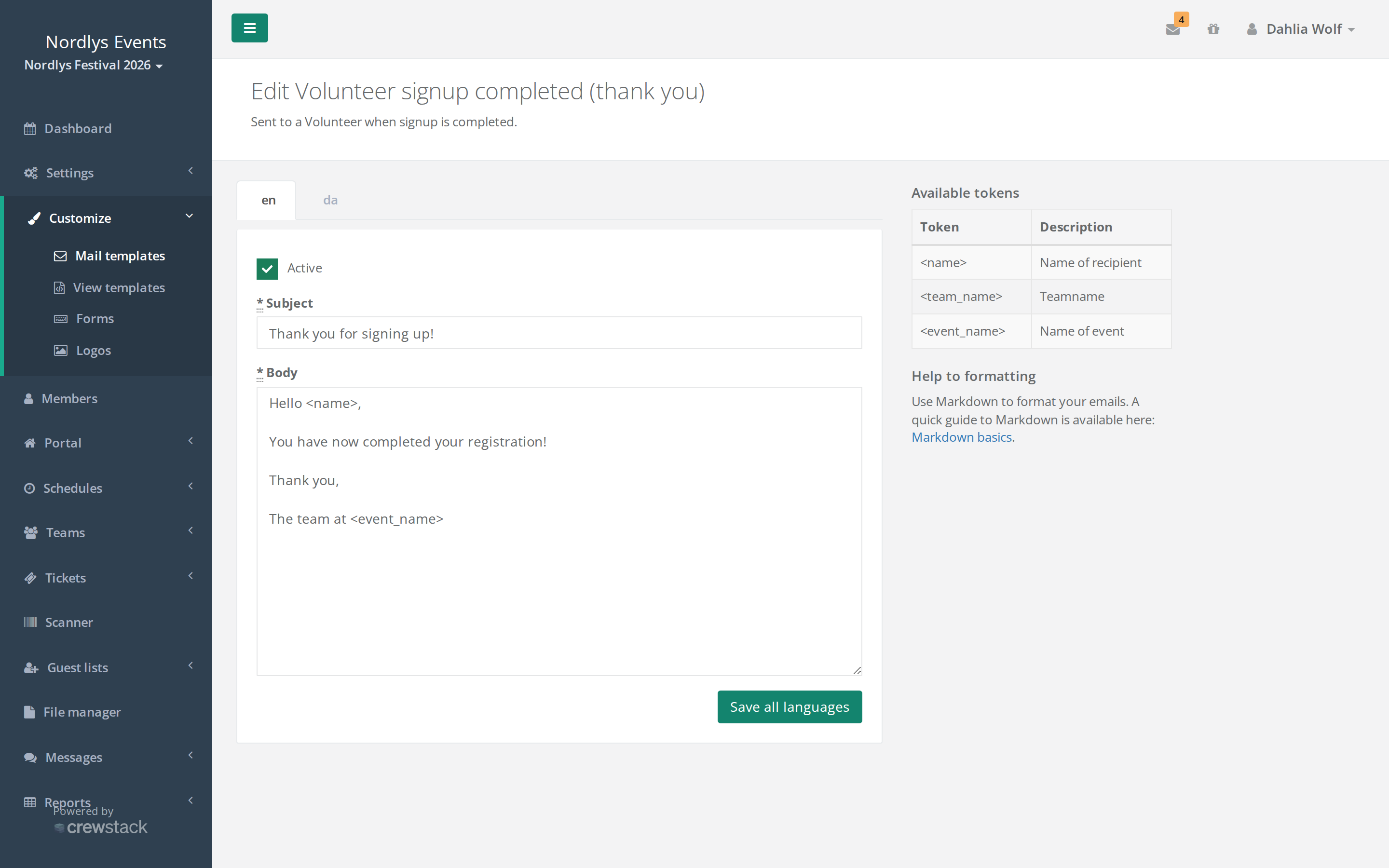
- There is a tab for each of the event's languages. Write the Subject and Body on each tab.
- Tick Active on each tab that should be used.
- Click Save all languages. All the tabs are saved at once.
- See the result under Preview at the bottom of the page. It shows the saved text for the tab you are on. If you have changed something, save and reload the page.
Tokens
Words in angle brackets, for example <name>, are replaced with the real details when the email is sent. The Available tokens table on the right shows which tokens this particular email can use and what they mean. A few examples:
<name>: the recipient's name<event_name>: the event's name. Works in every email.<team_name>: the team's name<confirmation_url>: the link that confirms the email address at signup<reset_url>: the link for choosing a new password
Write the token exactly as in the table. A token that isn't in the table for that email isn't filled in.
Formatting
The Body is written in Markdown. Under Help to formatting there is a link to a guide. The most used:
- An empty line starts a new paragraph.
**bold**gives bold text.[Read more](https://example.com)gives a link.
The logo, colours and the frame around all emails are not set here but in the view template Email layout. See View templates and the front page.
Which template is used?
Crewstack uses the most specific template that has Active ticked:
- The member type's own template in the person's language.
- The member type's own template in the event's primary language.
- Default in the person's language.
- Default in the event's primary language.
- Crewstack's built-in text.
The person's language is the one they chose in the System language field. If the member type doesn't have that field, the event's primary language is used. The exception is the mails for confirming an email address, resetting a password and invitations: they go out in the language the page was in when the mail was sent. When an admin sends an invitation, that is the admin's language. See Several languages in your event.
Sender
If your organizer has set up its own sending domain for the event, each tab also has fields for the sender's name and for the part of the sender address before the @. If you leave them empty, the domain's default sender is used. See A custom domain for an event.
Pitfalls
- English speakers get the Danish text. If you save a template without Active ticked on, say, the English tab, Crewstack skips it and uses the text in the primary language. Only Default in the primary language has the box ticked from the start. A new template for a member type starts with the box unticked on every tab.
- Member type text in only one language. A member type's own template in the primary language is used before Default in the person's language. If you make a separate text for a member type, write it in every language.
- The preview shows the old text. It only shows what has been saved. Click Save all languages and reload the page.
- The email for being added to a team isn't on the list. If you switch on Send email when member is added to a team under General settings > Notifications, Crewstack sends its built-in text. It can't be edited under Mail templates.
- The email with a team's invite link is on the list as Team invite link name English.
- Messages: The New message email contains only a link to the message by default. See Messages.
- The email change mail is used in two places. Email change confirmation is also sent when a crew member has to confirm a secondary email, but the default text is about changing your email. See Secondary email.
Didn't find the answer? Write to support@crewstack.io.