
Crew members are stuck in the signup
A checklist of the things that can stop a crew member in the signup, and how to fix each one.
When crew members say they're "stuck" in the signup, there's almost always a specific reason: an unconfirmed email, a data field missing from the signup flow, or teams that are closed or full. Use the checklist below to find the cause.
How a signup works
- The crew member enters their email. New crew members choose a password. Crew members who have been with you before log in with their old password.
- New crew members get an email and have to click the link to confirm their email. Only then can they continue.
- The crew member fills in the pages of the member type's signup flow and clicks Continue on each page.
- If the member type has Team select switched on, the crew member chooses a team on the Choose team page.
- Finally, the crew member clicks Confirm on the Confirm sign up page. If the member type requires payment, they pay here.
The signup is only complete after step 5. The person then gets the status Signup completed or On waitinglist.
Find the people who are stuck
- Go to Members and click Show advanced.
- Set Completed signup to No and Confirmed to All.
- Click Search.
A grey circle means the person hasn't confirmed their email. A red circle means the email is confirmed, but the signup isn't complete.
Check this
1. The email isn't confirmed (grey circle)
New crew members can neither log in nor continue until they've clicked the link in the confirmation email. After choosing a password, they see the page Please confirm your email address.
- Open the person's profile and click Resend confirmation email. Ask them to check their spam folder.
- The person can also click Didn't receive confirmation instructions? on the login page themselves.
See also The confirmation email doesn't arrive.
2. A required data field is missing from the signup flow
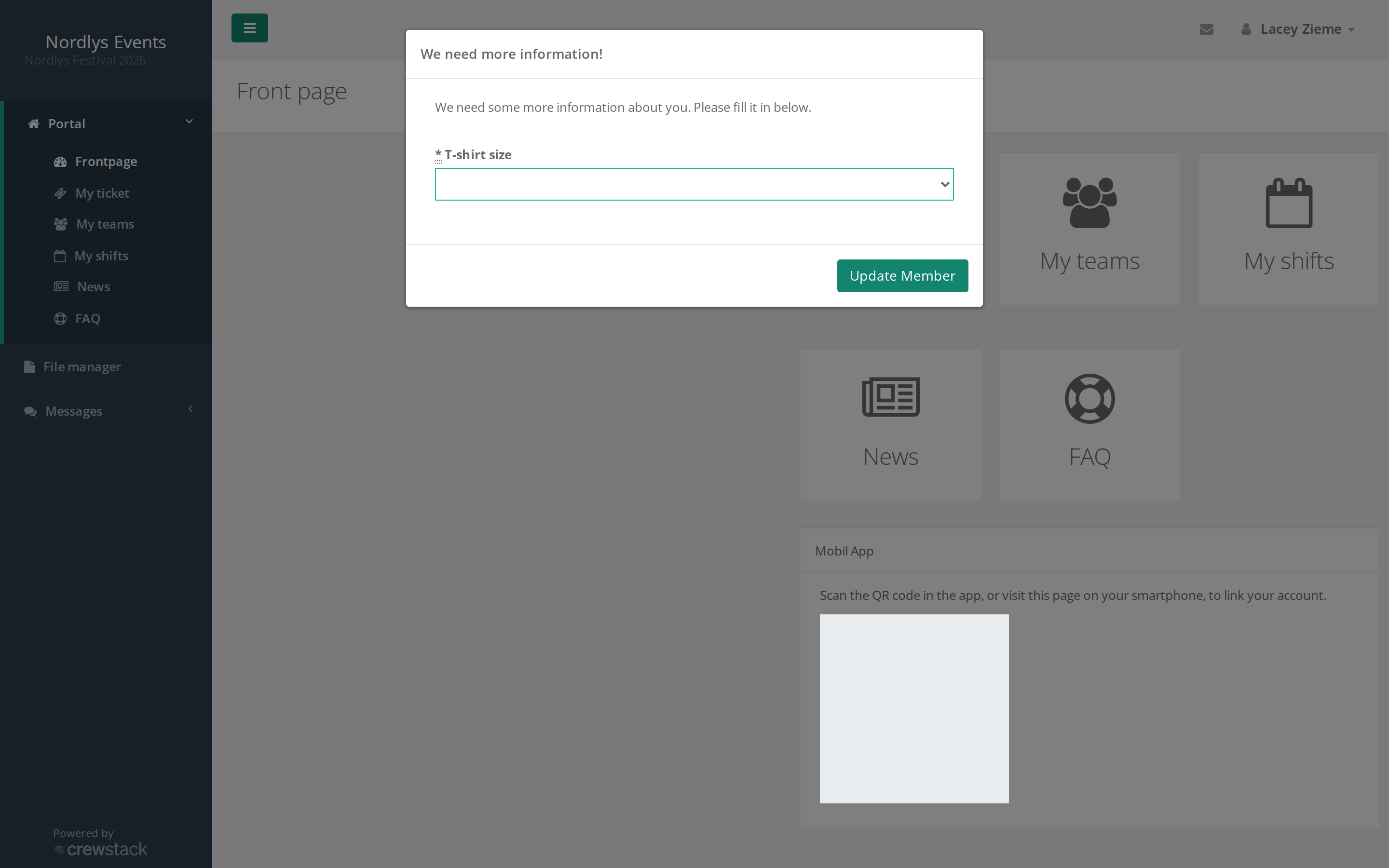
Every data field marked as Required on the member type must also be on one of the pages in the signup flow. Otherwise the person is never asked for it during signup. Once the signup is complete, they instead get the window We need more information! on every page, and it can't be closed until the fields are filled in.
How to check it:
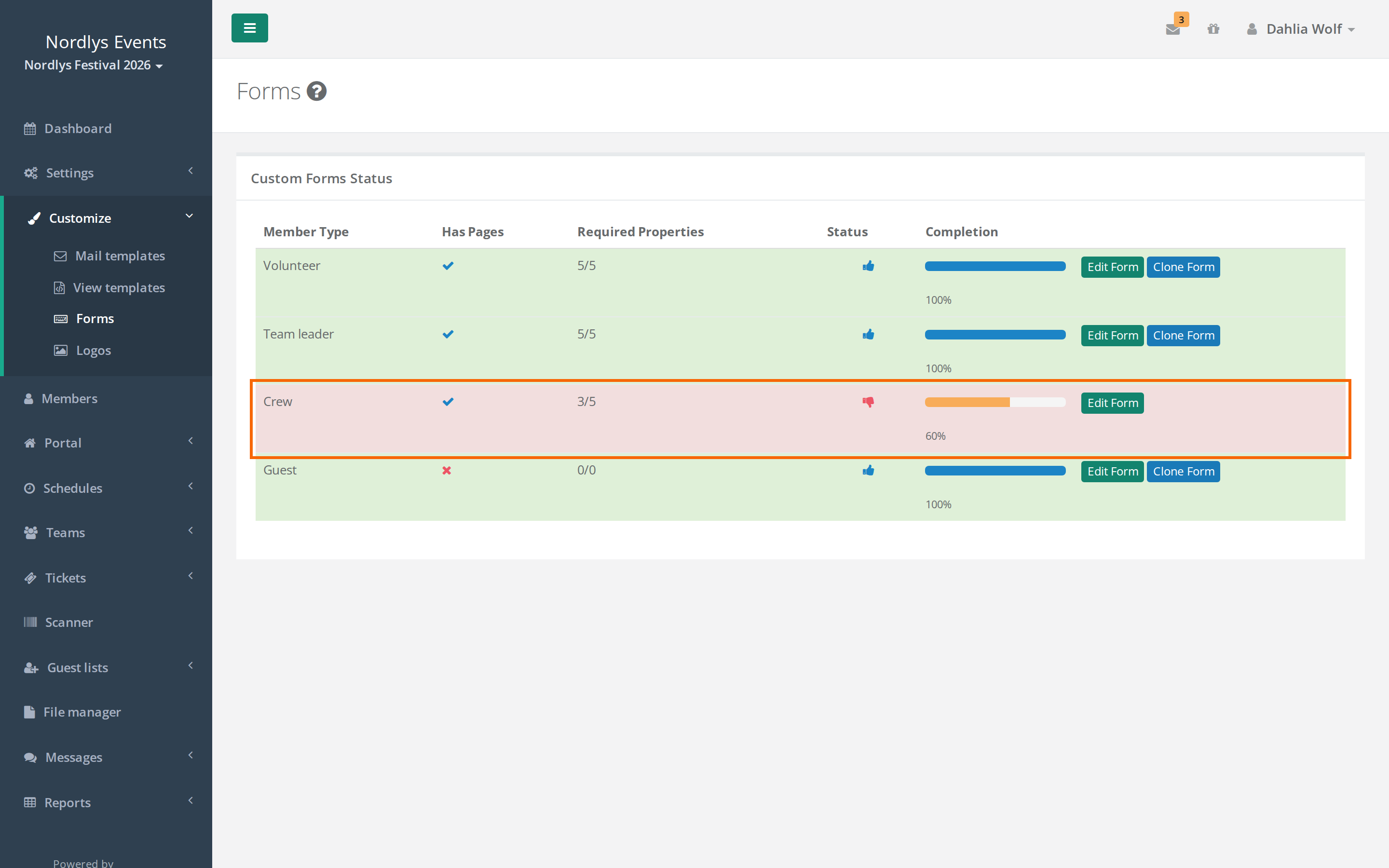
- Go to Customize > Forms.
- Look at the Custom Forms Status table. A red row means required fields are missing. The Required Properties column shows how many are included, for example 3/5.
- Click Edit Form next to the member type and drag the missing fields from the list on the left onto a page. Click Save.
3. Signup is closed
Check Settings > General settings > Signup status. If it isn't set to Open for everyone, only some people can sign up, and the others get a message such as Event closed or Signup is only allowed with a invite link.
4. There are no teams to choose (Teams are full)
If the member type has Team select switched on, there must be at least one team the person can choose. A team can be chosen when:
- the team's Signup status is Open,
- the team is open to the person's member type, and
- there are free spots left, including for that member type.
If no team meets these conditions and Waiting list activated is switched off, the crew member gets the message Teams are full and can't go on. Open a team, raise the Member limit, or switch on Waiting list activated under General settings.
5. The team is full, or the team choice is rejected
- You must select a team to continue. The person hasn't chosen a team.
- If the team fills up while the person is signing up, their choice is rejected. Ask them to choose another team.
- There is not enough … available. The team's product budget can't cover one more person. Raise the budget, or ask the person to choose another team.
If one of these errors appears when the person clicks Confirm, they stay on the Confirm sign up page with the error at the top. Fix the cause and ask them to open the same signup link again. They start on the first page and can click through to Choose team. Their answers are saved.
6. The invite link doesn't work
- The invite token … is not valid. The link is wrong or old. Send a new invite link.
- The team, …, that you are invited to are unfortunately no longer open for signup. The team's Signup status is Closed, or the team is full. Set it to Open or Invite only, or add more spots.
See Invite crew members to a team.
7. The person has ended up on the waiting list
If Waiting list activated is switched on and the person can't choose a team, they go on the waiting list. A box at the top of the signup says so. Once the signup is complete, their status is On waitinglist, and when they log in, they only see the waiting list page. They're not stuck. They're waiting for you. When they should join, put them on a team: Go to the team and click Add members. That takes them off the waiting list and sends them an email about it. Promote from waiting list on the profile also takes them off the list, but without a team and without an email. See How the waiting list works.
8. The member type requires payment
The last page is then a payment page. The crew member clicks Pay for signup and pays by card at Stripe. Afterwards they come back to the Confirm sign up page and still have to click Confirm. Only then is the signup complete. See Membership fees.
9. The person is too young
You have to be atleast … years to sign up. The rule only applies if there is a birthdate field in the signup flow. The age is calculated from the event's start date if one is set, otherwise from today's date. The limit is set under Minimum age on the member type or in General settings.
10. The person switched signup links along the way
If you have several member types, each with its own signup link, make sure the person stays on the same link. If they open the link for another member type before they're done, their unfinished signup is deleted and they start over as the new member type.
11. The person has resigned or is blacklisted
They get the message You have resigned from … or You are blacklisted from … and can't sign up. See Resigned users – find and restore. See also Resign, blacklist or delete a user.
Test the flow yourself
Didn't find the answer? Write to support@crewstack.io.