
Shifts in crew members' own calendars
How crew members subscribe to their shifts in the calendar on their phone or computer, and what is included.
Crew members can get their shifts into their own calendar, for example on their phone. It is a subscription, so new and changed shifts come along by themselves. Here you can see how they do it, and what to answer when a shift is missing from the calendar.
How the crew member sets it up
Ask the crew member to do this:
In the portal
- Go to Portal > My shifts.
- Click Subscribe to Calendar at the top of the page.
- Confirm when the device asks whether to add the calendar.
In the Crewstack app
- Go to the Shifts tab.
- Tap Add to calendar.
- Confirm when the phone asks whether to add the calendar.
Both ways give the same subscription.
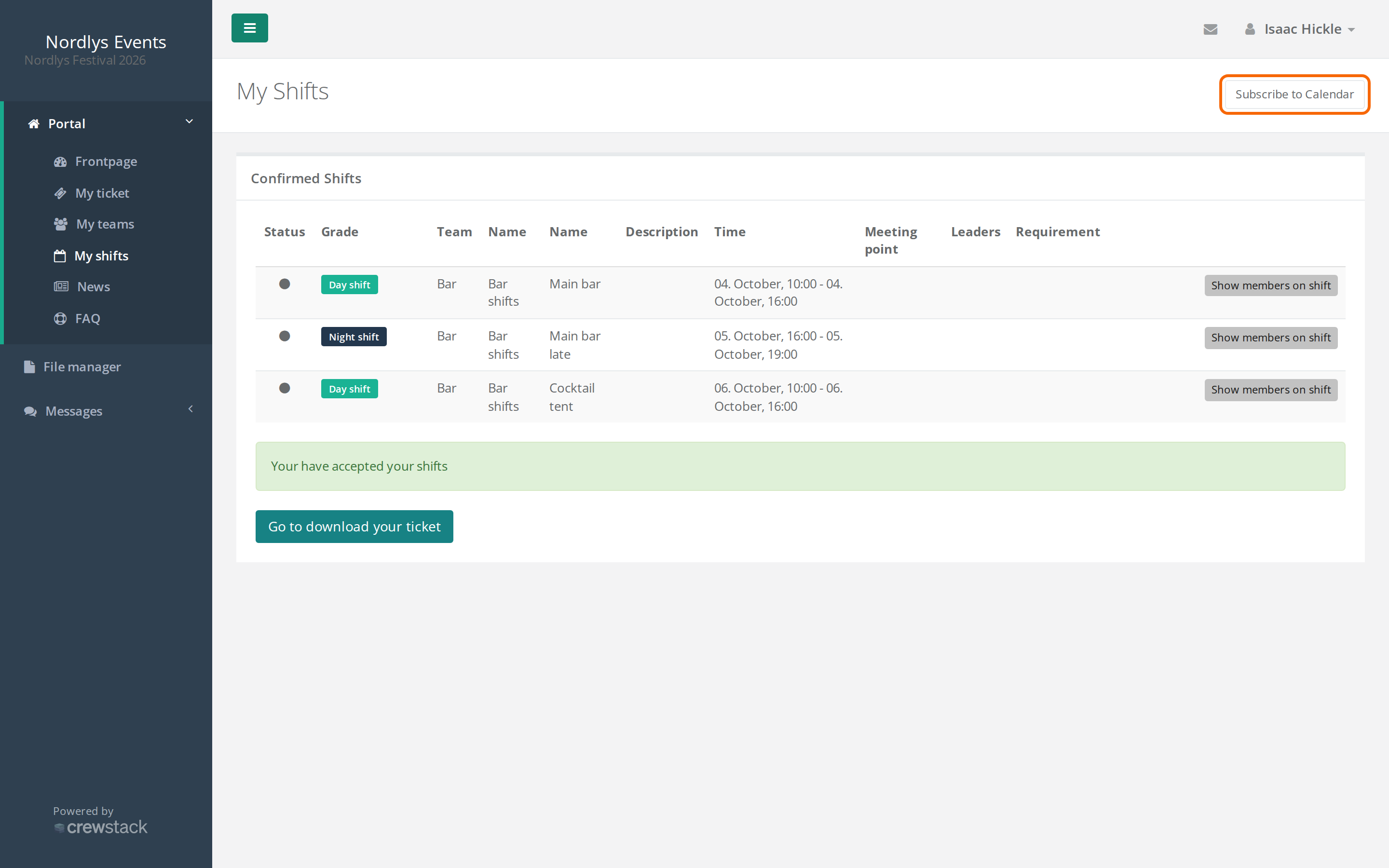
The link is an ordinary calendar subscription (webcal). If the button doesn't open the right calendar, the crew member can copy the link and add it in their calendar app as a calendar from a web address.
What is in the calendar
- All of the person's shifts in the event, both upcoming and past, but only from schedules that are published.
- For each shift: start, end, the event's name and the shift's name. If the shift has no name, the schedule's name is shown.
- Anything else about the shift, such as the meeting point, is not included.
When you put the person on a new shift, move a shift or remove the person from a shift, the change comes through to the calendar. The calendar app fetches changes by itself at regular intervals, so it can take a few hours before they show up.
Check this when a shift is missing
- Is the schedule published? Shifts from a schedule that isn't published are not included. If you unpublish a schedule, its shifts disappear from the calendar. See Publish a schedule.
- Is the person on the shift? Check the person's shifts on their profile. An admin can also see My shifts through the person's eyes with Log in as. See Log in as another person.
- Is it the right event? The subscription covers one event. If the person is in several events, they need to subscribe in each event separately.
- Has the calendar fetched the change yet? If the shift was just added or moved, wait a few hours.
Pitfalls
- The link is personal. Anyone who has the link can see the person's shifts without logging in. Ask crew members not to share it. The link can't be replaced.
- Resigned people. If the person is resigned, the subscription stops working.
- Shifts can't be accepted in the calendar. If shifts need to be accepted, that happens under My shifts. See Shift acceptance.
Didn't find the answer? Write to support@crewstack.io.