
Log in as another person
See Crewstack exactly as a crew member sees it with Log in as, and find out why the button is sometimes missing.
When a crew member runs into a problem or doesn't understand something, you can log in as them and see exactly what they see. You need to be an admin or super admin.
How to log in as a person
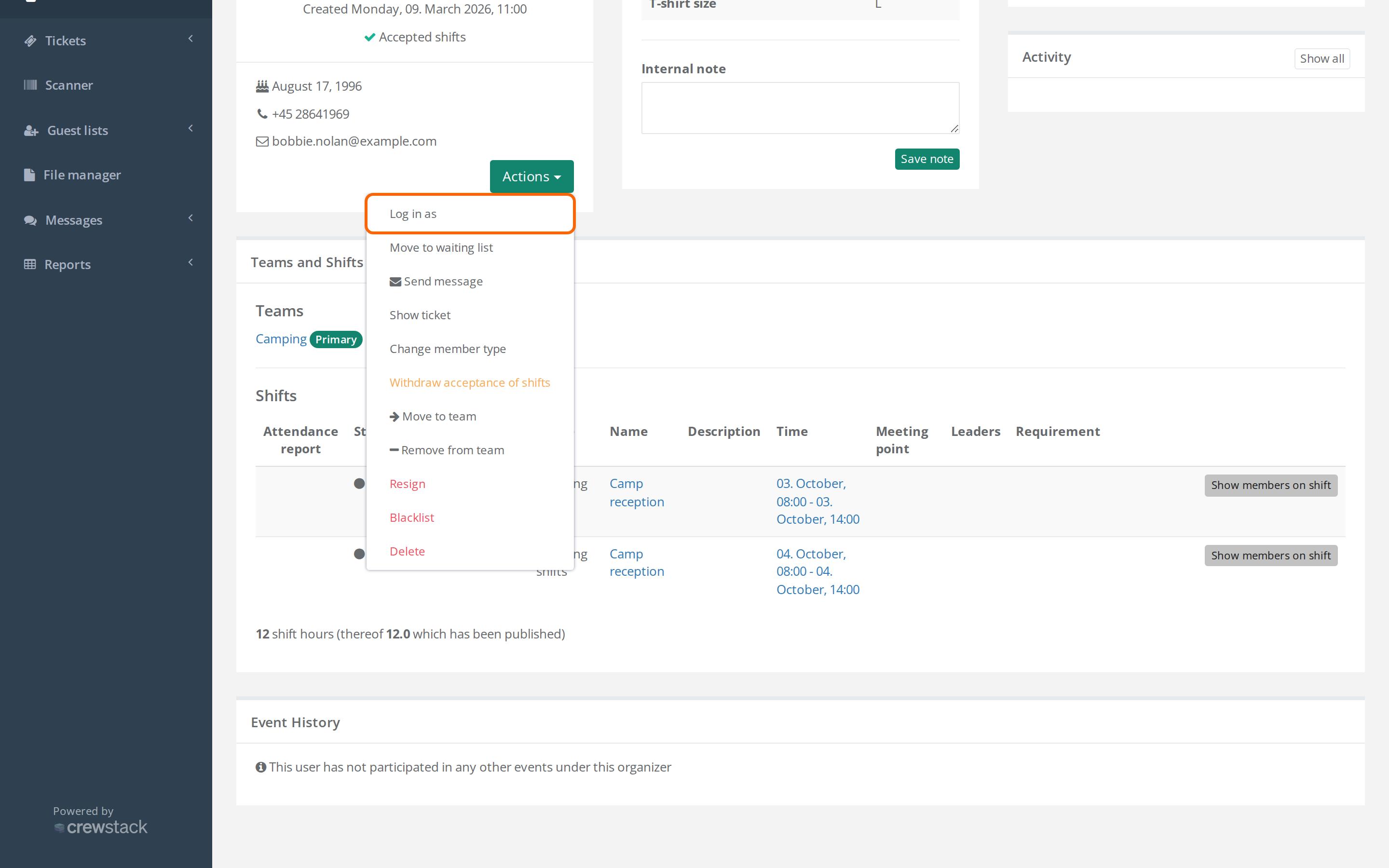
- Find the person under Members and open their profile.
- Click Log in as. If the profile has many actions, it's under Actions.
- You land on the event's front page as the person sees it. You are now logged in as the person.
How to stop again
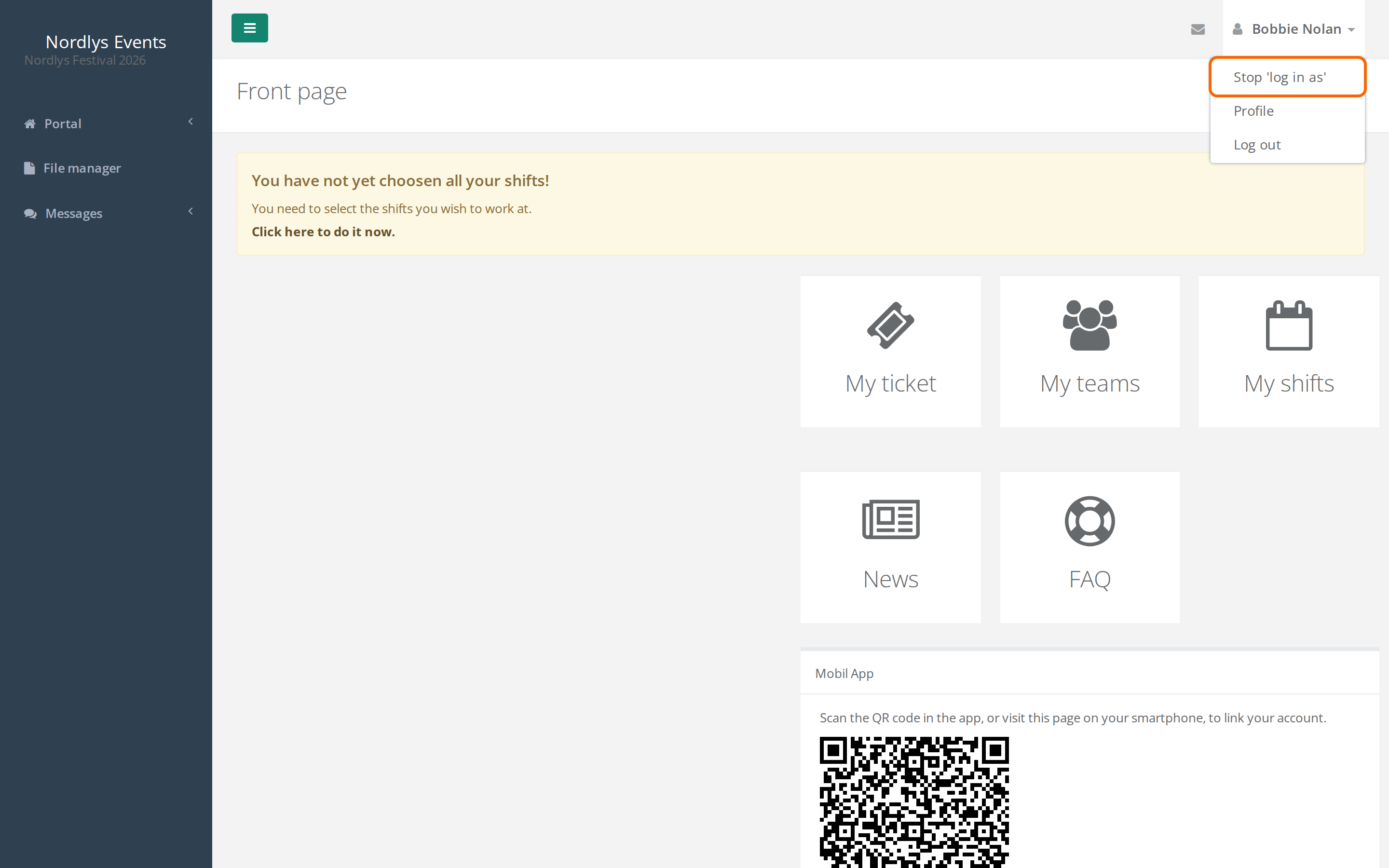
- Click the person's name at the top right.
- Click Stop 'log in as'.
You are now logged in as yourself again and on the event's front page.
When the button is missing
The Log in as button only shows when you're allowed to log in as the person. If it's missing, it's for one of these reasons:
- You're not an admin. Team leaders and group leaders can't use Log in as. Ask the crew member for a screenshot instead.
- The person has resigned. You can't log in as a resigned person.
- The person is also in another of your events. Then only an organizer admin can log in as them. This applies, for example, to crew members who are also in last year's event.
- The person is an organizer admin. Only another organizer admin can log in as them.
- The person is a super admin and you aren't. Only super admins can log in as another super admin.
If you are an organizer admin yourself, you can log in as anyone in the event who hasn't resigned.
Good to know
- What you do is done in the person's name. If you accept shifts, send a message or change details, it looks as if the person did it themselves. So use Log in as to look, and preferably fix things from your own user.
- It doesn't test the person's password. If the person can't log in at all, see A crew member or admin can't log in.
- Browser only. You see the portal and the rest of Crewstack in the browser, not the Crewstack app.
- Two-factor authentication stays with you, not the person. You can neither see nor change the person's Two-factor authentication while you're logged in as them.
Didn't find the answer? Write to support@crewstack.io.