
Publish a schedule
What it means to publish a schedule, how you do it, how crew members are told, and what to check when they can't see their shifts.
Crew members can only see their shifts once the schedule is published. Until then you can plan in peace, without anyone seeing the shifts or getting emails about them.
What happens when the schedule is published
- Crew members can see their shifts under My shifts in the portal, under Shifts in the Crewstack app and in their shift calendar, if they subscribe to it. See Shifts in crew members' own calendars.
- They can accept the shifts. See Shift acceptance.
- If shift selection is turned on for the schedule, they can pick or prefer shifts themselves. See How crew members pick their own shifts.
- If Send email when member is assigned to a new shift is on, a person gets an email every time you put them on a shift.
Until the schedule is published, the name is followed by (not published) under Manage schedules, on the team page and on the schedule's overview. Shifts on a schedule that isn't published don't need to be accepted.
How to publish the schedule
- Go to Schedules > Manage schedules, and click the schedule's name.
- Click Edit settings at the top right.
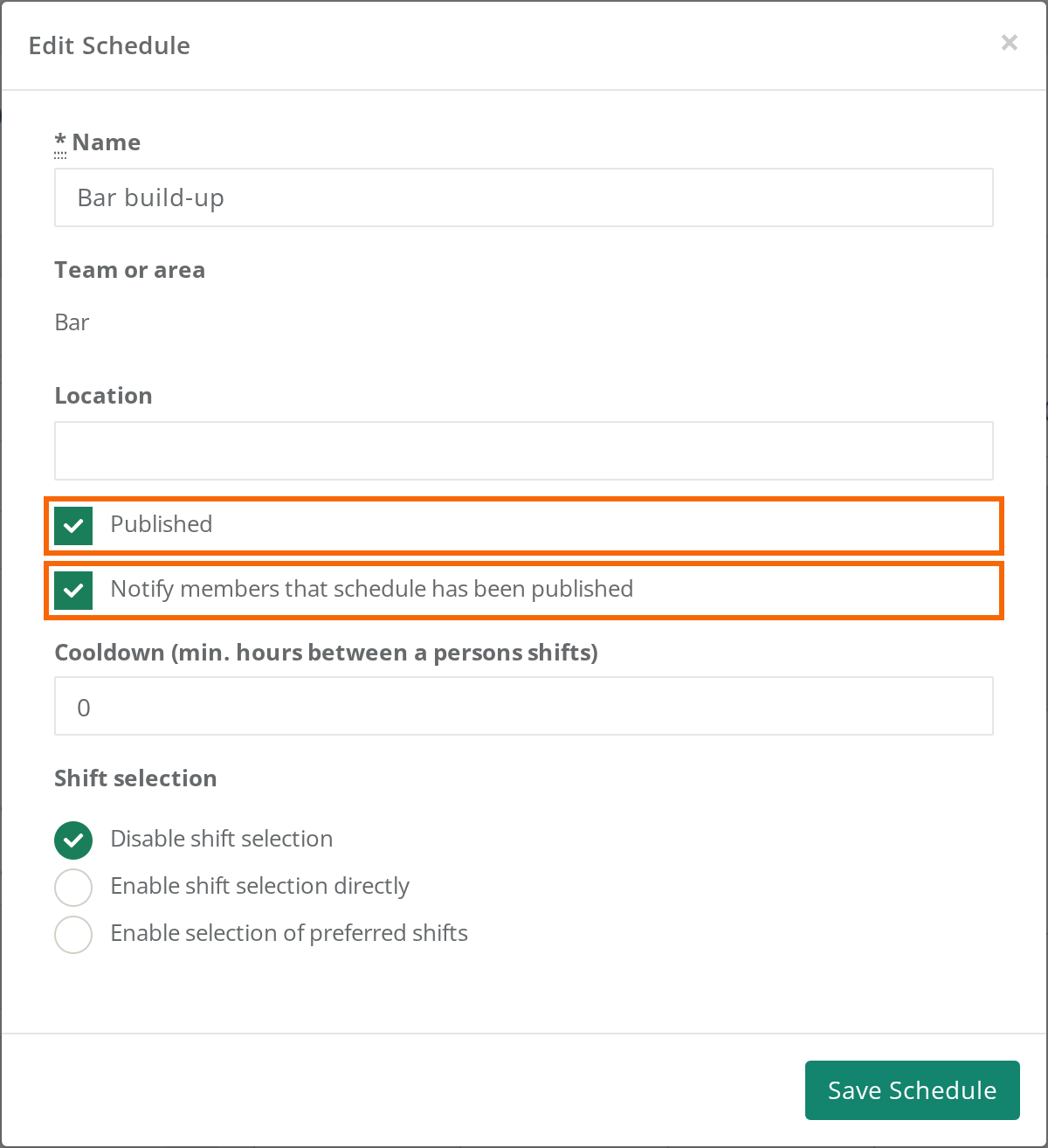
- Tick Published.
- If everyone on the schedule should get an email about it, also tick Notify members that schedule has been published.
- Click Gem Schedule.
You can also go to Manage schedules and choose Actions > Edit Schedule next to the schedule. Team leaders can publish the schedules for their own teams.
Tell your crew
Notify members that schedule has been published sends the Schedule published email to everyone who has at least one shift on the schedule. The email has a link to My shifts. A super admin can change the text under Customize > Mail templates.
If you have put attendance registrars on the shifts and Send email when member is assigned to a new shift is on, they get an email at the same time telling them to register attendance. See Attendance registration and shift leaders.
The email is only sent when the schedule goes from not published to published. It isn't sent if you tick Published already when you create the schedule, and not if the schedule was published before.
If you put people on shifts after the schedule is published, they are only told if Send email when member is assigned to a new shift is on. A super admin turns it on under Settings > General settings > Notifications. See Automatic emails and SMS reminders. Otherwise you have to tell them yourself, for example with Send message next to the shift on the schedule's overview. See Overview and export of schedules.
Unpublish it again
Untick Published, and click Gem Schedule. The shifts disappear from My shifts and from the app, and crew members can no longer pick shifts on the schedule. The people stay on the shifts, and shifts that were accepted are still accepted when you publish again. Crew members aren't told.
Check this when crew members can't see their shifts
- Is the schedule published? If the name is followed by (not published), publish it.
- Is the crew member on the shift? Open the shift in the schedule planner, and look at the Assigned members tab. If the crew member only preferred the shift, it's under Suggested members until you assign it.
- Is the crew member looking in the right event? The shifts are only in the event the schedule was created in, for example not in last year's event.
- Is the crew member using the app? The app also only shows shifts on published schedules. Shifts have to be accepted in the portal.
Pitfalls
- Notify only works once: If you tick Notify members that schedule has been published on a schedule that is already published, nothing happens. Write to them instead. See Messages.
- Published from the start: If you publish the schedule while you're still building it, crew members can see half-finished shifts, and every new shift can send an email.
- SMS reminders also go out before publishing: If you use SMS reminders, the people on a shift get a reminder before the shift, even if the schedule isn't published. If the schedule shouldn't reach your crew yet, untick Send sms reminders under Edit settings. See Automatic emails and SMS reminders.
- Tickets: If the team has a schedule, the team's crew members can only get their ticket once they have accepted shifts on a published schedule. See A crew member can't get their ticket.
Didn't find the answer? Write to support@crewstack.io.